
You can change your password two ways: from Settings → Profile if you're signed in and know your current password, or with an emailed reset link if you've forgotten it.
Change your password while signed in
- Click your name in the bottom-left corner of the sidebar and choose Profile.
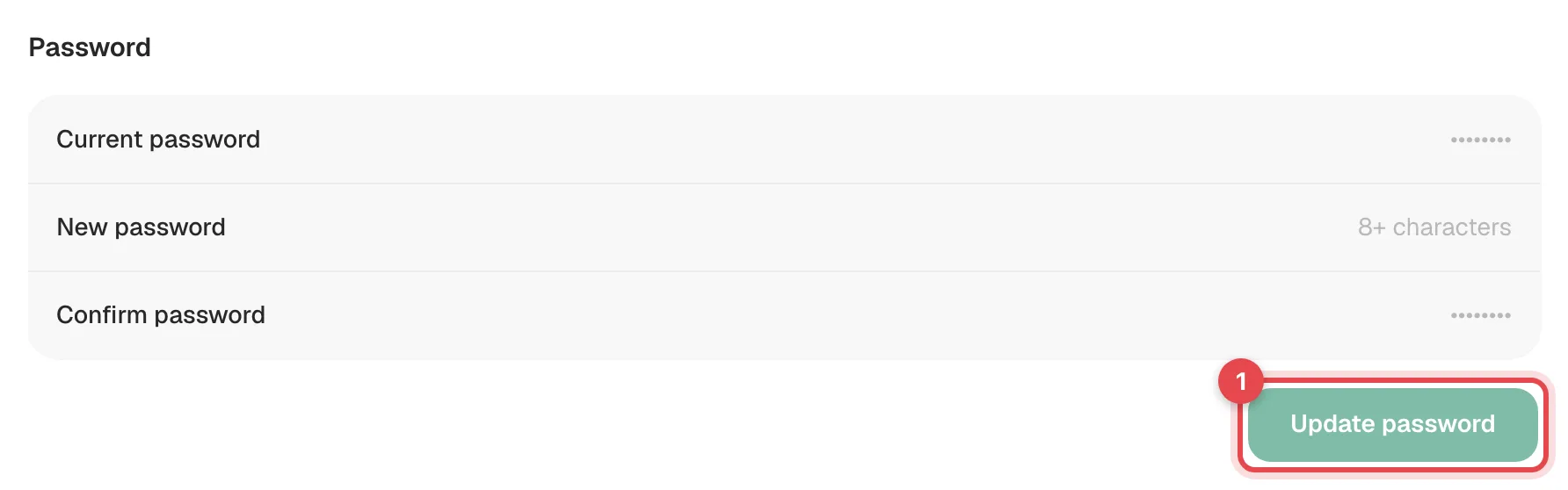
- Scroll down to Password.
- Enter your Current password, then your New password twice (New password and Confirm password).
- Click Update password. You'll see Password updated.
Reset a forgotten password
Open the sign-in page
Go to app.runacall.com. If you're in the mobile app, sign out first.
Click "Forgot your password?"
It's next to the Password box. Enter the email you sign in with and click Send reset link.
For your privacy, the page always answers If an account exists for that email, we just sent a reset link. Check your inbox (and spam). — even if the email isn't on an account.
Open the email and choose a new password
Open the email from Run a Call and click the reset button. Enter your new password twice and save.
The reset link works once, and the email tells you how long it stays valid. If it has expired or was already used, go back to step 2 and request a new one.
Password rules
New passwords must have all of these. A checklist under the box ticks each one off as you type.
| Rule |
|---|
| At least 8 characters |
| One uppercase letter |
| One lowercase letter |
| One number |
| One symbol (e.g. ! @ # $) |
Sign out a lost or shared device
If you think someone else is signed in as you, change your password, then sign out the other devices:
- Go to Settings → Profile and click See all active sessions.
- You'll see every device signed in to your account. Click Sign out next to one you don't recognize, or Sign out everywhere else to keep only the device you're on.
A signed-out device is logged out the next time its session refreshes, usually within an hour.
Good to know
- Didn't get the email? Check spam, and make sure you typed the email you actually sign in with. Still nothing? Ask an owner or admin on your team to send you a reset from Settings → Team — see Resetting a team member's password.
- Your sign-in email can't be changed in the app once you've accepted your invite. Contact Run a Call support from Settings → Support if it needs to change.
- Two-factor authentication isn't available for Run a Call accounts.