
Time clock rules let you set your own pay rules on top of the time clock: round every punch to the nearest few minutes, take an unpaid lunch off every full day automatically, end a tech's day when their last job is done, and flag taps made far from the job. Each rule is its own switch, off until you turn it on, and each one uses your numbers.
Who can do this: owners and admins, on Settings → Team → Time clock rules.
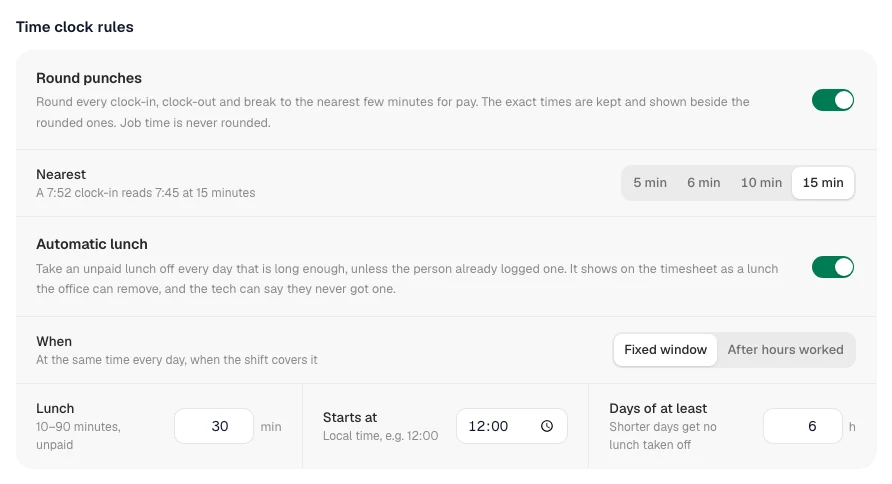
Round punches
Turn on Round punches and pick 5, 6, 10 or 15 minutes. From then on every clock-in, clock-out and break edge is rounded to the nearest increment for pay.
- A 7:52 clock-in reads 7:45 at 15 minutes; 7:53 reads 8:00. A tie (7:37:30) rounds up.
- The exact times are kept. On a person's day panel and on their own Time Log, the paid window shows beside the exact one: 8:07 AM – 8:53 AM → 8:00 AM – 9:00 AM.
- Rounding happens before overtime, so a 10 h 08 m day at 15 minutes is 10 h 15 m for overtime.
- Job time (on site, driving) is never rounded. Only the shift punches are.
- Approved, locked periods keep the rounding that was in force when you locked them. Changing the increment later never rewrites a locked period.
Automatic lunch
Turn on Automatic lunch and choose when it applies:
- Fixed window — the same time every day, for example 12:00 for 30 minutes. It applies when the person's shift covers the whole window.
- After hours worked — for example 30 minutes once the shift has run 6 hours.
Then set the lunch length (10–90 minutes) and the shortest day it applies to (Days of at least, default 6 hours).
What happens on each day:
- The lunch is taken off as an unpaid break and shows on the timesheet like any other lunch, marked automatic.
- If the person already logged an unpaid lunch that day, nothing is added. If they log one afterwards, the automatic one comes off.
- If a logged break sits in the way, the automatic lunch moves to the next free gap in the shift. If nothing fits, the day is marked needs review instead.
- The person was on a job over lunch? Pay is still deducted. Job time is not changed.
- On a day that is still running, the lunch appears once the window has passed, so the Worked today total in the app is right at 12:30, not only at clock-out.
End the day with the last job
Turn on End the day with the last job and a tech's day ends when they complete, cancel or mark no-show on the last job left on their list for today. The day closes at that job's completion time, not later, so nobody is paid for a drive home under this rule. Leave it off if you pay the drive home.
- The tech sees Your day will end at 4:32 PM with a Keep working button for 15 minutes. Starting another job, a Track Time activity or a break in that time also keeps the day open.
- After the 15 minutes the day is closed and the tech gets a notification. The Track Time tab then shows Your day ended at 4:32 PM with Reopen, which brings the same day back that same day. The office adjusts anything older.
- A day the rule closed reads ended with the last job on the person's day panel.
- Multi-day jobs: wrapping a day counts as done for today. Helpers end their own day when they tap that they are done.
Location check
Turn on Location check and set a radius in miles. When a tech starts their day (the first On My Way) or taps Arrived, the app compares the phone's location with the job address. A tap farther than the radius flags the day for review, with the distance: Day started 23.4 mi from the job. A day started with no location at all is flagged too. Arrivals with no location are left alone.
Nothing is ever blocked. The tech's tap goes through as normal; the flag is for the office to look at on the person's day panel, where Resolve review clears it once it has been seen.
Pay classes
Some jobs pay differently — prevailing wage, a county rate, a night differential. A pay class marks those jobs so every tech's hours on them are reported on their own line.
Set them up on Team → Time → Payroll, the options gear, Pay classes. Each class has a name, an optional hourly rate (blank means the employee's own rate) and a switch for whether drive time to those jobs counts.
Put a class on a customer (their edit dialog, Default pay class), a property (its edit dialog) or a single job (the Pay class row on the job page, or the field on the new-job form). A new job takes the property's class, then the customer's, unless you pick one on the job itself. Changing a default later never rewrites existing jobs. The class shows on the dispatch card, the job page and the tech's job screen.
What you see once hours come in:
- Time → Timesheets gets a column per class with the hours on those jobs; the person's day panel splits the day into PW – San Joaquin 3h 07m · Regular 4h 53m and lists every job entry with its class.
- Payroll gets a column per class next to Regular, and the gross pays class hours at the class rate. Class hours are exact job time; if you round punches, Regular absorbs the rounding. Overtime is always paid on the employee's base rate.
- The payroll CSV carries the class columns. QuickBooks Payroll receives one time entry per class per day (named with the class, at the class rate when set) plus the Regular entry as before; re-syncing never doubles them. Gusto has no separate earning type, so class hours go inside Regular Hours — the sync preview says so.
Archiving a class keeps it on the jobs and pay periods that already carry it; it just stops being offered.
Punch detail
On Payroll, the options gear has Export punch detail: one row per punch for the period — shift in and out with the exact and the rounded time, every break (the automatic lunch is named), and every job entry with the job, the customer, the pay class and the minutes. It is the spreadsheet a payroll service or a prevailing-wage report asks for.
Job entries can also be corrected on the person's day panel: each row has an edit pencil (date, start, end, on site or travel) and a remove button. A correction re-costs the job. Rows inside an approved and locked period are read-only until an owner unlocks it.
Removing one, and what a tech can say
On Time → Timesheets, open the person's day. The automatic lunch has a small ×. Removing it takes it off that day for good; the rule will not add it back to that shift.
In the app, the person's Time Log shows Lunch 12:00 PM – 12:30 PM · automatic with I didn't get a lunch.
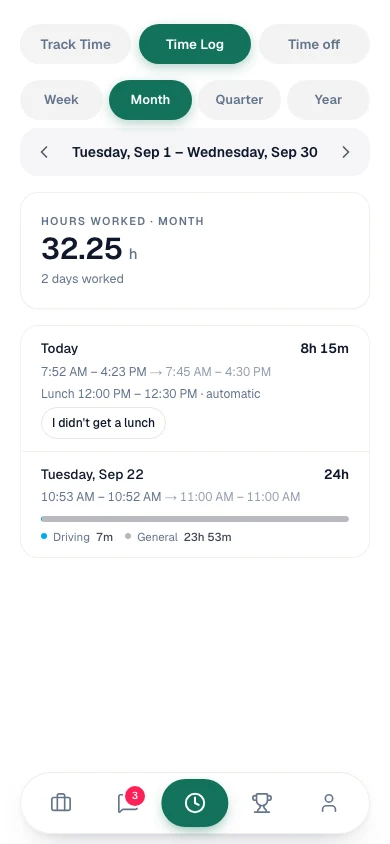 Tapping it marks the day needs review and tells owners and admins. The lunch stays until the office decides, so the day cannot be locked until then.
Good to know
- Every rule is off for every company until you turn it on; pay classes only appear once you add one.
- Payroll, the CSV, QuickBooks Payroll and Gusto all see the same rounded, deducted hours as the Time page.
- Turning time tracking off (Track employee time) turns all four rules off with it.