
Your team's hours come from the time clock: technicians clock in and out in the mobile app, and office staff use Clock in at the top of the screen. The Time page is where owners and admins review those hours, fix mistakes (a forgotten clock-out, a missed clock-in), and approve each pay period.
Who can do this: the Time page is available to owners, admins, and dispatchers. Only owners and admins can approve and lock a pay period, and only owners see the Payroll and Payroll Sync tabs.
Time tracking is on by default. An owner can turn it off for everyone with Track employee time on Settings → Team. Time off requests keep working either way, and no hours are deleted.
Open Time → Timesheets
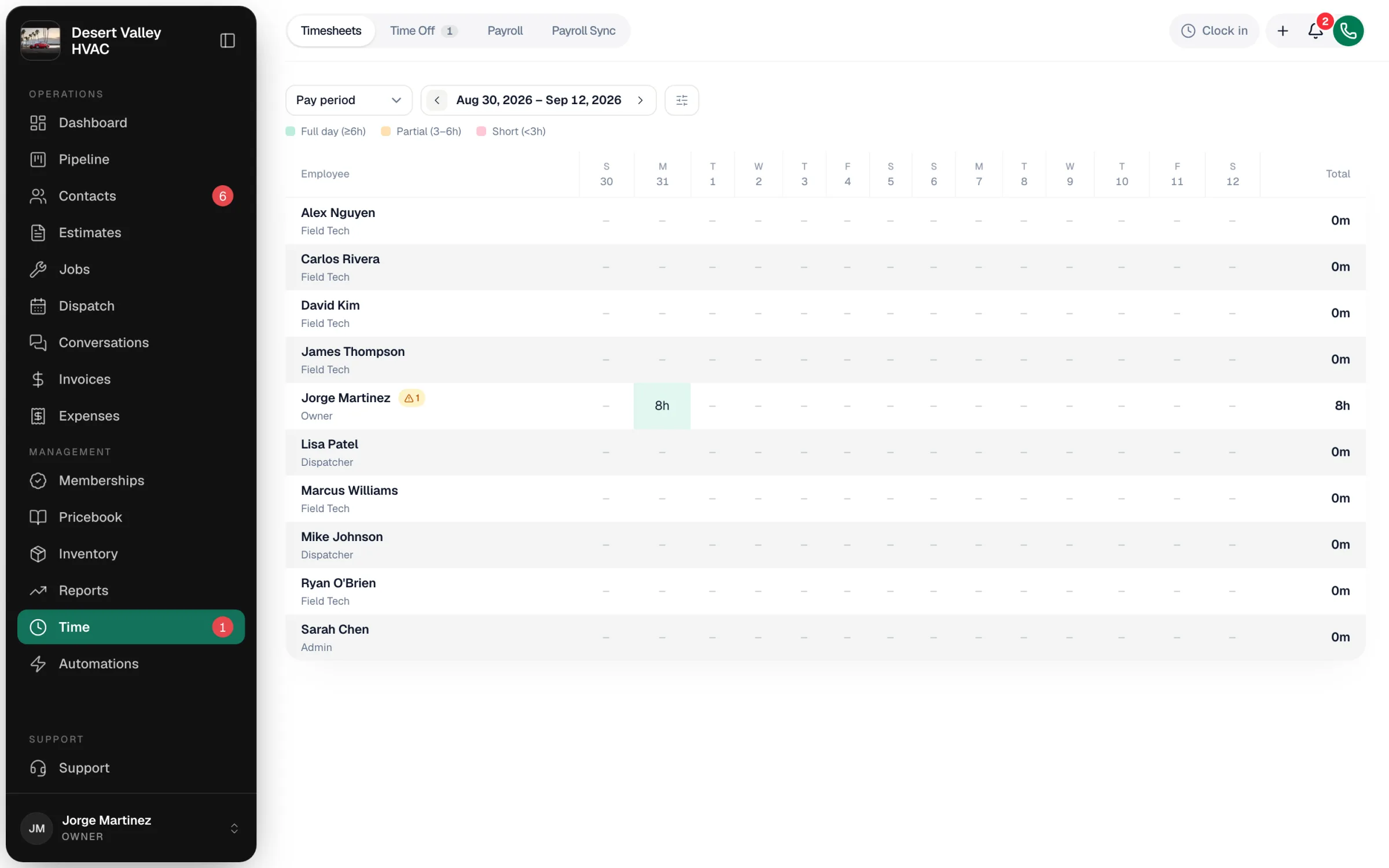
Click Time in the left sidebar. The Timesheets tab shows each person as a row and each day as a column, with a total at the end.
- Use the Pay period menu to switch between Pay period, Week, and Month, and the arrows to move between periods.
- Cells are shaded by length: Full day (≥6h), Partial (3–6h), Short (<3h).
- A warning mark next to someone's name means a shift needs review — usually a missed clock-out.
Open a person's day
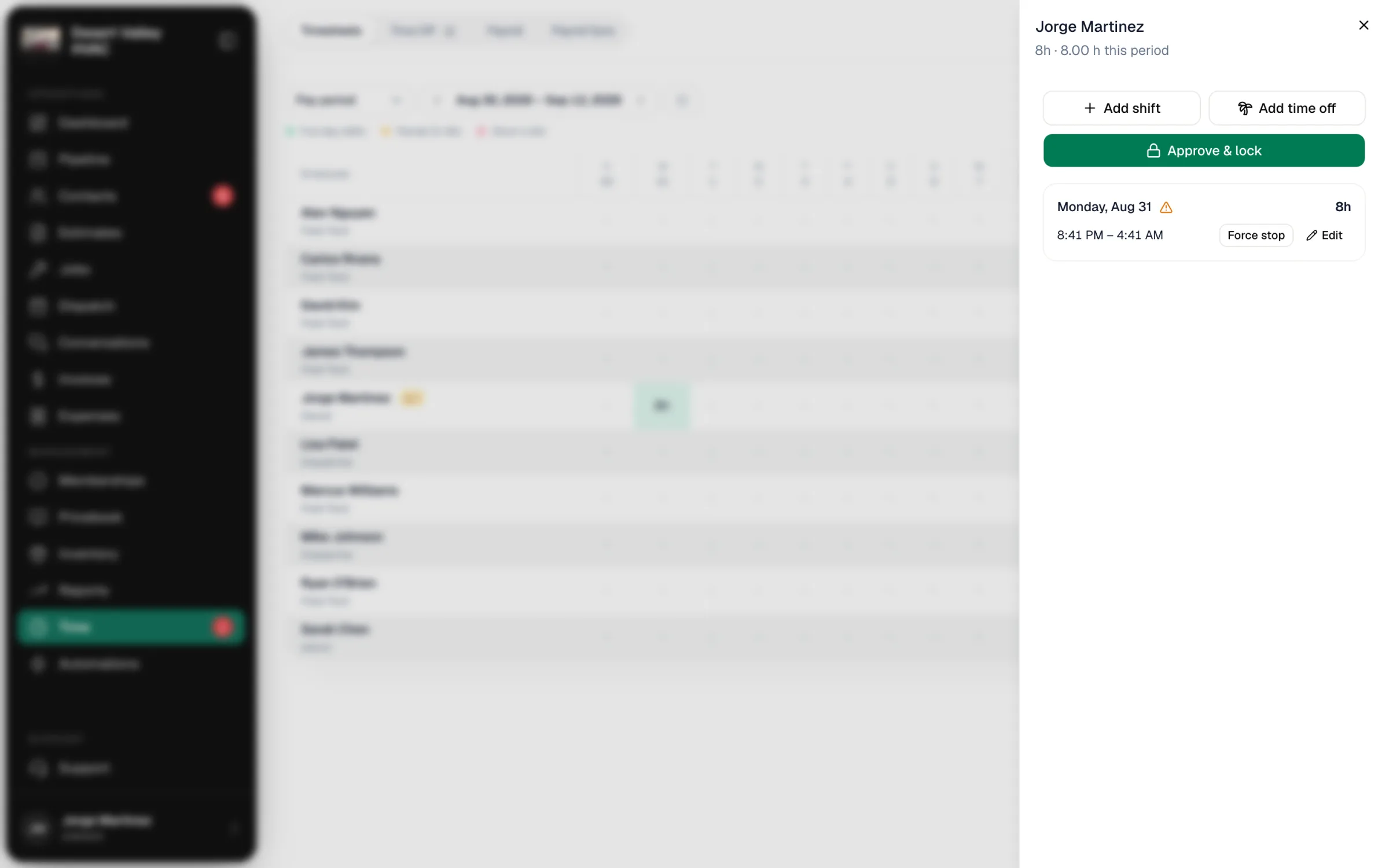
Click a day cell for that person. A panel opens with their shifts for the period.
Fix what's wrong
| Problem | Fix |
|---|---|
| They clocked in or out at the wrong time | Click Edit on the shift, correct the times, and click Save changes |
| They forgot to clock in | Click Add shift and enter the clock-in and clock-out times for that day |
| They're still clocked in but went home | Click Force stop on the open shift |
| They were out (vacation, sick, holiday…) | Click Add time off, pick the type and dates, and add an optional note |
Approve and lock the period
When the period looks right, click Approve & lock. Locked shifts are frozen so payroll matches what you approved. If a time off request for that period is still waiting, you're asked to approve or deny it first.
Need to change something afterwards? Open the panel and click Unlock period to edit.
Forgotten clock-outs
Run a Call watches for shifts that were never closed:
- After 16 hours, the shift is flagged needs review, and the employee plus your owners and admins get a notification.
- After 24 hours, it's closed automatically at the best estimate of when they stopped (their last job timer or break), and stays flagged. You can't approve the period until someone confirms or corrects it.
More on the Time page
| Tab | What's there |
|---|---|
| Time Off | Approve or deny time off requests, and see who's out |
| Payroll | Owners only: hourly rates, overtime rules, and gross pay per person for the period |
| Payroll Sync | Owners only: send approved, locked hours to QuickBooks Payroll or Gusto |
| My Time | Admins and dispatchers: your own hours and time off |
On the Timesheets tab, the options button next to the period also has Export CSV and Show deactivated.