
Every job in Run a Call has a customer project page — one private link where your customer can see where the job stands: the next visit and who's coming, what was approved, what they owe with a button to pay it, and the service report when the work is done. There's no login and no app to install.
How customers get the link
- Jobs that started as an estimate: the link in your estimate email is the project page. The same address they used to approve the estimate keeps working and fills in as the job moves along — nothing new to send.
- Any job: copy the link and send it yourself (see below).
Copy the link
- On a job: open the job and find Customer project link — One page where the customer follows the project — visits, photos, and payments. Click Copy link.
- On an approved estimate: the same card appears as Customer project link. (Before approval it's the Customer approval link.)
Paste the link into a text or email to the customer.
What the customer sees
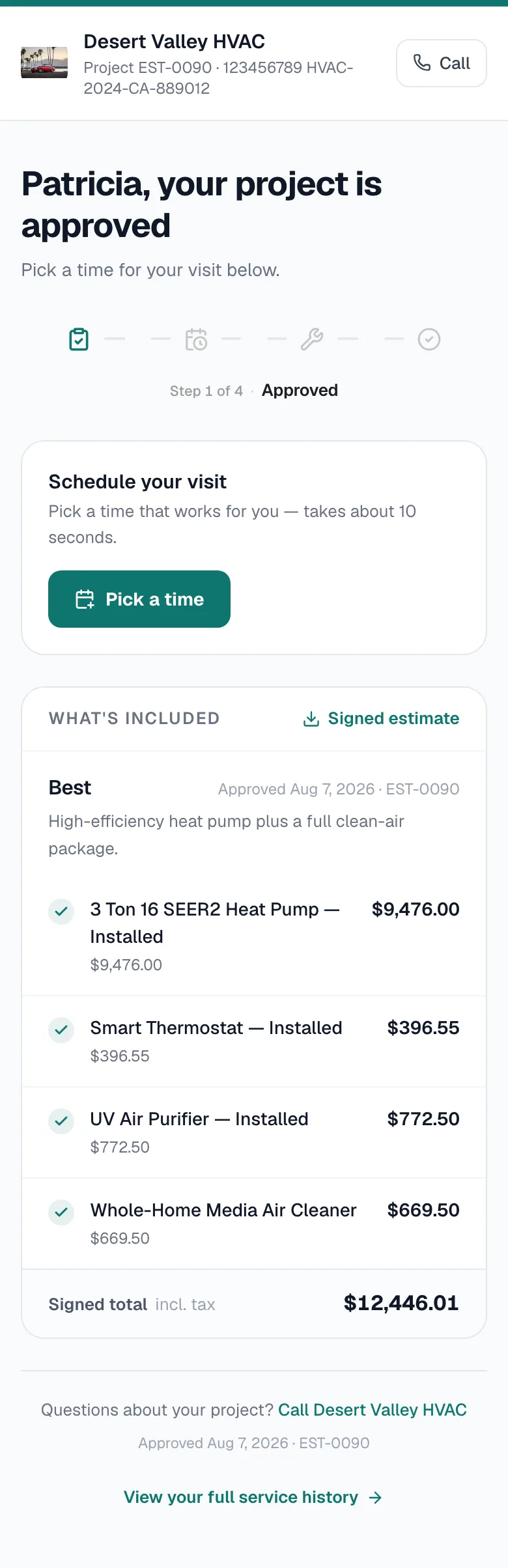
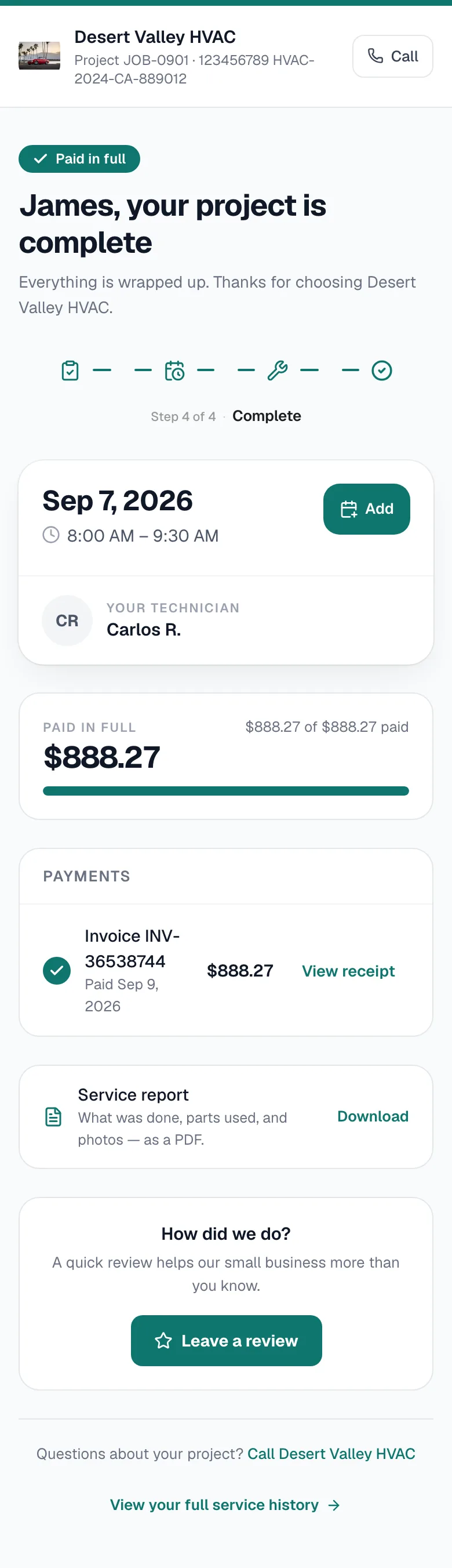
The page carries your logo, brand color, company name and phone number, with a Call button at the top. The headline and a four-step tracker follow the job: Approved → Scheduled → In progress → Complete.
| Section | When it shows | What the customer can do |
|---|---|---|
| Schedule your visit | Approved estimate, no time booked yet, and your shop lets customers pick their own time | Pick a time and book a morning or afternoon slot. |
| The visit | Once a visit is booked | See the date, arrival window and technician (first name and last initial). Add it to their calendar. If the visit is more than 48 hours away and it's a single visit, Change this time; otherwise they're asked to call you. |
| Balance | When there's anything to pay | A progress bar ($X of $Y paid) and a Pay button for the next amount due. |
| Summary of work | When the job has one | Your plain-English description of the work. |
| What's included | Jobs from an approved estimate | The option they chose, its line items and signed total, and a Signed estimate download. |
| Payment plan | Estimates with a payment schedule | Each milestone with its status. Pay or Pay balance on what's due, Payment overdue when late, View receipt once paid. |
| Payments (or Additional invoices) | When you've sent invoices | The same pay and receipt buttons for each invoice. |
| All visits | Multi-visit jobs | Every visit with its date, window and crew. |
| Notes from our team | When a job note is marked for the customer | The note, who wrote it and when. Internal notes never appear. |
| Your signed contract | When a contract was signed with the estimate | Open the signed PDF. |
| Service report | Once the job is completed | Download a PDF of what was done, parts used and photos. |
| How did we do? | Job closed and paid, if you've added your Google review link | Leave a review. |
Paying from the page
Pay opens your secure payment page for that invoice. After they pay, the invoice page works as a receipt — the payment history and a Download invoice PDF button — with Back to your project to return. You need online payments turned on to take payments here; see Enabling online payments with Stripe.
What customers never see
- Internal job notes, dispatch notes and the problem description your office wrote.
- Your costs and margins.
- Your techs' phone numbers or full last names.
Job photos don't appear on the page itself. Customers get photos inside the Service report PDF once the job is done.
Good to know
- Anyone with the link can view the page, so send it only to the customer.
- When a customer moves their own visit, the job's time changes, your office gets a notification, and the tech assignment is cleared so dispatch can re-assign it.
- At the bottom of the page, customers also see a View your full service history link. It opens your customer portal, where they sign in with a code sent to their email and see all their jobs, estimates and membership in one place.