
The folders on your Pricebook page can go in any order you like. Put the ones your team opens every day first, and everyone sees them that way, in the office and in the mobile app.
Who can do this: owners, admins and dispatchers.
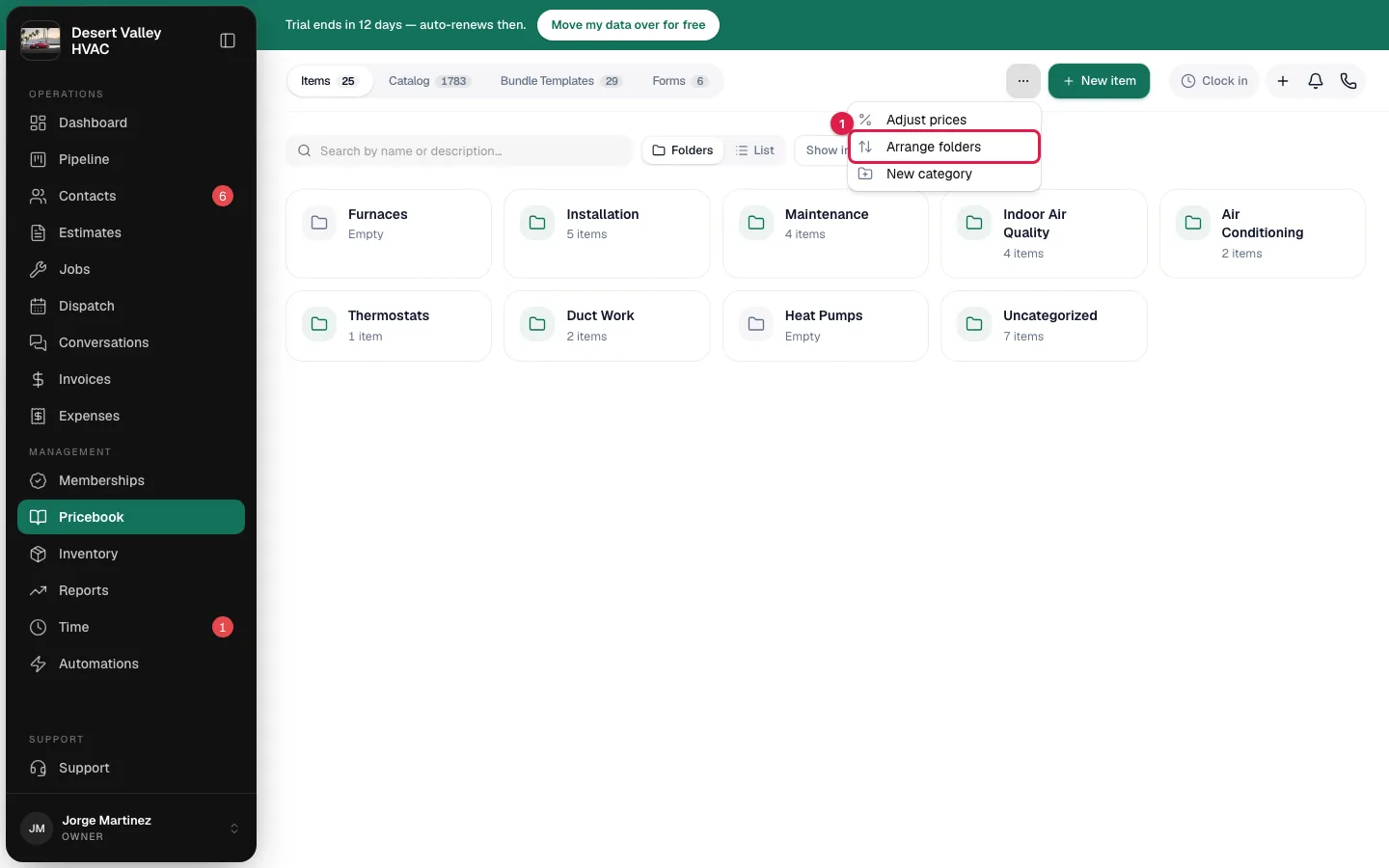
Open Arrange folders
- Go to Pricebook. Stay on the Items tab, in the Folders view.
- Open More actions (the ... button next to New item) and choose Arrange folders.
The Arrange folders window lists the folders at the level you're looking at. Under each name you see how often it was used and how many items it holds, for example used 41 times · 12 items.
Put them in order
Use any of these, in any combination:
| Option | What it does |
|---|---|
| Drag | Grab a folder by its handle and drop it where you want it. Each row also has up and down arrow buttons. |
| Most used | Sorts the folders busiest first. |
| A–Z | Sorts them alphabetically. |
Most used and A–Z only rearrange the list in the window. Nothing changes until you save, so you can try one, adjust by hand, and close the window if you change your mind.
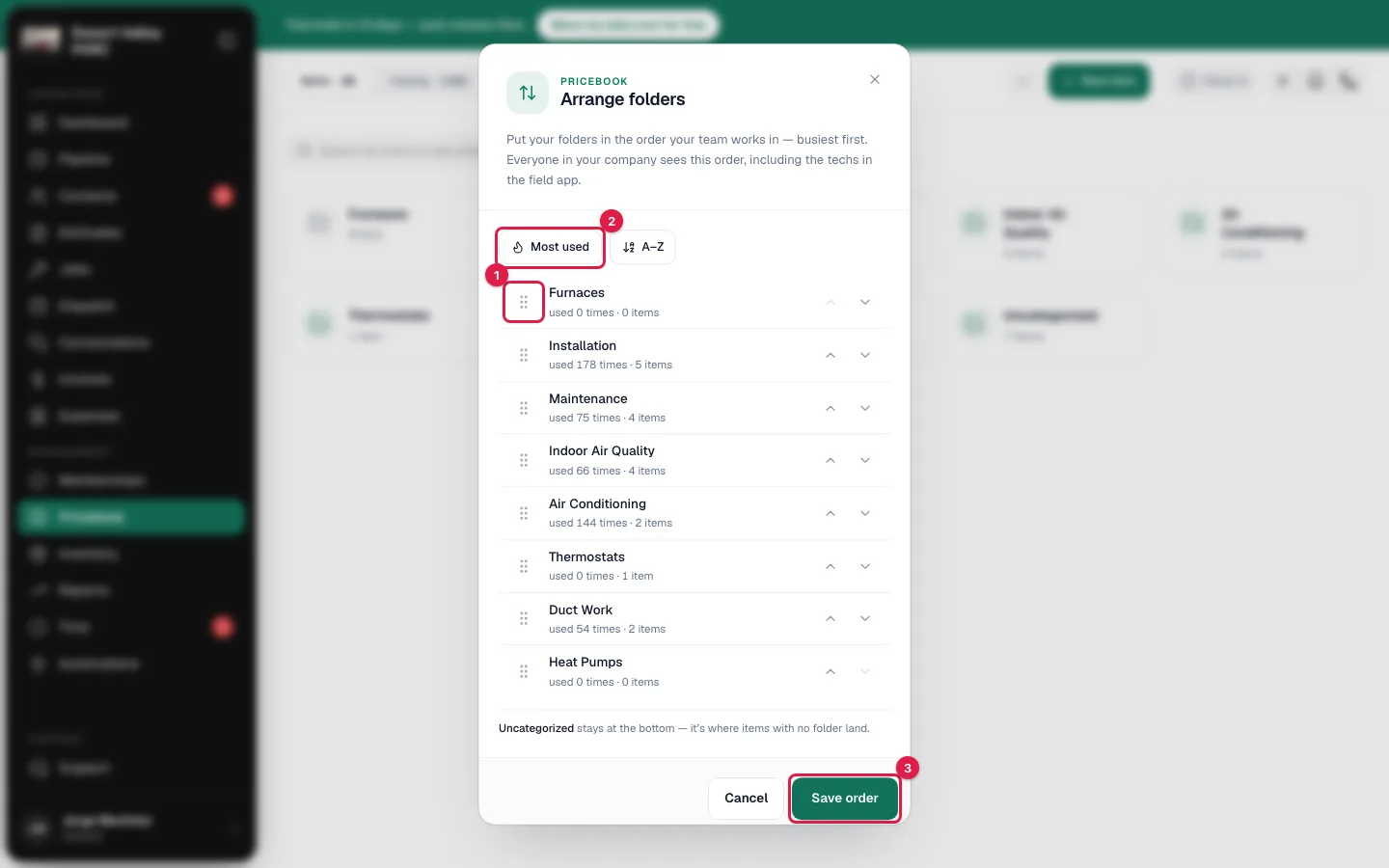
Click Save order
You see Folder order saved and the folder cards move into the new order.
Arrange the folders inside a folder
Each level is arranged separately. Open a folder that has subfolders, then choose More actions → Arrange folders again. The window now lists the folders inside it. Arranging the top level doesn't change the order inside any folder.
How Most used is counted
Most used counts how many line items were added from each folder over the last 365 days, across jobs, estimates and invoices. A folder's count includes everything in its subfolders. Folders with the same count are listed alphabetically.
Good to know
- Everyone sees the same order. It's one order for the whole company, not a personal setting.
- The mobile app follows it. The category pills techs see when they add parts and labor use the same order, the next time the app loads the job.
- Uncategorized stays last. The Uncategorized folder, where items with no folder land, is fixed at the bottom and can't be moved.
- New folders aren't placed in your order for you. After adding one, open Arrange folders again and put it where you want it.
- Arrange folders isn't in the menu? It appears in the Folders view only, when the level you're looking at has at least two folders and no more than 200. In List view, or while searching, the menu doesn't offer it.
- Most used is greyed out while the counts are loading. If the counts can't be loaded, you see Couldn't load usage counts — Most used is unavailable right now. Dragging and A–Z still work.
- If you see The folder list changed — reopen Arrange folders and try again, someone added, moved or deleted a folder while your window was open. Reopen it and arrange again.