
Categories are the folders of your pricebook. A clear set of folders lets the office browse the pricebook quickly and gives techs one-tap filters when they search on a job.
Who can do this: owners, admins and dispatchers can create and rename categories. Only owners and admins can delete one.
Create a category
- Go to Pricebook.
- Open More actions (the ... button next to New item) and choose New category.
- Fill in the form and click Add category.
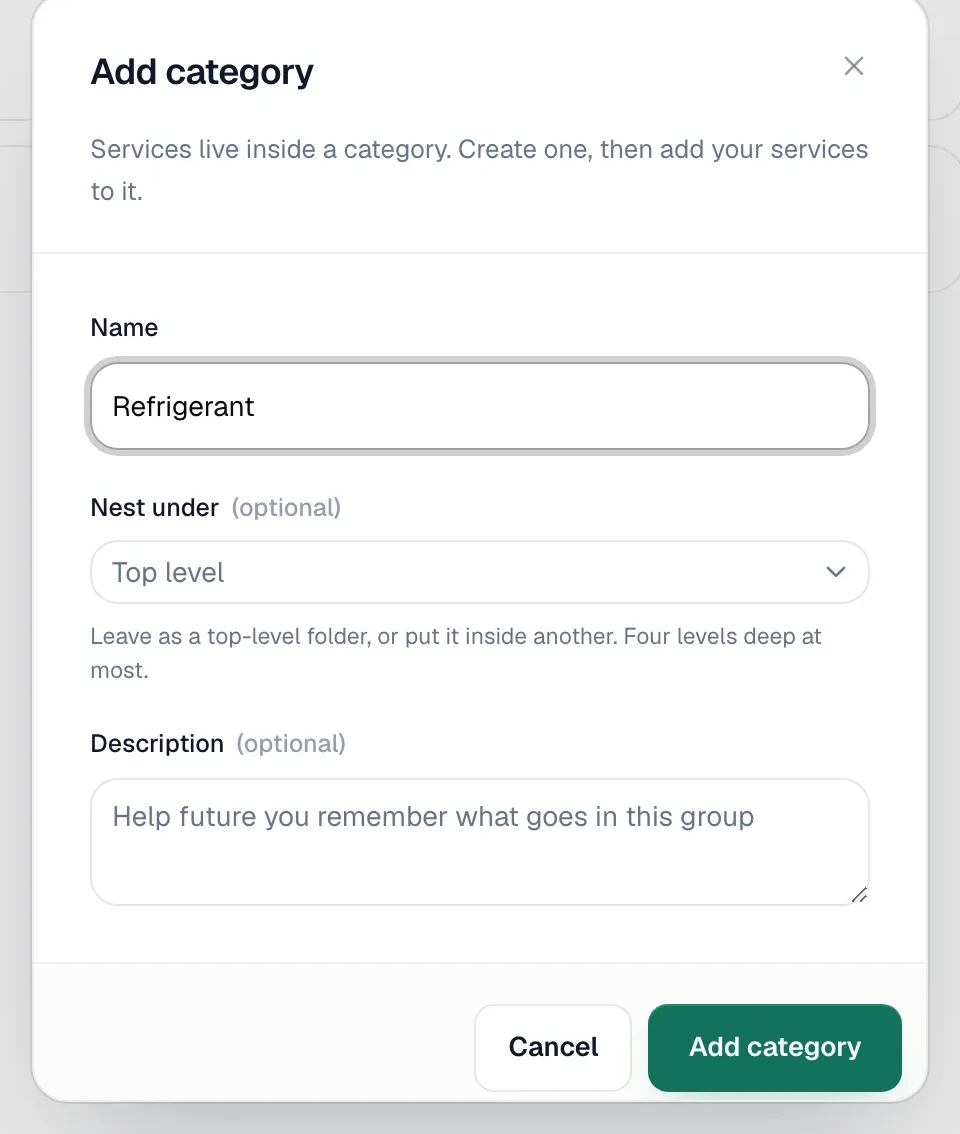
| Field | What it does |
|---|---|
| Name | The folder name, such as AC Repair or Refrigerant. |
| Nest under | Leave on Top level, or put it inside another category to make a subfolder. Up to four levels deep (for example AC → AC Repair → Refrigerant). |
| Description | Optional note for your team about what belongs here. |
You can also create a category while adding an item: in the item's Category list pick one of the Suggested HVAC categories (marked create) or + Add new category….
Put items in a category
Every item belongs to exactly one category. Pick it in the Category field when you create or edit the item. To move an item, edit it and choose a different category. See Creating items and services.
Browse by folder
On the Items tab, Folders shows one card per top-level category with its item count. Click a card to open it; use the breadcrumb, such as All categories / Maintenance, to go back up. Switch to List and use the All categories filter to see one category as a table.
Rename a category
Hover the folder card, click its ... button and choose Rename. Change the name or where it's nested, then click Save changes. Items stay in the category.
Delete a category
Hover the folder card, click ... and choose Delete.
| If the category… | What happens |
|---|---|
| Is empty | Click Delete. |
| Has items | Pick a category under Move items to, then click Move and delete. Every item moves, including hidden items and bundles. Nothing but the category is deleted. |
| Has subfolders | The subfolders move up one level with everything inside them. |
| Is your only category | It can't be deleted until you create another category to move its items to. |
How techs see categories
In the mobile app, Add part or labor shows your categories as filter pills above the search results, and the office picker shows them as chips with item counts.
Tips for a clean structure
- Aim for folders a tech would guess: Diagnostics, AC Repair, Heating Repair, Maintenance, Installation, Indoor Air Quality, Refrigerant.
- Use subfolders instead of one huge folder (Installation → Heat pumps, Installation → Furnaces).
- Put brand and model in the item name, not in the category.