You found the problem. Now say it into your phone, and Run a Call builds the estimate: a top option that fixes everything, then cheaper ones down to the plain repair, with items and prices from your pricebook. You check it and show the customer.
Who can do this
Anyone whose role can edit estimates, once the office has turned the option builder on. If you do not see Build options, ask your owner or admin. See Turning on the option builder.
Start the estimate
Open the job. Under Found more work, tap Create estimate. You will see Build options under the option names.
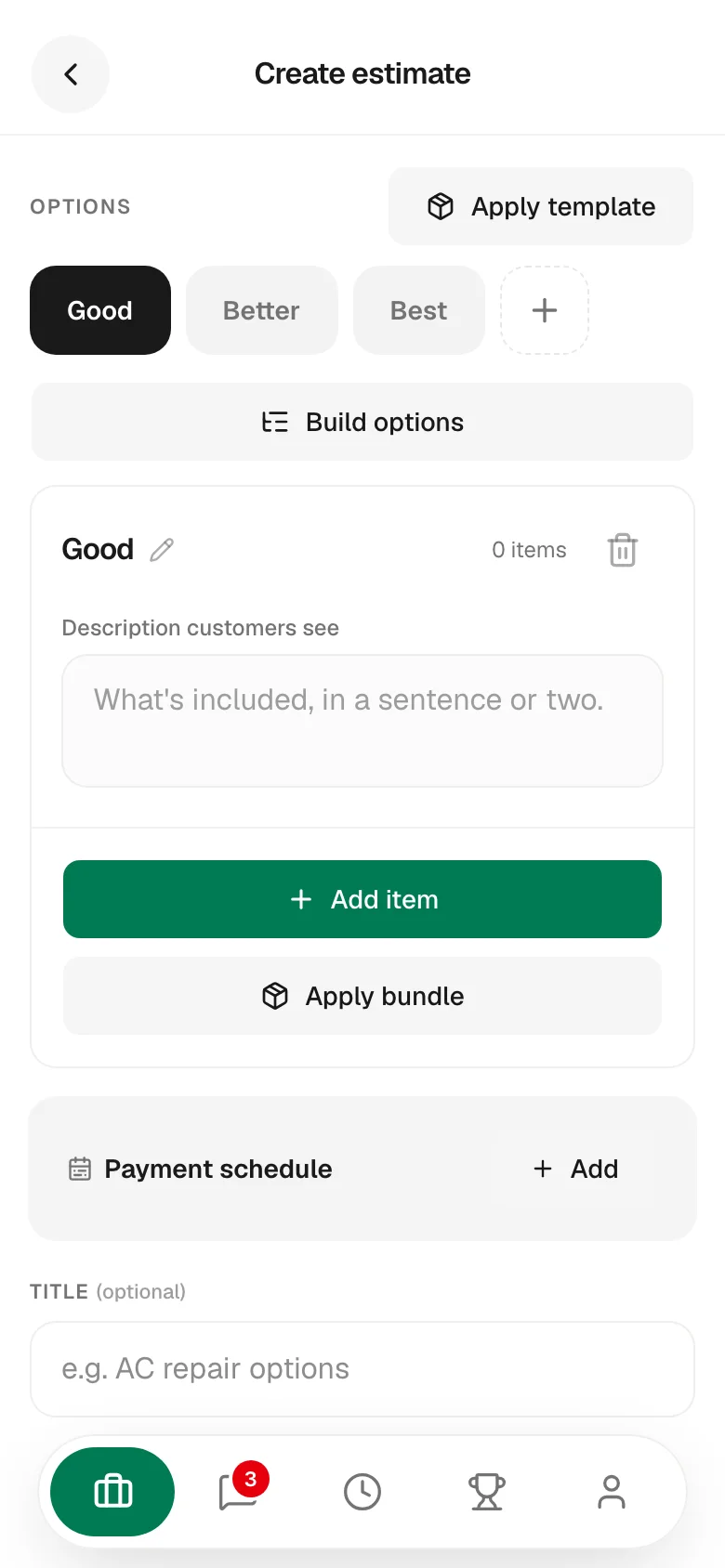
The button changes its name with what is on the option:
- Build options shows on an empty option. You say what you found and Run a Call builds every option.
- Make cheaper options shows once the option has two or more items. Run a Call keeps it and makes the cheaper ones from it.
No button on an empty option? Your company has you put the parts on the top option yourself. See If you build the top option yourself below.
Say what you found
Tap Build options. The What did you find? screen has one box. Say it or type it, the way you would tell the customer.
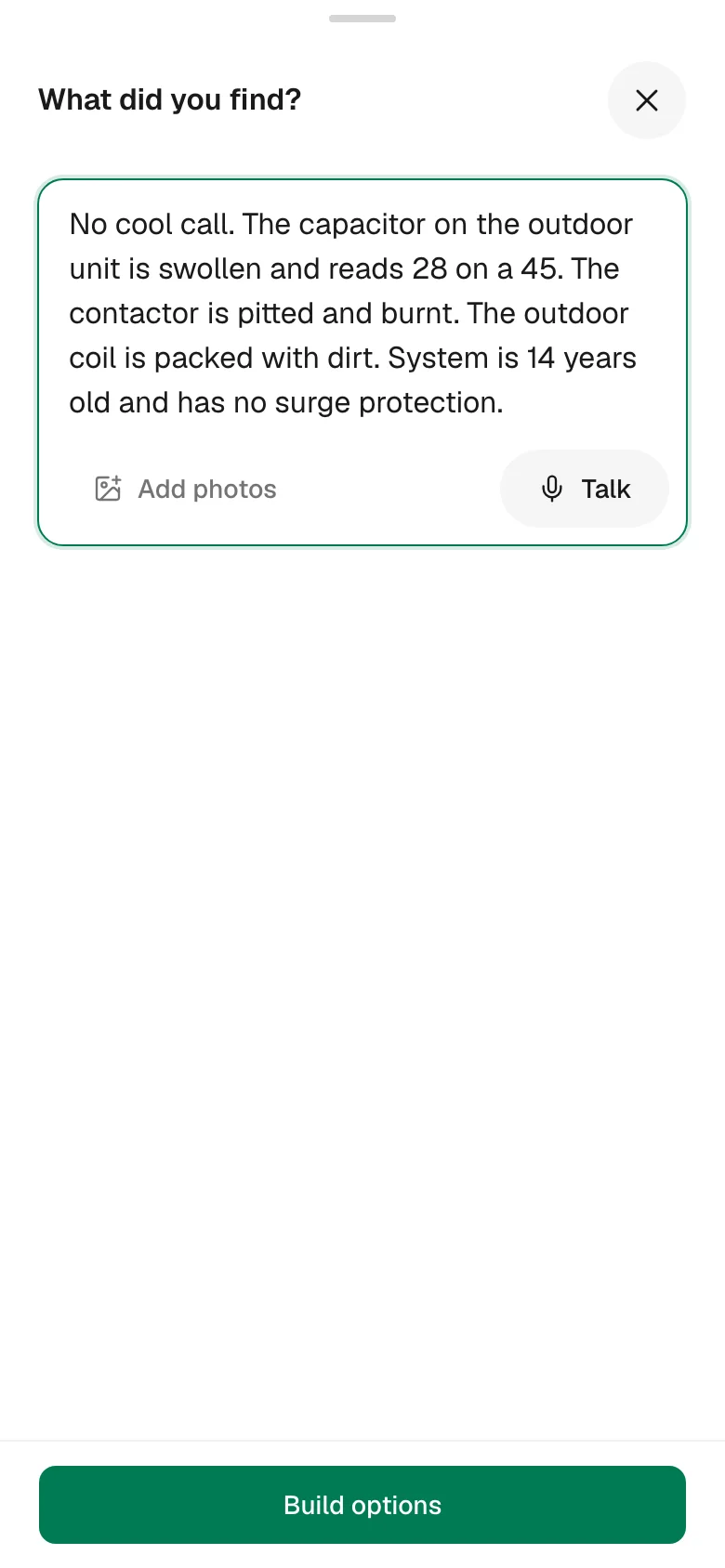
- Talk: tap it and say what you found. You see a sound wave while it listens. Tap Finish recording and your words show up in the box. Fix anything it heard wrong.
- Add photos: add up to four photos, then tap Write it up from the photos. Run a Call writes down what the photos plainly show, after anything you already said. These photos are only for the write-up. They are not added to the estimate.
- Or just type it.
Say everything you saw, not only the part that failed. Age of the system, dirty coil, no surge protection, a safety problem. That is what the bigger options are built from.
If you do not see a Talk button on your phone, type it, or use the microphone on your phone's keyboard.
Tap Build options
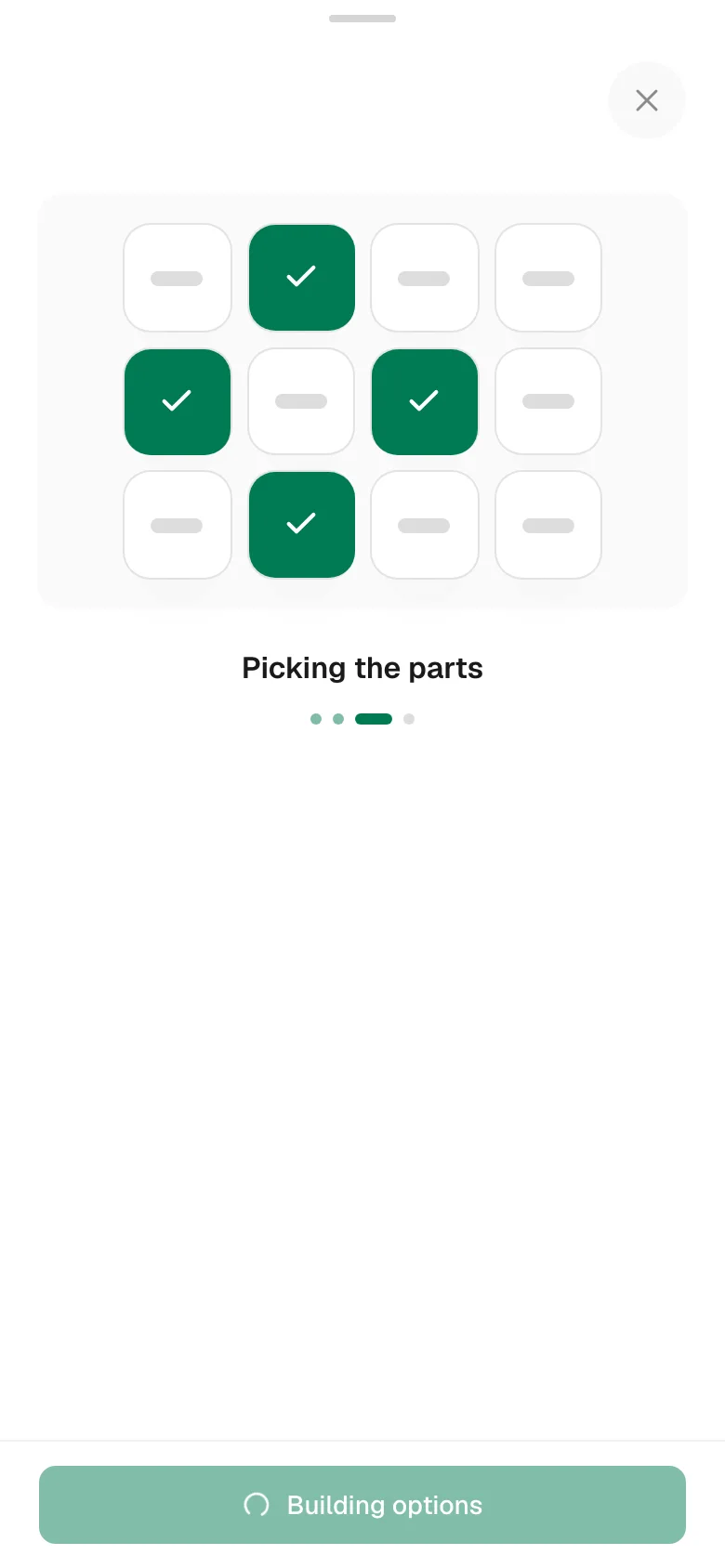
It takes about 15 to 20 seconds. You will see it reading what you found, going through the pricebook and picking the parts. Keep the screen open while it works.
Check each option
Your options are filled in, best one first. Tap each name at the top and read it.
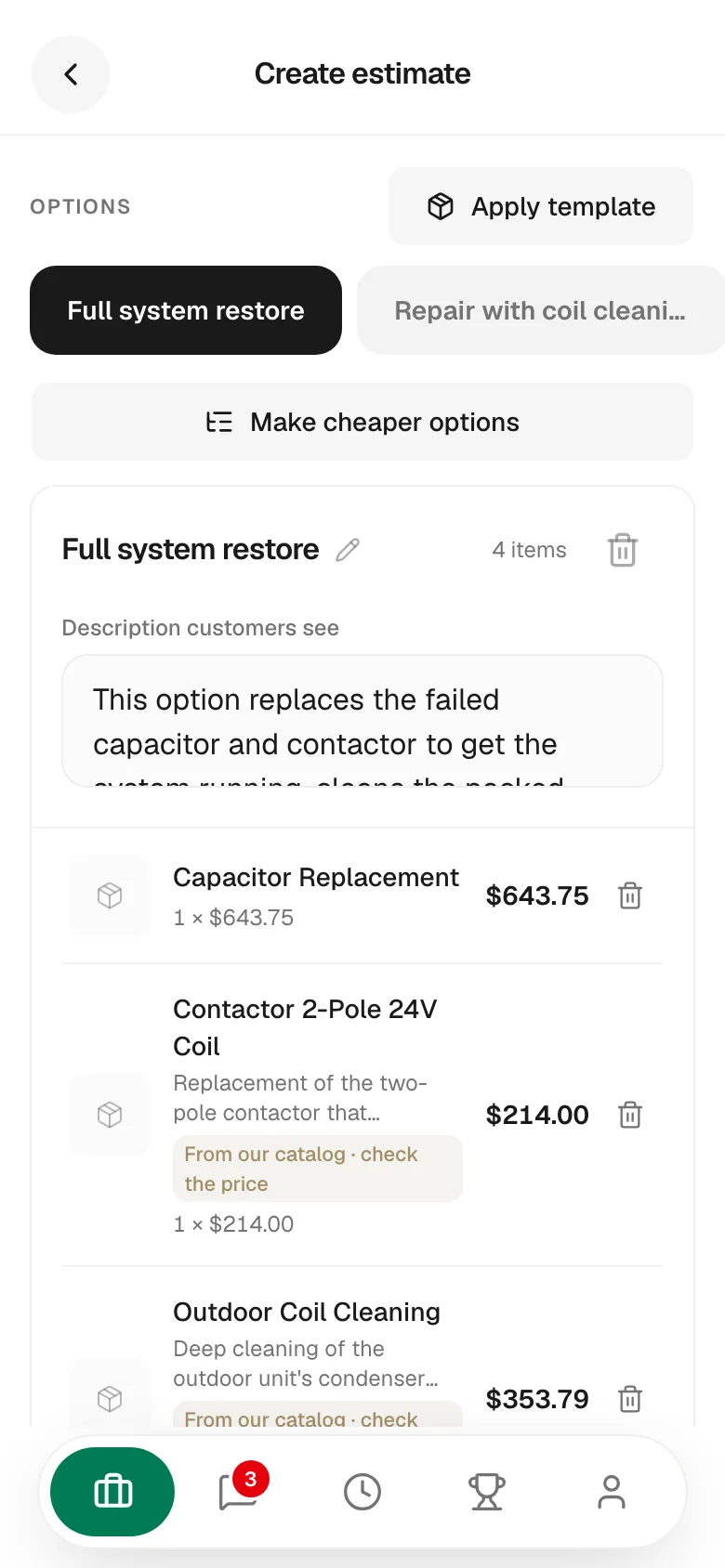
- Tap a line to change its name, description, quantity or price.
- Tap the trash icon on a line to take it off.
- Add item and Apply bundle work like on any estimate.
- Description customers see is what the customer reads under the option. Change the wording if it does not sound like you.
Two things to watch for after a build:
- From our catalog · check the price. A yellow tag on a line. Your pricebook had no item for that work, so Run a Call used one from its catalog at a suggested price. Check that price before you show the customer.
- Not on the estimate yet. A message naming work that nothing in the pricebook or the catalog covers. Add it by hand with Add item, or it will not be quoted.
Top option not right? Fix its items by hand, then tap Make cheaper options. The cheaper ones are remade from your fixed version.
You are the tech. If an option is wrong for this system, fix it or remove it. The customer sees nothing until you present or send the estimate.
Add photos to a line
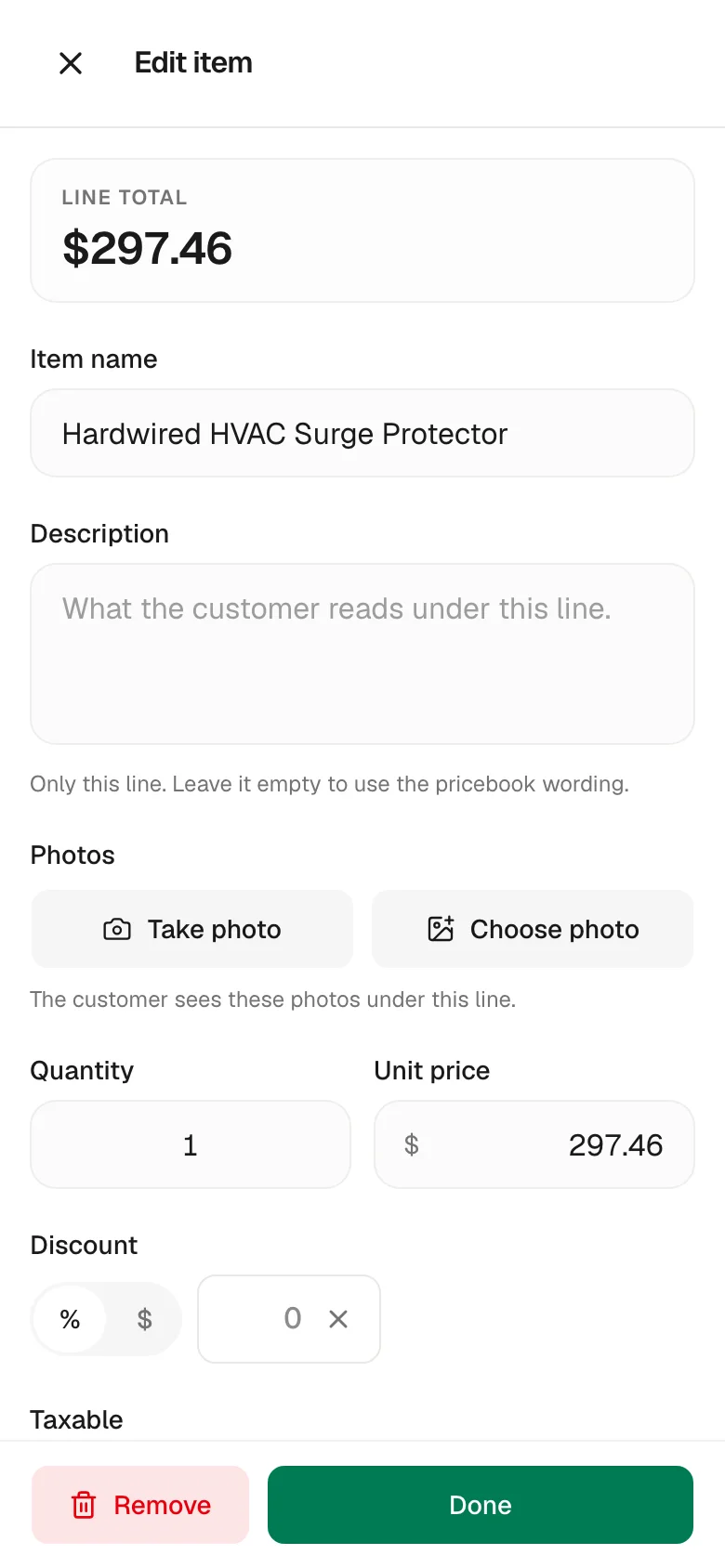
A photo of the burnt contactor sells the repair better than any description. Tap a line, then under Photos tap Take photo or Choose photo. The customer sees the photos under that line. You need a connection to upload.
If your company turned on photo reminders, the option tells you when upgrades are missing one, for example 2 upgrades have no photo. Tap a line to add one. An upgrade is any item that is not in the cheapest option.
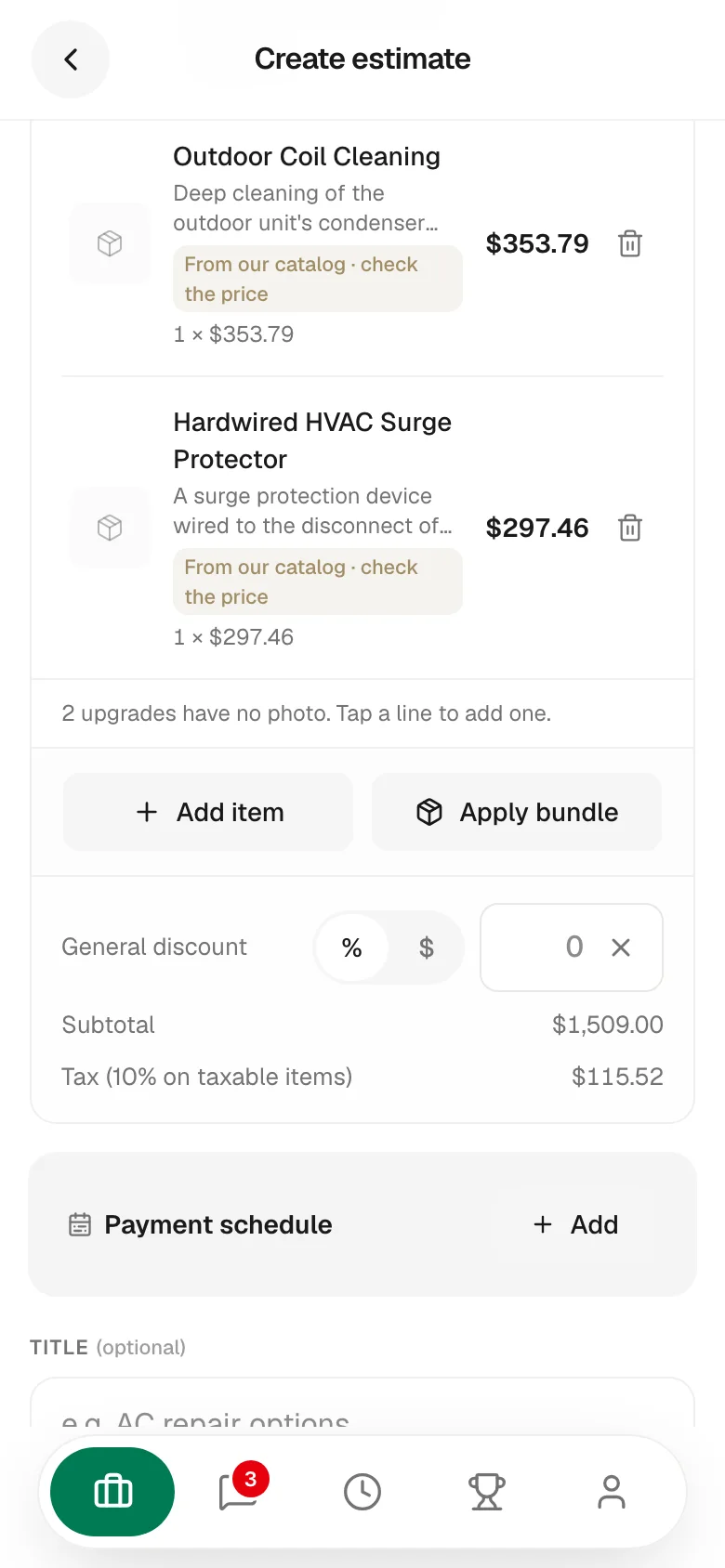
When you save, the app asks once more. Tap Save without photos if you cannot get one. It never blocks you.
Save and present
Tap Save estimate, then present it to the customer or send it for approval. See Building and presenting estimates on mobile.
If you build the top option yourself
Some companies have the tech pick the parts. Then there is no Build options on an empty option.
- Build your best option first, with at least two items.
- Tap Make cheaper options.
- The screen tells you which option it will take parts off. Say what you found to help it choose, or skip that.
- Tap Make cheaper options.
Run a Call keeps your top option and makes the cheaper ones by taking items off it. It never adds a part or changes a price. Your other options get replaced.
Good to know
- Building again replaces your options. Build options asks first if the estimate already has items on it.
- You need a connection to build. Without one the app tells you so.
- A small job may get fewer options. That is normal when there are not enough different parts.
- "Your company has used all of this month's option drafts." Build the options by hand and tell the office. They can ask us to raise the limit.
- "The builder couldn't make options from that." Add more detail and try again.