
Build an estimate at the kitchen table: pick items from the pricebook, lay out Good, Better, and Best options, then hand the phone or iPad to the customer so they can choose an option and sign. If they approve, you can start the work right away or book the return visit.
Who can do this
Anyone whose role can edit estimates. The standard Field Tech role can. The job needs a customer and a service address.
If your company renamed estimates (for example to "Quote" or "Proposal"), the buttons use your company's word.
Tap Create estimate
Open the job. Under Found more work, tap Create estimate. The estimate is tied to this job, customer, and address automatically.
If the job already has an estimate, you'll see Present estimate and Edit estimate instead.
Set up your options
The estimate starts with three options: Good, Better, and Best. Tap an option's name at the top to switch to it.
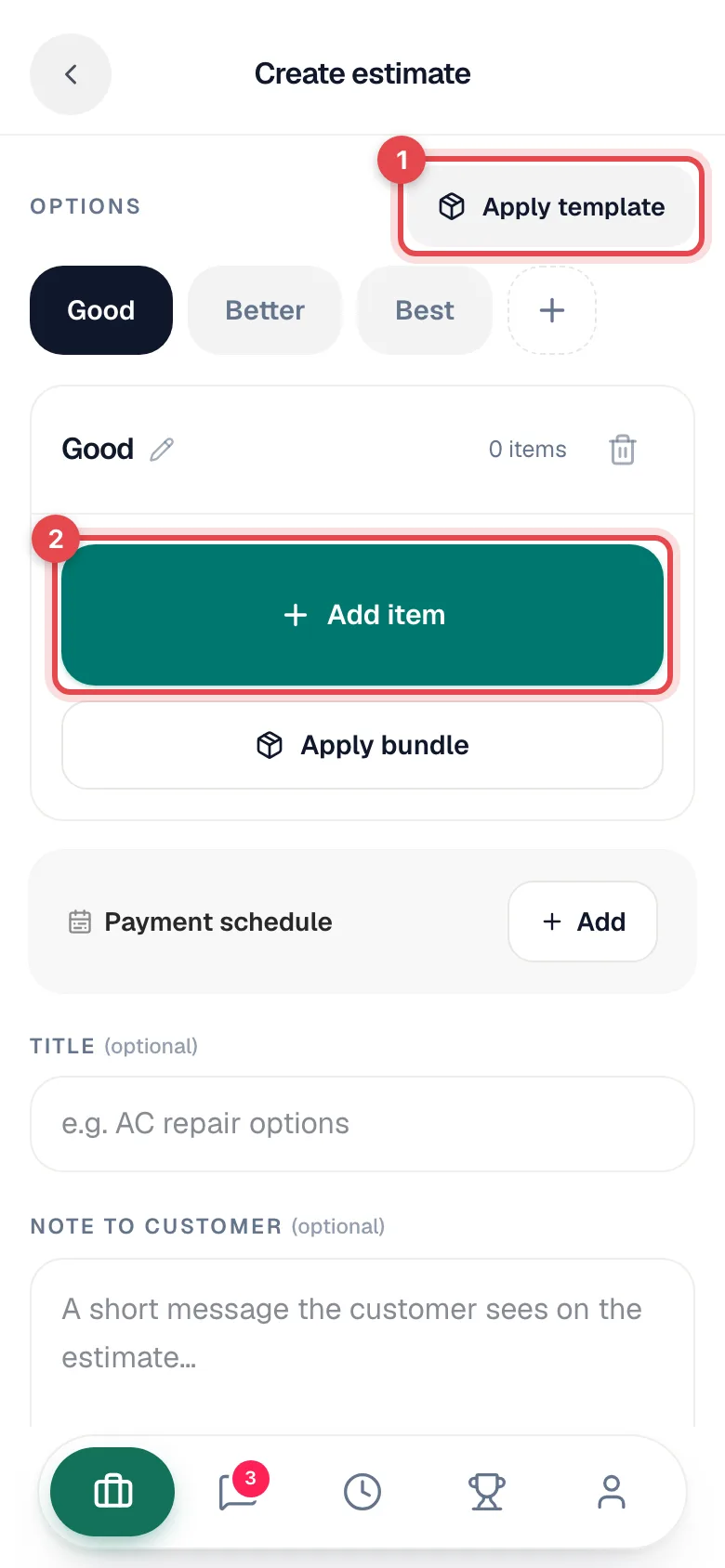
- Tap the option's title (with the pencil) to rename it.
- Tap + to add another option (up to six).
- Tap the trash icon to remove the option you're on.
- Apply template fills every option at once from a Good / Better / Best template the office saved in the pricebook.
Only need one price? Fill in one option. When you save, the app asks before leaving the empty ones out.
Add items
On each option:
- Add item opens the pricebook. Search by name, filter by category, and set quantities. To add something that isn't in the pricebook, type its name and tap Add "…" to make a custom line.
- Apply bundle adds a saved bundle of items in one tap.
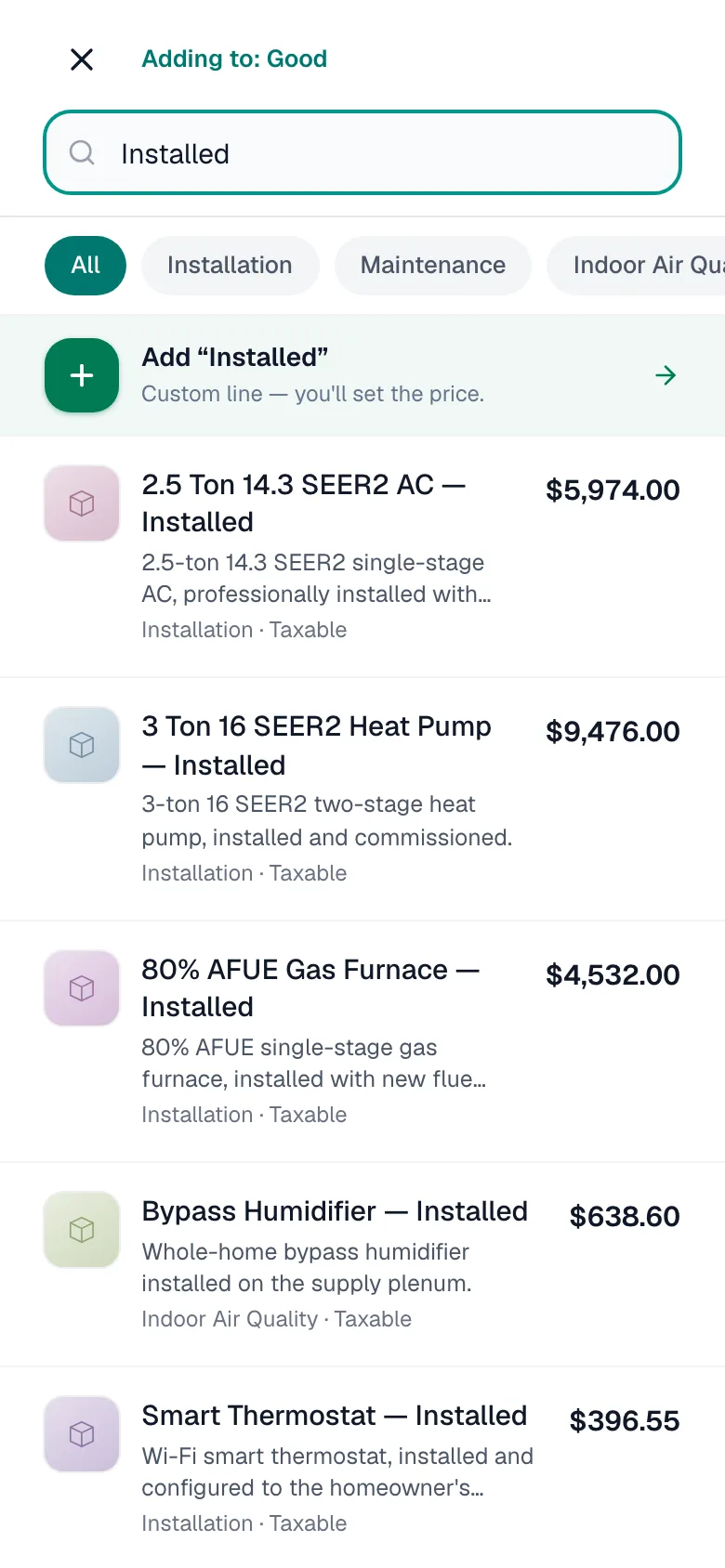
Tap any line to edit its Description, Quantity, Unit price, Discount, and whether it's Taxable. Changing a price here changes it on this estimate only, never in the pricebook.
Below the items:
| Field | What it does |
|---|---|
| Package price | Shows on options built from a package bundle. One price for the whole option; the items stay internal. |
| General discount | A percent or dollar discount on the whole option. |
| Payment schedule | Split the price into a deposit and progress payments. See Payment schedules. |
Add the finishing details
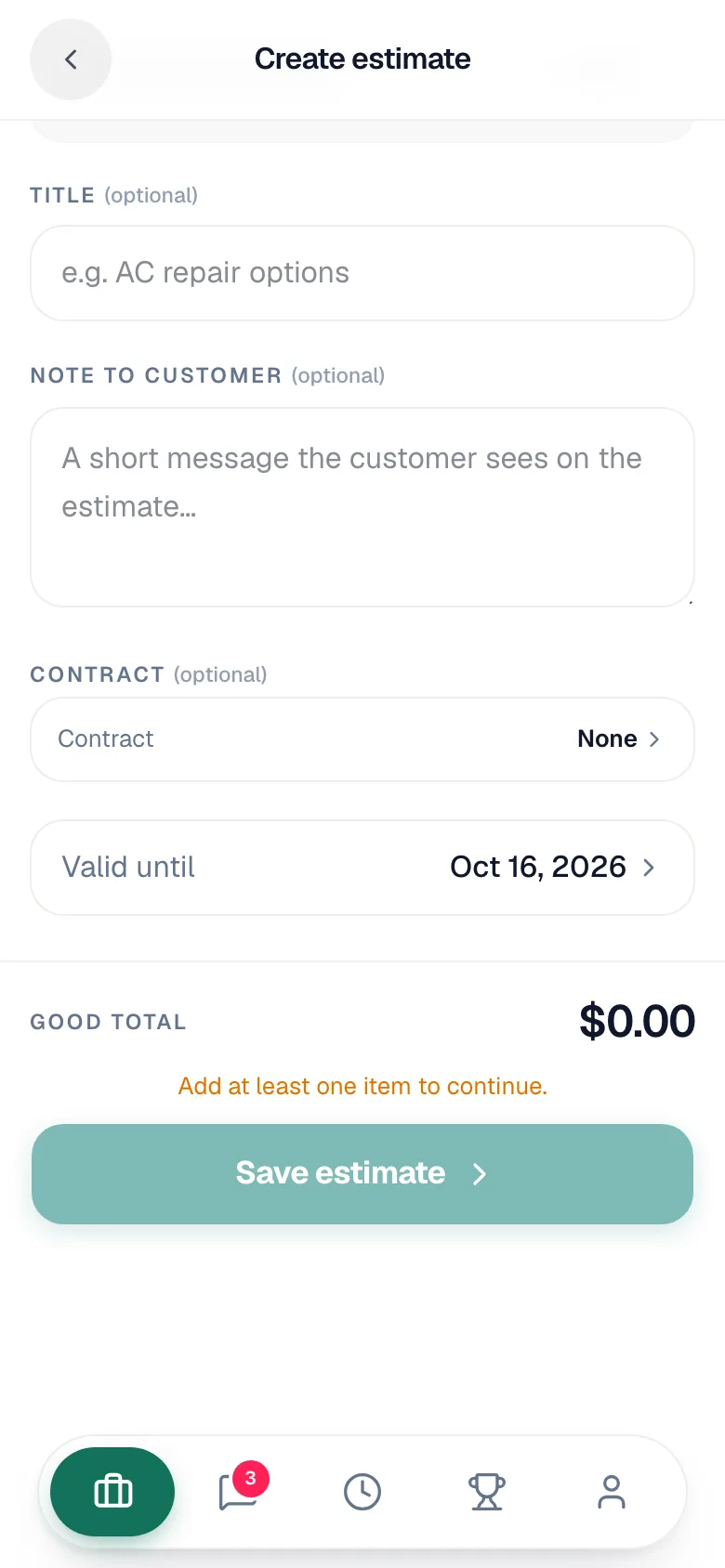
| Field | What it's for |
|---|---|
| Title (optional) | A headline, for example "AC repair options". |
| Note to customer (optional) | A short message the customer sees on the estimate. |
| Contract (optional) | Attach your company's contract so the customer accepts it when they sign. |
| Valid until | How long the prices hold. Starts from your company's default. |
The total for the option you're on shows at the bottom. Tap Save estimate (or Update estimate when editing).
Present it and get the signature
After you save, the estimate opens full screen for the customer. They can flip through the options, open item details and photos, and pick one. When they're ready, they tap Approve & sign and sign on the screen.
You'll see Customer approved! and two choices:
| Choice | What happens |
|---|---|
| Start Work Now | Adds the approved items to this job's Parts and labor so you can do the work today. |
| Schedule Return Visit | Pick a date and a morning or afternoon slot with the customer. A return visit is booked for the approved work. |
The office gets a notification that the customer approved on site.
Your work is saved as you go
The phone keeps a copy of the estimate you're building after every change. If the app closes, the signal drops, or the phone dies, open the same job's estimate again and you'll see Restored your unsaved quote. Tap Discard to throw that copy away and go back to what was last saved.
The copy stays only on that phone, only for you, and is cleared when you save, when the office saves a newer version, or after a week.
Good to know
- Customer wants to think about it? Save the estimate and leave it. The office can send it by email or text from the estimate page so the customer can approve it later. Approving on the phone is the in-person path.
- Editing later. Edit estimate works until the customer approves or declines it.
- After approval, the job shows View Approved Estimate so you can pull it up again.
- Estimates need a connection to save. Your in-progress copy is kept on the phone until you're back in signal.