
Tell Run a Call what you found on the call, and the option builder writes the estimate for you: a top option that fixes everything, then cheaper ones down to the plain repair. It picks the items and prices from your pricebook and writes a short description for each option. You check it, change anything you like, and send it.
Who can do this
Anyone who can create estimates, once an owner or admin has turned the option builder on. It is off until then. See Turning on the option builder.
This article covers the office. Techs do the same thing on their phone. See Building options from the tech app.
Start a new estimate
Go to Estimates, click New estimate and pick the customer. Under the tiers you will see Build options.
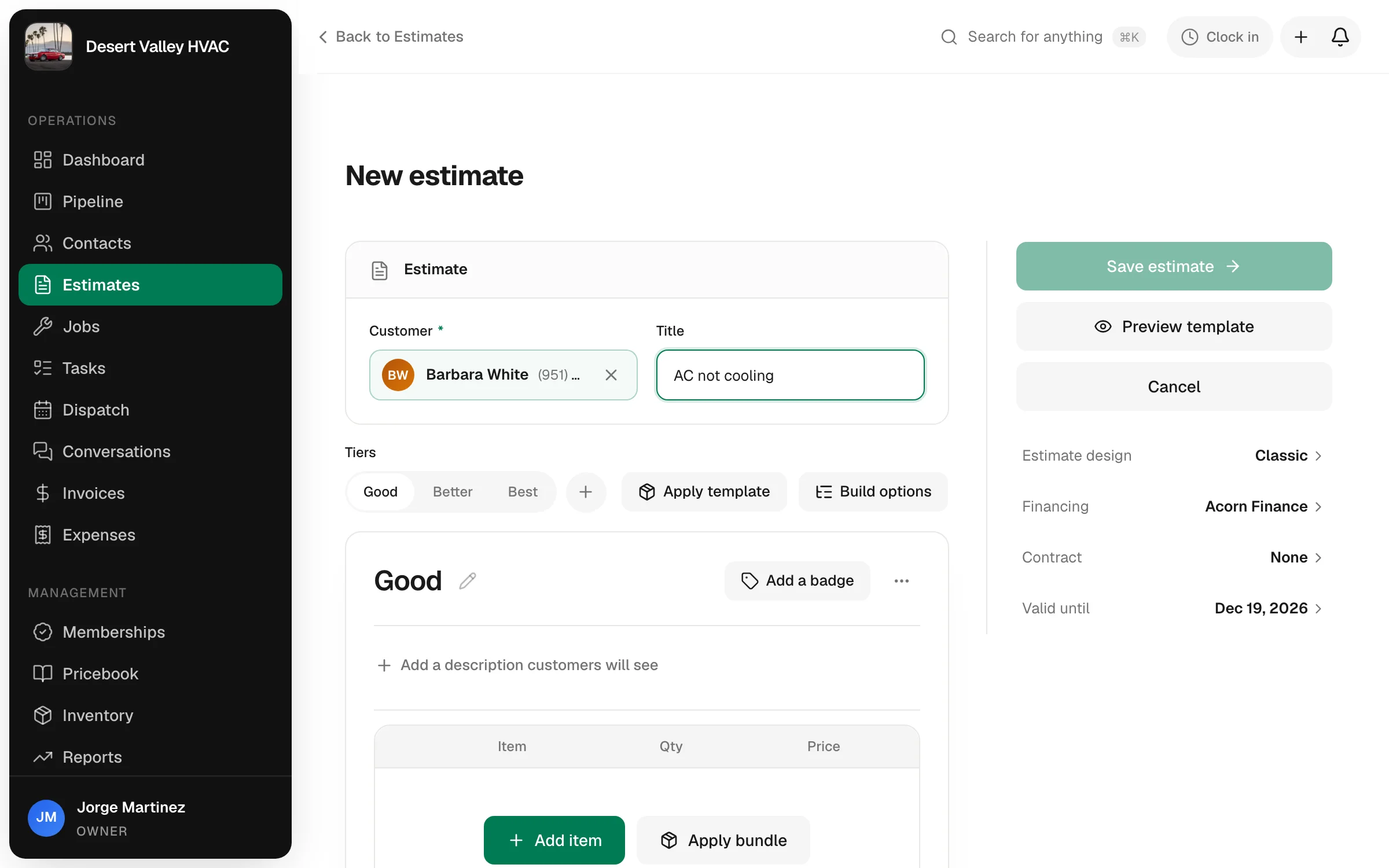
The same button does two jobs, and its name tells you which:
| The button says | When | What it does |
|---|---|---|
| Build options | The option on screen is empty, or has one item. | You say what you found. Run a Call picks the parts and builds every option. |
| Make cheaper options | The option on screen has two or more items. | Run a Call keeps that option and makes the cheaper ones by taking items off it. |
No button at all? Either the option builder is turned off, or your company has Let Run a Call pick the parts switched off. With that switch off there is no Build options. You put the parts on the top option yourself, and Make cheaper options shows up once it has two items. See Make cheaper options from one you built below.
Say what you found
Click Build options. The What did you find? window opens with one box.
Type it the way you would tell the customer: what is broken, why, and anything else you noticed about the system. You do not need part numbers or tidy sentences.
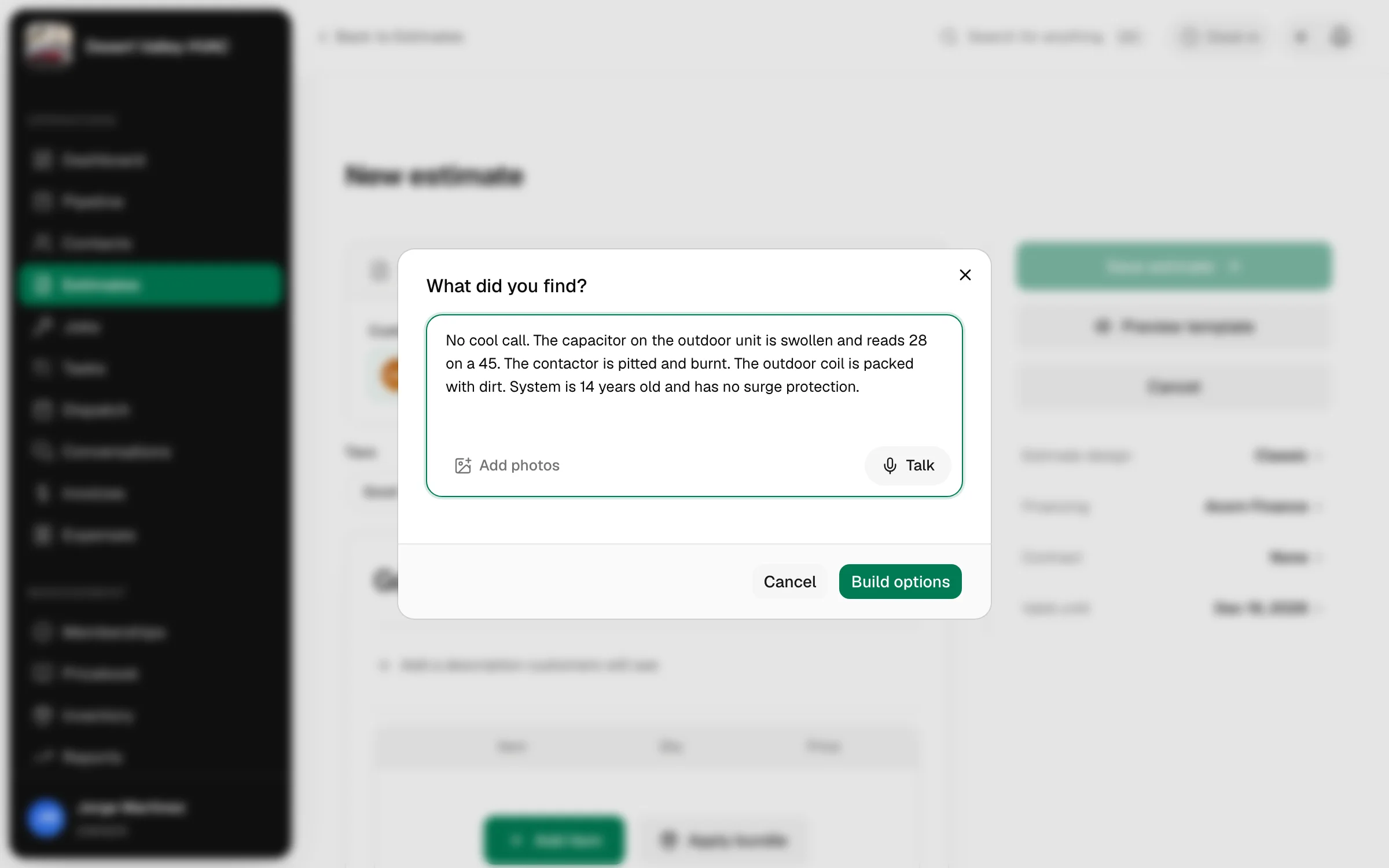
- Talk lets you say it out loud. Press Talk and speak. You see a sound wave while it listens. Press Finish recording and your words land in the box, where you can fix them.
- Add photos takes up to four photos. Click Write it up from the photos and Run a Call writes down what the photos plainly show, after anything you already typed. Read it over and fix anything that is off. The photos are only used for the write-up. They are not added to the estimate.
- The box holds up to 2,000 characters.
The more you say, the better the options. "No cool" gets you a thin estimate. "No cool, capacitor is swollen, contactor is pitted, coil is packed with dirt, system is 14 years old with no surge protection" gets you three real choices.
Click Build options
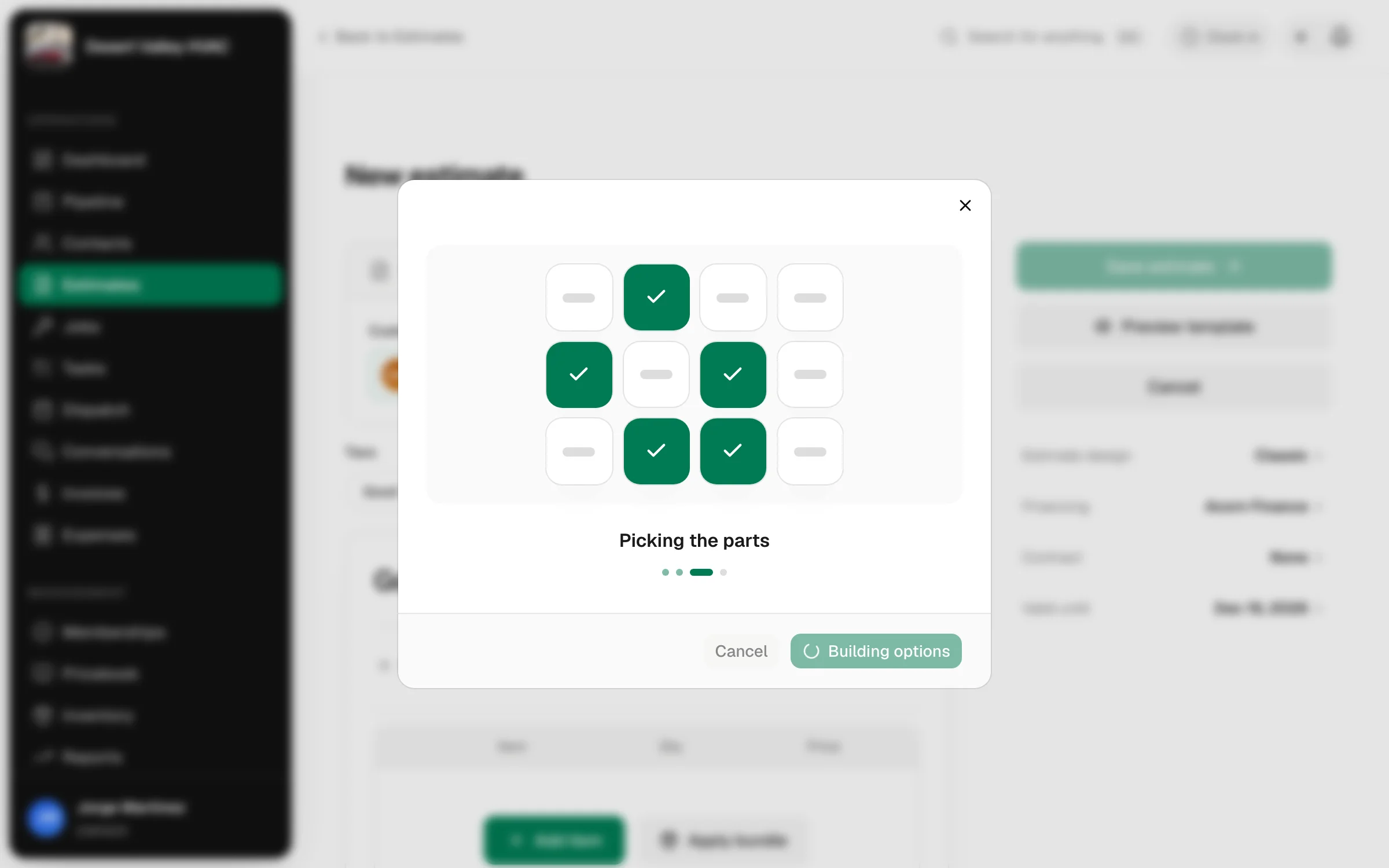
Building takes about 15 to 20 seconds. The window shows what it is doing: reading what you found, going through your pricebook, picking the parts, and writing it up for the customer.
Check every option
The estimate now has its options filled in, with the top one first. Each option has a name, a description the customer will read, and its own items with prices from your pricebook.
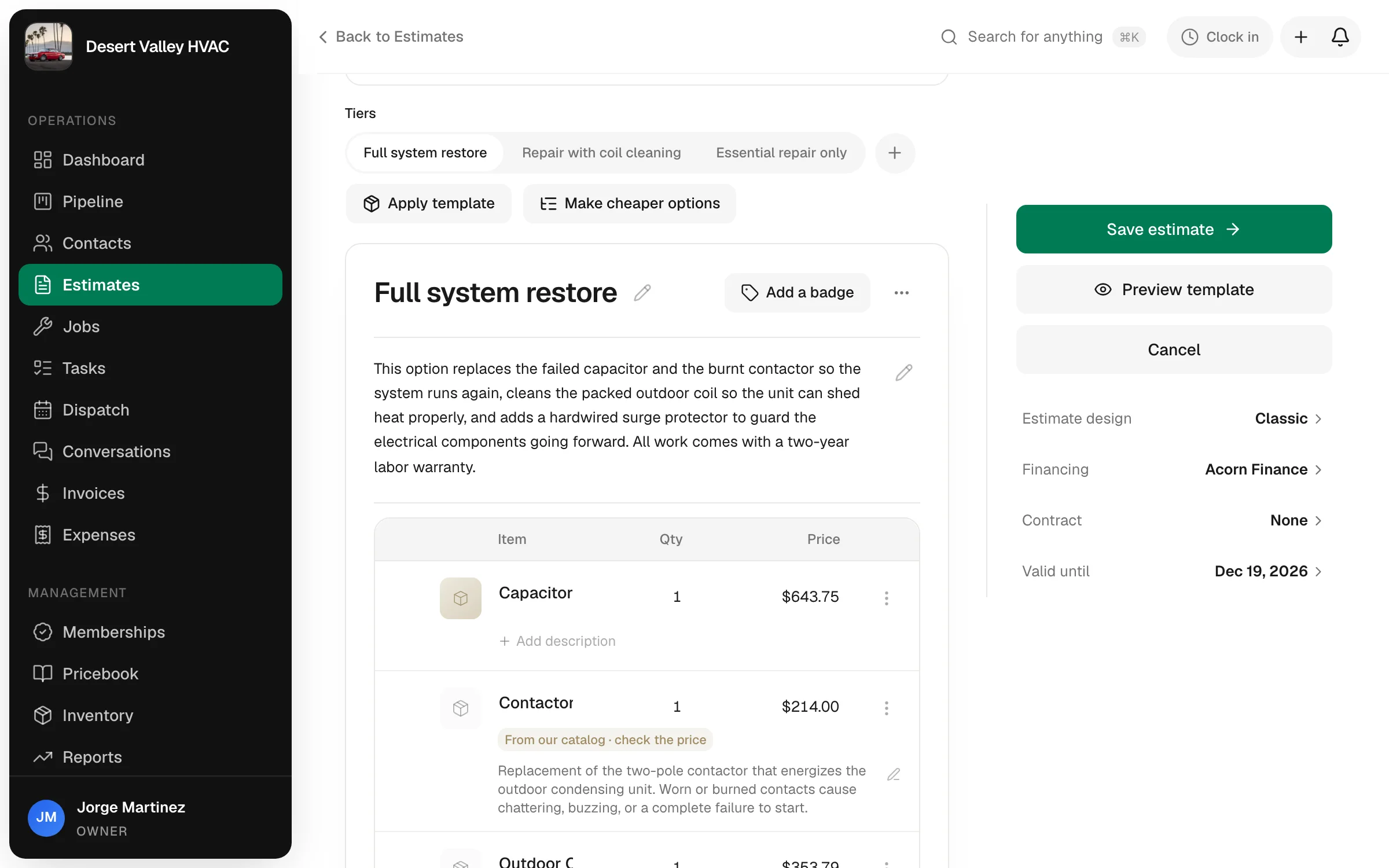
Click each tier and read it before you save. Everything is yours to change:
- Rename an option with the pencil.
- Edit the description, or the price and quantity on any line.
- Add or remove items with Add item and Apply bundle.
- Remove an option you do not want to offer.
How the builder decides what goes where:
- The top option fixes everything you wrote up. Each option below it costs less and does less.
- The last option is the plain repair. It still has to leave the system running safely.
- Warranty and service plan items stay in every option.
- Prices are never made up. Every price comes from your pricebook item.
The builder drafts the estimate. It does not replace your judgment. Nothing is saved until you click Save estimate, and the customer sees nothing until you send it.
If an item came from the catalog
If your pricebook has no item for something you found, Run a Call takes one from its built-in catalog and marks that line with a yellow tag: From our catalog · check the price.
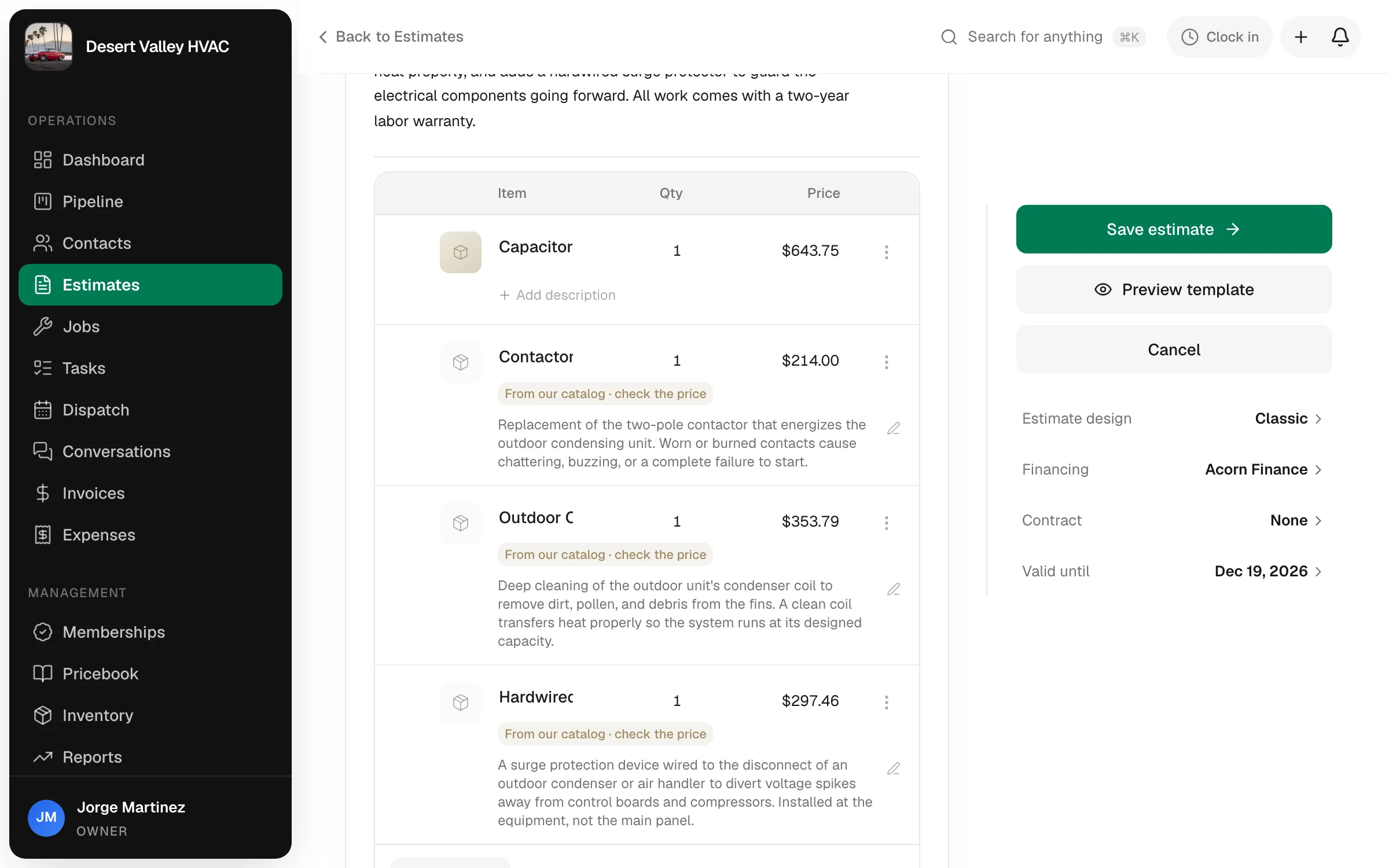
Those lines use the catalog's suggested price, not yours. Check the price on each one before the customer sees it. The tag goes away when you change the price. To keep the item for next time, use Save to pricebook on the line.
If something is not on the estimate
If neither your pricebook nor the catalog has an item for part of your write-up, you get a message that starts Not on the estimate yet, followed by what is missing. Add that work by hand with Add item, or it will not be quoted.
If the top option is not right
Fix it by hand: add, remove or reprice its items. Then click Make cheaper options and Run a Call remakes the cheaper ones from your fixed version. You do not have to say what you found again.
Mark the one you recommend
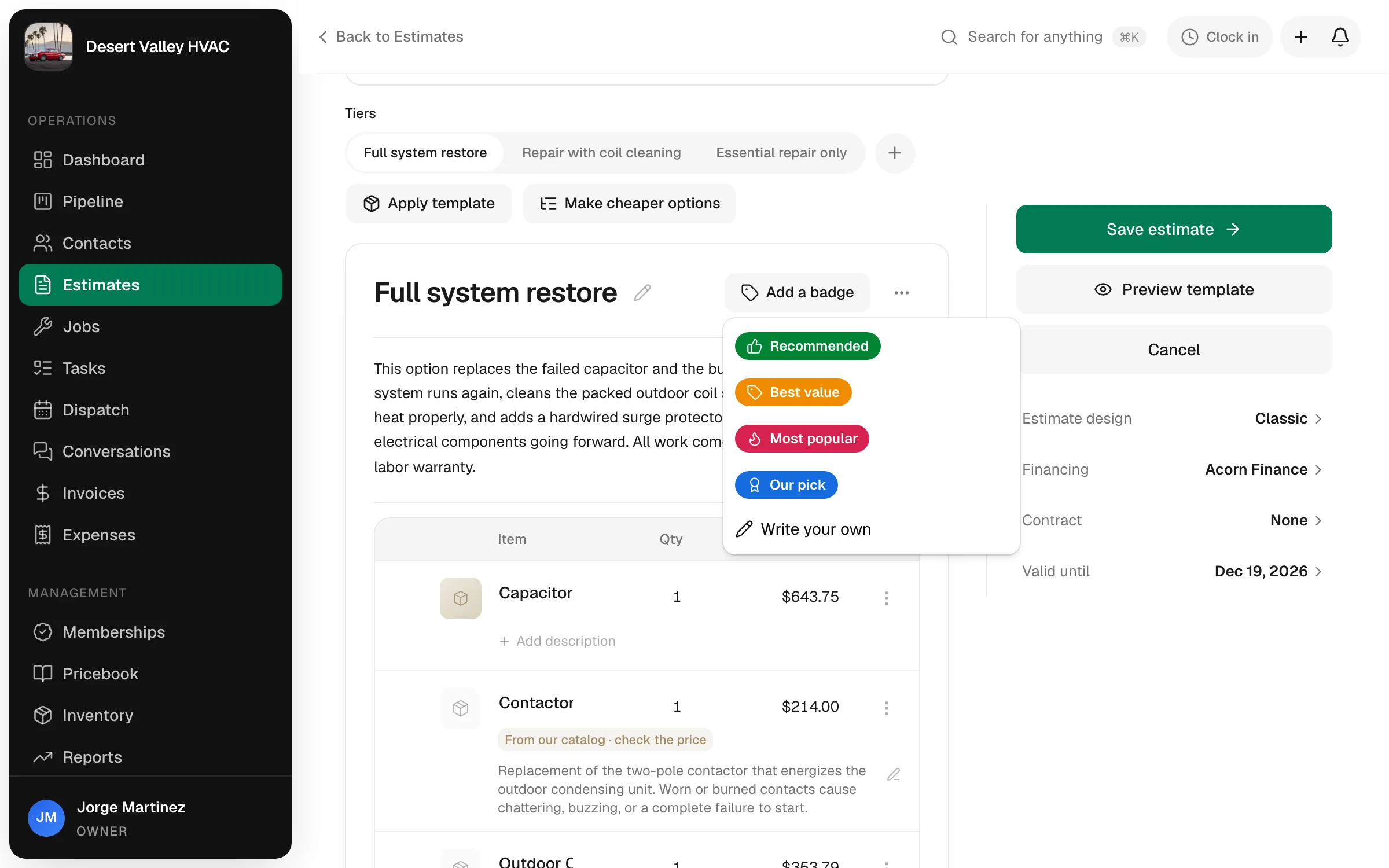
Click Add a badge on an option to mark it for the customer: Recommended, Best value, Most popular or Our pick. Write your own lets you type your own words and pick an icon and color. The badge shows on the customer's approval page.
Save and send
Click Save estimate, then send it the usual way. See How to create and send an estimate.
Make cheaper options from one you built
Use this when you already know what the best option should be.
- Put your best option on one tier, with at least two items.
- With that tier open, click Make cheaper options.
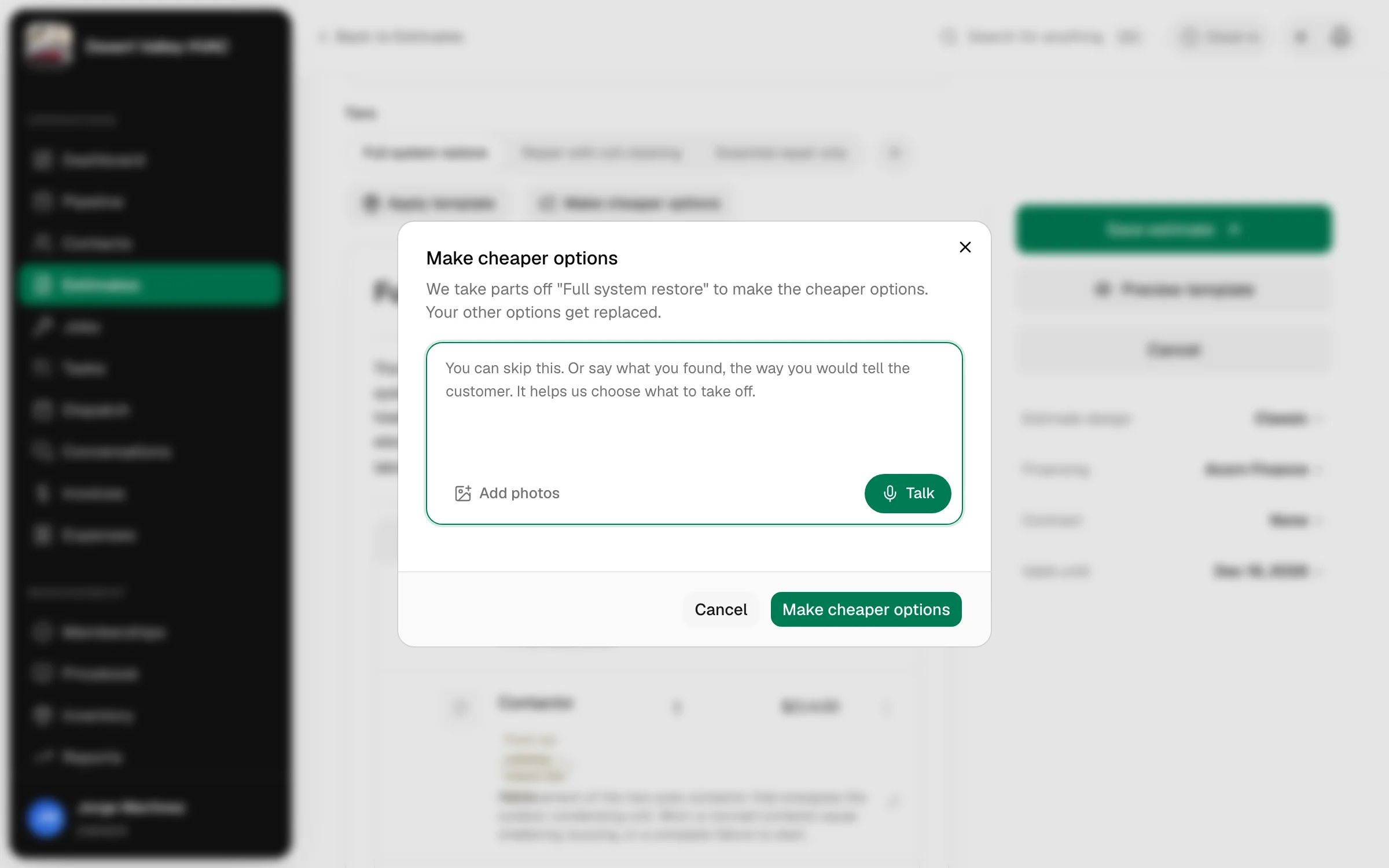
- The window tells you which option it will take parts off. You can type or say what you found to help it choose, or skip that.
- Click Make cheaper options.
Three things to know:
- It only takes parts off. It never adds a part or changes a price on this build.
- The option you start from has to be priced by its items. An option set to one package price cannot be used.
- Your other options get replaced with the new cheaper ones.
Good to know
- Building again replaces what is there. If the estimate already has items, Build options asks before it replaces your options. Make cheaper options says so in its window.
- A small job may get fewer options. If there are not enough different parts to make each choice different, you get fewer than your company's setting.
- There is a monthly limit. Each company gets a set number of builds a month (300 unless we have changed it for you). If you run out, the message says so. Build the options by hand, or contact support to raise the limit.
- "The builder couldn't make options from that." Add more detail to your write-up and try again.
- "Your pricebook is empty." The builder needs pricebook items to work from. See Pricebook catalog and starter items.
- See how it is working. The Technician Scoreboard shows Options shown and Cheapest picked for each person, so you can tell who is offering choices and how often customers take the lowest one.