
Bundle folders group your bundle templates the way you sell them: AC Repair, Maintenance, Installs. They're separate from the folders your parts and items live in, because a materials list and a services menu want different groupings. Techs pick a folder first, then the bundle, instead of scrolling one long list.
Who can do this: owners, admins and anyone who can edit the pricebook. Everyone can filter by folder.
Make a folder
There are two places to make one.
- From the Bundle Templates tab. Go to Pricebook, open the Bundle Templates tab, click the … menu at the top and choose Bundle folders. Type a name and click Add.
- From a template. Open a bundle template, find Folder under the name, choose New folder…, type the name and click Save folder. The template is filed in it straight away.
A folder name that already exists isn't created twice; the existing one is picked instead.
File your templates
Open a template, choose its folder under Folder, and save. A template sits in one folder at a time. No folder takes it out again.
Find bundles by folder
Once you have at least one folder, a row of folder chips appears wherever bundles are chosen:
| Where | What you see |
|---|---|
| Pricebook → Bundle Templates | Chips next to the search box: All, each folder with its count, and Other for templates in no folder. Each row also names its folder. |
| Estimates (office) | The same chips above the list in Apply template and Apply bundle. |
| Mobile app | Chips under the search box when a tech applies a bundle to a job or an estimate. |
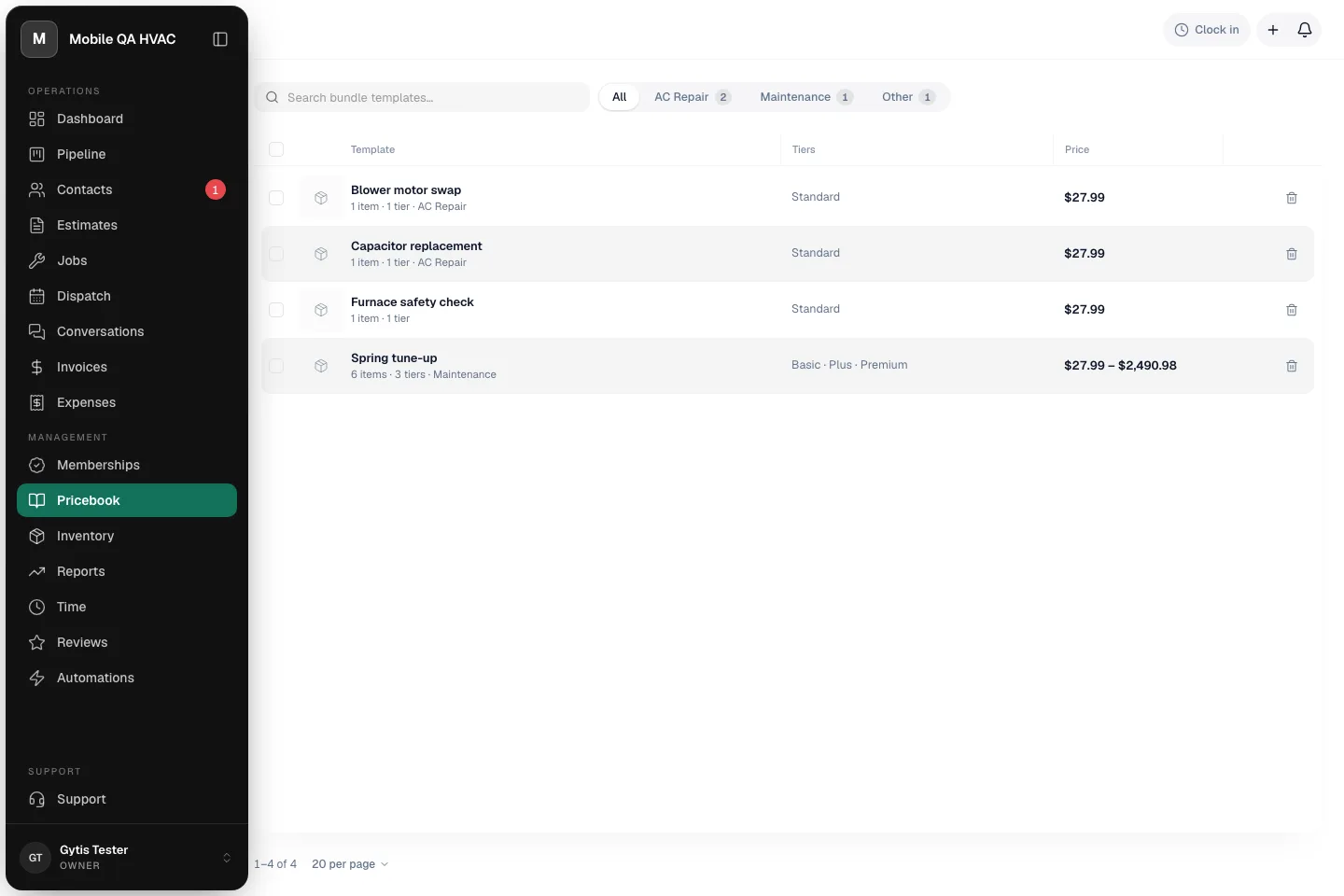
The counts follow your search, so you can search for a word and see which folders hold a match. Picking a chip narrows the list; the other chips stay so you can switch. A folder with nothing in it says Nothing in this folder yet.
Set display with Select all N templates that match respects the folder you've picked, so you can switch package pricing on for one folder at a time.
Rename, reorder or delete a folder
Open Bundle folders from the … menu on the Bundle Templates tab.
- Rename: click the pencil next to the folder, change the name and click the check mark.
- Reorder: use the arrows on the left. The chips and the pickers follow this order.
- Delete: click the trash icon and confirm. The templates in that folder stay in your pricebook; they just aren't in a folder any more. You'll see N templates moved to no folder.