
The Commissions report works out what each person is owed for a pay period under your commission plans — then lets you check the jobs and estimates behind each number, add bonuses or deductions, approve the period and mark it paid.
Open it from Reports → Team & jobs → Commissions.
Who can do what
| Task | Who |
|---|---|
| View the report, refresh numbers, add bonuses and deductions, approve, reopen, mark paid | Owners and admins |
| Create or change commission plans and who's on them | Owner only |
Before you start: set up a plan
Plans live in Settings → Commissions (the owner can also start one from the report with Set up a commission plan when nobody is on a plan yet). A plan says how the work someone sells becomes their pay:
| Setting | Options |
|---|---|
| A sale counts | When the customer signs, When the invoice goes out, or When the money comes in. |
| Paid out | Weekly, Every pay period, or Monthly. |
| Rate | One flat rate, or Levels that step up as volume grows. |
| Paid as | Percent of volume or a Dollar amount. |
| Levels compare against | Total sold in the period or Average ticket for the period (for Levels). |
| Who gets the credit | Whoever sold it (Sold by) or The tech on the job. Shown when sales count at invoicing or collection. |
| Jobs that don't count | Tick job types to leave their invoices out of the plan, for example maintenance-plan visits. Shown when sales count at invoicing or collection. |
| When a level is passed | Only dollars above the level get the higher percent, or The whole period re-rates at the higher percent. |
| Who's on this plan | Tick the people it applies to. A person can be on more than one plan. |
Plan changes start today; periods you've already approved keep their numbers.
By default, sales are credited to the person who sold the work — the Sold by person on the estimate. Fix a wrong Sold by on the estimate, then refresh the period.
Set Who gets the credit to The tech on the job and the plan credits the technician assigned to the invoice's job instead, whoever's name is on the estimate. Invoices with no job (membership renewals, standalone invoices) credit nobody. When two technicians are on the job, each gets half the invoice, and the half counts as half a ticket, so an average-ticket plan still sees the full ticket. A $0 invoice never counts as a ticket.
Pick the period
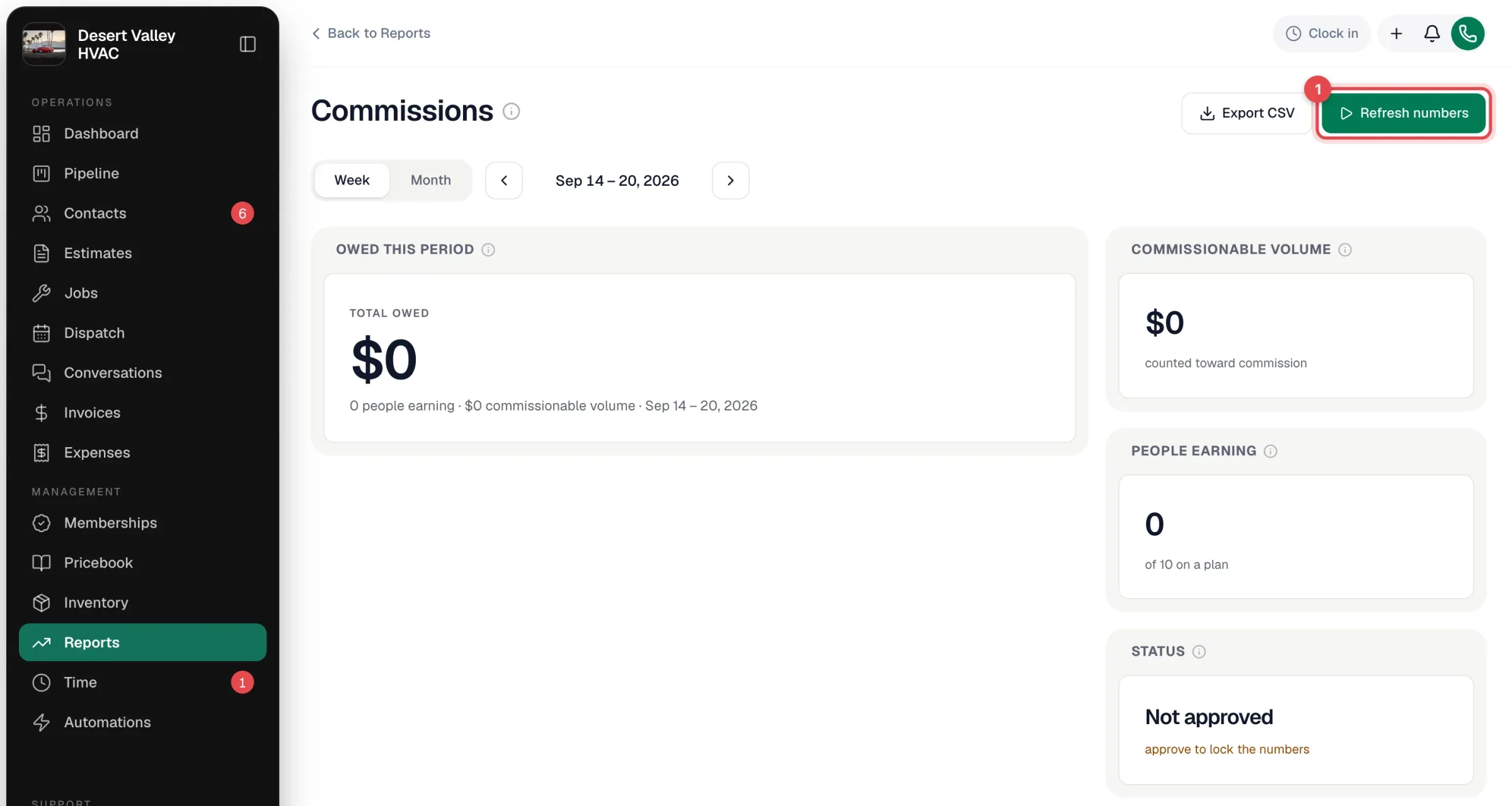
Choose Week or Month, and use the arrows to move between periods. A period works out its numbers the first time you open it.
Check the numbers
| Tile | What it shows |
|---|---|
| Owed this period | Total owed to everyone, adjustments included. |
| Commissionable volume | What counted toward commission this period, across everyone on a plan. |
| People earning | People with a non-zero total, out of everyone on a plan. |
| Status | Not approved, approved (locked), or paid. |
| Ledger | One row per person and plan: volume, rate, commission, adjustments, total owed and status. Open a row to see the documents behind it. |
If you corrected a Sold by, changed who's assigned to a job, or recorded payments after opening the period, click Refresh numbers.
Add a bonus or deduction (optional)
Open a person's row in the Ledger and add an adjustment: choose Bonus (adds to the check) or Deduction (comes off the check), enter the Amount and What's it for?, then Add adjustment. Adjustments ride along with the period's payout and appear in the export.
Approve, then mark paid
- Approve period locks the numbers so later job changes or refreshes can't change them.
- Mark paid once the money goes out.
- Reopen an approved period if you need to correct it.
Export
Export CSV downloads the ledger for the period — ready to hand to whoever runs payroll.
Good to know
- The Est. comm. column on the Technician Scoreboard is a live estimate; this report is the payable record.
- Commissions are calculated in Run a Call only — they aren't sent to QuickBooks Payroll.