
"Converting" a lead means their status becomes Customer. Usually you don't have to do anything: Run a Call converts a lead the moment real work is booked. You can also move them yourself on the Pipeline.
Automatic conversion
| When this happens | The contact becomes |
|---|---|
| You create an estimate for a Lead or Prospect | Quoted |
| You book a job for them (from the office, from a call, or a tech in the field) | Customer |
| They approve an estimate — online or on-site | Customer |
| An estimate is turned into a job | Customer |
Automatic changes only move a contact forward. A Customer is never moved back to Quoted because you send them another estimate.
Converting a lead changes their status only. It doesn't create a job, send the customer anything, or change anything in QuickBooks.
Converting by hand
Use this when someone bought without a job in Run a Call yet — for example they signed up for a maintenance plan by phone.
Who can do this: owners, admins and dispatchers (anyone who can edit customers).
- Click Pipeline in the sidebar, then Contacts.
- Find the contact — type their name into Search contacts… if the board is busy.
- Drag the card to the Customer column, or click the status pill on the card and pick Customer.
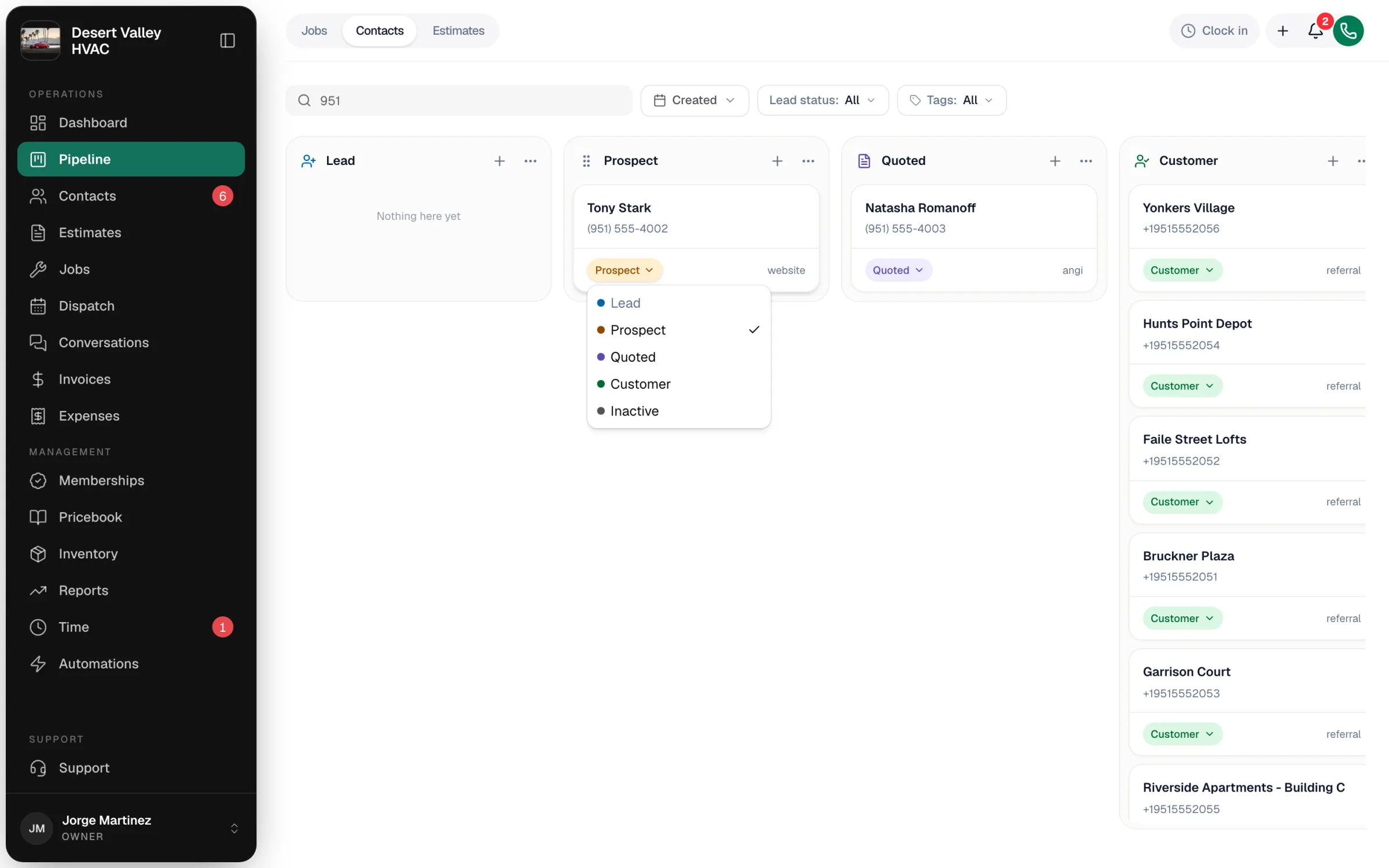
The usual path from lead to job
- A lead comes in — booking page, call, or text. Status: Lead.
- You talk to them and they're serious — move them to Prospect.
- You create an estimate — they become Quoted automatically. See How to create and send an estimate.
- They approve it — they become Customer automatically.
- You create the job from the approved estimate. See Creating a job from an estimate.
Small repair calls often skip the estimate: book the job straight from the customer's profile with Book a job, and the lead becomes a customer right away.
Undoing a conversion
Contacts only move forward on their own: Customer can move to Inactive, and Inactive can go back to Lead or Prospect. If a contact was marked Customer by mistake, an owner or admin can pick the earlier column from the card's status pill and click Move anyway.
Seeing your conversion numbers
Reports → Lead Analytics shows your Conversion rate, Days to convert, and Conversion by source. See Tracking lead sources.