
When a visit needs another trip — the part has to be ordered, the customer wants you back to check the repair, or something failed under warranty — create a follow-up job. It's a new job linked to the original, so the first job keeps its own status, invoice and history, and you can always see how the two connect.
Who can create follow-ups
Owners, admins and dispatchers, from the office app. You can create a follow-up from any job except one that's still Created (never scheduled) or Cancelled.
Create a follow-up
Open the original job
Open the job the return visit is for.
Choose Create follow-up
Click ⋯ in the top-right corner and choose Create follow-up. (The Follow-ups section further down the job page has the same button.)
Pick a reason
The Create follow-up job dialog opens.
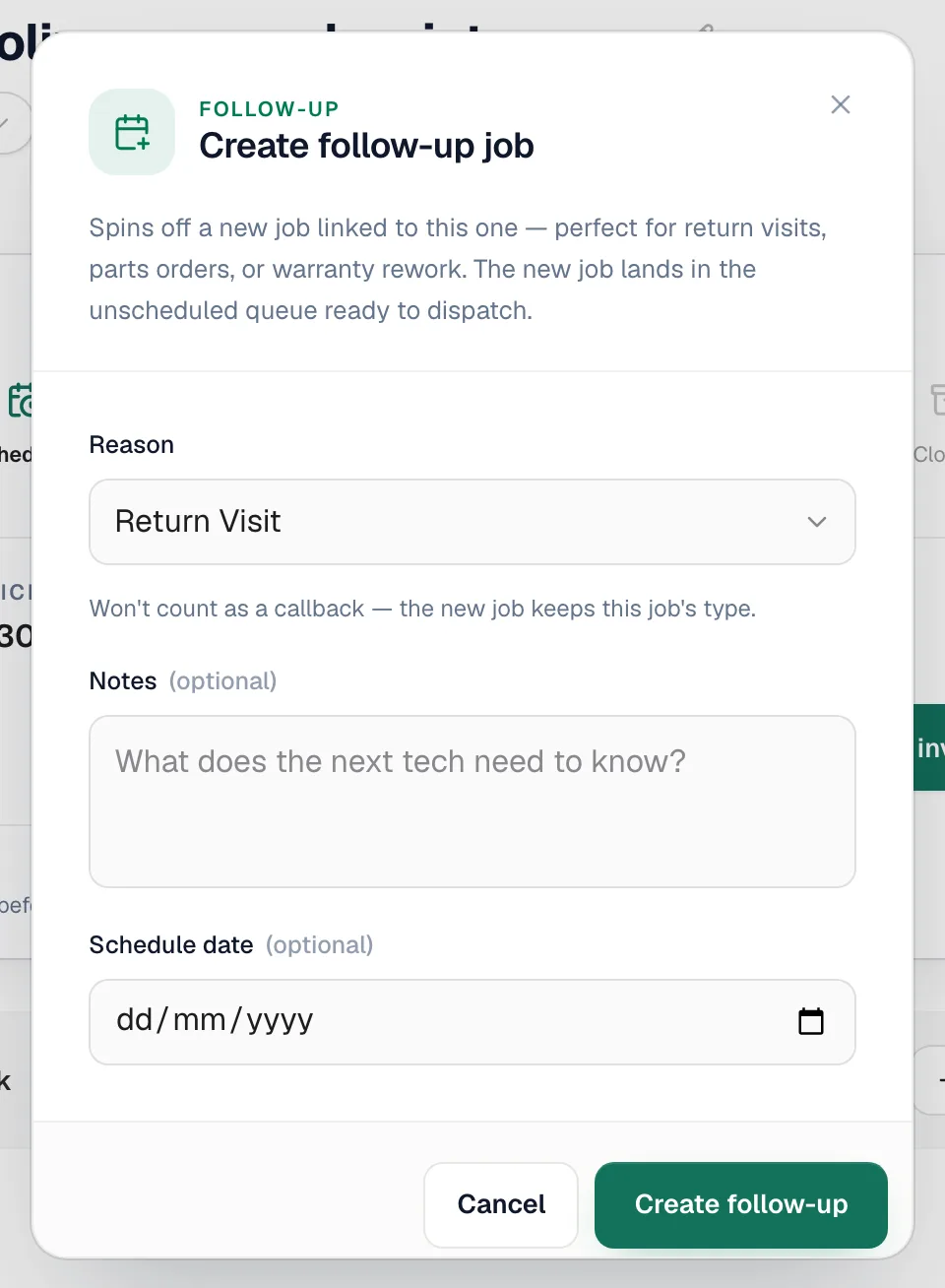
| Reason | Use it for | The new job's type |
|---|---|---|
| Return Visit (default) | A planned second trip — finishing the work, a check-in | Same type as the original |
| Parts Ordered | Coming back once a part arrives | Same type as the original |
| Warranty | Rework covered by your warranty | Same type as the original |
| Callback | The customer called back because the problem isn't fixed | Callback — counts toward your callback rate on reports |
Pick Callback only for true callbacks. The other reasons Won't count as a callback — the new job keeps this job's type.
Add notes and a date (optional)
- Notes — What does the next tech need to know? For example, the part number on order or what to recheck.
- Schedule date — the day you expect to go back, if you know it.
Click Create follow-up
You'll see Follow-up job created, and your team gets a Follow-up scheduled notification.
What the follow-up looks like
- Status: Created. It lands in the unassigned queue on the dispatch board, ready to schedule. Give it a time and a tech the usual way — see Assigning team members to jobs.
- Same customer, property and equipment as the original job.
- Title — Follow-up: Parts Ordered — your notes, followed by the original job's description.
- Default line items for its job type are added, like any new job.
- The follow-up job page shows Parent Job with a View original job link.
- The original job lists it under Follow-ups, with its status and time.
- On the Jobs list, callback jobs carry a Callback badge.
The original job's status doesn't change — a completed job stays completed, an invoiced job stays invoiced.