
Every scheduled job has one lead technician, and can have helpers who go along. You can pick the team while you book the job, from the job page, or on the dispatch board.
Who can assign
Owners, admins and dispatchers. Anyone whose role includes the field app can be assigned — techs, and owners and admins unless your board is set to Only dispatch to field techs.
Lead and helpers
| Role | What it means |
|---|---|
| Lead | Owns the job for the day. The lead's status taps (On My Way, Arrived on Site, Complete Job) move the job along, and the lead owns the customer texts for that visit. |
| Helper | Goes along. The job shows on their board and in their app too, and they track their own time. |
Option 1: When you create the job
On the New job form, under Schedule:
- Pick a date under When (a tech can't be assigned without one).
- Click Assigned to and choose the lead.
- Optionally, tick other techs under Helpers (optional).
If you pick a date and tech but no time, Run a Call puts the job in that tech's first open 90-minute slot of the day. See How to create your first job.
Option 2: From the job page
Open the Schedule & assign popup
On the job, find Schedule & technician in the status card. Click Schedule & assign (or Reschedule if the job already has a time).
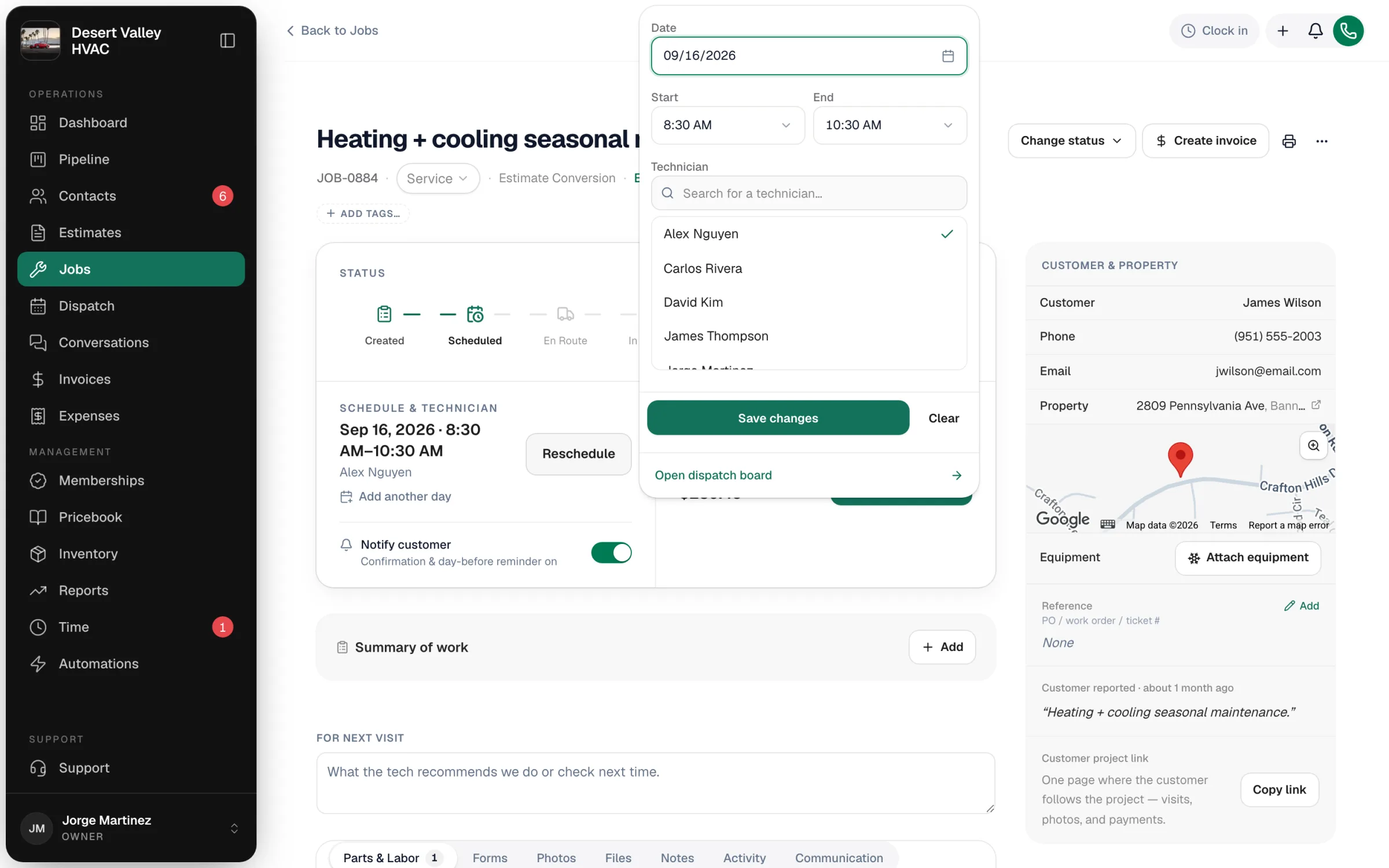
Set the date, time and technician
Pick the Date, Start and End, then choose the lead under Technician — type in Search for a technician… to find them fast.
Save
Click Schedule & assign (or Save changes). The job moves to Scheduled and appears on the dispatch board.
To take a job off the schedule, open the same popup and click Clear — the job goes back to the unscheduled queue.
Option 3: On the dispatch board
- Drag a job from the unassigned queue onto a technician's row at the time you want, or drag a job from one tech's row to another's.
- Use the Assign… dropdown on a queue row to hand it to a tech's next open slot.
- Click a job, then Edit next to Crew to change the lead or add and remove helpers.
The board warns you — without blocking — if the tech is off, outside their hours, missing a skill, or already booked. See Dispatch board overview and Avoiding scheduling conflicts.
Option 4: Ask Runny
On the dispatch board, open Runny and ask, for example, Who should take the next job? Runny proposes a tech and shows the job on the board as a suggestion. Nothing changes until you click Apply. See Using Runny, the AI dispatcher.
What happens after you assign
- The tech sees it. The job appears in their My Jobs list in the app. When you assign or change the tech from the job page or the dispatch board, the new tech also gets a New job assigned push notification (if they allow notifications for the app). Picking the tech on the New job form doesn't send that notification.
- The customer can be texted. The first time a job is scheduled with a tech, a booking confirmation text is queued. It waits about 5 minutes, so quick changes on the board don't send a flurry of texts. See What customers receive when you schedule a job.
- The Activity tab records it, for example Assigned to David Kim or Reassigned from Carlos Rivera to David Kim.
Multi-day jobs
For installs that run several days, each day has its own crew. Use Add another day / Manage days on the job page, or the Crew rows on the dispatch board. See Planning multi-day jobs.