
Every job moves through a short, fixed set of statuses, from the moment it's booked to the moment the invoice is paid. The status tells your whole team where the job stands and what happens next.
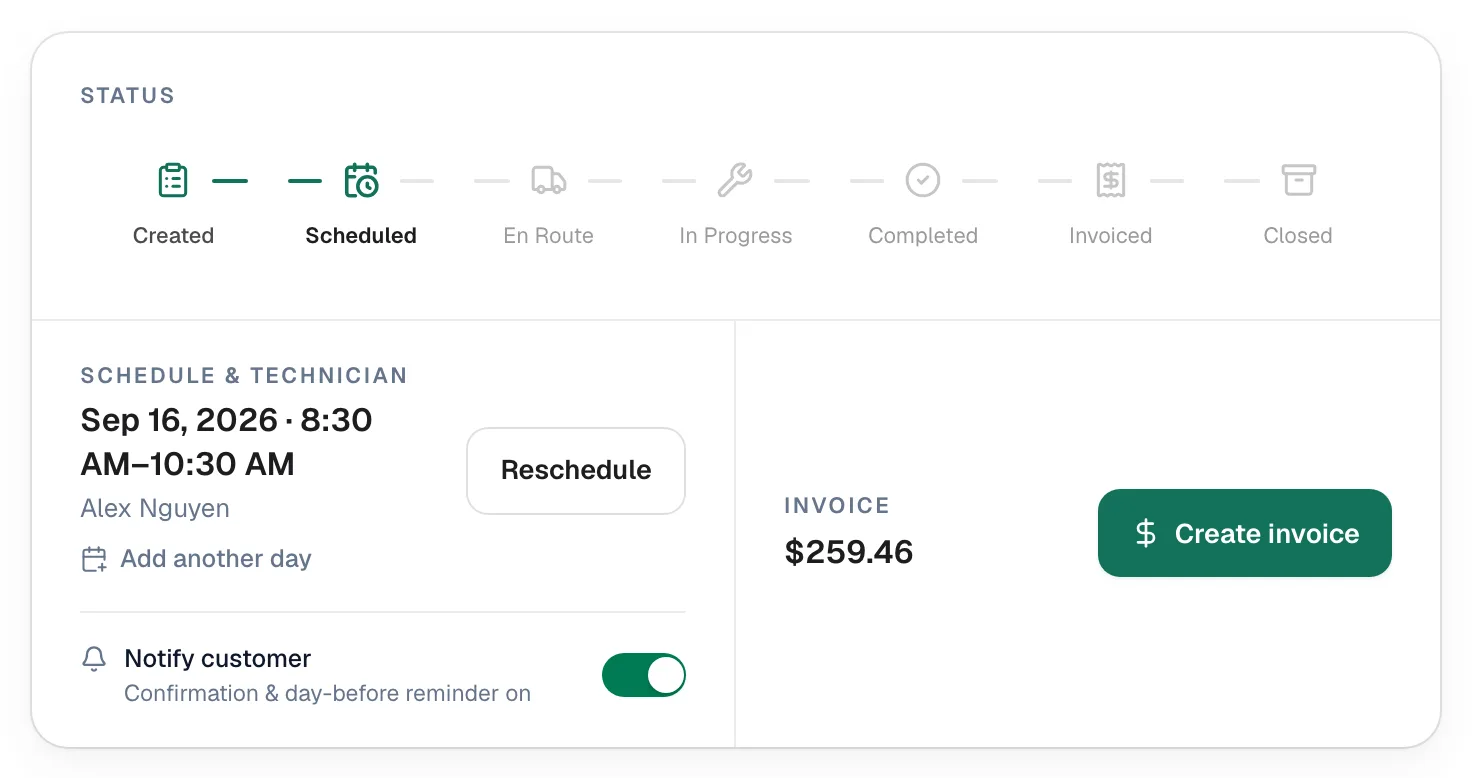
The statuses
The status bar at the top of every job shows the seven main steps. Two more statuses, Cancelled and No Show, end a job early.
| Status | What it means | How a job gets here |
|---|---|---|
| Created | The job exists but isn't on the calendar yet. It waits in the unassigned queue on the dispatch board. | A new job saved without a date, or a new follow-up job. |
| Scheduled | The job has a date, and usually a time and technician. | Picking a date on the New job form, Schedule & assign on the job, or dropping it on a technician on the dispatch board. |
| En Route | The technician is driving to the customer. | The tech taps On My Way in the app (or the office marks it). |
| On site | The technician is at the customer's address. | The tech taps Arrived on Site. |
| Completed | The work is done. | The tech taps Complete Job, or the office marks it completed. |
| Invoiced | An invoice has been created from the job. | Create invoice on a completed job. |
| Closed | The invoice is paid in full. | Happens on its own when the last payment lands. |
| Cancelled | The job isn't going ahead. | The office picks Cancelled. |
| No Show | The tech went out and nobody was there. | The tech taps Nobody there? Mark No Show, or the office picks No Show. |
You never set Closed by hand. When an invoice for the job is paid in full (and, with a payment schedule, every payment is in), the job closes itself.
Which moves are allowed
- Forward, including skipping steps. Anyone who can edit jobs can move a job ahead — for example, straight from Scheduled to Completed when the office logs a visit after the fact.
- Cancelled works on any job that isn't finished yet (Created, Scheduled, En Route or On site). No Show works once the job is scheduled (Scheduled, En Route or On site). A completed job can't be cancelled.
- Closed, Cancelled and No Show have no next step. Only an owner or admin can take a job out of them, using Move back (a cancelled or no-show job can only go back to Scheduled).
- Backwards — say, a job marked Completed by mistake — is limited to owners and admins. See How to update a job's status.
Parts run and On hold
Sometimes a tech has to step away mid-job: a quick run to the supply house, or a part that has to be ordered. That isn't a separate status. The job keeps its status and gets a flag on top:
| Flag | Shows as | When to use it |
|---|---|---|
| Parts run | Parts run · back today | The tech leaves to grab a part and comes back the same day. |
| On hold | On hold · parts ordered | The job is waiting on a part that has to arrive first. |
Only open jobs (Scheduled, En Route or On site) can be paused. The flag clears on its own when the job moves on — for example, when it's completed. Techs set it from the app with Need a part? Step away; the office uses Change status → Step away. See Parts run and On hold.
Follow-ups are new jobs, not a status
When a job needs a return visit — a part to install, warranty rework, a callback — use ⋯ → Create follow-up on the job. Run a Call creates a new job linked to the original and puts it in the unscheduled queue. The original job keeps its own status, so its invoice and history stay intact. See Creating a follow-up job.
Where statuses show up
- Job page — the status bar and the Change status button.
- Jobs list — the Status column and the Status filter.
- Pipeline — the Jobs board, where each column sets a status. See Using the pipeline boards.
- Dispatch board — each job card shows its status.
- Customer texts — some status changes send the customer a text. See How to update a job's status.