
Board settings let each dispatcher set up the dispatch board the way they work: what the job cards show, how big the text is, the order of the tech rows, and more. Most choices only change your board and follow you to any device you sign in on. Two settings — card colors and Only dispatch to field techs — change the board for the whole company, so only owners and admins can change them.
Open Board settings
On Dispatch, click the gear button next to the date. The settings open with sections down the left side.
Start here: pick a setup
Choose the card that sounds like you and the board sets itself up. You can still change any switch afterwards.
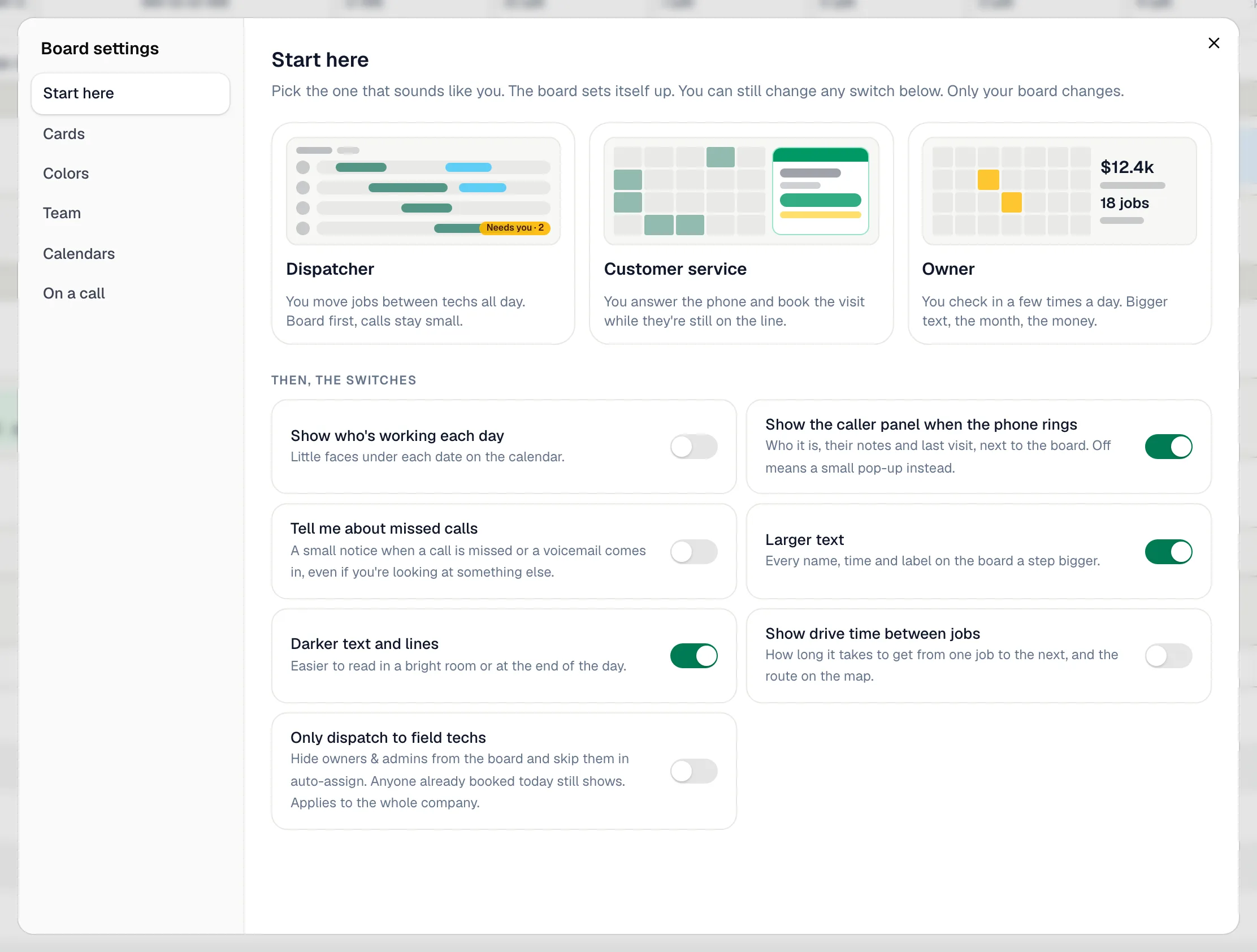
| Setup | Best for | What it sets up |
|---|---|---|
| Dispatcher | You move jobs between techs all day. | Timeline view, drive time on, missed-call notices on, caller panel off. |
| Customer service | You answer the phone and book the visit while the caller is on the line. | Week view, the full caller panel on, missed-call notices on. |
| Owner | You check in a few times a day. | Month view, team faces under each date, larger text, caller panel off. |
The switches
| Switch | What it does | Who it affects |
|---|---|---|
| Show who's working each day | Little faces under each date on the calendar. | You |
| Show the caller panel when the phone rings | Shows who's calling, their notes and last visit next to the board. Off means a small pop-up instead. Only with the Voice add-on. | You |
| Tell me about missed calls | A browser notice when a call is missed or a voicemail comes in, even if you're on another tab. Your browser asks for permission the first time. | You |
| Larger text | Every name, time and label on the board a step bigger. On by default. | You |
| Darker text and lines | Easier to read in a bright room. On by default. | You |
| Show drive time between jobs | Adds the drive between back-to-back jobs on the timeline and the route on the map. | You |
| Only dispatch to field techs | Hides owners and admins from the board and leaves them out of suggested techs. An owner or admin who already has a job in view still shows. | Whole company — owners and admins only |
Cards
Pick what shows on the job cards. Use the Timeline / Calendar toggle to switch between the two kinds of card; the preview on the right updates as you go.
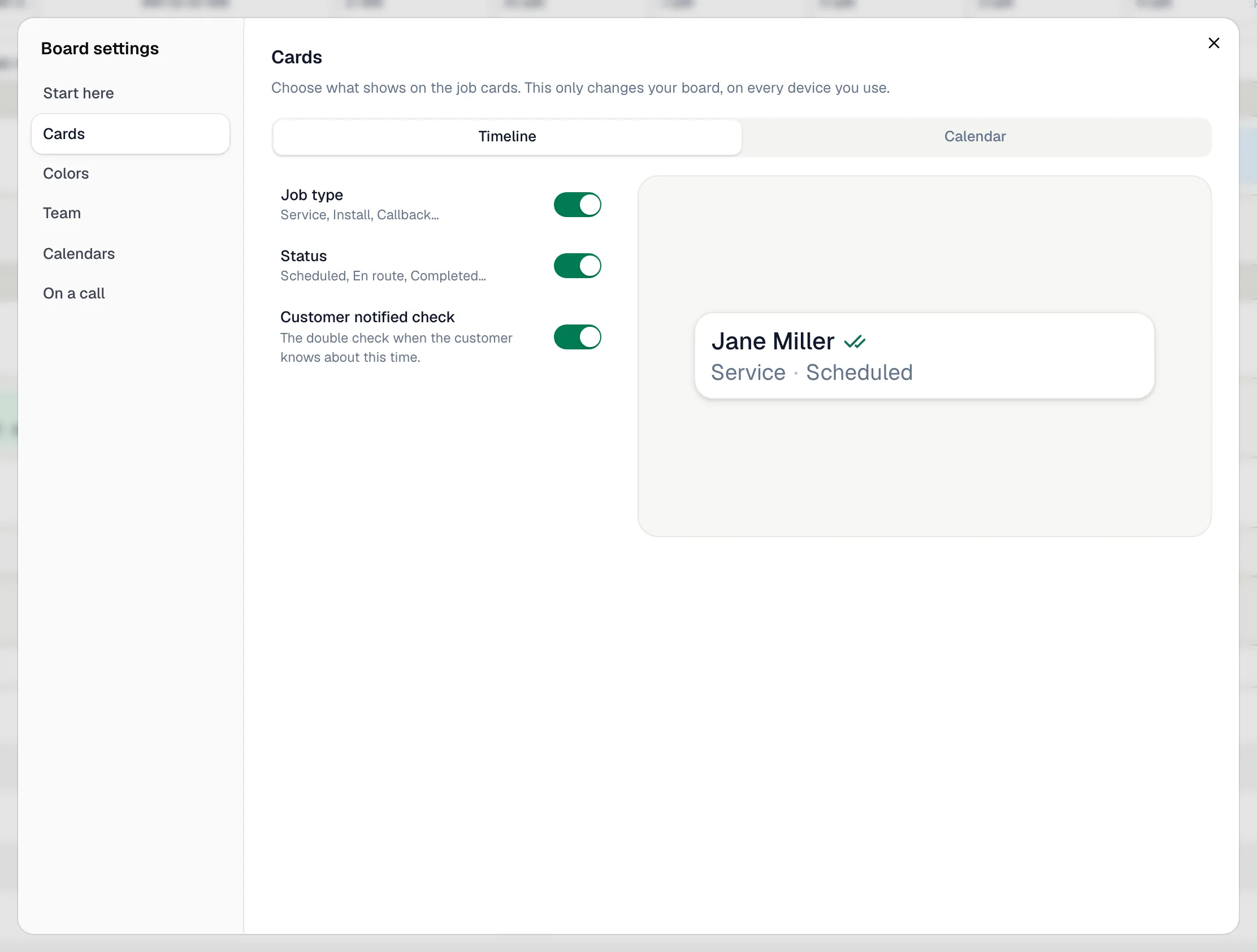
| Card | You can show or hide |
|---|---|
| Timeline | Job type, Status, Customer notified check (the double check when the customer knows the time) |
| Calendar | Technician tag, Start time, Customer name, Address, Customer notified check |
Colors (owners and admins)
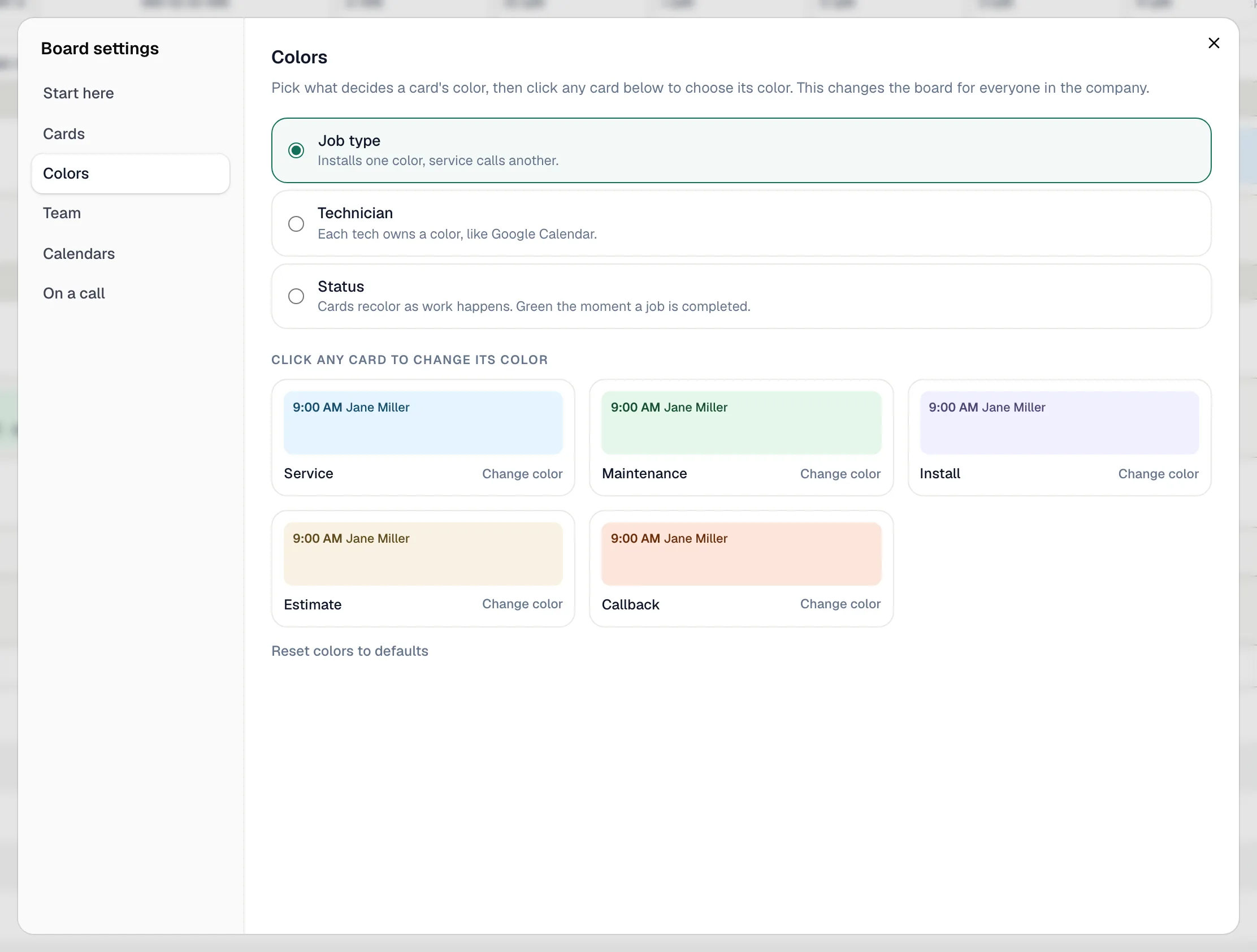
Decide what gives a card its color, for everyone in the company:
- Job type — installs one color, service calls another (the default).
- Technician — each tech has their own color.
- Status — cards change color as work happens, green once a job is completed.
Click any sample card and choose Change color to pick a different color. Reset colors to defaults puts everything back.
Team: order the tech rows
Drag technicians into the order you want their rows. It saves as you go and only changes your board.
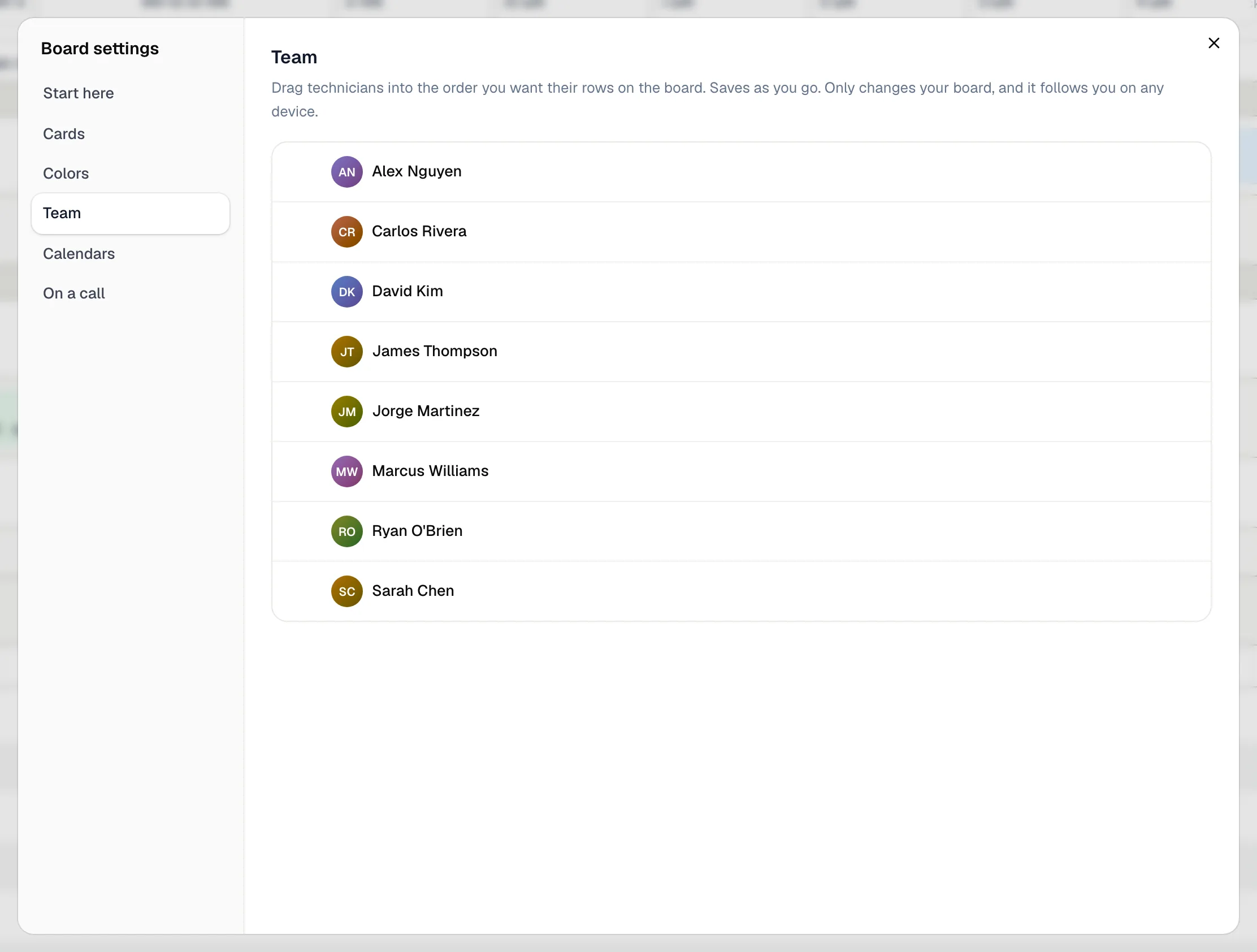
You can also reorder straight from the Timeline: hover a tech's name and drag the grip that appears.
To group techs under headers such as Sales or Install, create business units under Settings → Team → Business units.
Calendars and On a call
- Calendars — show or hide busy time from teammates' connected Google or Outlook calendars, and see who has connected. See Syncing Google Calendar and Outlook.
- On a call — with the Voice add-on, tick what the caller panel shows when someone calls: flags, membership, address, the Book / Note / Text buttons, next visit, last visit, what they owe and recent notes.
Other ways to shape the board
| You want to… | Do this |
|---|---|
| See a week or month instead of a day | Use Timeline / Calendar and the Day / Week / Month dropdown. See Timeline, Calendar and Map views. |
| Hide someone from the calendar | In a Calendar view, untick them in the Team list on the left. |
| Change the queue columns or add queue tabs | See Working the unassigned queue. |
| Block lunch, a meeting or a day off | See Blocking time on the dispatch board. |
| Change the hours the board shows | Set your business hours. |