
The Dispatch board is where you see everyone's day at a glance and put jobs on the right tech at the right time. Each technician gets a row, each job is a card on that row, and the jobs still waiting for a tech sit in a queue at the bottom.
Who can use it
| Role | What they can do |
|---|---|
| Owner and Admin | Everything, including company-wide board colors and the Only dispatch to field techs setting. |
| Dispatcher | View the board, drag and assign jobs, ask Runny, add meetings and blocked time. |
| Field Tech | No access — techs see their own schedule in the mobile app. |
Open it from Dispatch in the left sidebar. Custom roles follow the Schedule & Dispatch permission set under Settings → Team → Roles.
The board at a glance
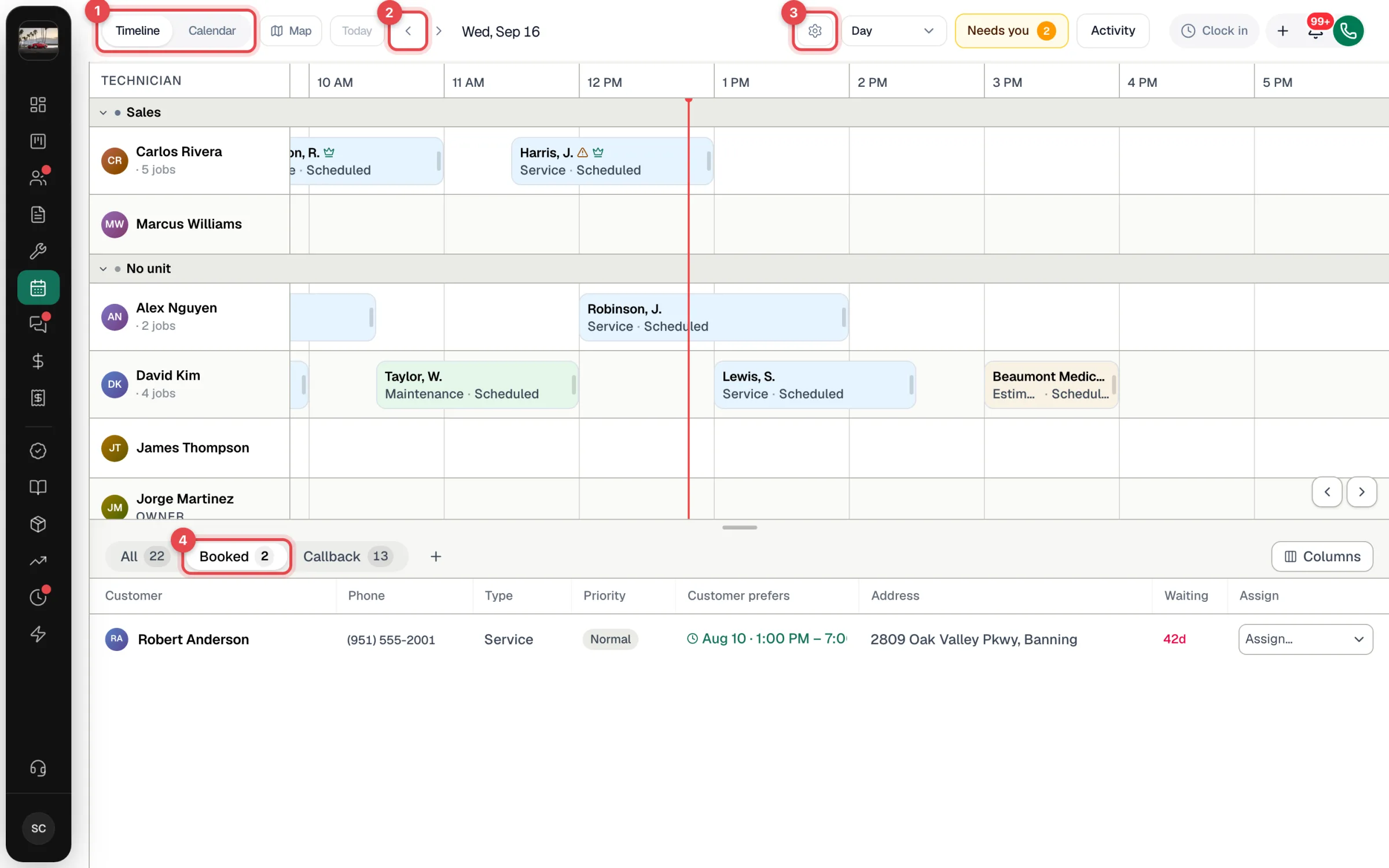
| Area | What it's for |
|---|---|
| 1. Timeline / Calendar | Switch between tech rows on a time axis (Timeline) and a Google-style calendar (Calendar). Map next to them shows the day's jobs and your techs on a map. See Timeline, Calendar and Map views. |
| 2. Today and the arrows | Today jumps back to today; the arrows move a day, week or month depending on the view. Click the date to pick any day. |
| 3. Board settings (gear) | Choose what shows on the cards, colors, the order of your techs, and more. See Customizing the dispatch board. The Day / Week / Month dropdown next to it changes how much time you see. |
| 4. Queue tabs | The jobs that don't have a technician yet: All, Booked, Callback, plus any tabs you create. See Working the unassigned queue. |
| Needs you | Missed calls, voicemails, unread texts and emergencies with no tech. See Needs you and the Activity panel. |
| Activity | A live feed of what the team is doing, plus Runny, the AI dispatcher. |
Each technician row shows their name, how many jobs they have that day and, on today's board, when they clocked in. Time outside a tech's working hours is striped, and a tech who is off that day is greyed out with an Off tag. Business units (for example Sales) group the rows under a header you can collapse.
Schedule a job from the queue
Find the job in the queue
The tray at the bottom lists every job with no technician. Use the tabs to narrow it down.
Drag it onto a tech's row
Drop it at the time you want. The card snaps to 15-minute steps, and the job becomes Scheduled for that tech.
Prefer not to drag? Open the Assign… dropdown on the queue row and pick a tech. If the job already has a date and time (for example, one the customer picked when booking online), it keeps them. Otherwise Run a Call puts it in that tech's first open slot.
Move or resize a job
- Change the time or the tech: drag the card along the row or onto another tech's row.
- Change how long it takes: drag the right edge of the card (on the Calendar views, the top or bottom edge).
- Take the tech off: drag the card back down onto the queue tray (Drop to unassign).
- Changed your mind? Moves of already-scheduled work show a message with Undo for a few seconds.
When you drop a job somewhere that looks like a problem — the tech is off, outside their hours, already booked at that time — a yellow Heads up message tells you. The move still goes through. See Avoiding scheduling conflicts.
Moving a job the customer has already been told about can send them a text with the new time. See What customers receive when you schedule a job.
Open a job from the board
Click any card to open a quick job panel. Hover a card with a mouse to see a preview first.
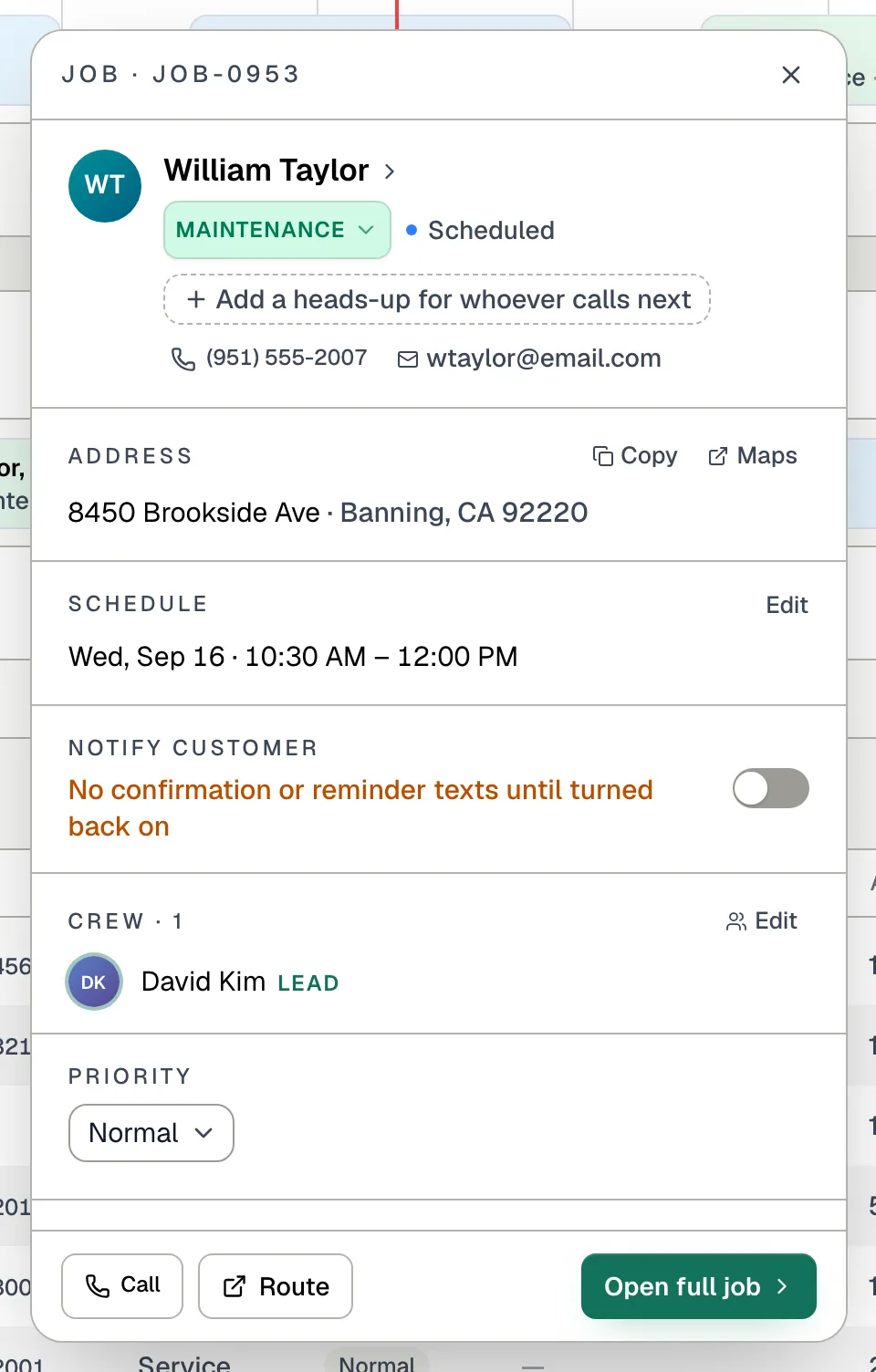
From the panel you can:
- change the Schedule (Edit → pick date, start and end → Save),
- turn Notify customer on or off for this job,
- change the Crew (Edit → pick the lead and helpers),
- change the Priority,
- read the problem, equipment, line items and notes, and add a note,
- Call the customer, open Route in maps, or Open full job.
Click an empty spot on a tech's row (or right-click it) to start something new at that time: New job, New estimate, or Meeting, blocked time or day off (Blocking time on the dispatch board).
On an iPad, tablet or phone
Dispatch checks whether the device has a touchscreen. On an iPad, an Android tablet or a phone, it always opens a simplified board built for tapping instead of the drag-and-drop board. That's true in portrait or landscape, and with a keyboard or trackpad attached. A computer browser window narrower than 640 pixels gets the simplified board too, and some touchscreen laptops may. A banner reads Dispatch is built for the big screen. For drag-and-drop scheduling, open it on desktop. Tap the X to hide it.
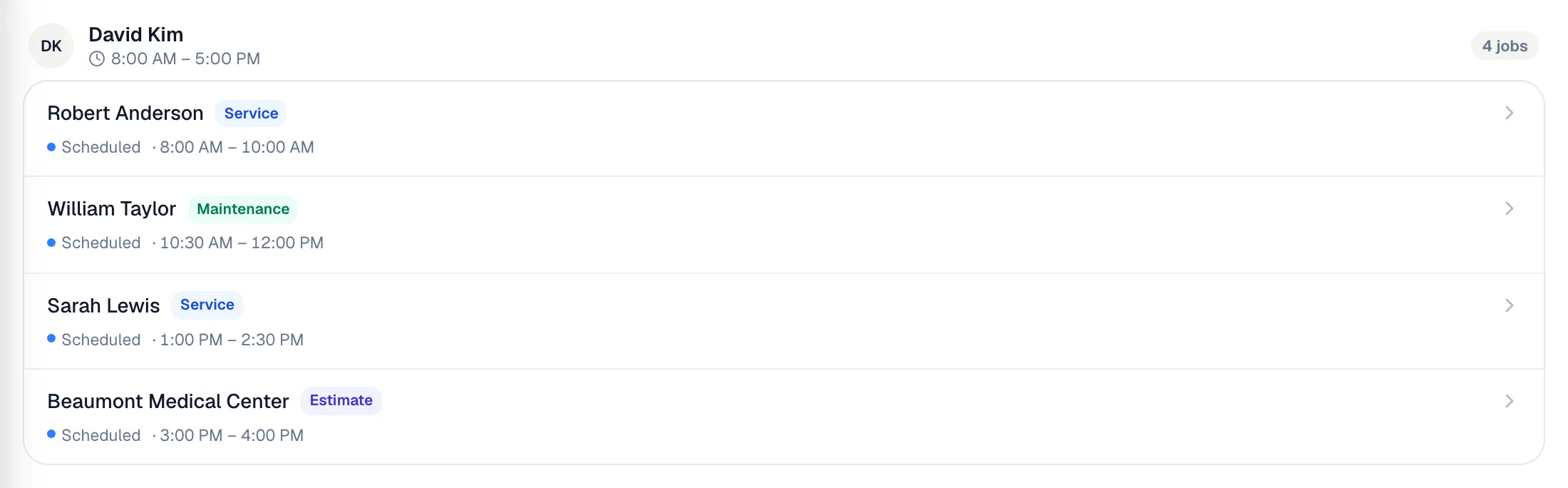
On the simplified board you can:
- switch between Day and Map, and move between days with the arrows or the date,
- see each working tech's hours for the day and their jobs in time order,
- tap a job to open its full job page, where you can reschedule it or change the tech,
- see the Unassigned jobs at the top and tap Assign to pick a Date, Start, End and Technician, then tap Assign job,
- on Map, see the day's job addresses as a list and tap Go for directions.
The simplified board doesn't have dragging, the Timeline and Calendar views, week or month views, Board settings, the queue tabs, Runny, Activity or Needs you. For those, use a computer with a mouse or trackpad.
Good to know
- Who gets a row? Active team members whose role can use the field app. Owners and admins appear too, unless an owner or admin turns on Only dispatch to field techs in Board settings. Even then, an owner or admin who already has a job in view still shows.
- Changes show up live. When another dispatcher moves a job, your board updates, and the card shows who moved it.
- The time axis follows your business hours — an hour before you open to an hour after you close, and it stretches if a job runs later. See Setting your business hours.