
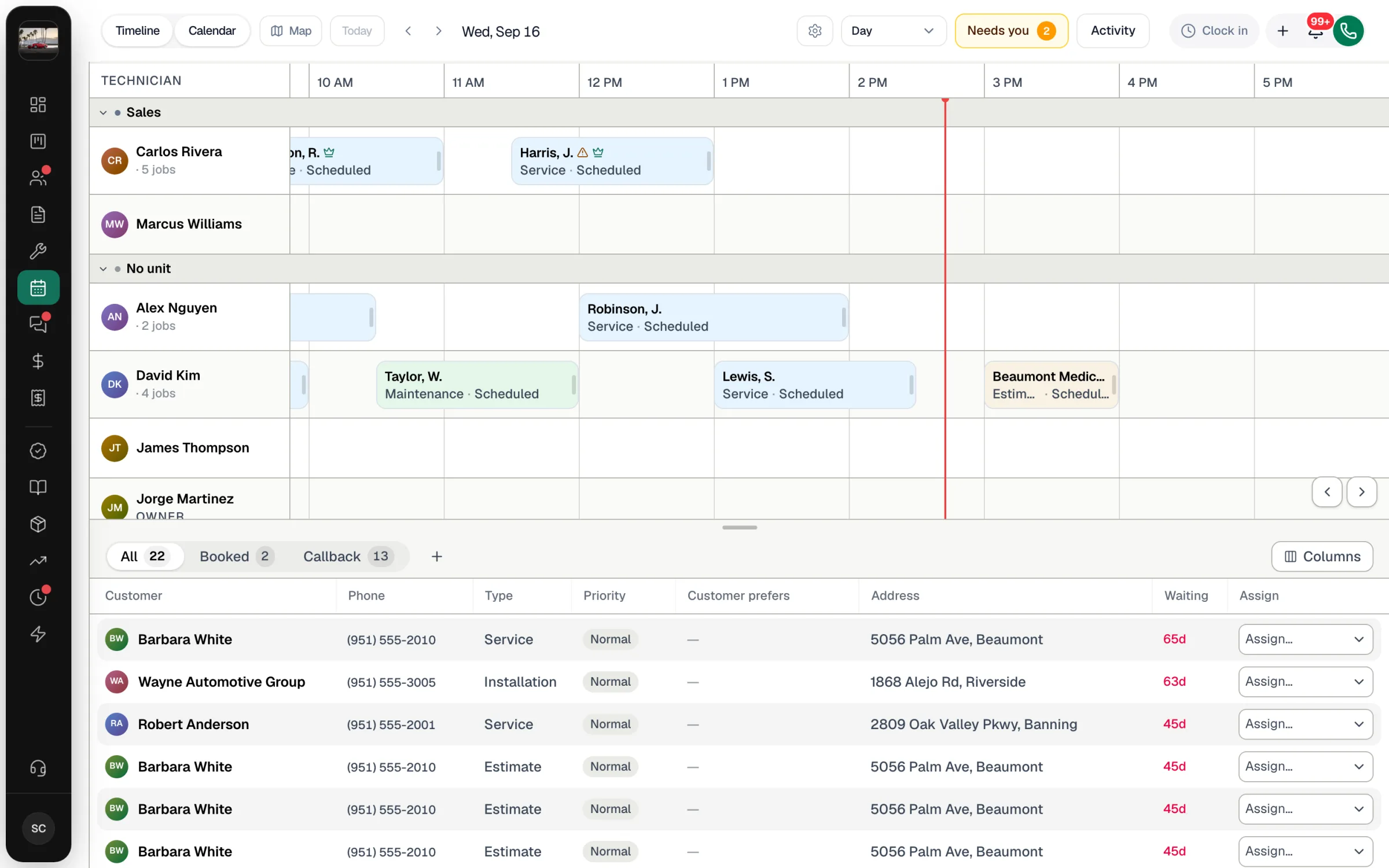
When you drag a job onto a technician at a time that looks like trouble, the dispatch board shows a yellow Heads up message explaining why. It's a warning, not a block — the job still moves, because you might know something the board doesn't (the tech agreed to stay late, the customer is next door). Read it, then decide whether to keep the move or put the job somewhere else.
What the board checks
| Check | The message reads |
|---|---|
| The tech is off that day — time off, sick day, a company holiday, or a day switched off in their weekly hours | Carlos is off this day. Confirm they're available before notifying the customer. |
| The tech is away for part of the day — for example a half day | Carlos is unavailable from 12:00 to 18:00 that day. |
| Outside the tech's working hours | Outside Carlos's working hours (08:00–17:00). |
| Another job at the same time | Overlaps Carlos's job at 09:30. |
| Busy on their own calendar — when they've connected Google Calendar or Outlook and you show outside calendars on the board | Carlos has "Busy" on their Google Calendar 9:00 AM to 10:00 AM. They can still take the job — just check with them. |
| A skill the job needs — when you've set up skills for your team, Run a Call tags the skills a job needs from its problem description | Carlos doesn't hold Mini-Split Specialist — required by this job. |
If more than one applies, they're listed together in the same message.
When you'll see it
The warning appears when you drag a job — from the queue onto a tech, from one tech to another, to a new time, or when you resize it. Assigning from the Assign… dropdown in the queue, or changing the time in a job's panel, doesn't show this message — so glance at the tech's row first.
On the board itself, you can spot problems before you drop:
- Striped time on a tech's row is outside their working hours. A greyed-out row tagged Off means they're off all day.
- A small amber badge on the top-right corner of a job card means it overlaps another job for that tech (hover it to read Overlapping with another job). An amber triangle next to the customer's name is different: it marks an Urgent job.
- On the Calendar views, day headers show hours booked and turn amber, then red, as the team fills up. Time off shows as chips under the date (for example Sarah off).
- In the Crew editor on a job, each tech is labelled Off this day, Free 8:00–17:00 or No schedule configured.
Make the warnings accurate
The checks are only as good as the information behind them:
| Keep this up to date | Where |
|---|---|
| Each tech's weekly working hours | Settings → Team → ⋯ on the person → Edit schedule. See Setting team working hours, time off and company holidays. |
| Vacations, sick days, half days | Approve requests under Time → Time Off, or add them from Edit schedule or the board. Only approved time off counts. |
| Company holidays | Time → Time Off → Company holiday, or Office closed on the board. |
| Outside appointments | Each person connects their calendar under Settings → Profile. See Syncing Google Calendar and Outlook. |
A tech with no weekly hours saved counts as always available, so the board won't warn about their hours at all.
What the warnings don't cover
- Meetings and "Keep time free" blocks you put on the board aren't checked when you drop a job. Look at the row before you drop.
- Drive time isn't part of the warning. Turn on Show drive time between jobs in Board settings to see a car between back-to-back jobs that turns amber when it's tight and red when the tech can't make it.
After you keep a conflicting move
Nothing stops the move, and the customer may get a confirmation or reschedule text as usual. If you're not sure the tech can make it, turn off Notify customer on the job until you've checked — see What customers receive when you schedule a job.
Runny, the AI dispatcher, skips techs who are off when it proposes moves. See Using Runny, the AI dispatcher.