
When you send an invoice, the customer gets an email, and a text the first time if texting is on. Both lead to a secure pay page for that one invoice. The customer doesn't need an account or password.
The email
- Subject: Invoice INV-0042 — $450.00 from [your company], or the subject you wrote when sending. If you edited the invoice and resent it, the subject reads Updated invoice….
- Body: your message, the line items, the totals and the due date.
- Pay Now button: opens the pay page. It reads Pay $X now if you've asked for part of the balance. Without Stripe connected, the email says Contact [your company] to arrange payment. instead.
- Attachment: the invoice PDF.
Replies go to your Reply-to address, which is your company email by default.
The text message
On the first send, if business texting is set up and the customer has a mobile number:
Hi Maria, invoice INV-0042 for $450.00 is ready. Pay online: [link]
The pay page
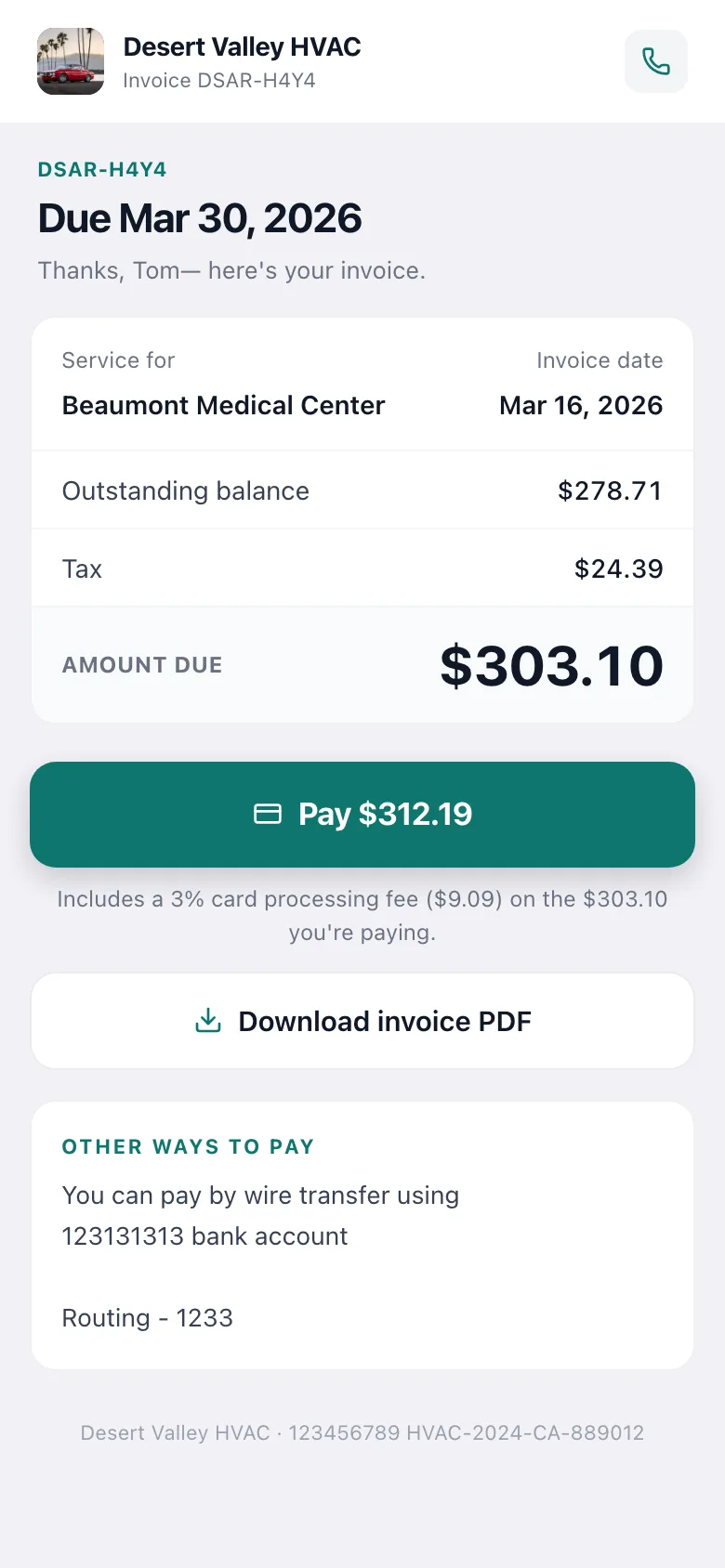
From top to bottom, the customer sees:
| Part | What it shows |
|---|---|
| Header | Your logo, company name and the invoice number. |
| Headline | Due [date], or Paid in full, and Thanks, [first name] — here's your invoice. |
| Summary | Who the service was for, the service or invoice date, and Updated [date] if you changed the invoice after sending it. |
| Line items | Each item and its price, with longer descriptions and any discounts. |
| Amount due | The remaining balance. If you've asked for part of it, the balance appears small and Due now shows the requested amount. |
| Payment history | Payments already made, with date, method and any card fee. |
| Notes | The notes you wrote on the invoice. |
| Pay button | Pay $X, including your card fee if you charge one. The fee is explained underneath. |
| Download invoice PDF | Always available. |
| Other ways to pay | Your payment instructions from Invoice settings → Payment. |
| Terms & conditions | Your invoice terms. |
The page uses the same design you chose for your emails.
Paying
- If there's a choice, the customer picks how much to pay under How much would you like to pay?: Amount due now, Full balance, or A different amount if you allow partial payments.
- They tap Pay $X.
- They enter a card or use Apple Pay, Google Pay or Link. If you accept bank payments, they can switch to their bank account instead.
- They tap Pay again to confirm.
Once it goes through, the page shows Payment received and says Receipt on its way to [email]. For a partial payment it shows how much was paid and what's left. The invoice updates in the office within seconds.
A bank payment shows Bank payment started. The customer can't pay the same invoice again until the transfer clears (4–5 business days).
After it's paid
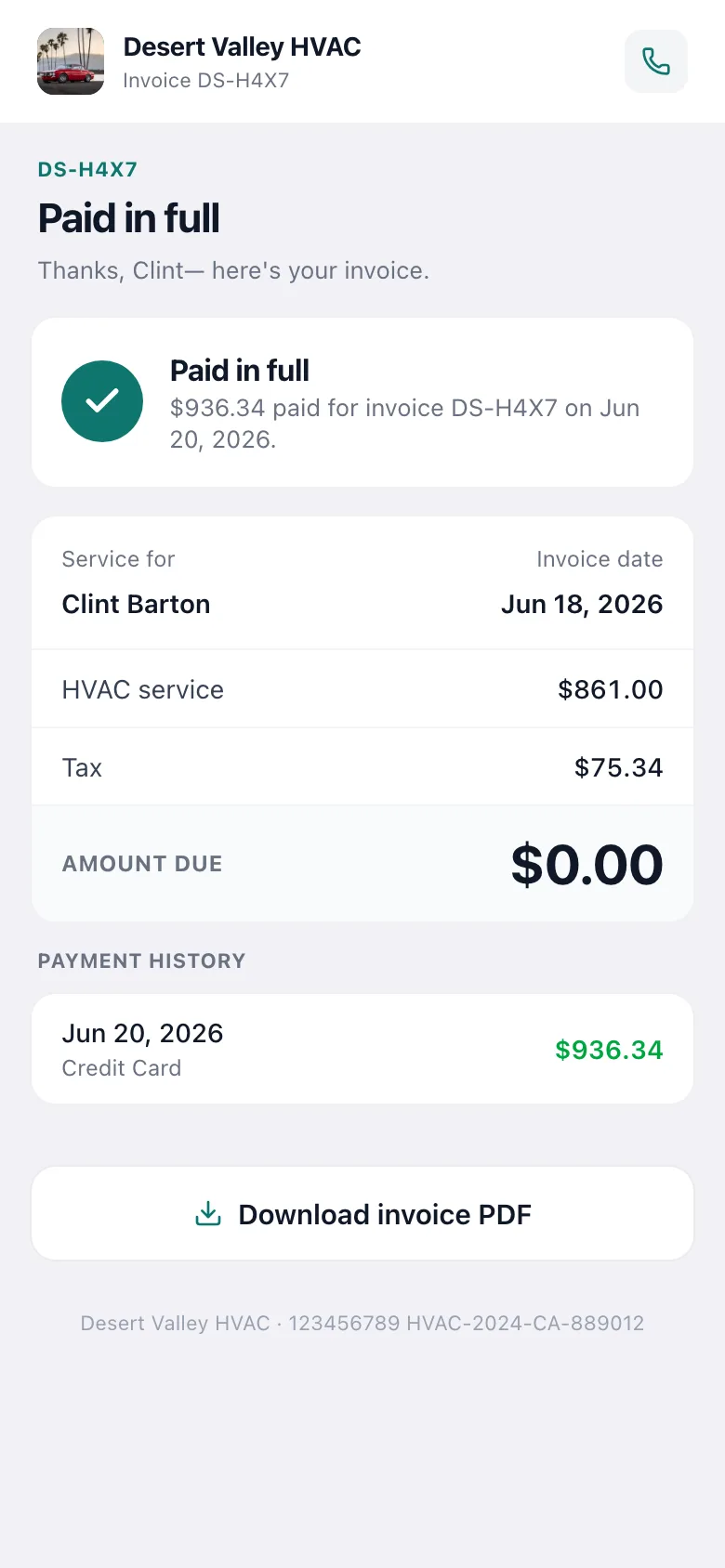
The link keeps working as a receipt: Paid in full with the date, the invoice details, the payment history and Download invoice PDF. If the customer came from their project page, a Back to your project link takes them back.
Special cases
| Situation | What the customer sees |
|---|---|
| Stripe isn't connected | No Pay button. Your How to pay instructions are shown instead. If you haven't set any, they see Online payment is not available for this invoice. Please contact [your company] to arrange payment. |
| Card payments turned off for this customer | Same as above: your payment instructions, no card option. |
| The invoice was voided | Invoice Voided — This invoice has been voided. Please contact [your company] for questions. |
| Payment schedule invoice | The invoice for that milestone. The PDF shows which payment it is (for example Payment 2 of 3), and the project page lists every milestone. |
What the customer never sees
- Internal notes on the job or customer.
- Your costs and margins.
- The job's activity trail, or who did what in your office.