
You can write a one-off email to a customer without leaving Run a Call. It goes out under your business name and is saved in the customer's conversation next to their texts, so everyone in the office can see what was said.
Who can do this
Owners, admins and dispatchers. The customer needs an email address on their profile.
Open the customer
Go to Contacts and open the customer.
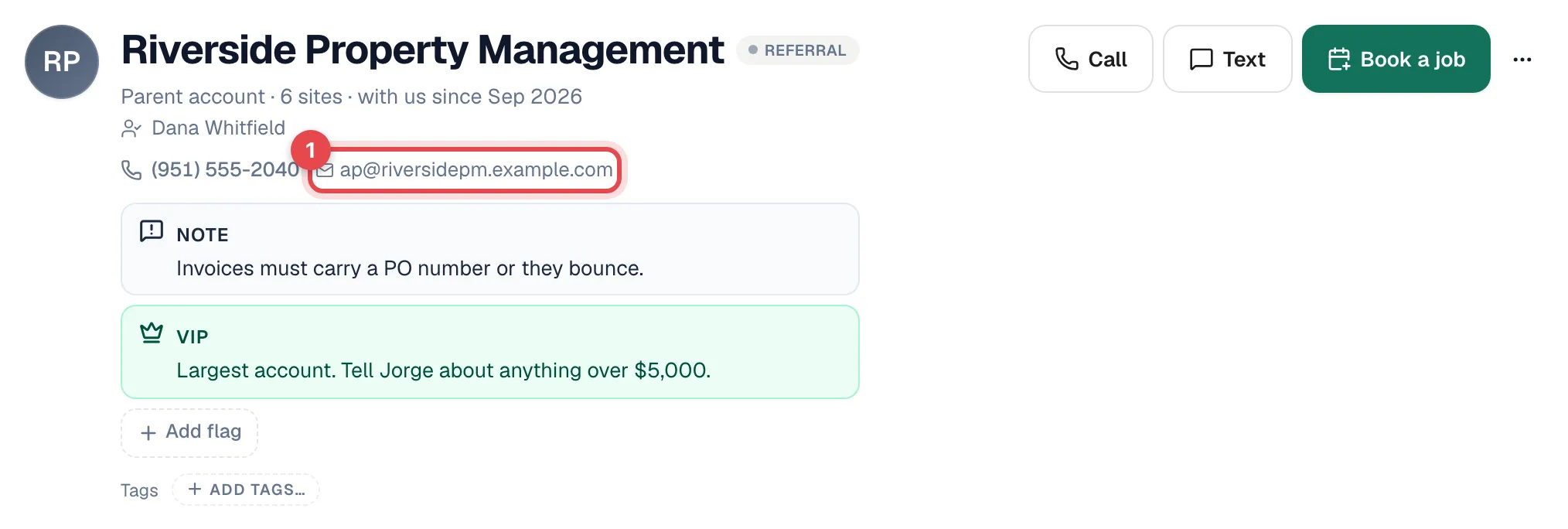
Click their email address
Click the email address under the customer's name at the top of the profile. You can also open the Contacts tab and click the email on the Main contact row.
Write the email
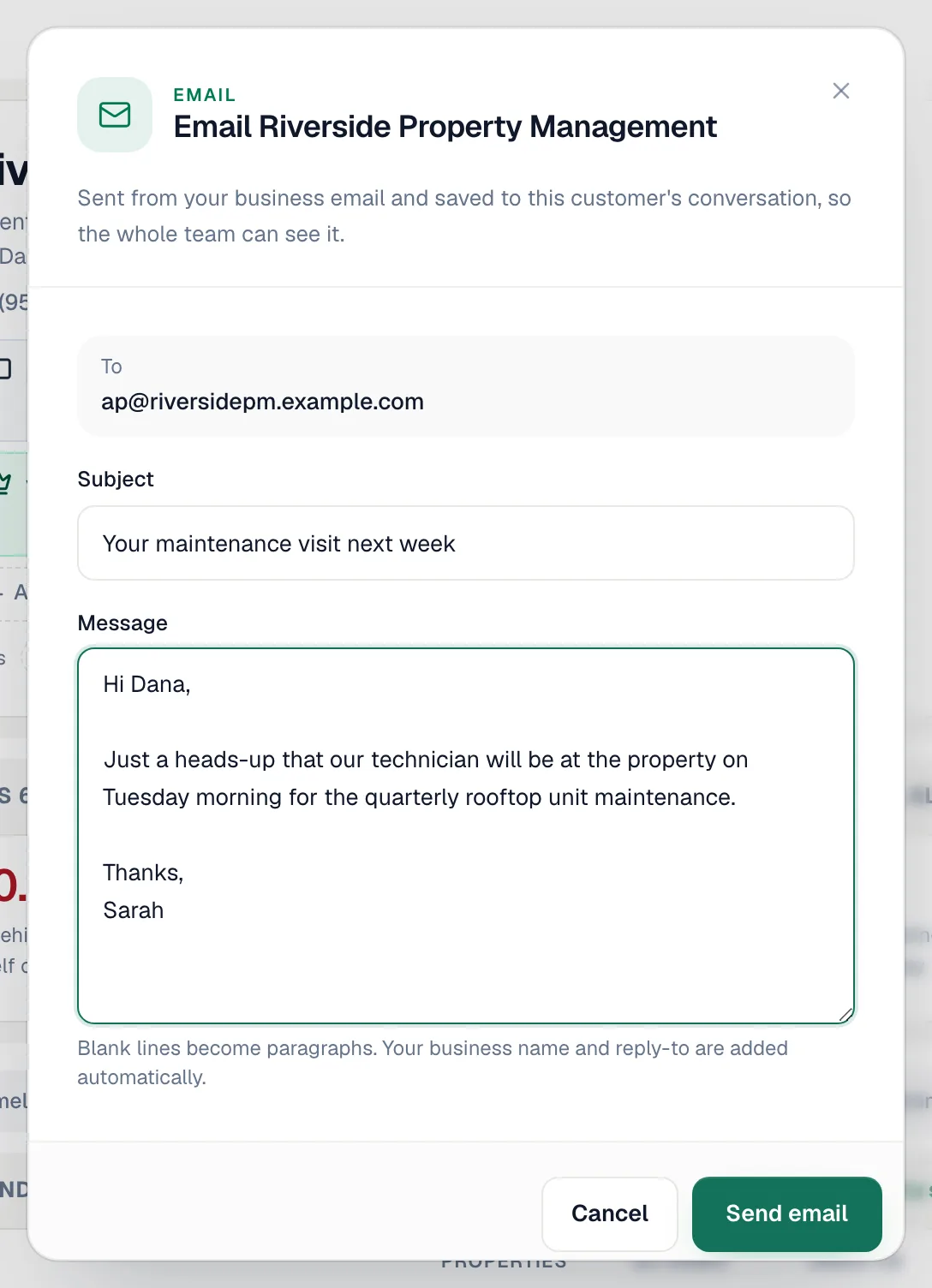
The Email {customer name} window opens with the address filled in.
| Field | What to enter |
|---|---|
| Subject | What the email is about (up to 200 characters). |
| Message | Your email. Leave a blank line to start a new paragraph. |
Attach files (optional)
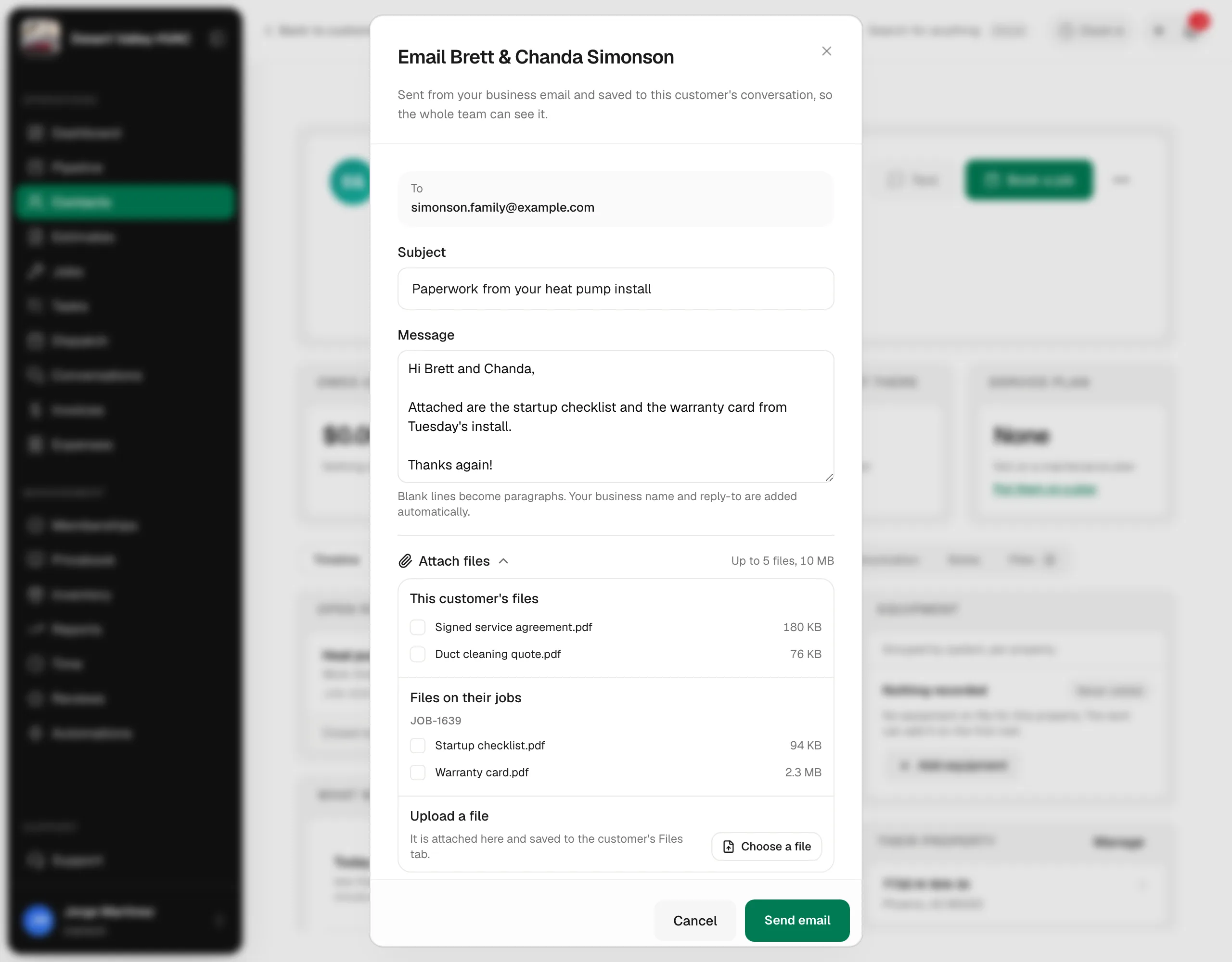
Click Attach files under the message to open the picker. It has three parts:
| Section | What's in it |
|---|---|
| This customer's files | The documents on the customer's Files tab. Tick the ones to send. |
| Files on their jobs | Files attached to this customer's jobs, grouped by job number. |
| Upload a file | Click Choose a file to pick something from your computer. It is attached here and saved to the customer's Files tab, so it's there next time too. |
You can send up to 5 files and 10 MB per email; the running total shows next to Attach files (for example 2.4 MB of 10 MB). If a file would push you over, you'll see Up to 5 files per email. Remove one to send. or the size it would bring you to. Untick a file to remove it.
Send
Click Send email. The button stays disabled until both the subject and message are filled in. You'll see Email sent to {customer name}.
What the customer receives
- The sender shows as {Your business name} via Run a Call.
- Your business name and reply-to address are added automatically — you don't type a signature.
- When the customer hits Reply, the reply goes to the email address in Settings → Business. If no business email is set, it goes to the email of the person who sent the message.
Customer replies land in your email inbox, not in Run a Call. The email you sent is saved in the customer's conversation; the reply stays in your mailbox.
Where the email shows up
- Conversations → Messages, in the customer's thread, as an email card with the subject.
- The Communication tab on the customer's profile.
Automatic emails, such as appointment reminders, show up in the same thread, so the history with the customer is in one place.
Good to know
- Email on a job page: the customer's email on a job opens your computer's own mail app instead, and that email isn't saved in Run a Call. To keep a record, email from the customer's profile.
- Invoices and estimates are sent from the invoice or estimate itself, with their own pay or approval link. Use Attach files here for other documents, such as a manual or a warranty certificate.
- Texts vs email: if the customer replied STOP to your texts, you can still email them.
- Uploads need a role that can edit customers. Otherwise the picker offers only the files already on the customer and their jobs.