
The Jobs list can be downloaded as a spreadsheet or printed as a work list. Both use the filters you have set, and both include every job that matches, not only the page you're looking at.
Who can do this: anyone who can open the Jobs list in the office app.
Go to Jobs and set your filters
Click Jobs in the sidebar, then narrow the list to what you want on paper or in the file:
| Filter | Use it to… |
|---|---|
| Open tile, or Status → Open | Show everything still in progress. See What Open means. |
| Status | Pick a single status, such as Scheduled or Completed. |
| Technician | One tech's jobs. |
| Priority and Tags | Emergency or urgent work, or jobs with certain tags. |
| Created | Jobs created in a date range. |
| Search | Whatever you type in the search box, such as a customer name or an address. |
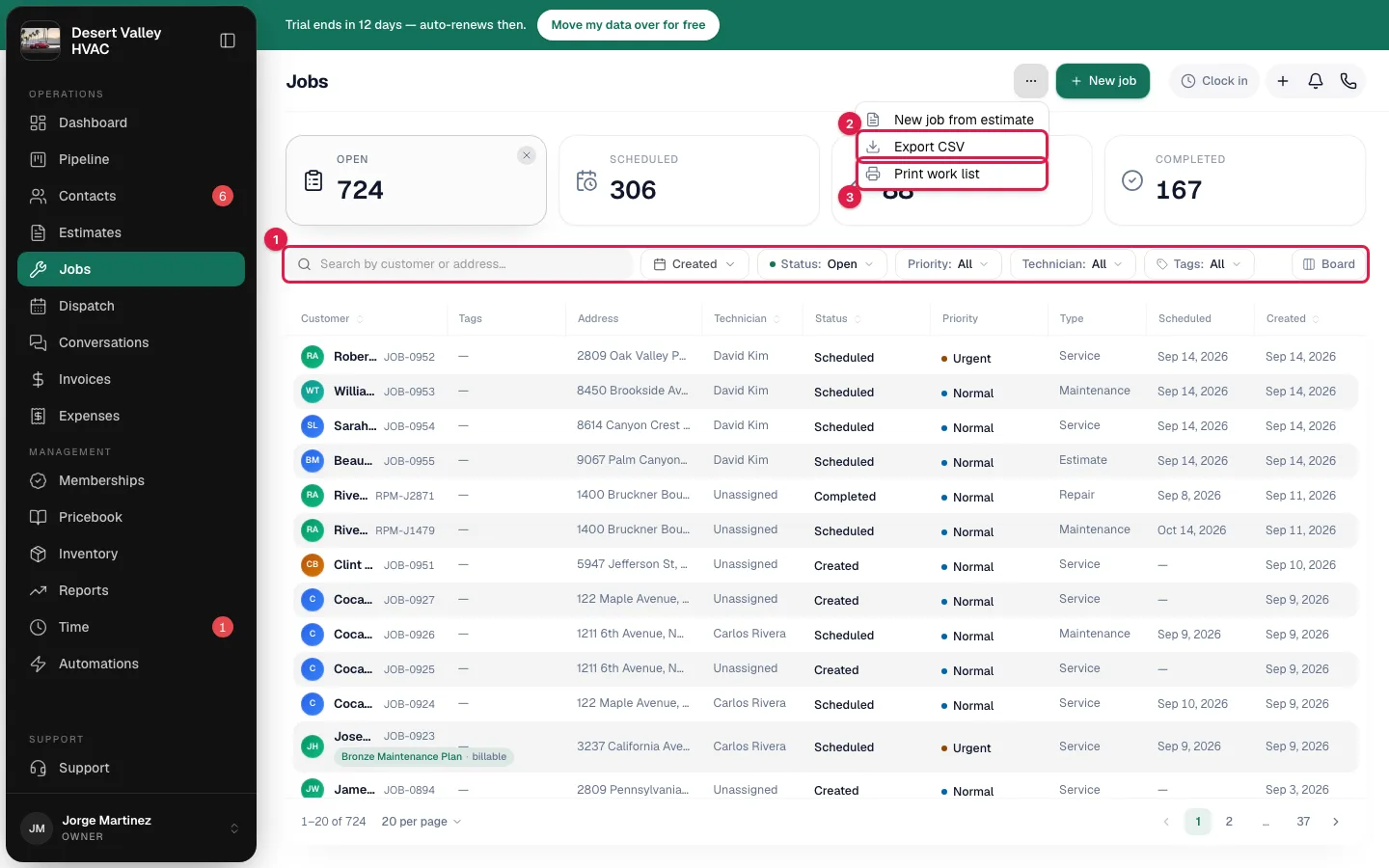
Open More actions
Click More actions (the ... button next to New job). The menu has Export CSV and Print work list.
Export CSV
Click Export CSV. The file downloads straight away and you see how many jobs were exported, for example 37 jobs exported.
The file is named after the filter and today's date, such as jobs-open-2026-09-20.csv. If anything besides the status is filtered, the name includes filtered. It has one row per job with these columns:
Job #, Status, Priority, Type, Scheduled Date, Scheduled Window, Customer, Phone, Address, Technician, Tags, Problem Description, Created
Print work list
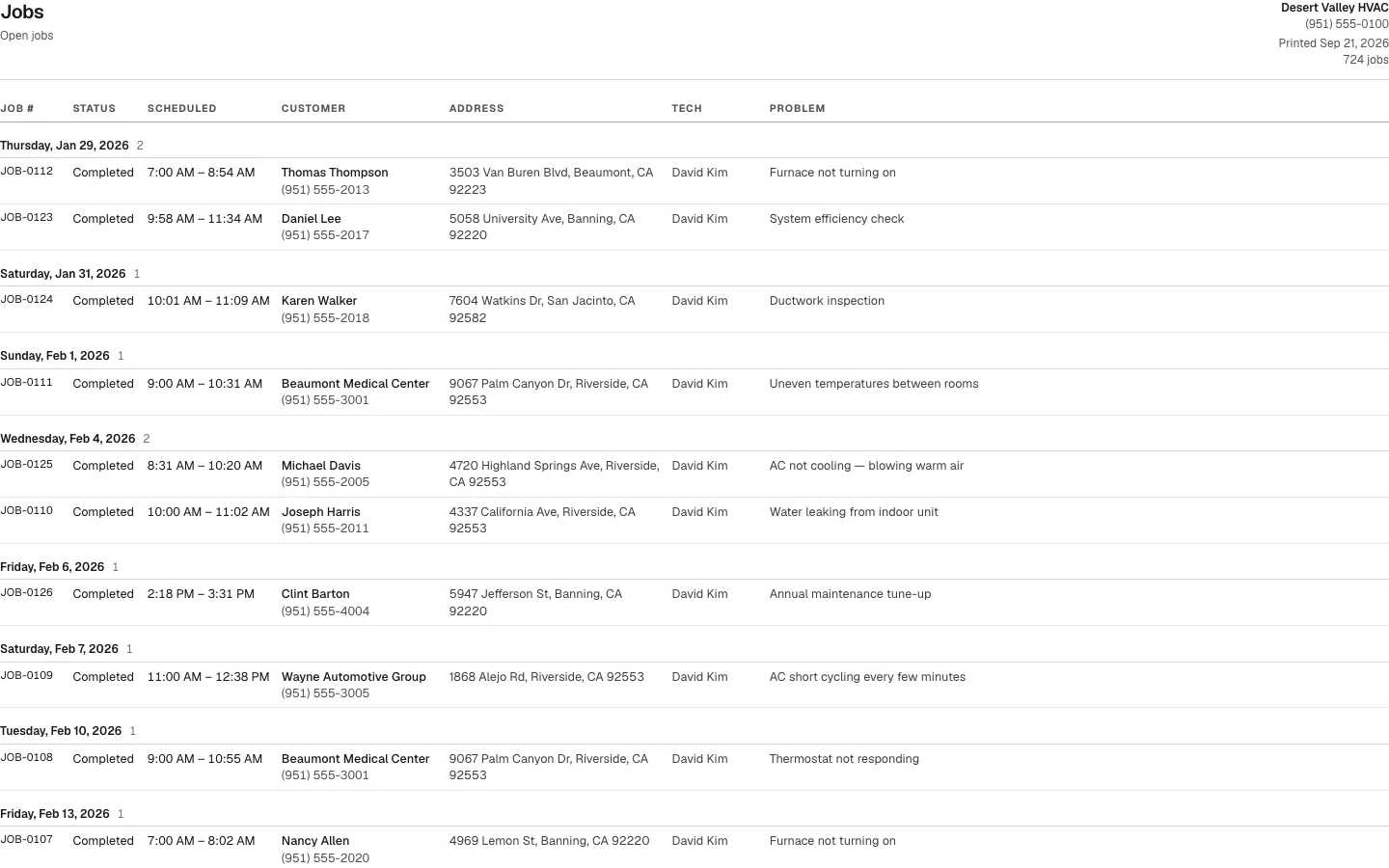
Click Print work list. Your browser's print window opens with a plain, ink-friendly list.
- The header shows your company name and phone, the date, the number of jobs, and a line describing the filters, such as Open jobs · Tech: Carlos Rivera.
- The columns are Job #, Status, Scheduled, Customer, Address, Tech and Problem.
- Jobs are in schedule order. When the list covers more than one day, it's grouped under a heading for each day, with Not scheduled jobs at the end.
- Long problem descriptions are shortened to fit the page. The CSV keeps the full text.
What Open means
The Open filter is every job your team still owes something on:
| Status | Why it counts as open |
|---|---|
| Created | Saved, with no date on the calendar yet |
| Scheduled | On the calendar |
| En Route | Tech is on the way |
| On site | Tech is working |
| Completed | Work is done but it hasn't been invoiced |
Invoiced, Closed, Follow-Up, Cancelled and No Show jobs aren't included.
The 2,000-job limit
One export or print handles up to 2,000 jobs. Over that you see That's more than 2,000 jobs. Narrow the filters (status, dates or technician), or use Settings → Import & export to get every job by email.
- To get under the limit, add a Status, a Created range or a Technician.
- To get every job you've ever done, use Import & export, which builds the file in the background and emails you a link. See Exporting your data.
Good to know
- The whole filtered list is included, across all pages. Sorting the table by clicking a column header doesn't change the file or the printout; both are in schedule order.
- If nothing matches, you see No jobs match these filters and nothing is downloaded.
- The export is for the office app. Techs' job lists in the mobile app don't have it.