
Most estimates that never close were never followed up. The Follow up list shows every estimate a customer has and has not answered, with the ones most worth a call at the top. You can call from the list, or have Run a Call draft a follow-up text for you.
Who can do this
Anyone in the office who can view estimates.
Open the list
Go to Estimates and click Follow up. The number on the button is how many estimates are waiting on an answer. The button is hidden when there are none.
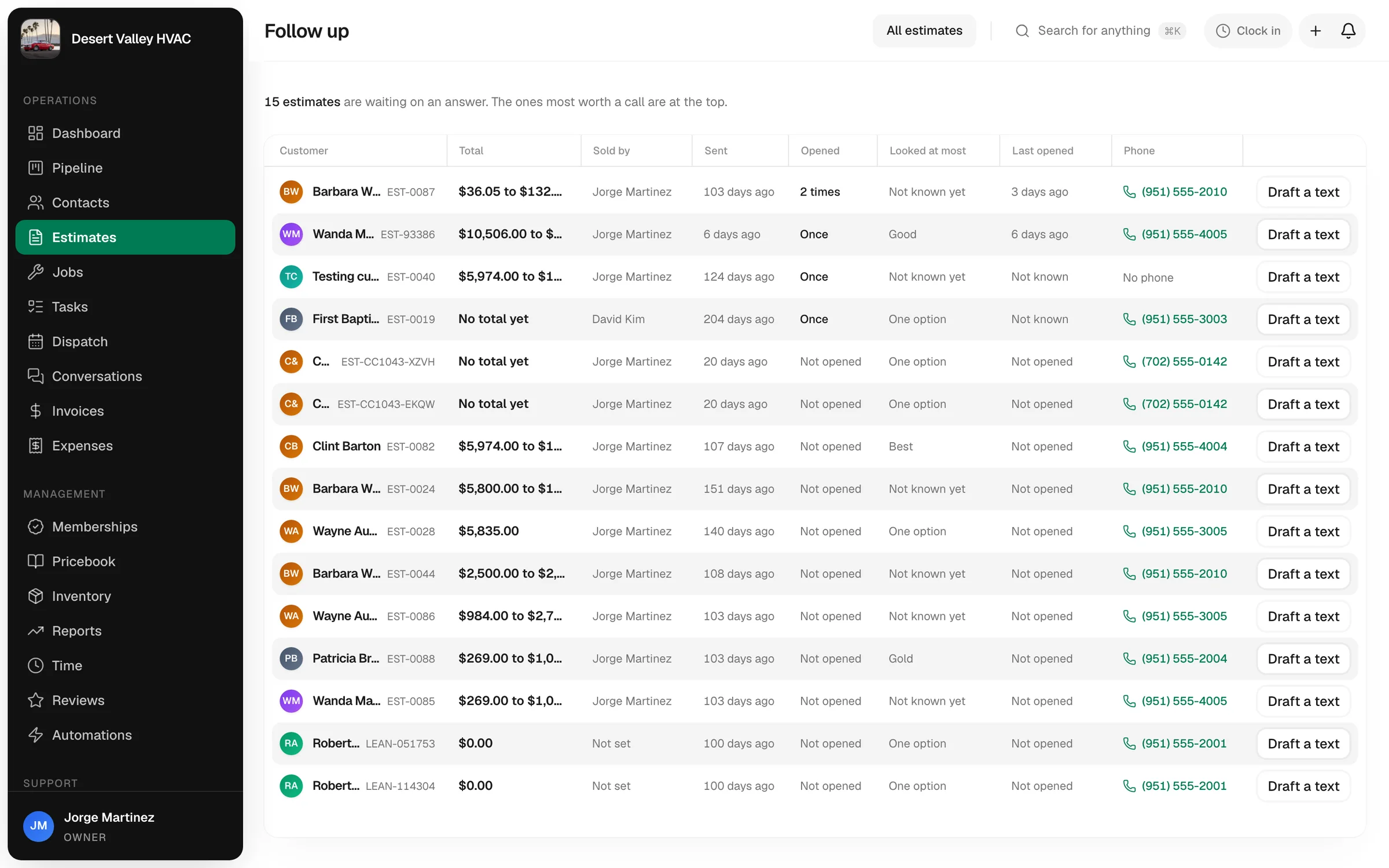
An estimate is on the list when it is Sent or Viewed and has not expired. It drops off when the customer approves or declines, or when it expires.
What each column tells you
| Column | What it means |
|---|---|
| Customer | The customer and the estimate number. Click it to open the estimate. |
| Total | The price, or the range from the cheapest option to the highest. |
| Sold by | Who the estimate belongs to. |
| Sent | How long ago it went out. |
| Opened | How many times the customer opened the link. |
| Looked at most | The option they opened most. One option means the estimate only had one. |
| Last opened | When they last looked. |
| Phone | Click the number to call. |
How the list is sorted
The top of the list is who to call first.
- Opened beats not opened. A customer who looked at the price is thinking about it. The more recently they looked, the higher they sit.
- Opening it again and again is a buying sign. Each extra open moves the estimate up.
- Never opened still shows, lower down. A fresh one sits above an old one.
- Ties go to the bigger estimate, then to the one sent most recently.
So "opened three times this morning" is at the top, and "sent two months ago, never opened" is at the bottom.
Draft a follow-up text
Click Draft a text on a row. Run a Call writes a short text using what it knows: the customer's name, when you sent the estimate, and the option they looked at most.
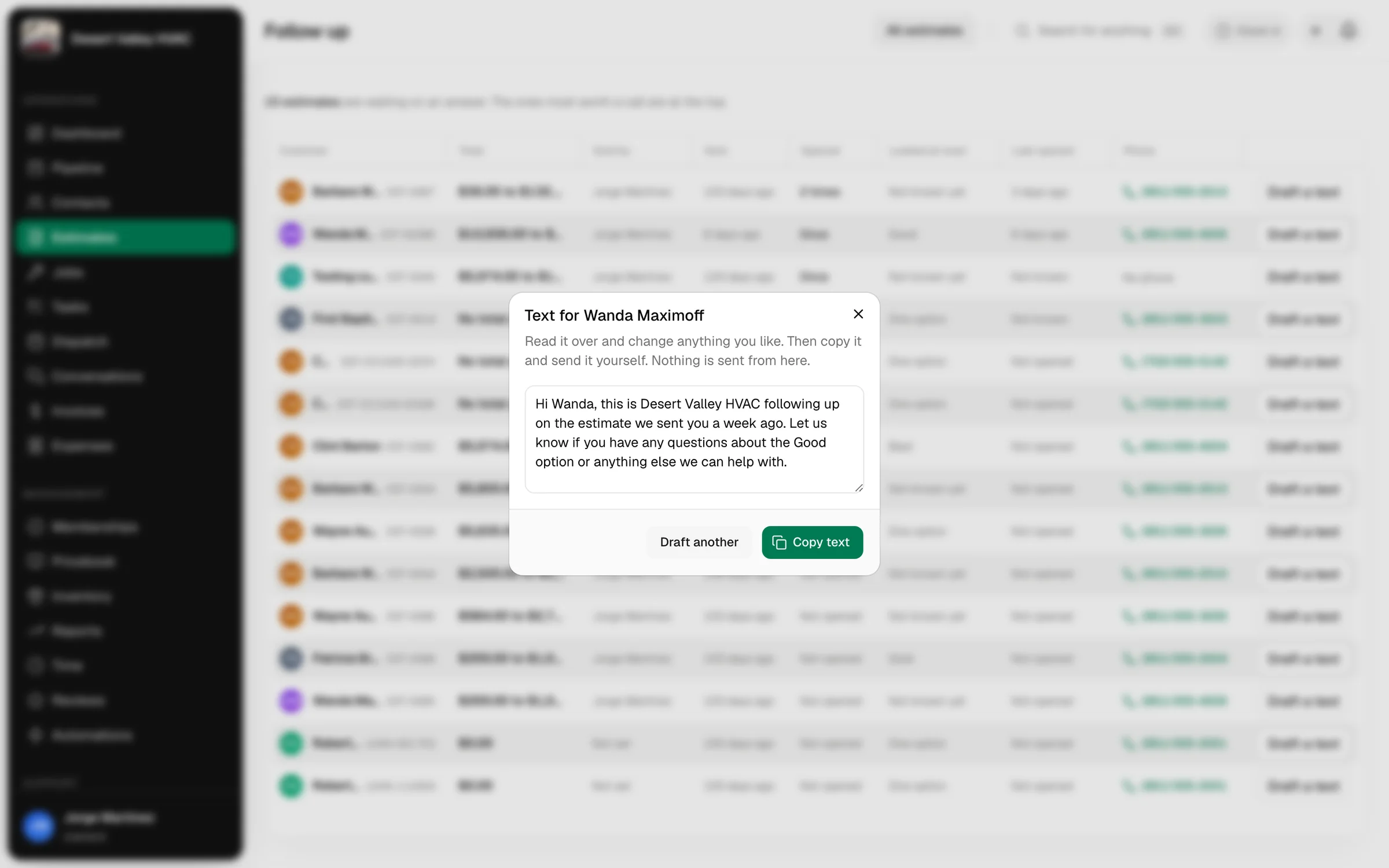
- Read it over and change anything you like.
- Click Draft another if you want a different one.
- Click Copy text, then paste it into a text to the customer.
Nothing is sent from this window. You copy the text and send it yourself, from Conversations or from your own phone.
Good to know
- A call beats a text. The list tells you what they looked at, so you can open with it: "I saw you were looking at the coil cleaning option. Any questions on that one?"
- Not opened after a few days? They may not have seen the email. Resend it, or text the link. See Texting an invoice or estimate to a customer.