
Moving from another system or a spreadsheet? Import your customer list from a CSV file and Run a Call creates a contact — and a service address — for every row.
Who can do this: owners and admins.
Before you start
- Export your customers from your old software (or save your spreadsheet) as a CSV file, up to 5 MB.
- Each row needs a first name and last name. Everything else is optional.
- Columns Run a Call can bring in: First name, Last name, Company, Email, Phone, Alt phone, Source, Notes, Tags (comma-separated), Archived, and a service address — Service address, Service address 2, Service city, Service state, Service ZIP, and Property name.
Not sure how to lay out the file? Click Need a template? Download one in the import window to get a ready-made CSV with the right columns.
Open Settings → Import & export
Click your name in the bottom-left corner of the sidebar, choose Business, then click Import & export in the settings menu.
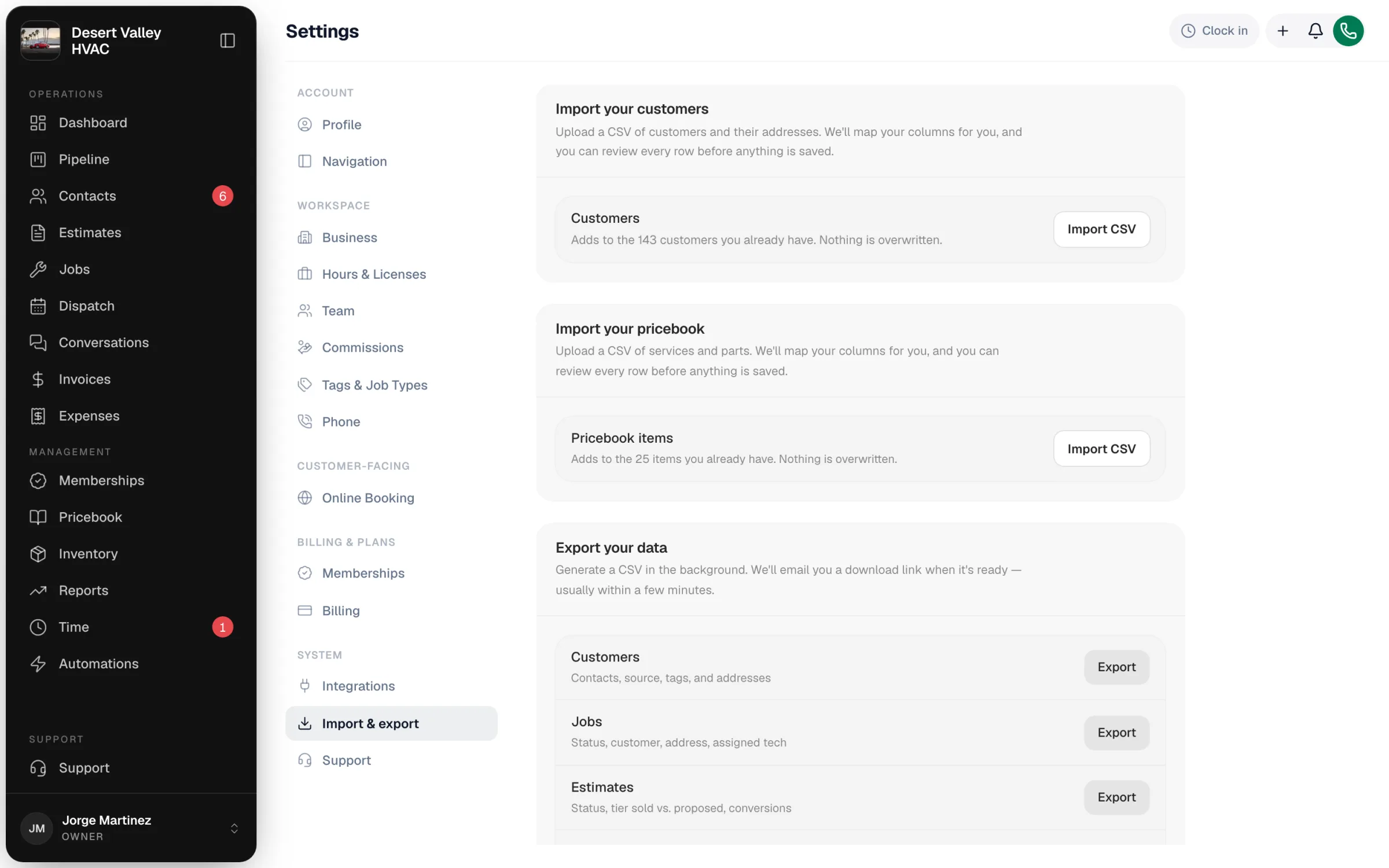
Click Import CSV under Import your customers
Drop in your file
Drag your CSV onto Drop your CSV here, or click to browse for it.
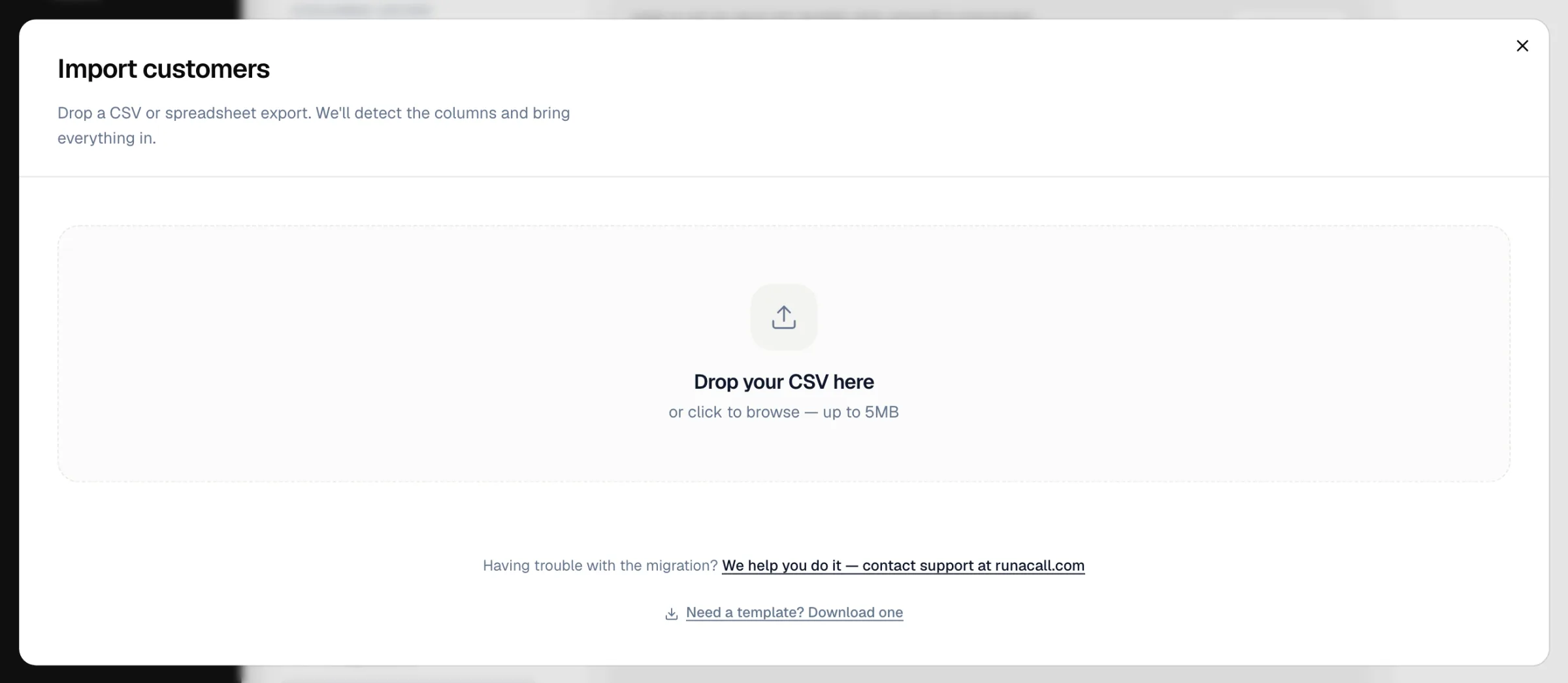
If Run a Call recognizes your first-name and last-name columns, the import starts right away — there's no preview step. Double-check you picked the right file before you drop it in.
Match columns (only if asked)
If Run a Call can't tell which columns hold the first and last names, it shows your columns so you can choose what each one is, or Ignore this column. Then start the import.
Check the results
Run a Call reads the file, checks for duplicates, and cleans up phone numbers and addresses. When it's done you'll see how many customers were added, how many were skipped, and how many rows had problems.
- Download the rows that didn't land gives you a CSV of the problem rows with the reason for each, so you can fix them and import just those.
- Files with more than 100 customers keep importing in the background after you close the window.
What happens to your data
| Duplicates | A row is skipped when a contact with the same first and last name — and the same email (or phone, if there's no email) — already exists. Existing contacts are never overwritten. |
| Status | Imported contacts start as Customer — or Inactive if your file has an Archived column set to true. |
| Addresses | If the row has a service address, it's added as the customer's property. |
| Notes | Each customer gets a note saying the day they were imported, followed by anything from your Notes column. |
Good to know
- Importing more later is safe. Each import adds to the customers you already have.
- Jobs, invoices, and history aren't part of a CSV import. If you're switching from another system and want your history brought over, send us a request from Support — we help new customers move their data.