
The Run a Call app runs on iPhone and iPad. Techs use it for their whole day in the field: jobs, the time clock, photos, invoices, payments, and messages. Install it once, sign in, and allow a few permissions.
Before you start
- Someone at your company needs to invite you. The owner or an admin adds you under Settings → Team in the office app, and you get an email invitation.
- Open the invitation email, set your password, and remember the email address it was sent to. That's what you sign in with.
Install the app
Open the App Store on your iPhone or iPad, search for Run a Call, and tap Get.
Sign in
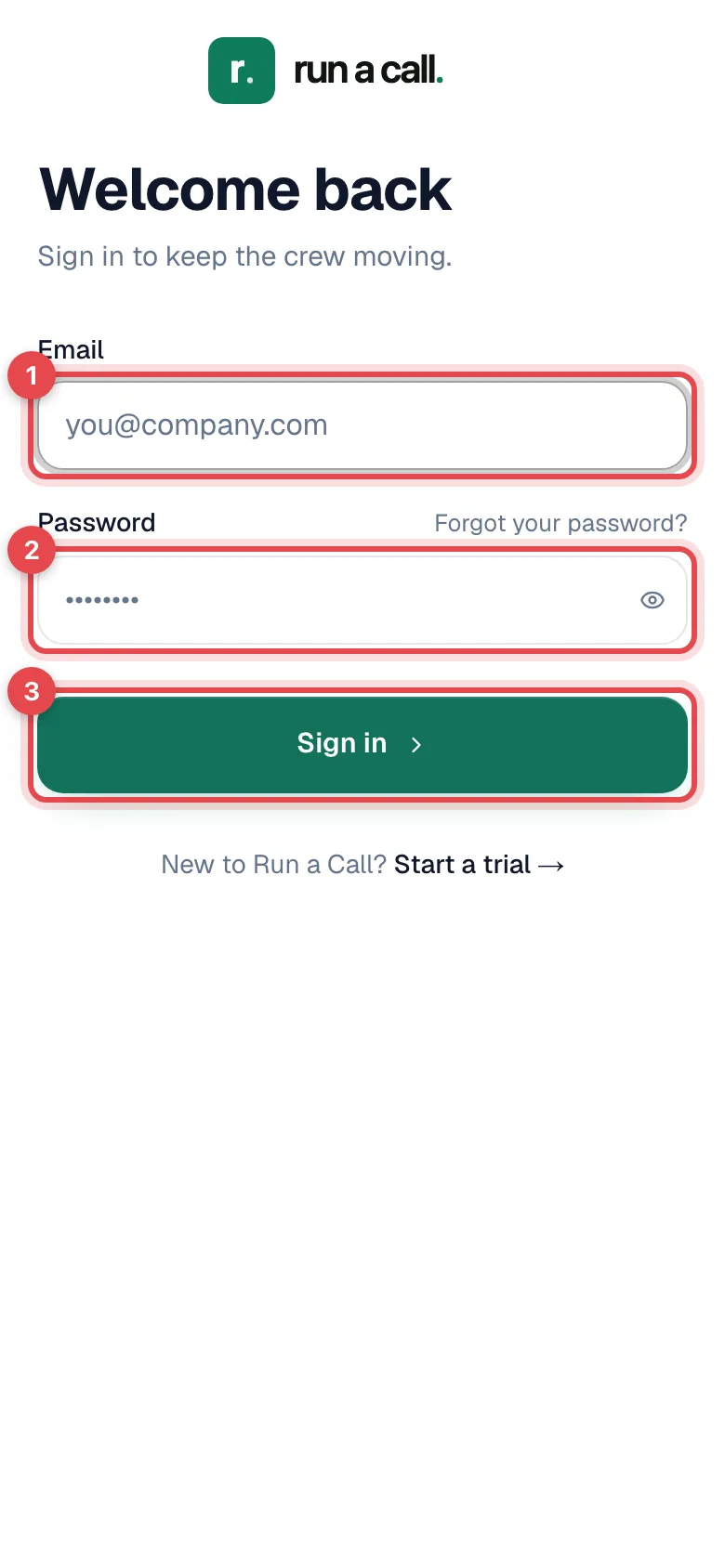
Open the app and enter your Email and Password, then tap Sign in. Forgot the password? Tap Forgot your password? and follow the email.
Field techs land on Jobs, the list of today's stops. See Managing jobs on mobile.
Allow permissions
iOS asks for each permission the first time the app needs it. Here's what each one is for:
| Permission | What it's used for |
|---|---|
| Notifications | New and changed job assignments, team chat messages, @mentions, and time off decisions. |
| Location | Shows dispatch where you are while you're on the way to or working a job, so they can see arrival times. |
| Camera and Photos | Job photos and video, data plates, receipts. |
| Microphone | Voice notes in team chat and calls from the business line. |
| Bluetooth | Only if your company uses a card reader for Tap to Pay. |
If you said no by accident, open the iPhone Settings app, scroll to Run a Call, and turn the permission on.
Getting around the app
The bar at the bottom has an icon for each area:
| Icon | Tab | What's there |
|---|---|---|
| Briefcase | Jobs | Today's stops, your schedule, and every job. |
| Chat bubble | Conversations | Customer texts and team chat. A red badge counts unread messages. |
| Clock | Timesheet | Clock in and out, your hours, time off. Hidden if your company doesn't track time. |
| Trophy | Ranks | The team leaderboard. Only if your company turned it on. |
| Person | Profile | Your details, time off, expenses, calendar sync, help, and Sign out. |
Updates
Most improvements show up in the app on their own, the next time you open it. You don't need to update from the App Store for them.
To stay current:
- Keep automatic App Store updates on. Some features, like card readers, need the latest version of the app itself.
- If the app has been open for a long time, it refreshes itself overnight (between 1 and 5 AM) while you're not using it. It never refreshes in the middle of your work or while you have changes that haven't synced yet.
Troubleshooting
| Problem | What to do |
|---|---|
| Can't find the app | Search the App Store for Run a Call. |
| Sign-in doesn't work | Make sure you're using the email your invitation was sent to. Use Forgot your password? to reset it. If you never got an invitation, ask your office to send one. |
| No notifications | iPhone Settings → Run a Call → Notifications, and turn on Allow Notifications. |
| Camera won't open for photos | iPhone Settings → Run a Call, and allow Camera and Photos. |
The office side of Run a Call (the dispatch board, reports, settings) works best on a computer or iPad browser at app.runacall.com.