
Team chat lets your office and your technicians message each other inside Run a Call — one-to-one or in groups — without mixing it into customer texts or personal phones. On a computer it lives in Conversations → Messages → Internal; technicians use the same chats in the mobile app.
Before you start
- Team chat is part of business texting, so it's available once texting is active for your company.
- Everyone on your team can be messaged, including technicians. Techs read and reply from the mobile app — see Team chat in the mobile app.
- Customers never see these chats.
Switch to Internal
Open Conversations in the sidebar, click Messages, then click Internal above the conversation list. The number on Internal is how many team messages you haven't read.
Start a new chat
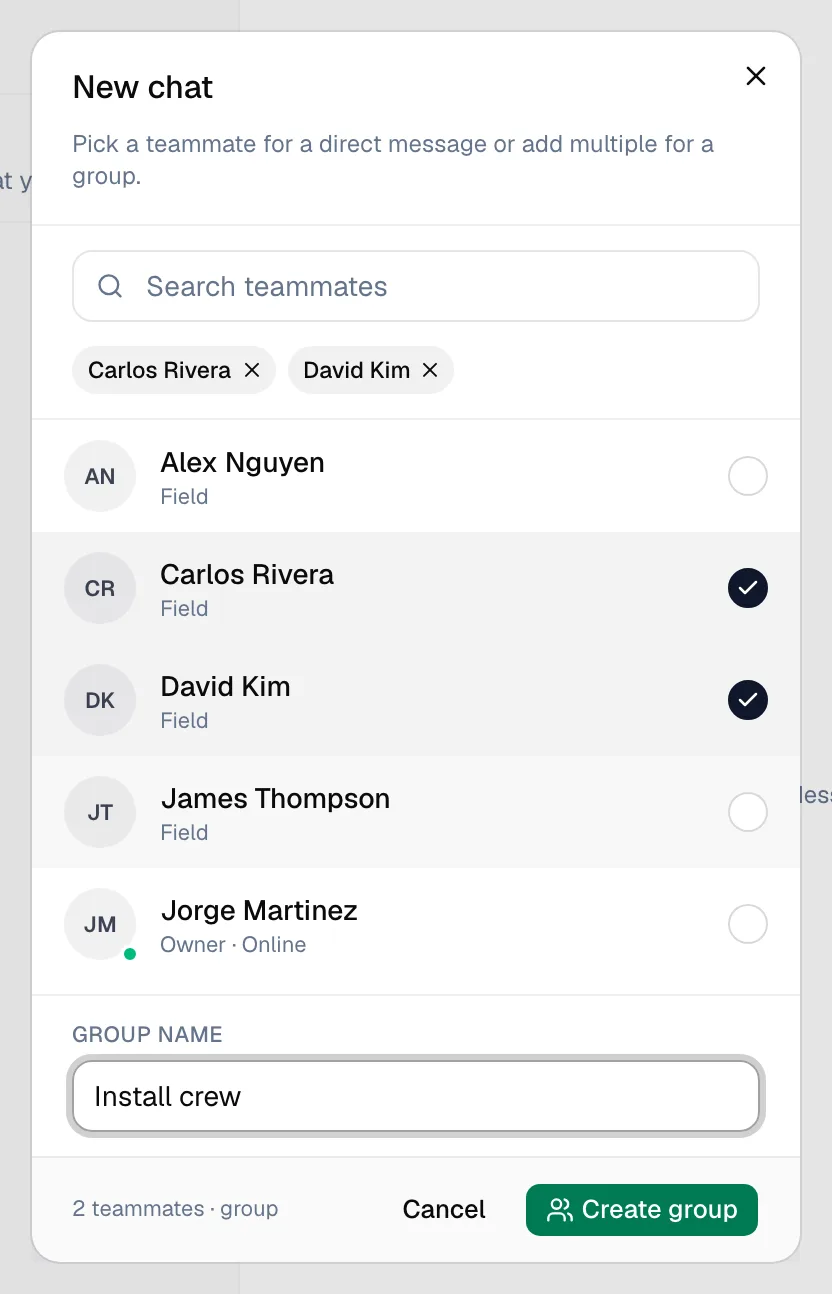
Click the pencil icon next to Search internal (New internal chat). The New chat window lists your teammates, with a green dot next to anyone who's online.
Pick who to message
- One teammate — select them and click Start chat. If you already have a chat with that person, it opens that one.
- Several teammates — select everyone, type a Group name (for example Install crew), and click Create group. A group can have up to 50 people.
Send your message
Type in the message box and press Enter.
| You can | How |
|---|---|
| Mention someone | Type @ and pick a teammate. They get a notification saying you mentioned them. |
| Reply to a specific message | Use the reply arrow on the message. Your reply quotes it, and clicking the quote jumps back to the original. |
| Send photos and files | Click the paperclip or drag files into the chat — up to 5 per message, 25 MB each. Photos, PDFs, Word, Excel, PowerPoint, text, CSV and ZIP files work. |
| Send a voice note | With the message box empty, click the microphone to record. Listen back, then send or discard it. |
Finding a chat
- Type in Search internal to find a chat by group name or by a person's name.
- Searching in Customers mode also tells you when team chats match, with a link to view them in Internal.
- In a group, the header shows every member with a green (online) or grey (offline) dot.
Notifications
Teammates who allowed notifications get a push notification with your name and the message (or {name} mentioned you). Tapping it opens the chat.
Good to know
- Chat vs job notes: use chat for quick back-and-forth. For something that belongs on a job's record, add a job note instead.
- On a phone-sized screen in the office app, pick Internal from the filter menu next to the search box.