
Job notes keep the story of a job in one place: what the customer said on the phone, the gate code, what the tech found, what to bring next time. Every note is either internal (your team only) or customer-visible.
Add a note from the office
Open the Notes tab
Open the job and scroll down to the tabs under the job details. Click Notes.
Write the note
Type in the box. To loop in a teammate, type @ and pick their name — they get a notification that links straight to the job. On a device with a microphone you can click Dictate and speak instead of typing.
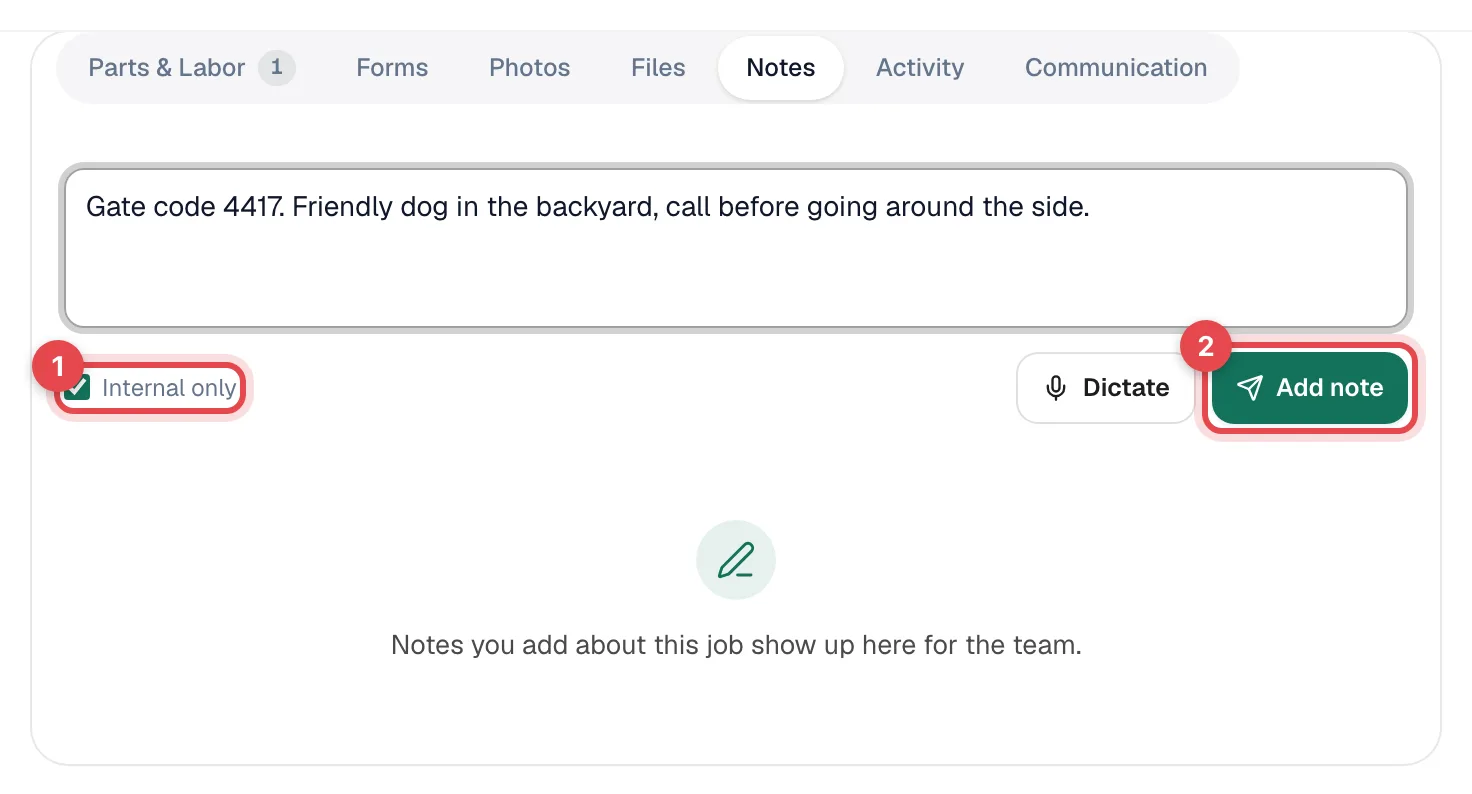
Choose who can see it
Internal only is ticked by default. Leave it ticked for anything the customer shouldn't read. Untick it only when the note is written for the customer.
Click Add note
The note appears in the list with your name and the time. Internal notes carry an Internal badge.
Press Cmd + Enter (Mac) or Ctrl + Enter (Windows) to add the note without reaching for the mouse.
Internal vs customer-visible
| Note | Who sees it |
|---|---|
| Internal (Internal only ticked) | Your team only — in the office and in the mobile app. Never shown to the customer. |
| Customer-visible (Internal only unticked) | Your team, plus the customer: it's printed under Technician notes on the job's service report, and shown under Notes from our team on the customer project page. |
A customer-visible note really is visible. Write it the way you'd want the customer to read it.
Add a note from the field
Techs add notes from the job in the mobile app. Before saving, they pick one of two clearly labeled options:
- Only my team — The customer will never see this note.
- The customer can see it — This note shows up on their paperwork.
Notes added offline are saved on the phone and sync when the connection comes back.
Pin, edit or delete a note
Each note has small icon buttons on its right. You only see the ones you're allowed to use:
| Button | What it does | Who sees it |
|---|---|---|
| Pin | Pin note / Unpin note — pinned notes stay at the top of the list. | Anyone who can open the job. |
| Pencil | Edit note — change the text in place. | Only the person who wrote the note. |
| Trash can | Delete note — removes it after you confirm. This can't be undone. | The person who wrote it, or an owner or admin. |
Good to know
- Notes aren't part of the job's Activity tab — the note itself shows who wrote it and when.
- For recommendations the next tech should see, use the For next visit box on the job page instead of a note.
- The customer's original description of the problem stays on the job page under Customer reported, separate from notes.