
Every invoice has a status that tells you where it stands in getting paid. Run a Call updates it on its own as you send the invoice, the customer opens it, and payments come in.
The statuses
| Status | What it means | What to do |
|---|---|---|
| Draft | Created but not sent. The customer can't pay it online yet. | Review the lines, then click Send invoice. |
| Sent | Emailed to the customer (and texted, the first time, if texting is on). | Wait for them to open it. |
| Viewed | The customer opened the pay link. | If nothing's paid after a day or two, give them a call. |
| Partial | Some money has come in, but a balance is still owed. | Collect the rest, or ask for the next installment with Part of it. |
| Paid | Payments cover the full total. | Nothing. If the work is done, the job closes on its own. |
| Overdue | An overdue reminder text went out because the invoice is past its due date. | Follow up by phone, or resend the invoice. |
| Void | Canceled. Nothing is owed, and the record is kept. | Create a new invoice from the job if you still need to bill. |
What moves an invoice between statuses
| From | To | What causes it |
|---|---|---|
| Draft | Sent | You send it (from the invoice, or with Send invoices on the Invoices page). |
| Sent | Viewed | The customer (or anyone with the link) opens the pay page. |
| Draft, Sent, Viewed or Overdue | Partial | A payment is recorded that doesn't cover the full total. |
| Any unpaid status | Paid | Payments add up to the total, whether online, card on file, card reader or recorded by hand. |
| Sent, Viewed or Partial | Overdue | The Overdue invoice SMS automation texts the customer 7 days after the due date. |
| Any status except Paid | Void | An owner or admin voids it. |
A bank payment made online that is still clearing doesn't change the status. The invoice stays unpaid until the money lands, which usually takes 4–5 business days.
About Overdue
Overdue is set when the first overdue reminder is texted. It isn't set automatically the day after the due date. If the reminder automation is off, texting isn't set up, or the customer has no mobile number, a late invoice keeps its Sent, Viewed or Partial status.
To find every late invoice regardless of status, check the Due date column on the Invoices page or use the Unpaid Invoices report (AR aging). The reminder schedule is in Overdue invoice reminders.
Finding invoices by status
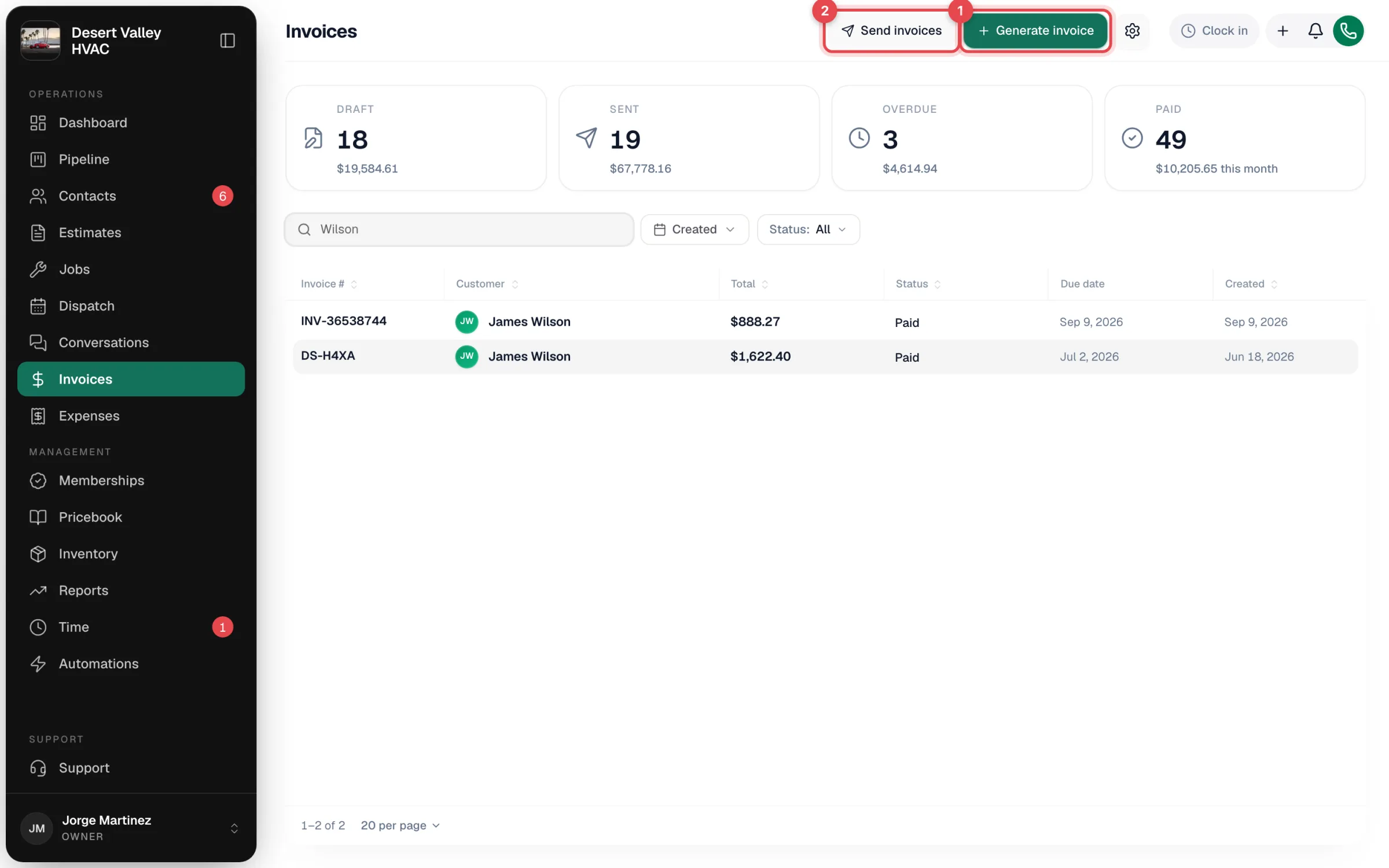
The Invoices page has four tiles at the top: Draft, Sent, Overdue and Paid. Each shows a count and a dollar amount; the Sent tile includes viewed and partially paid invoices. Click a tile to filter the list, or use the Status filter to pick Draft, Sent, Overdue, Paid, Partial or Void.
Void vs. delete
- Void cancels an invoice but keeps it on record. Owners and admins can void from the invoice's ⋯ menu. A fully paid invoice can't be voided.
- Delete isn't available on invoices. To get rid of a mistake, void it.
See Voiding and deleting invoices.
Refunds
Refunds aren't issued from Run a Call. If you refund a payment in your Stripe Dashboard, the invoice stays Paid in Run a Call.