
Every service, part, piece of equipment and labor rate you sell is one pricebook item. Set it up once, with its price, your cost and the wording customers see, and your team picks it from the pricebook on every job, estimate and invoice.
Who can do this: owners, admins and dispatchers.
Open the Add item form
Go to Pricebook and click New item (top right).
Every item needs a category. If you have none yet, New item opens Add category first, then takes you straight to the item form.
Fill in what it is and what it costs
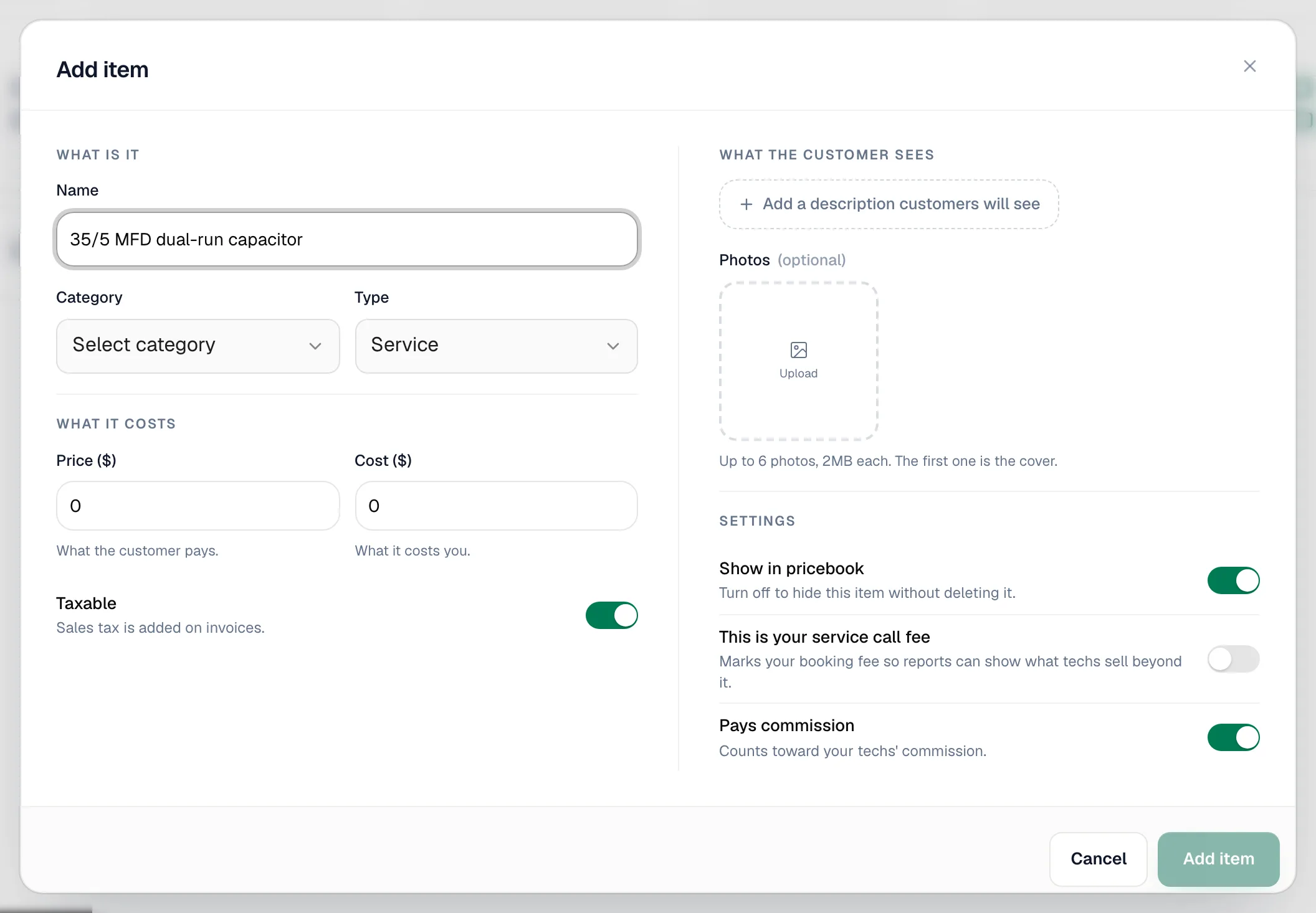
| Field | What to enter |
|---|---|
| Name | What the customer reads on the line, such as 35/5 MFD dual-run capacitor. Required. |
| Category | The folder it lives in. The list also offers Suggested HVAC categories you can create with one click, and + Add new category…. Required. |
| Type | Service, Part, Equipment or Labor. See the table below. |
| Price ($) | What the customer pays per unit. |
| Cost ($) | What it costs you per unit. |
| Taxable | On by default. Sales tax is added on invoices for taxable items. |
As you type a price and cost, the form tells you what you keep, for example You keep $96.00 of every $120.00 you charge (80% margin). If the cost is higher than the price, it warns you how much you'd lose on every sale.
Which type to pick
| Type | Use it for | Good to know |
|---|---|---|
| Service | Diagnostics, tune-ups, repairs sold at a set price | |
| Part | Capacitors, filters, motors | The only type tracked by inventory when inventory is on. Sent to QuickBooks as a non-inventory product. |
| Equipment | Condensers, furnaces, air handlers | Adding the same equipment item twice to an estimate or job puts it on its own line each time, so a building with several units lists each one separately. |
| Labor | Hourly or flat labor |
Write what the customer sees
Click Add a description customers will see to open the description editor.
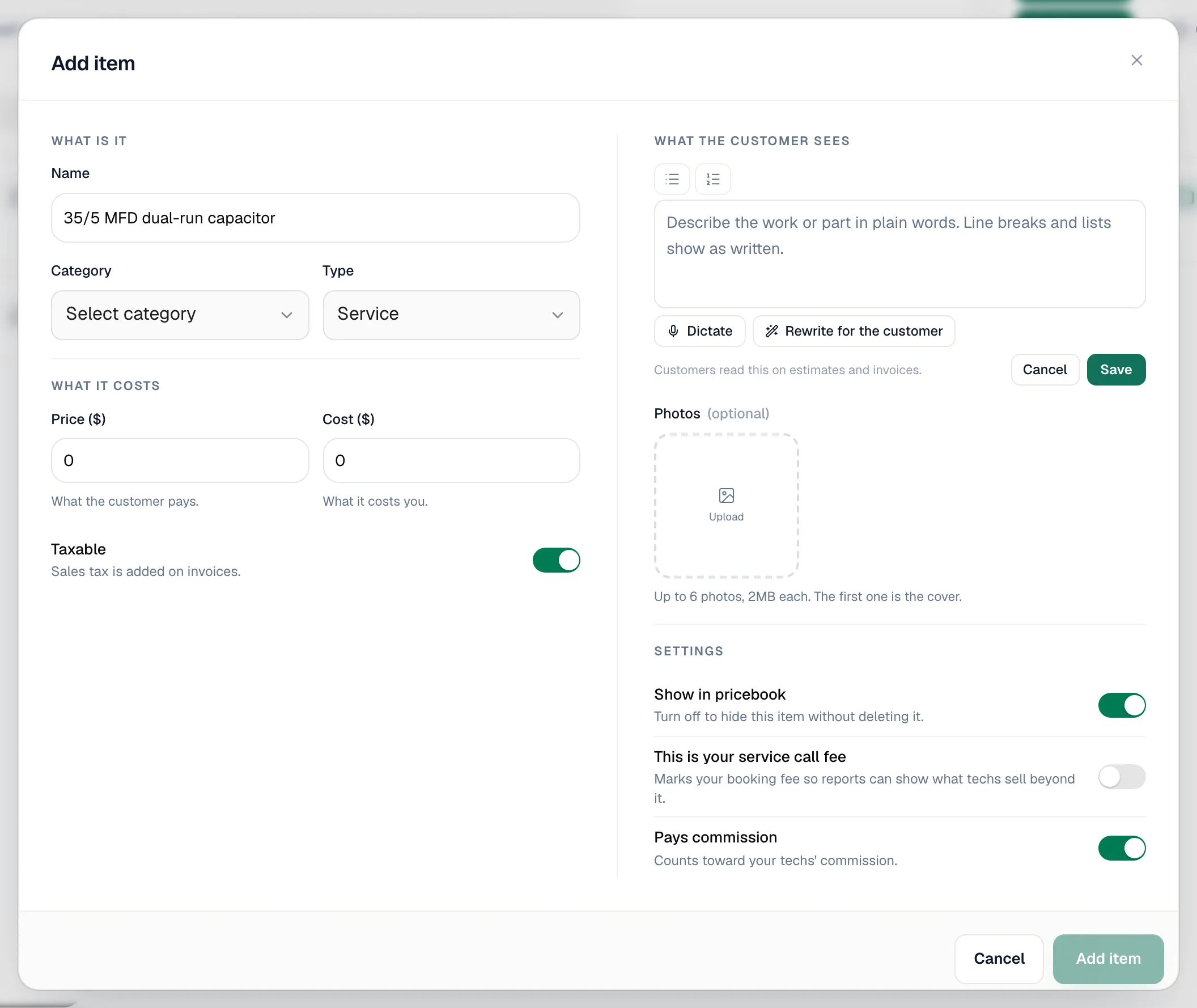
- Use the two list buttons to start a bulleted or numbered list. Pressing Enter continues the list. Line breaks and lists show exactly as written on estimates, jobs, invoices and PDFs.
- Dictate lets you speak the description instead of typing (when your browser supports it).
- Rewrite for the customer turns rough notes into clear customer wording. Undo rewrite puts your text back.
- Click Save in the editor to keep the text, then save the item.
Descriptions appear under the line item name. On an estimate, the Descriptions button above the line items shows or hides them on documents for your whole company.
Add photos (optional)
Click Upload to add up to 6 photos (JPG, PNG or WebP, 2 MB each). The first photo is the cover; hover another photo and click Make cover to change it. Photos help techs recognize the right part in the picker.
Check the settings and save
| Setting | What it does |
|---|---|
| Show in pricebook | On by default. Turn off to hide the item from pickers without deleting it. Past estimates and invoices keep it. |
| This is your service call fee | Marks your booking or trip fee so reports can show what techs sell beyond it. |
| Pays commission | On by default. Counts the item toward tech commission. |
Click Add item. You'll see Item created.
Editing an item
Open the folder (or switch to List) and click the pencil next to the item. Change anything and click Save changes.
- A new price applies to lines you add from now on. Estimates, jobs and invoices that already have the item keep the price they were built with.
- If inventory tracking is on and the item is a Part, the edit form also shows an Inventory section with On hand and Low-stock at. See Stock status and reorder points.
- To change many prices at once, use Adjust prices instead. See Adjusting prices in bulk.
Hiding vs deleting
| Action | Result |
|---|---|
| Turn off Show in pricebook | The item disappears from pickers but stays in your pricebook. Click Show inactive to find it and turn it back on. |
| Click the trash icon | The item is removed from the pricebook. Lines already on estimates, jobs and invoices keep their name and price. |
When you stop carrying a part, hide it rather than delete it. You can bring it back in one click.
Price for one job only
You don't need a new item to charge a different price once. Change the price on that line of the estimate, job or invoice; the pricebook stays the same. To bill something that isn't in the pricebook at all, type its name in the picker and choose Add "…". See Adding items to jobs, estimates, and invoices.