
Every contact has a source — how they found you. Record it consistently and the Lead Analytics report tells you which channels bring in leads and which of those leads actually become customers, and Marketing Attribution shows how much revenue each source brought in.
Where the source is set
| How the contact was created | Source |
|---|---|
| New customer form | How did they find you? — defaults to Referral. |
| Your online booking page | Website |
| AI Receptionist (new caller who gave a name) | Phone |
| A text or call from an unknown number | Recorded automatically as an inbound text or call. |
| Customer import | Whatever is in your spreadsheet's source column. |
Choosing a source
On the New customer form, open How did they find you?.
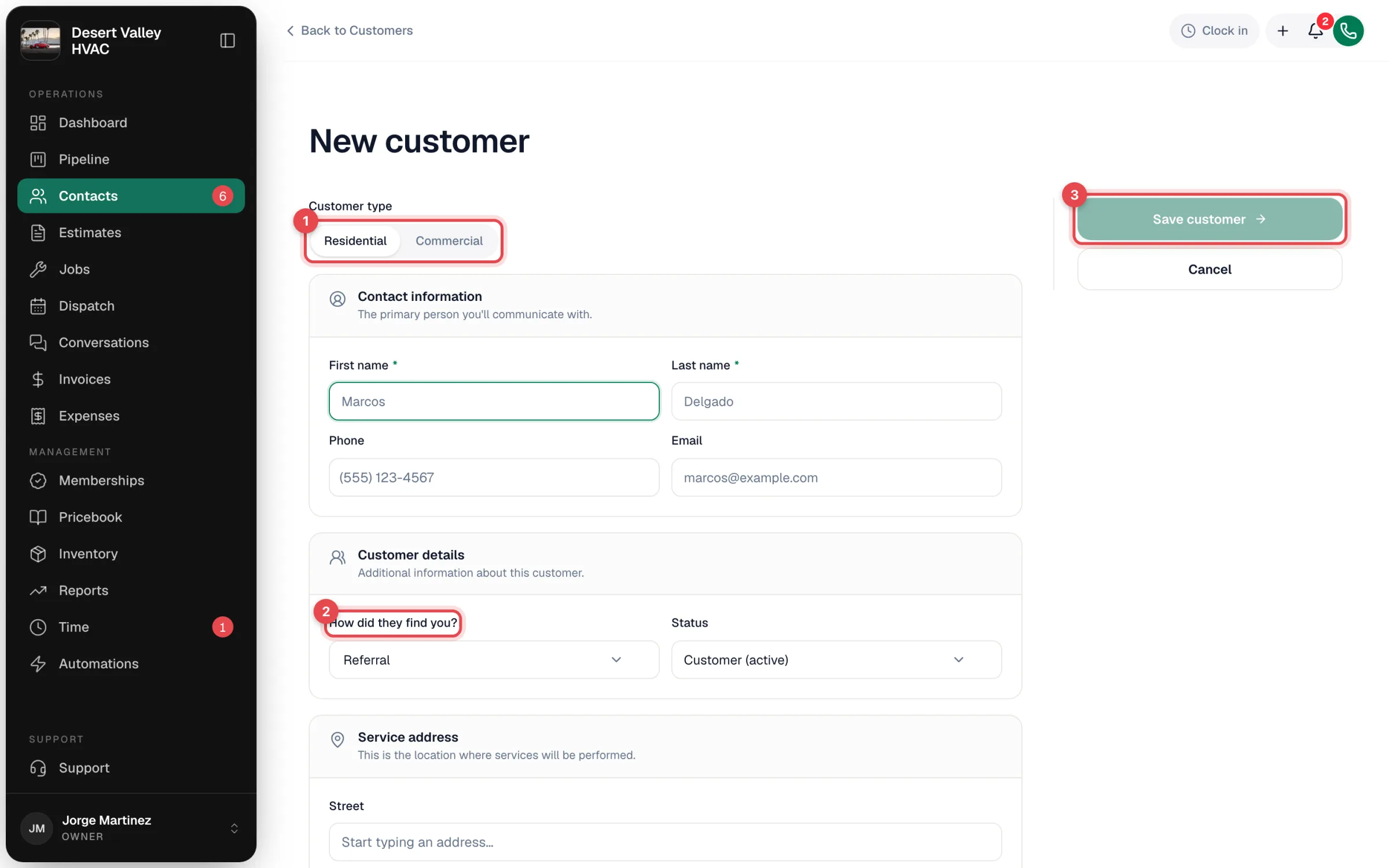
The list starts with Google, Referral, Angi, Website, Phone and Other, plus every custom source anyone in your company has used before. To add a new one, pick + Add custom source, type it (up to 50 characters), and click the check mark. It's available to everyone from then on.
To change a source later, open the customer, click ⋯ → Edit customer, and change Source.
Seeing where contacts came from
- On the profile — the source shows as a small chip next to the customer's name (for example REFERRAL).
- On the Contacts list — the Source column, and the Source filter above the list to show only contacts from the sources you pick.
- On the Pipeline Contacts board — at the bottom right of each card. Type a source into Search contacts… to narrow the board.
The Lead Analytics report
Go to Reports → Lead Analytics (owners and admins by default). Pick a range — 7 Days, 30 Days, 90 Days, Year or All Time — and you'll see:
| Section | What it shows |
|---|---|
| Conversion rate, Days to convert | How many new leads became customers, and how long it took. |
| Leads | New leads over time. |
| Funnel | How many contacts sit at each status. |
| By source | New contacts per source. |
| Conversion by source | Which sources turn into paying customers — the number that matters when deciding where to spend. |
Revenue by lead source
Go to Reports → Marketing Attribution and switch to By lead source (typed in). For each source you see the Leads (customers created), Booked jobs and Invoiced revenue in the date range, weekly or monthly, with Export CSV. Customers with no source or Other show as Unknown. See Marketing Attribution report.
The report always uses the customer's current source: change a customer's Source and their past revenue moves with it.
If you track calls with separate phone numbers per campaign (for example one number on the truck and one on your Google ad), Reports → Marketing Attribution follows those calls through to jobs and revenue. See Call Tracking report.
Keep sources clean
- Pick from the list before adding a custom source. Google and google ads show up as two separate sources in reports. (Differences in capitals, dashes and underscores are ignored in the revenue report: door_hanger and Door hanger count as one.)
- Agree on a short set — for example Google, Google Ads, Facebook, Referral, Truck, Yard sign, Repeat customer — and share it with whoever answers the phone.
- Set it once. The source is how the relationship started. If a Google customer later books by phone, leave the source as Google.
- Sources vs. tags: a contact has one source (where they came from) but can have many tags (what kind of customer they are, like Commercial or Warranty). See Tagging customers.