
Techs create the invoice from the job itself: finish the job, tap Generate Invoice, and the invoice builds from what's under Parts and labor. From there you send it to the customer or take payment on the spot.
Who can do this
Anyone whose role can create invoices. The standard Field Tech role can. If your role can't see invoices, the invoice button doesn't show on the job.
Finish the job
Make sure Parts and labor lists everything you did, including any per-line price changes. Then tap Complete Job at the bottom of the job.
Tap Generate Invoice
The bottom bar changes to Generate Invoice. Tap it.
- The invoice is created right away from Parts and labor, with your company's tax settings, and is due on receipt.
- The job moves to Invoiced.
- If the job has no parts or labor yet, you'll see Nothing to bill yet instead. Add the work, then come back.
From then on, the bottom bar shows the invoice number (for example Invoice INV-1042). Tap it any time to reopen the invoice.
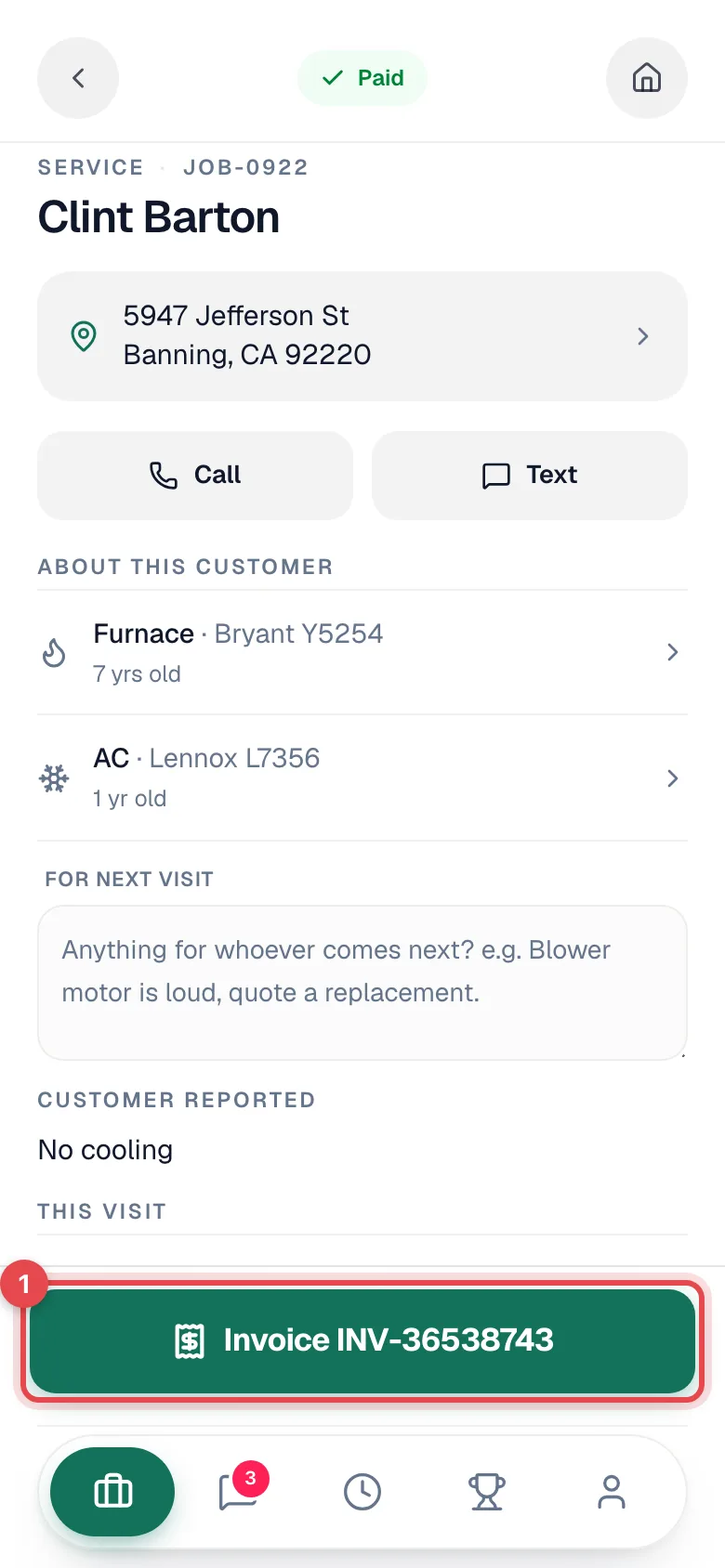
Check it with View invoice
The invoice screen shows the number, the status (Draft, Sent, Partial, or Paid), and the total. Tap View invoice to see the invoice as the customer will: your company name, who it's billed to, each line with quantity and amount, subtotal, tax, total, payments, and the balance due.
Send it to the customer
Tap Send to Customer.
- The customer gets the invoice by email. If your company takes online payments, the email includes a link to pay online.
- The first time an invoice is sent, the customer also gets a text about it if your company has invoice texts turned on (with the pay link, when online payments are set up).
- If there's no email on file, the app asks What's their email? Type it and tap Send invoice. The address is saved to the customer for next time.
Once sent, the button changes to Resend to Customer and the status to Sent.
If the customer pays online, the payment is recorded on the invoice automatically and the job closes once the balance is paid. Nobody has to enter it by hand.
Or collect payment now
Under Collect payment on site, pick how the customer is paying. The customer signs, and the payment is recorded against the invoice. The whole flow is in Taking payments on mobile.
Good to know
| Question | Answer |
|---|---|
| Can I change the invoice after sending it? | Not from the phone. Once the invoice is sent or paid, Parts and labor locks. Ask the office to edit it and resend. |
| Can I pick payment terms? | Invoices created on the phone are due on receipt. On a job with a payment plan, you pick Payment terms for each payment you bill. See Closing jobs from the mobile app. |
| The customer wants to think about it. | Leave the invoice as a draft. The office can review it, change it, and send it later. |
| Does the customer get a receipt? | Yes, by email, as long as there's an email address on file and your company hasn't turned payment receipt emails off. |
| Does it go to QuickBooks? | If your company is connected to QuickBooks Online, invoices and payments sync the same way they do from the office. |
Invoicing needs a connection. If you're in a dead zone, finish the job and generate the invoice once you're back in signal.