
Text customers from the app using your company's business number, so your personal cell stays private. Every message shows up in the office's Conversations too, so the office always knows what you told the customer.
Before you start
- Your company needs texting turned on. If it isn't, threads say Texting is off — your company hasn't activated customer messaging yet. You can still read past messages.
- The customer needs a phone number on file. Otherwise the thread says Customer has no phone number on file.
Open Conversations
Tap the chat bubble icon in the bottom bar. A red badge on it counts unread messages.
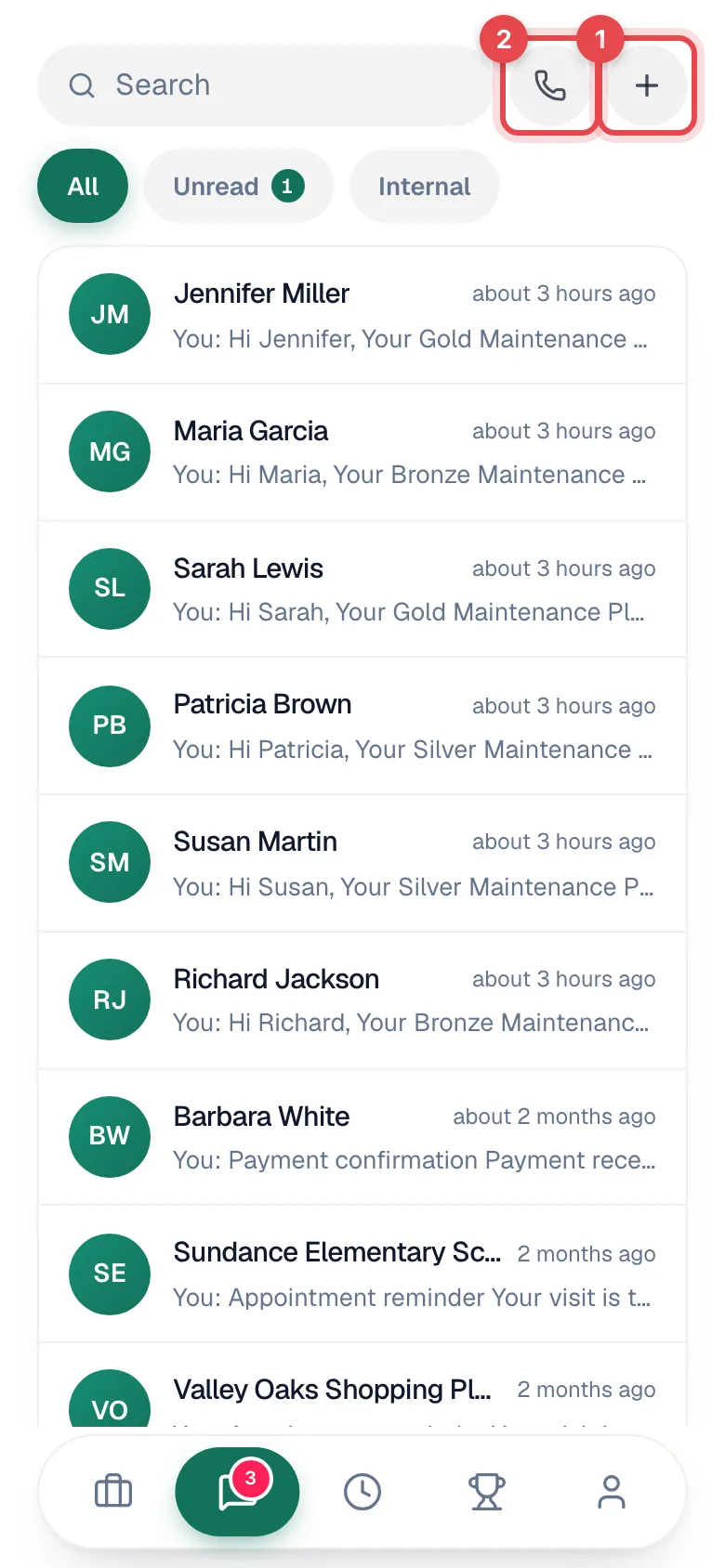
Your inbox shows customers on your active jobs and any customer you've texted, plus your team chats (marked INTERNAL). Use the chips to narrow it down:
| Chip | Shows |
|---|---|
| All | Every thread. |
| Unread | Threads with new messages. |
| Internal | Team chats only. See Team chat in the mobile app. |
Search finds customers and team chats by name.
Open the customer's thread
Tap a thread in the inbox. From a job, tap Text under the address to jump straight to that customer. The back arrow takes you back to where you came from.
Opening a thread marks it as read.
Type and send
Type in Message... and tap the send button. The message goes out from your company's business number.
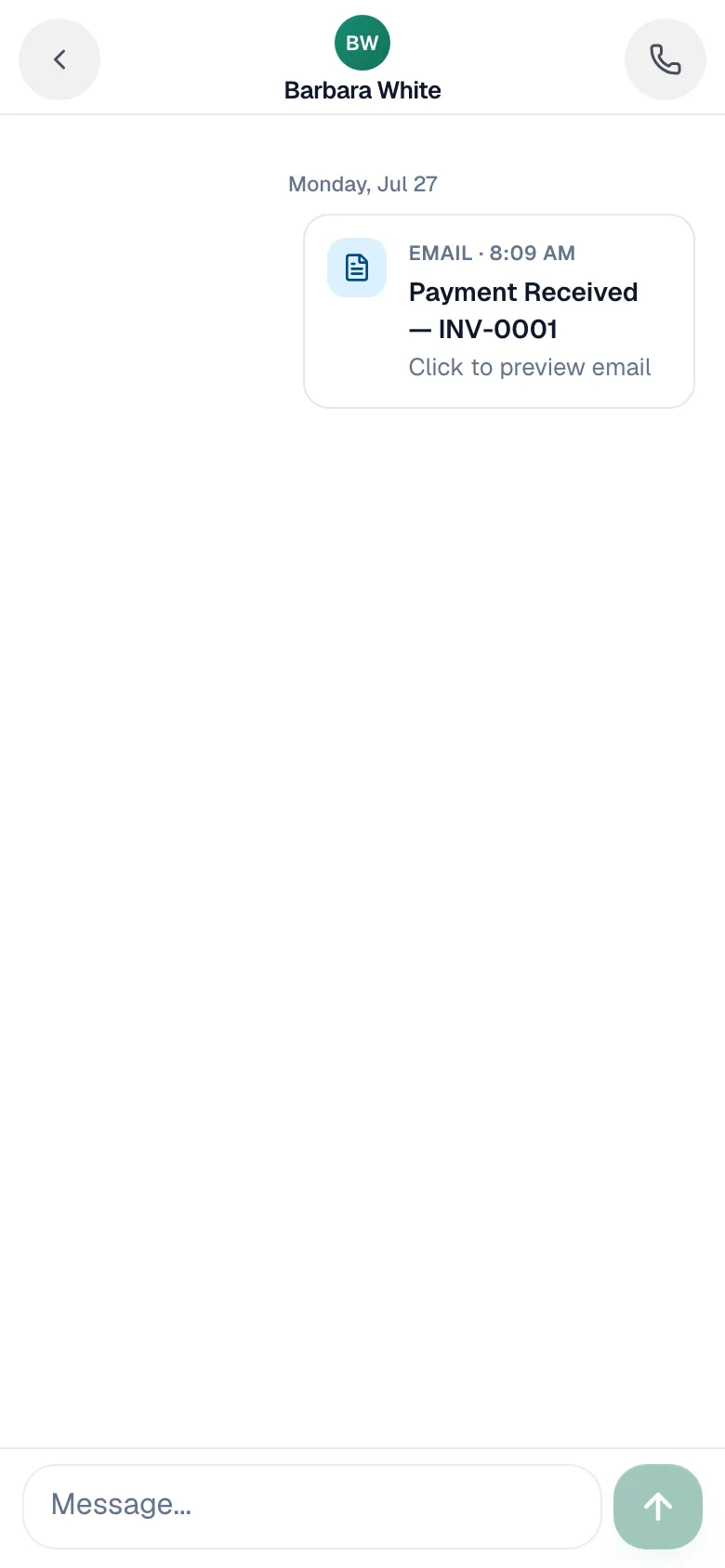
The thread shows the whole history with that customer, including emails your company sent (tap one to preview it).
Photos the customer texts you show up in the thread. Sending from the app is text only.
Texting a customer who isn't on your jobs
Tap + at the top of Conversations. New message (Text any customer from the business line.) lets you search every customer by name, company, or phone. Tap one to open their thread.

Once you've texted a customer, their thread stays in your inbox.
Calling from a thread
Tap the phone icon at the top of the thread to call the customer. See Calling customers from the app.
Good to know
- "On my way" texts are automatic. If your company has them turned on, tapping On My Way on the job sends it for you. No need to type one.
- Replies notify the office. When a customer texts back, your office team gets a notification. Check your Unread chip for new replies on your threads.
- The office sees everything. Your messages are part of the customer's conversation history in the office app.
- Needs a signal. Customer texts aren't queued offline.