
Take photos and video of the job from your phone: the unit when you arrive, the data plate, the finished install. Tag each one so the office and the customer can tell a Before from an After.
Open Photos and video
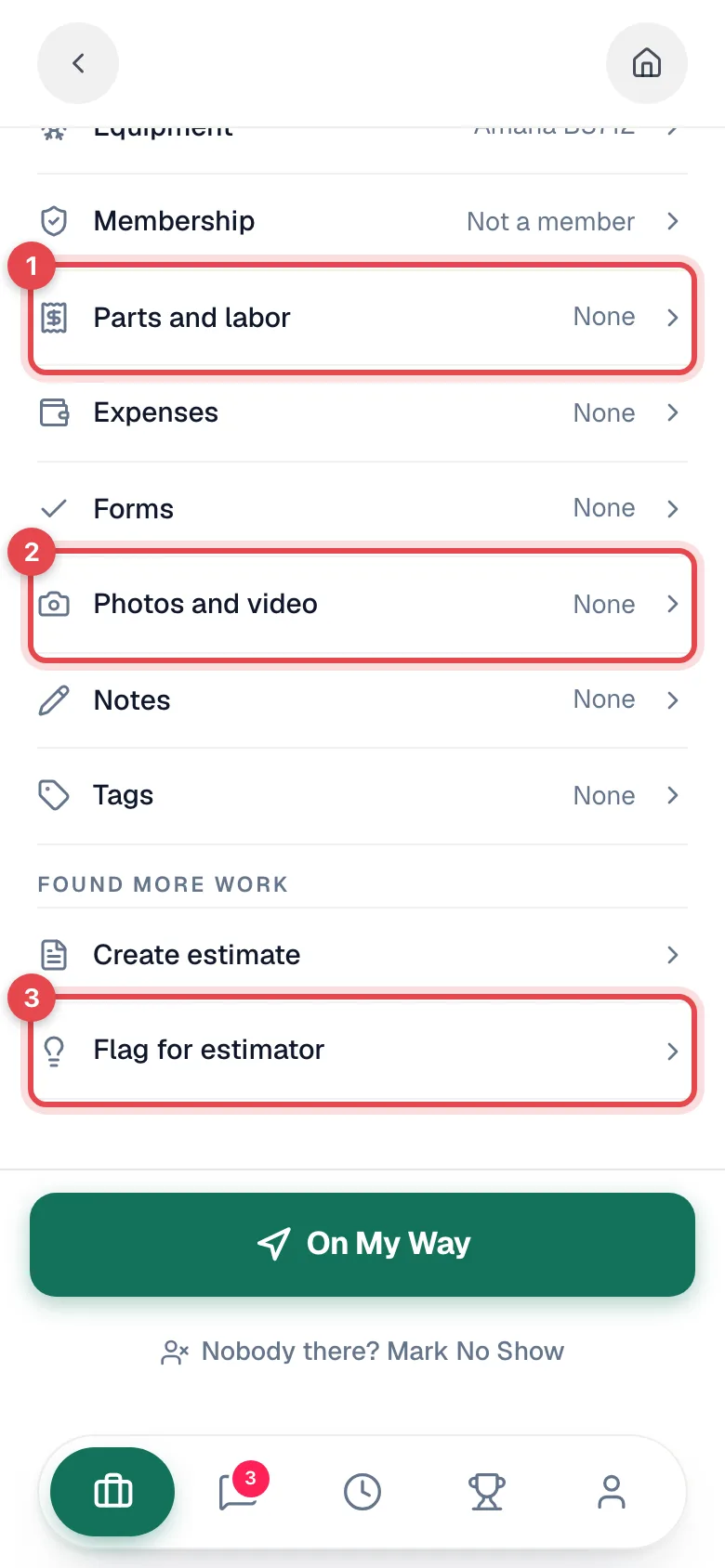
On the job, under This visit, tap Photos and video. The row shows how many are already on the job.
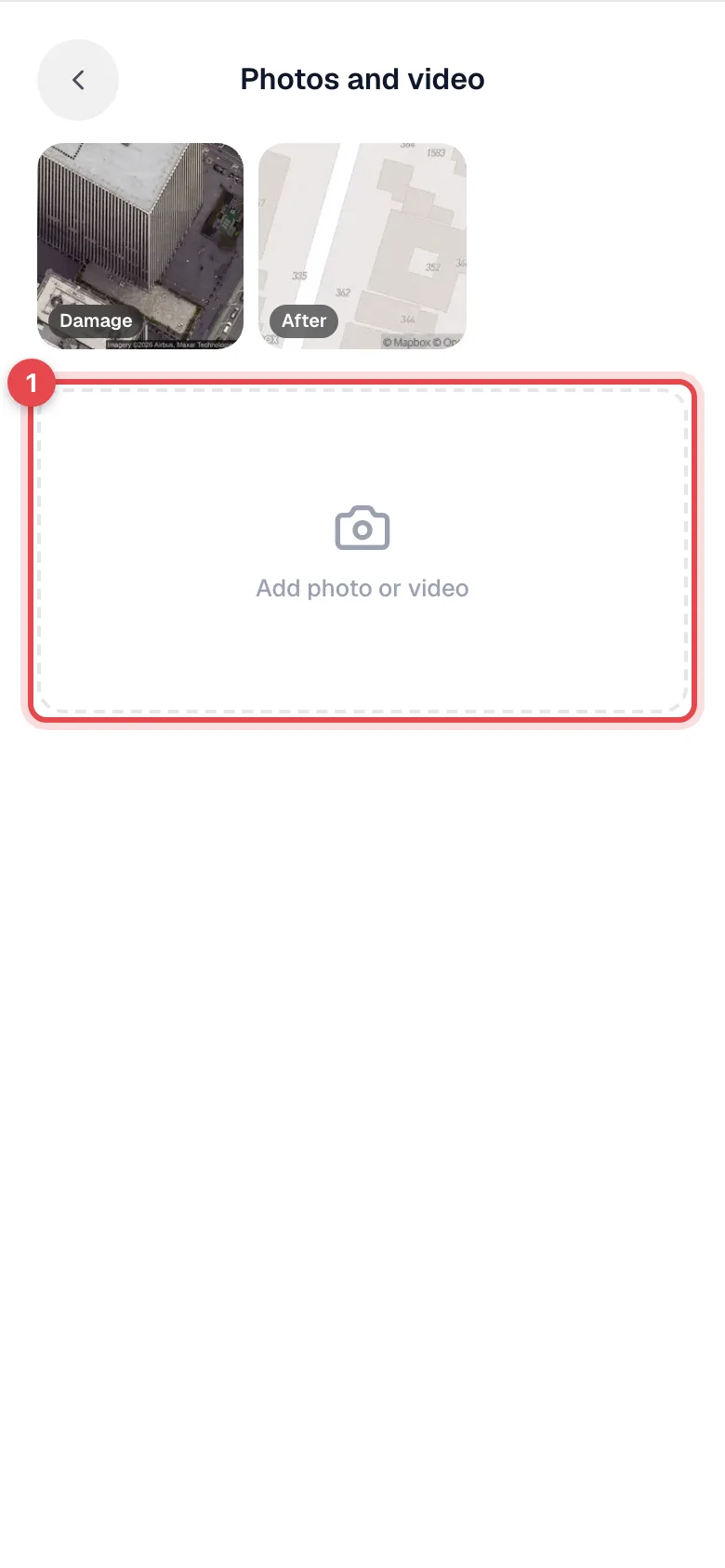
Tap Add photo or video
Your phone offers to take a photo or video, pick from your photo library, or choose a file. You can pick several at once.
Tag each one and add a description
Everything you picked shows under Ready to upload. New photos start tagged Before. Tap a preview to change it:
| Tag | Use it for |
|---|---|
| Before | How things looked when you arrived. |
| After | How you left it. |
| Data Plate | The unit's data plate: model, serial, manufacture date. |
| Damage | Damage that was already there. |
| Other | Anything else worth keeping. |
Type in Add a description (optional) if the photo needs context ("Cracked heat exchanger, left side"). Videos don't get a tag, but they can have a description.
Tap more previews to tag them, or tap + to add more.
Tap Upload
The button counts what's going up, for example Upload 3 photos. You'll see a confirmation when they're saved to the job.
Photos are resized on the phone before upload, so they go up quickly even on a weak signal. Each photo can be up to 10 MB and each video up to 200 MB.
Viewing, fixing, and removing photos
Tap any photo on the job to open it full screen:
- Swipe, or use the arrows, to move between photos.
- Tap the tag to change it, or edit the description (What does this show?) and tap Save.
- Rotate a photo that came out sideways.
- Remove a photo you took by mistake.
Once the job is invoiced, closed, cancelled, or marked no-show, existing photos can't be changed or removed, but you can still add new ones.
Where your photos show up
| Place | What's there |
|---|---|
| The job in the office app | Every photo and video, with its tag, description, and who took it. |
| The customer's service report | The service report PDF includes the job's photos. Your company can email it automatically when a job is completed, and the office can send it from the job. |
There's no way to hide a single photo from the customer. Photos on a job are meant to be shared with the customer. Keep close-ups of anything private (a customer's paperwork, the inside of their home that isn't relevant) off the job.
Photos of a specific unit (for example its data plate for the equipment record) can also go on the unit itself: tap the house button at the top of the job, open the unit, then Photos.
No signal
Take the photos anyway. They're kept on the phone and upload when you're back online. See Working offline.