
Run a Call lets you know when something needs you — an estimate was approved, a payment came in, a customer texted back, a call was missed. Notifications collect under the bell at the top of the app, and on phones they also arrive as push notifications.
Check your notifications
- Look at the bell at the top right of any page. A red number means you have new notifications.
- Click the bell. The panel shows your latest notifications grouped into Today, Yesterday, This Week, and Older.
- Click a notification to jump straight to the job, estimate, invoice, customer, or call it's about.
Opening the panel marks your new notifications as seen, so the red number clears. When there's nothing new you'll see You're all caught up.
Clear the list
To start from an empty list, scroll to the bottom of the panel and click Clear all. A Clear all notifications? box explains that this removes every notification, read or not, including older ones on the Notifications page. Confirm with Clear all.
A message such as Cleared 14 notifications appears for a few seconds with an Undo button — click it to bring them all back. After that, they're gone for good. Clearing only affects your own list, not your teammates'.
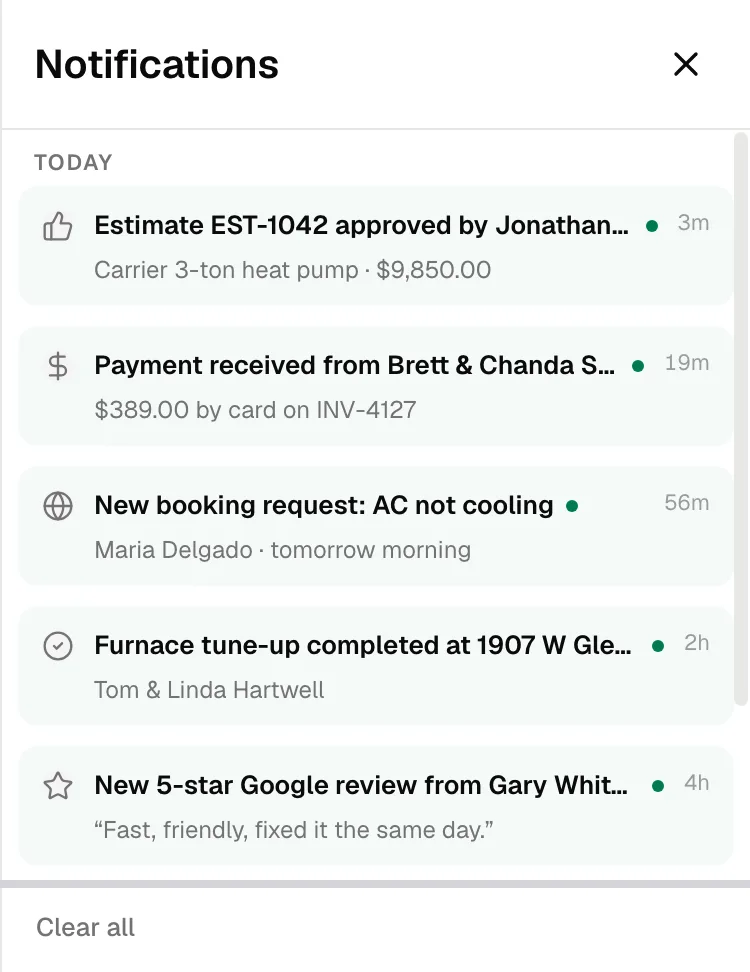
In the office app on a phone, tap the bell at the top of the screen; the list slides in from the side.
What you get notified about
Which of these you see depends on your role and what your company uses.
| Area | Examples |
|---|---|
| Estimates | A customer viewed, approved, or declined an estimate |
| Payments | A payment was received; a bank payment is pending or failed |
| Jobs | A job was completed or reassigned, an emergency job was booked, a customer rescheduled their own visit |
| Customers & leads | A new online booking request, a new customer, a technician flagged a sales opportunity |
| Calls & texts | A customer texted in, a call was missed, a voicemail was left, the AI Receptionist answered a call |
| Team | You were @mentioned, a team message arrived, a teammate joined, a time off request came in or was decided, a shift needs review, a technician requested parts |
| Tasks | A task was assigned to you, or you have tasks due today (sent at 7 AM) |
| Memberships | A customer enrolled or cancelled, a membership payment failed, a tune-up is due |
| Accounts & money | An invoice is overdue, QuickBooks disconnected, a synced invoice or payment changed after it reached QuickBooks (owners and admins, when change alerts are on), a customer's financing offers came back or their loan was funded |
Choose which alerts you get
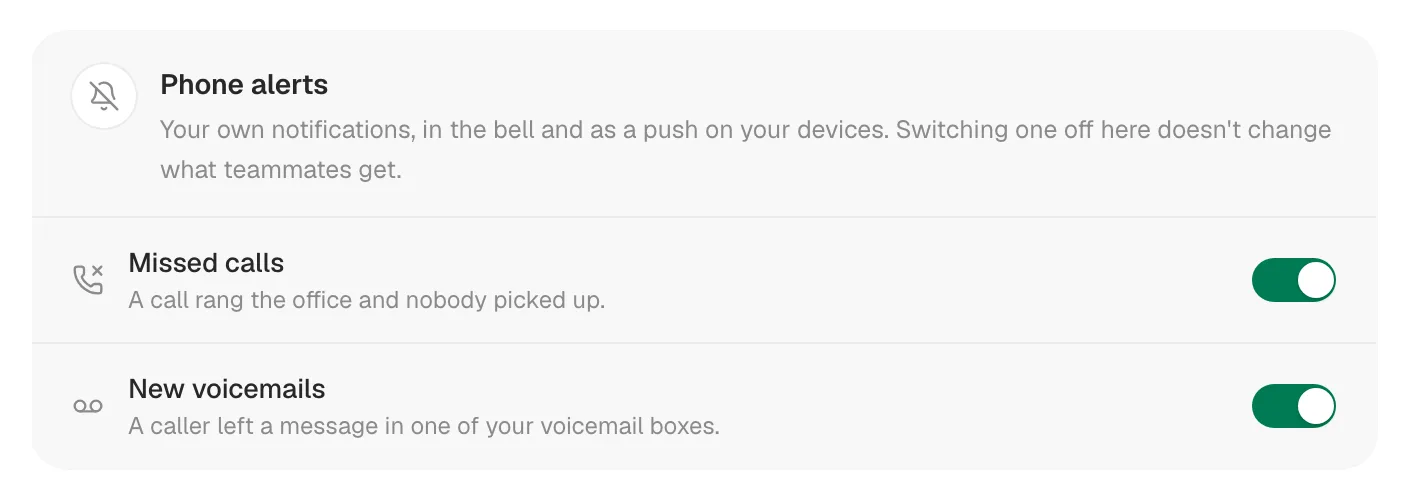
A few alerts have personal on/off switches. Turning one off only affects you, not your teammates.
| Alert | Where to change it |
|---|---|
| Missed calls and New voicemails | Phone alerts card — in Settings → Phone → Voice for owners and admins, or Settings → Profile for dispatchers |
| Email me about new leads (online booking requests) | Settings → Online Booking |
| Daily digest email with yesterday's numbers | Settings → Business (owners only) |
| Weekly standing push for technicians on the leaderboard | Settings → Team, in the Team leaderboard card (owners and admins) |
Texts and emails that go to your customers (appointment reminders, "on my way", invoice reminders) aren't personal notifications. Those are set up on the Automations page. See Automations overview.
Push notifications on phones
The mobile app can also send push notifications, so you hear about calls, messages, and job changes without the app open. When the app asks for permission to send notifications, tap Allow. If you said no by mistake, turn notifications on for Run a Call in your phone's Settings app.