
The Opportunities tab under Contacts is where extra work gets followed up: an old condenser a tech spotted on a service call, a failing heat exchanger, or a customer who said they're interested in a maintenance plan. Assign each one to an estimator, turn it into an estimate, and track whether you won it.
Who can do this
Anyone who can see customers can open the tab. Owners, admins and dispatchers work the queue.
Where opportunities come from
- Techs in the field tap Flag opportunity for estimator on a job in the mobile app. See Flagging an opportunity for the estimator.
- Customers approving an estimate who say they're interested in a membership plan. These show as Membership interest: [plan].
Office users get a notification when a new opportunity arrives.
Open the Opportunities tab
Click Contacts in the sidebar, then Opportunities at the top. The number next to it is how many are still Open or Assigned.
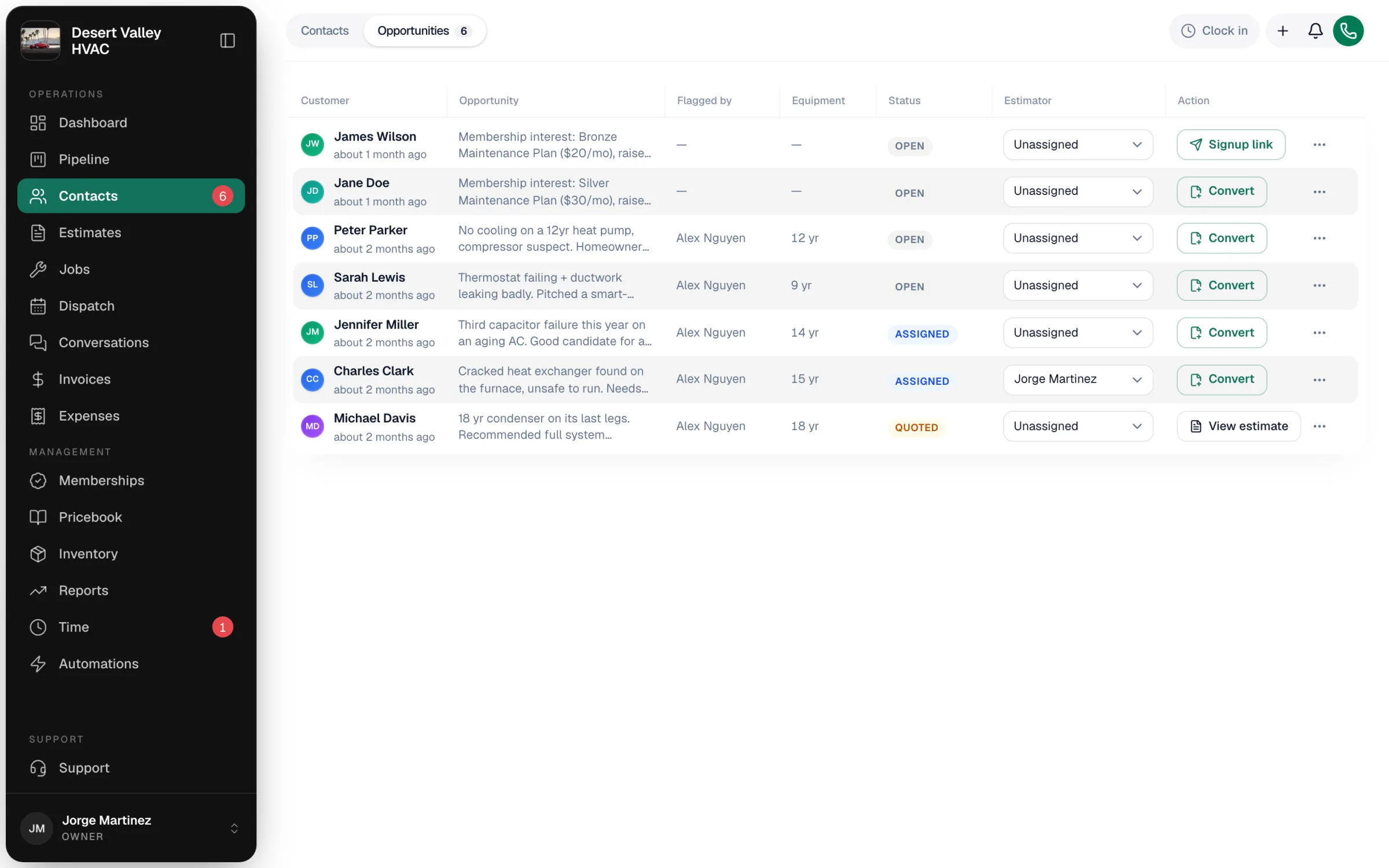
| Column | What it shows |
|---|---|
| Customer | Who it's for, and when it was flagged. Click the row for the full details. |
| Opportunity | What the tech spotted, in their words. |
| Flagged by | The tech who flagged it. |
| Equipment | The age of the unit, if the tech entered it. |
| Status | Open, Assigned, Quoted, Won or Lost. |
| Estimator | Who's following up. |
| Action | The next step — see below. |
Assign an estimator
Pick a name in the Estimator dropdown. Choose Unassigned to take someone off it.
Take the next step
| Opportunity | Button | What happens |
|---|---|---|
| Repair or replacement work | Convert | Creates a draft estimate for the customer and opens it so you can build the options. |
| Already has an estimate | View estimate | Opens that estimate. |
| Membership interest | Signup link | Opens the enrollment link window so you can text the customer a link to sign up for the plan (or copy it). |
Keep the status current
Click ⋯ on the row and choose Mark assigned, Mark quoted, Mark won or Mark lost. Only Open and Assigned opportunities count toward the number on the tab.