
Enrolling puts a customer on one of your membership plans. Every enrollment ends the same way: the customer reads your plan terms and signs, either on your screen, on the tech's phone, or from a one-time link on their own phone.
Who can do this: owners, admins and dispatchers in the office, and techs from a job in the mobile app.
Ways to enroll
| Where | How |
|---|---|
| Memberships page | Click Enroll Customer. |
| Customer's page | On the Membership card, click Enroll in a plan (opens Memberships with the customer ready). |
| Mobile app | Open a job and tap the Membership row. See Memberships on mobile. |
| Estimate approval | With Offer plans on estimates turned on (Memberships → Plans), a customer approving an estimate can add one of your featured plans to their order. |
Enroll from the office
Click Enroll Customer. The Enroll customer in a plan window walks through five steps.
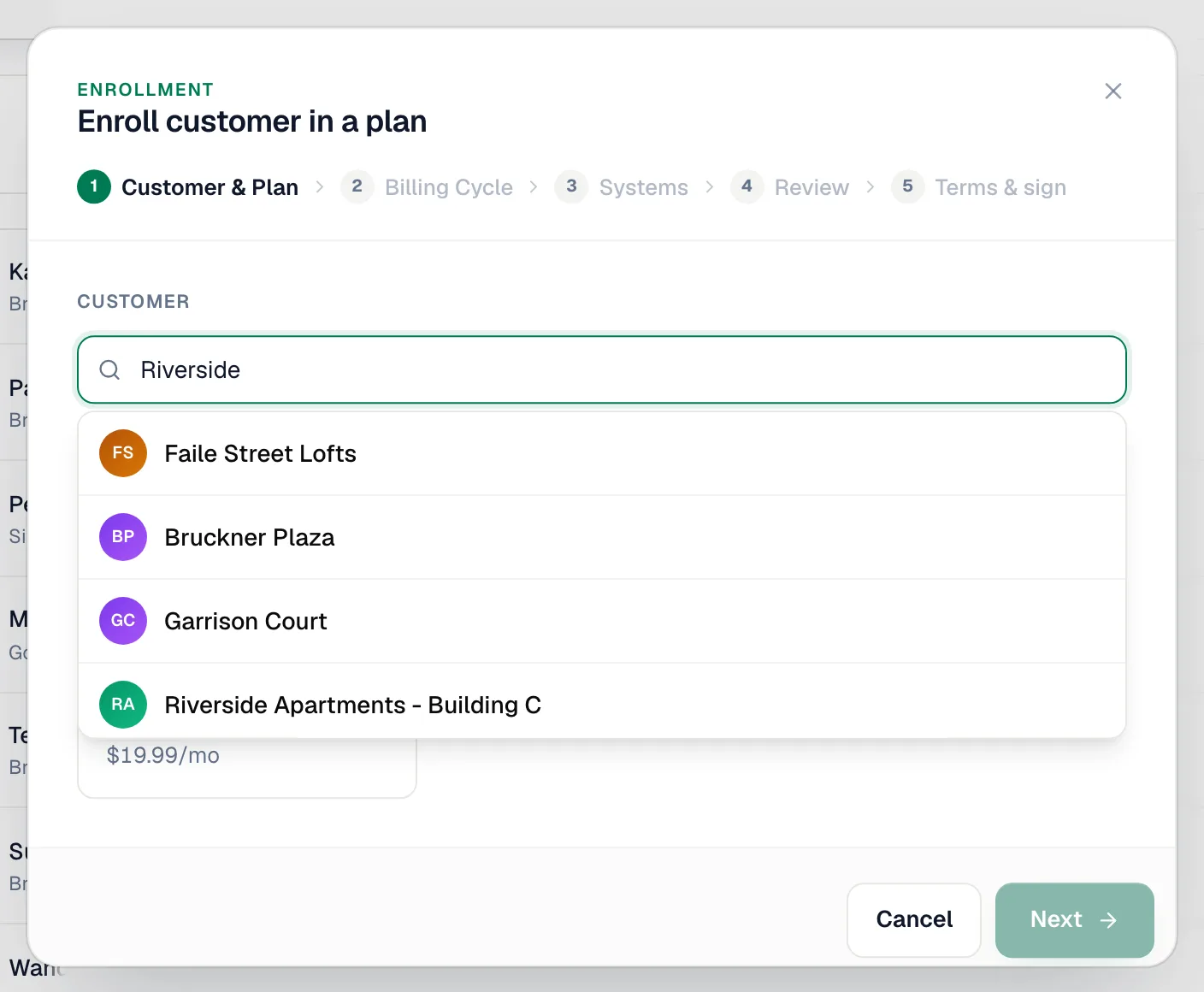
1. Customer & Plan
Search for the customer and pick them, then choose a plan under Select Plan. A customer can only have one active, paused or not-renewing membership at a time; the window tells you if they already have one.
2. Billing Cycle
Choose from the cycles the plan offers (Monthly, Quarterly, Semi-Annual, Annual). For a multi-year plan you can choose Full term up front to bill the whole term in one invoice.
3. Systems
Systems Covered shows how many HVAC systems the membership covers, suggested from the customer's equipment. A system is the furnace, air handler and condenser that work together, not each part; equipment not grouped into a system counts as one. Adjust the number if needed. On plans priced per unit, the price follows this number.
4. Review
Check the price and set the Start Date and, optionally, the First tune-up date (for example October for a fall heating check sold in July). If you leave it, the first tune-up is due one visit interval after the start.
If the customer has a card on file, an Autopay with Visa •••• 1234 switch appears (off by default). Turn it on to charge renewals to that card automatically. See Renewals and autopay.
5. Terms & sign
Click Next: terms & signature. Then either:
- Sign on this screen: the customer reads the terms and signs, then you click Sign & enroll — $XX.XX/mo.
- Send link instead: choose Text to, Email to or Copy link. The customer opens the link on their own phone, reads the terms and signs. They're enrolled once they sign.
Signing links work once and expire after 7 days. Each link is for one customer and one plan; there's no public sign-up page.
What happens after enrolling
| What | Result |
|---|---|
| Membership | Active immediately. It shows on the customer's page and under Memberships → Members, and techs see the plan on the customer's jobs. |
| Signed agreement | Saved on the membership with the exact terms, signature, time and location. Download it any time with Download agreement. |
| Tune-ups | The first tune-up date is set and the member appears under Tune-ups due when it comes up. |
| Billing | Enrolling doesn't create an invoice. The first Next Billing date is one billing cycle after the start date (the start date itself for a one-time plan). Use Collect renewal on the membership to bill now, or let the renewal invoice be created before the Next Billing date. See Renewals and autopay. |