
Sometimes a job is underway and you have to step away: a part to pick up across town, or a part on order that will take days. Parts run and On hold tell the office exactly that without changing the job's status. You stay assigned, your time keeps counting, and the customer doesn't get any texts.
Tap Need a part? Step away
Open the job. Once you've tapped On My Way or Arrived on Site, Need a part? Step away sits right under the green button.
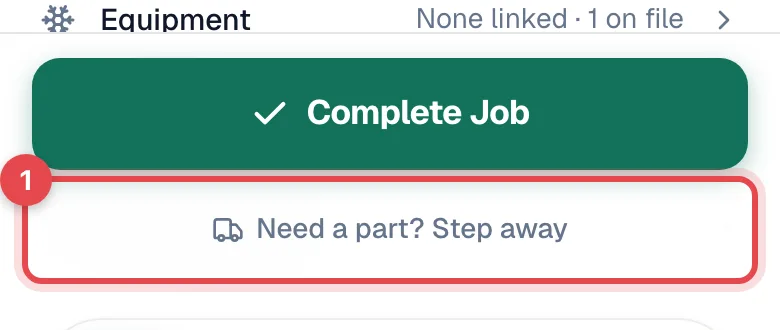
Pick one
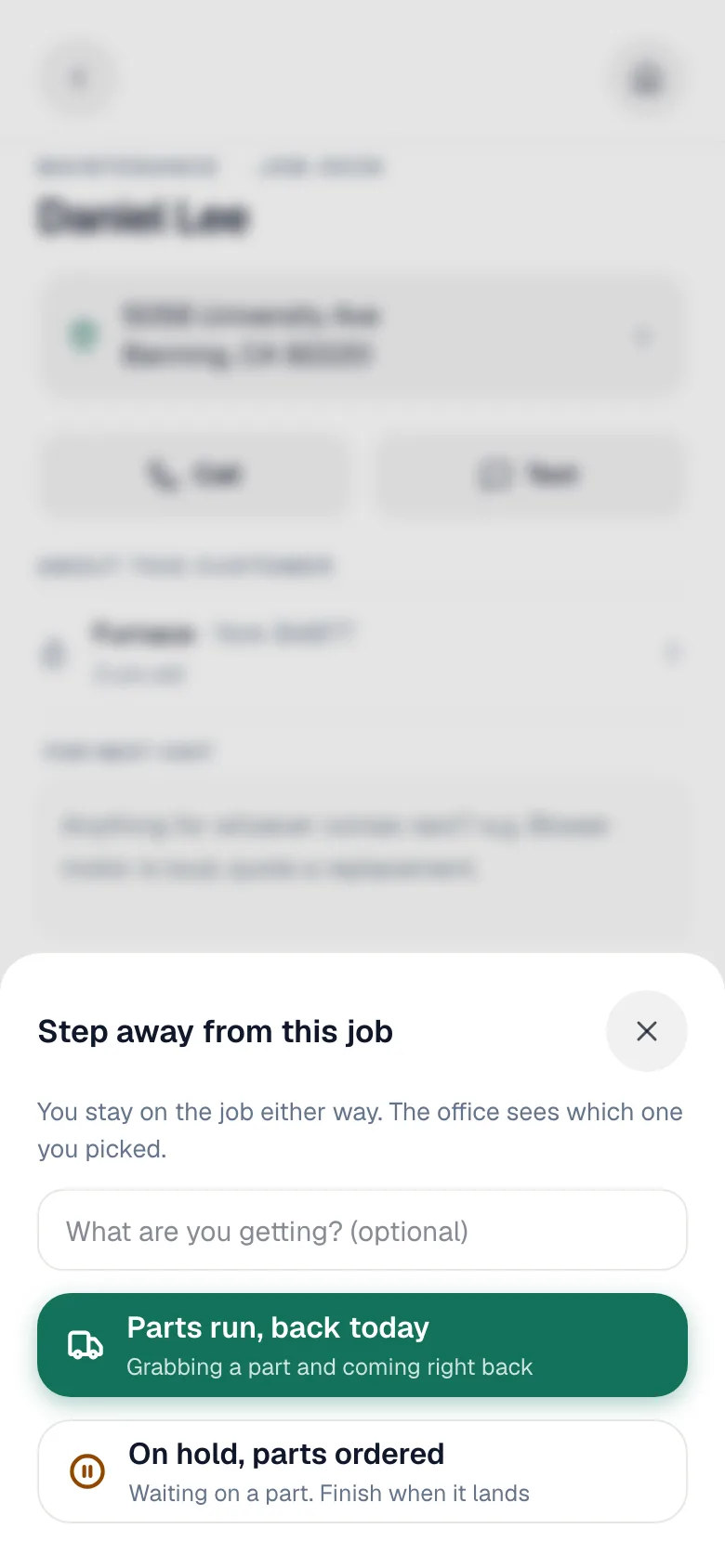
Optionally type what you're getting in What are you getting? (optional), then tap:
- Parts run, back today if you're grabbing a part and coming right back.
- On hold, parts ordered if you're waiting on a part and will finish when it lands.
The job now shows an amber line, Parts run · back today or On hold · parts ordered, on the job and on your job card.
Tap Resume when you're back
The amber bar at the bottom of the job has a Resume button. Tap it and you're Back on it.
From the office
On the job page, open Change status. Under Step away, pick Parts run, back today or On hold, parts ordered. When a job is paused, the same menu shows Resume. The office can do this for a job that's scheduled, en route, or in progress.
The dispatch board shows the same wording on the job instead of the status.
What it changes, and what it doesn't
| Parts run / On hold | |
|---|---|
| Job status | Unchanged. Still On site (or En route). |
| Tech assignment and time | Unchanged. |
| Customer texts | None sent. |
| Job cards and dispatch board | Show the pause instead of the status word. |
| Clearing it | Resume, or the job moving to Completed, Invoiced, Closed, Cancelled, or No show. |
Use Parts run when the same tech finishes the same day. Use On hold when nobody can finish until the part arrives, so the office knows to schedule the return visit.
Good to know
- Needs a signal. Offline, the app says Stepping away needs a connection. Try again when you have signal.
- Need the office to order the part? Send a parts request from Parts and labor. See Requesting parts from the field.