When you need something that isn't on the truck, send the request from the job instead of calling the office and hoping someone writes it down. It arrives as a purchase order for the office to approve, and you can see where it stands on the job.
Open Parts and labor
On the job, tap Parts and labor under This visit.
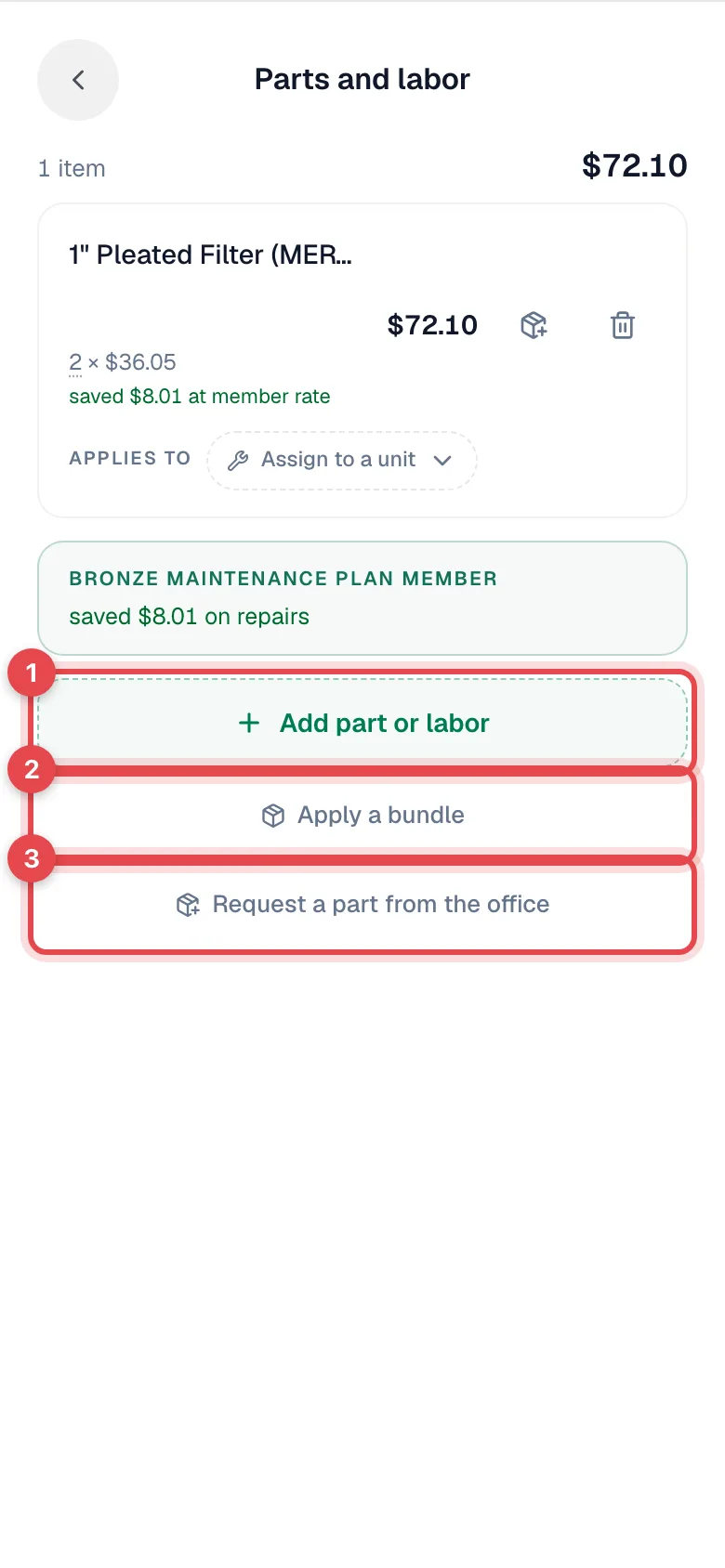
Start the request
Tap Request a part from the office at the bottom of the panel.
Already have the part on the job and need more of it? Tap the request icon on that line instead. The request opens with the part's name filled in.
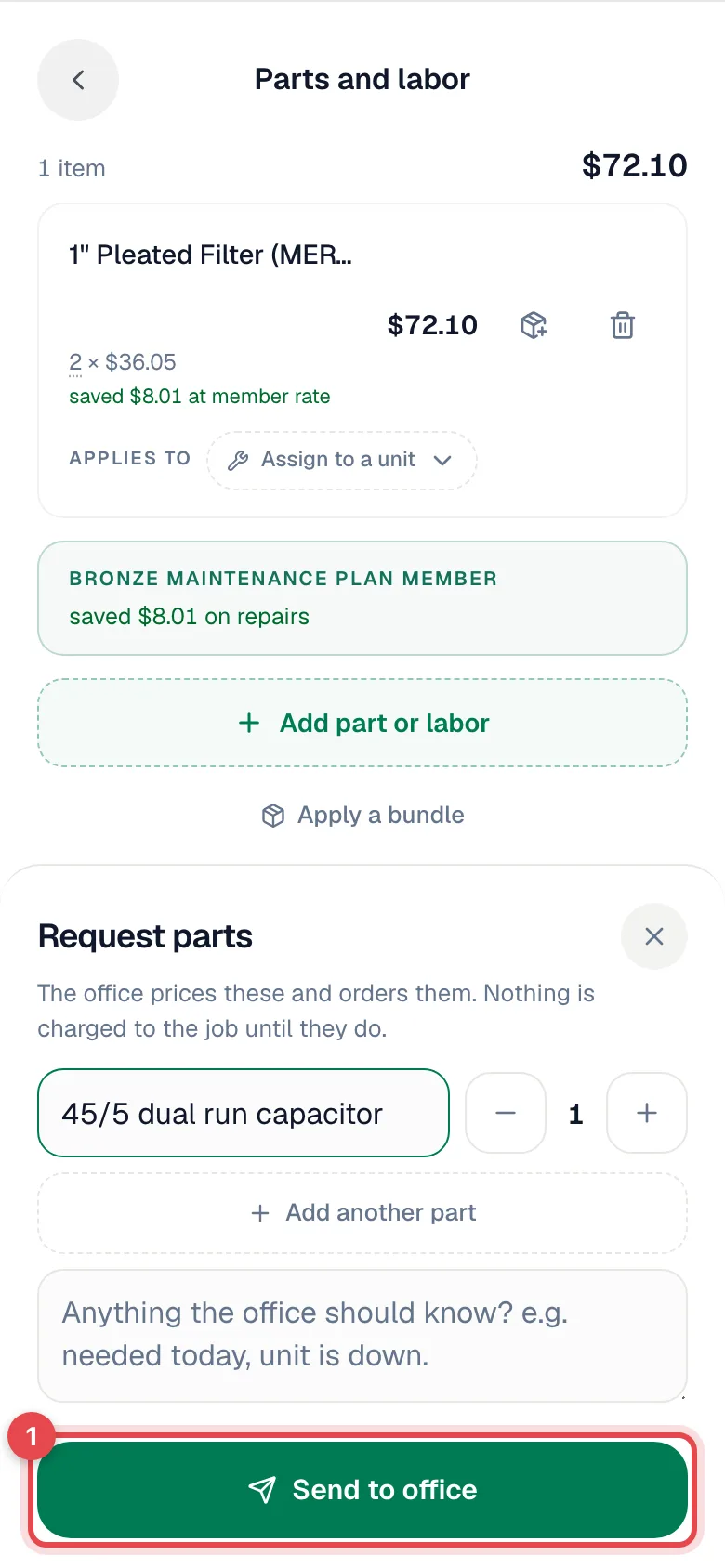
Fill in what you need
| Field | What to enter |
|---|---|
| Part | What you need, in plain words, for example 45/5 dual run capacitor. |
| Quantity | Use − and +. |
| Add another part | Adds a line for each extra part. |
| Note | Anything the office should know? e.g. needed today, unit is down. |
| Where to buy (optional) | Pick one of your company's vendors, or choose Other store… and type the Store name. Leave it on No preference if you don't mind. |
If your company has a long vendor list, you type in the box instead and pick from the matches. Anything you type that isn't one of your vendors goes to the office as a store name.
Tap Send to office
You'll see Parts request sent to the office. Your office (owners, admins, and dispatchers) gets a notification, and the request waits as a purchase order for someone to approve.
If you said where to buy, the office sees it as Suggested supplier on the request. When you picked one of your company's vendors, that vendor is already filled in on the purchase order.
Requesting a part doesn't charge the customer. The office prices these and orders them. Nothing is charged to the job until they do.
Checking on a request
Open Parts and labor again. Your requests are listed under Requested from office, separate from the parts already on the job, each with its status:
| Status | Meaning |
|---|---|
| Waiting on office | Nobody has decided yet. |
| Approved | The office approved it and is ordering the parts. |
| Ordered | The order has gone to the supplier. |
| Received | The parts have arrived. |
| Declined | The office turned it down. |
| Cancelled | It was approved, then cancelled later (for example, the supplier was out of stock). |
Good to know
- Needs a signal. If you're offline, the app says No connection — try again when you're back online. Nothing is sent until you retry.
- When the button disappears. Parts and labor locks once the job's invoice has been sent or paid, or the job is closed, cancelled, or marked no-show. The request button goes with it, so call or message the office instead.
- Waiting days for the part? Put the job On hold, parts ordered so the office knows. See Parts run and On hold.