
The printed equipment history is a branded page showing everything a customer has been billed to keep a unit (or a whole system) running. Hand it over, email it as a PDF, or attach it to a replacement estimate.
Who can do this
Anyone who can open the unit's page can print it. Print PDF is on every unit page and every system page.
Open the unit or system
- Unit: go to Contacts, open the customer, click the Properties tab, then click the unit's name or History.
- System: open the address's ⋯ menu → Property page, then click the system.
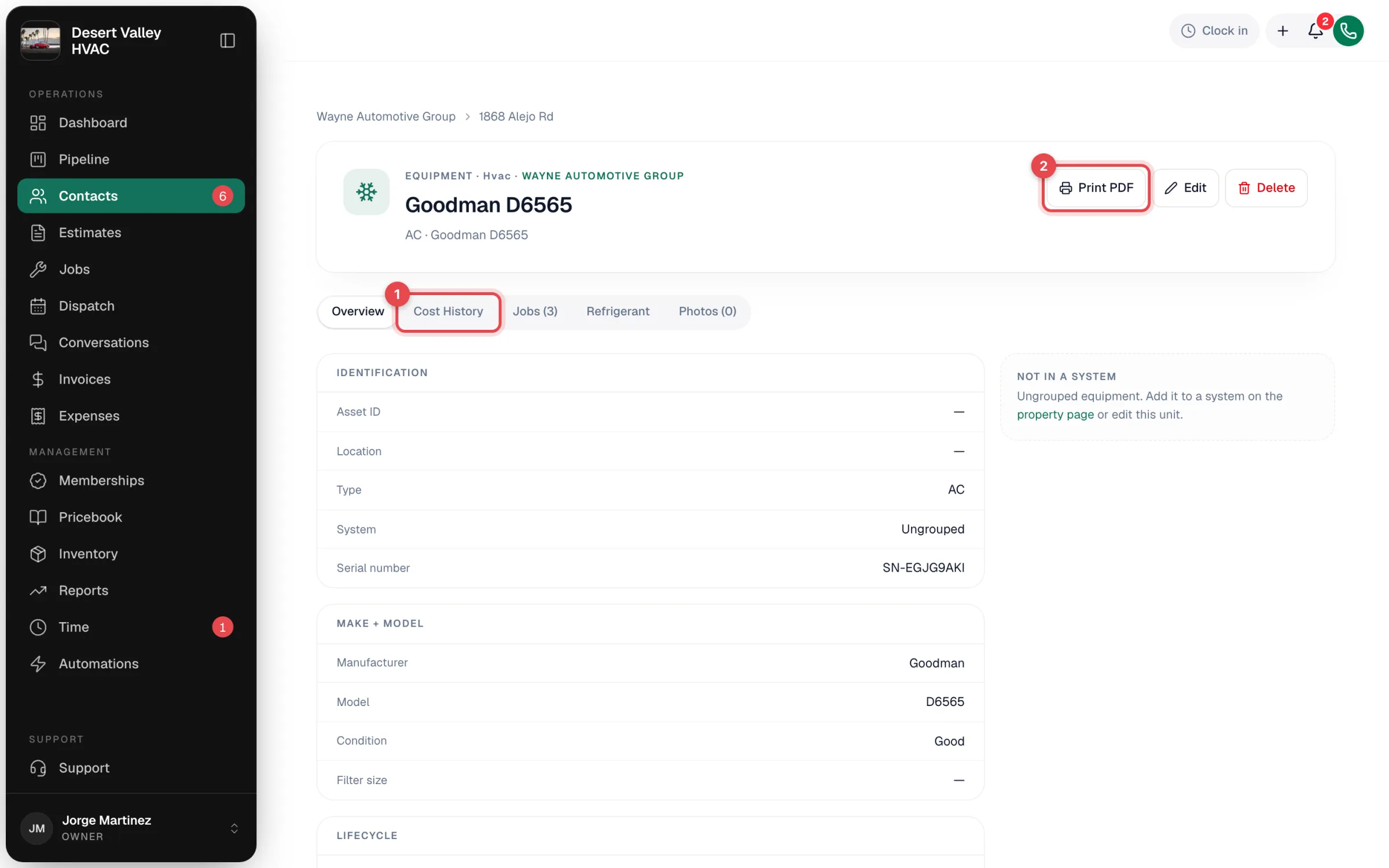
Click Print PDF
Print PDF is at the top right of the page. Your browser's print dialog opens with only the report, with no menus or buttons.
Print or save as PDF
Send it to a printer, or choose Save as PDF as the destination to email it.
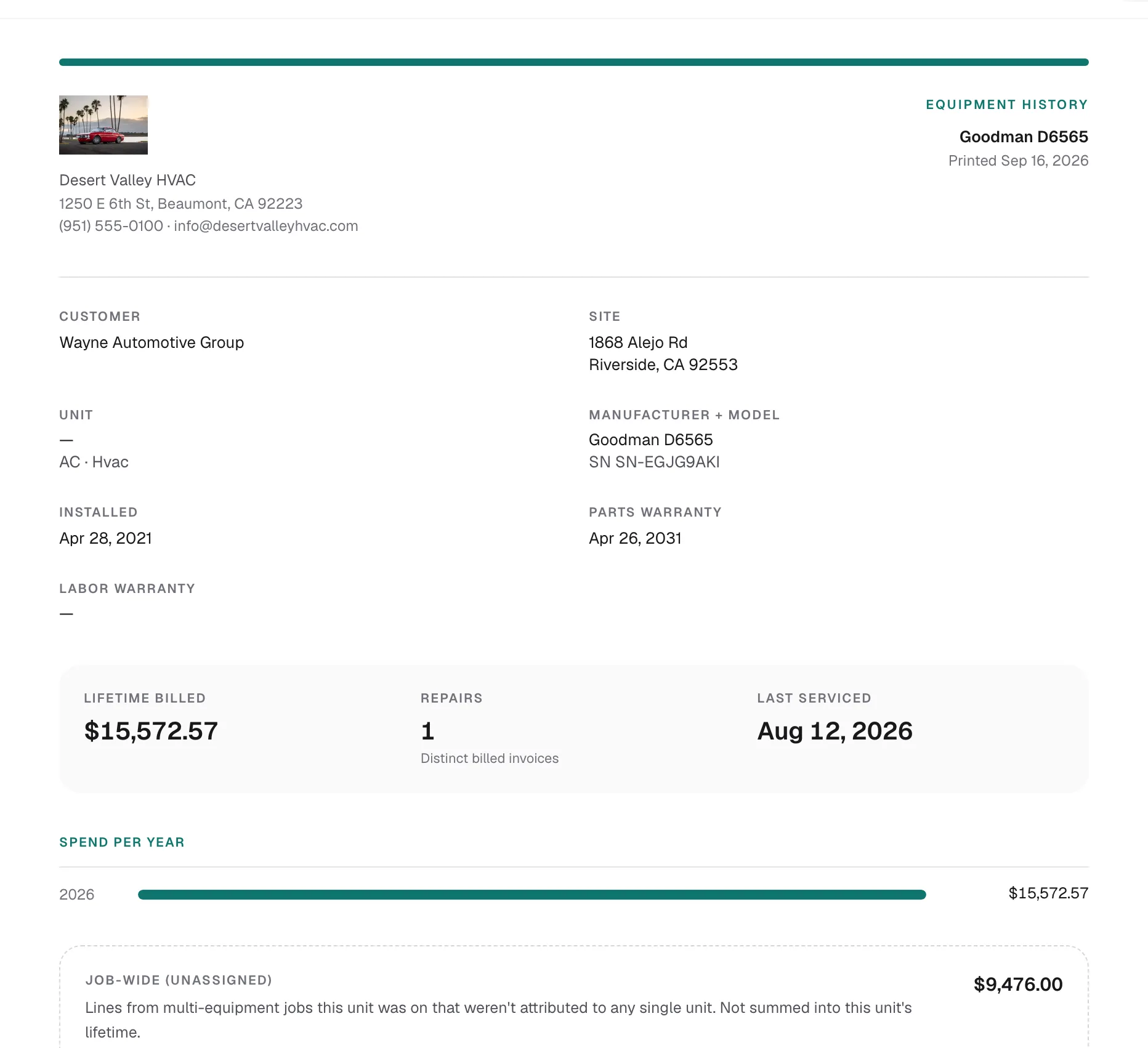
What's on a unit's printout
| Section | What it shows |
|---|---|
| Header | Your logo (or company name), address, phone and email, the unit's name, and the date printed. |
| Unit details | Customer, site address, asset ID, type and system, manufacturer and model with serial number, install date, and parts and labor warranty dates. |
| Headline numbers | Lifetime billed, repairs (distinct billed invoices) and last serviced. |
| Spend per year | A bar for each year. |
| Job-wide (unassigned) and System-level | Shown only when there are lines like this. Listed separately, not added to the unit's total. |
| Repair history | Every billed line: date, invoice number, description and amount. |
What's on a system's printout
The same header and customer details, plus the system's category and number of units, lifetime billed across the system, spend per year, the system-level charges, and a roster of units with each one's asset ID, type and model, lifetime spend, repairs and last service.
What's never printed
Your parts costs and margins, even when inventory tracking is on. Only billed amounts appear, and draft or voided invoices are left out.
Pair it with an estimate. "You've spent $3,850 on this unit in three years, and here's what a new one costs" makes the case in two pages.
Fixing a history before you print
If the numbers look low, there are usually lines that weren't assigned to the unit. Check the unit's Job-wide (unassigned) section on the Cost History tab and assign those lines to the right unit first. See Assigning job and invoice items to equipment.