
Payment terms decide when an invoice is due. The due date prints on the invoice and the pay page, drives your overdue reminders, and places the invoice in the right bucket on the aging report.
The options
| Term | Due date |
|---|---|
| Due on receipt | The day the invoice is created |
| Net 7, Net 14, Net 30, Net 45, Net 60, Net 90 | That many days after the invoice is created |
| Custom… | Any number of days from 0 to 365, shown as Net N |
Set your default terms
The default applies to every new invoice unless you pick something else when you create it. If you never set one, new invoices use Net 30.
- Go to Invoices and click the gear icon (Invoice settings) next to Generate invoice.
- Open Payment.
- Choose Payment terms.
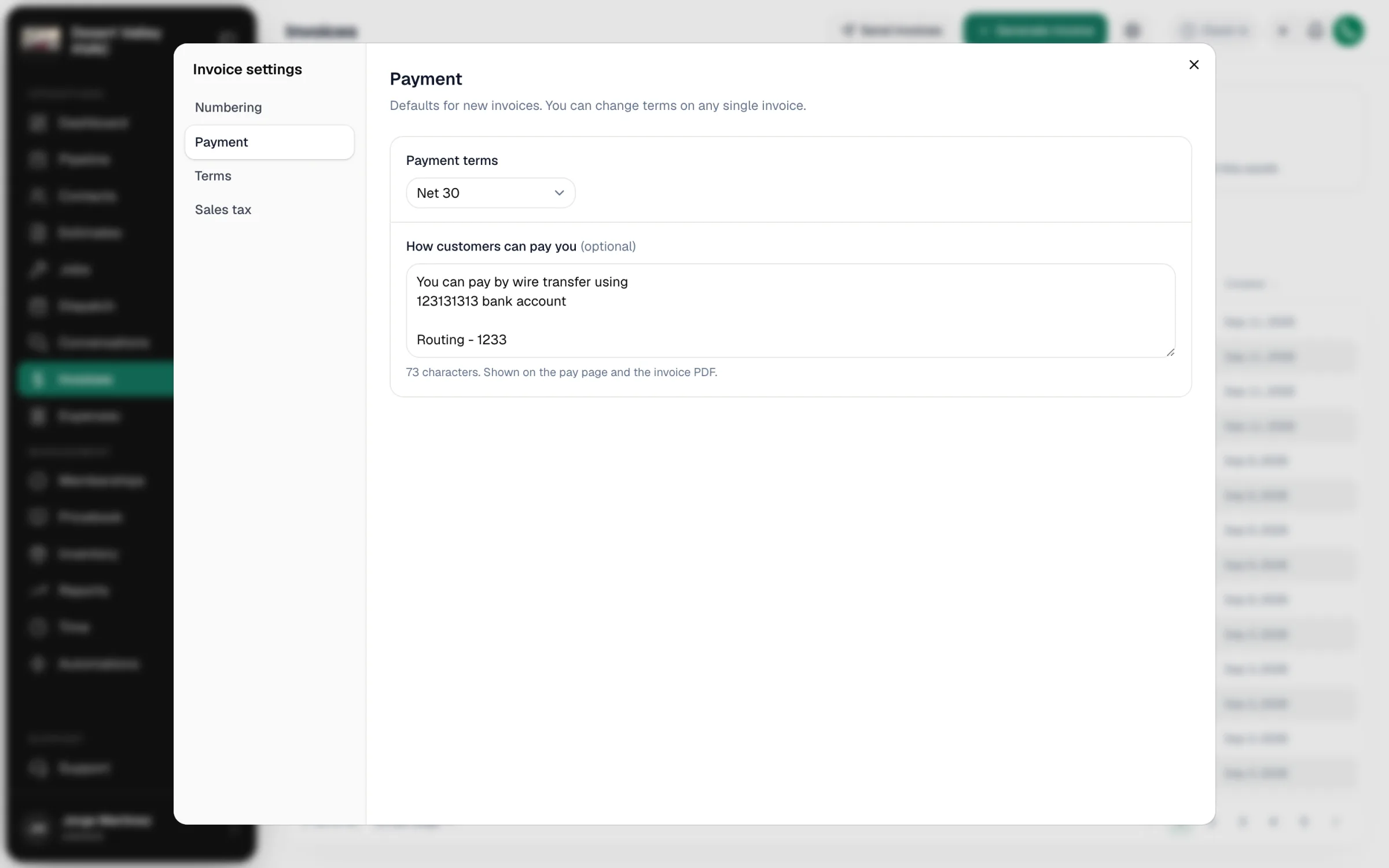
Owners and admins can change invoice settings. The same Payment section has How customers can pay you, the instructions (check, Zelle, wire details) printed on the pay page and the invoice PDF.
Choose terms for one invoice
You pick the terms when you create the invoice:
- From a job: the Create invoice from this job window has Payment terms, with the resulting due date shown underneath.
- From the Invoices page: the Generate Invoice window has a Payment Terms picker above the job list.
- For a payment schedule milestone: the Invoice "[milestone]" window has Payment terms with the due date shown underneath.
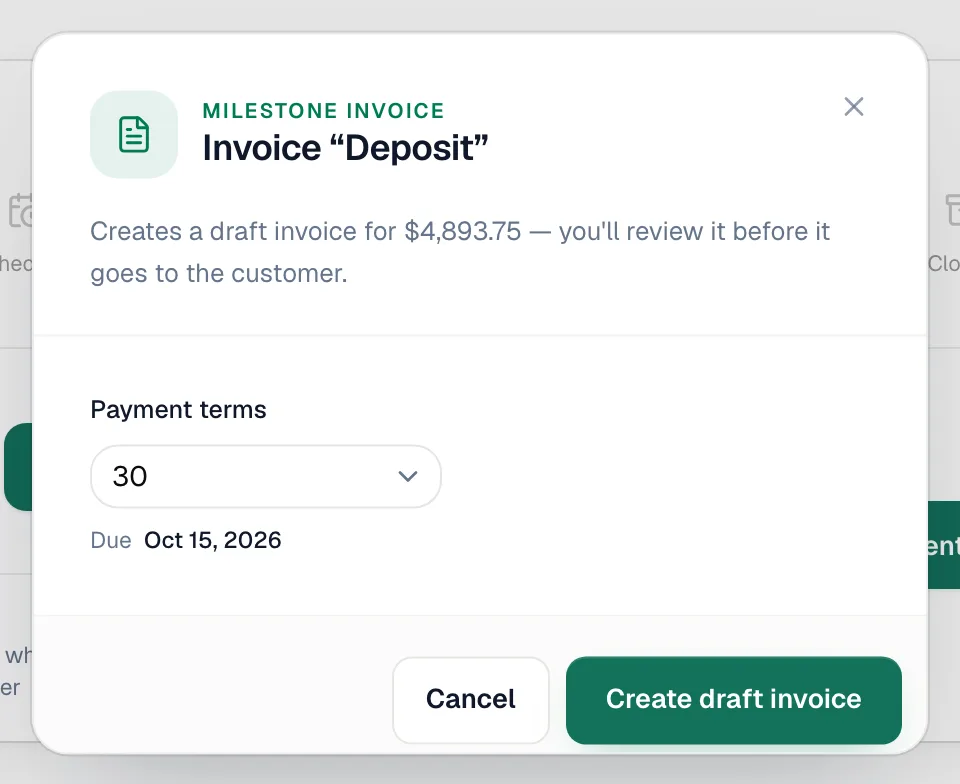
After the invoice is created, its Due Date and Terms show on the invoice. There's no control to change them afterwards. If the terms are wrong, void the invoice and create it again with the right terms.
Commercial customers often expect Net 30 or Net 45. For residential service calls, Due on receipt is the usual choice.
Deposits are always due on receipt
When a customer approves an estimate with a payment schedule, the deposit invoice is created automatically with Due on receipt. The other milestones use whatever terms you pick when you invoice them.
How terms affect the rest of Run a Call
| Where | How the due date is used |
|---|---|
| Invoice, PDF and pay page | The pay page headline reads Due [date] until the invoice is paid. |
| Overdue reminders | The Overdue invoice SMS automation texts the customer at 7, 14 and 30 days past the due date and marks the invoice Overdue. See Overdue invoice reminders. |
| Accounts receivable aging | Open balances are grouped by how many days they are past due. See Unpaid Invoices report (AR aging). |
| QuickBooks | The invoice syncs with its due date. Your QuickBooks terms list isn't changed. |