
You can send photos and documents in a text — a picture of the worn part, a PDF of the warranty, a spreadsheet of options — and see the photos customers text back, all inside the conversation.
Before you start
- Business texting must be active, and you need to be an owner, admin or dispatcher.
- Attachments work for customers with US or Canadian phone numbers.
Open the customer's conversation
In Conversations → Messages, open the customer (or click Text on their profile).
Attach the files
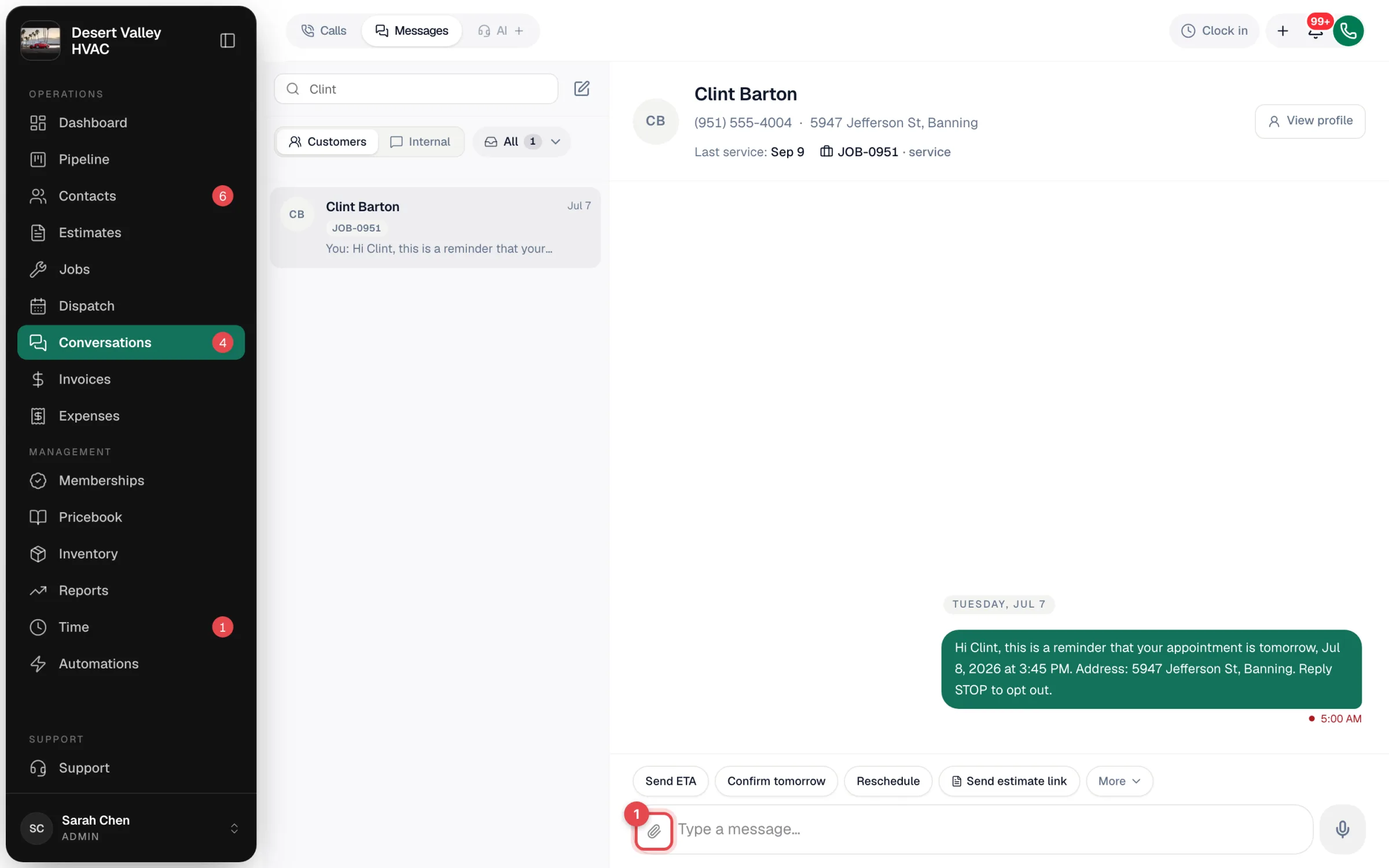
Click the paperclip in the message box (Attach file) and pick one or more files. You can also drag files from your computer onto the conversation — you'll see Drop to attach.
Each file shows as a chip above the message box while it uploads. Click the × on a chip to remove it.
Add a note (optional) and send
Type a message if you want one — a photo on its own is fine — and press Enter.
What you can send
| Limit | Details |
|---|---|
| Files per text | Up to 10. |
| Size | Up to 25 MB per file. |
| Photos | JPG, PNG and GIF. |
| Documents | PDF, Word, Excel, PowerPoint, plain text (.txt) and CSV. |
Other file types (including HEIC and WEBP photos) are refused with file type not supported. Save the photo as JPG or PNG first.
What the customer receives
- Photos arrive as pictures inside the text, like any photo from a friend.
- Documents arrive as a download link in the text, on a line starting File:. The link works for 7 days, so send it again if the customer comes back to it later.
- As with every text, the message starts with your business name.
Photos customers send you
When a customer texts you a photo (JPG, PNG or GIF) or one of the document types above, it shows in the conversation. Click it to open a larger preview. Other things phones can send, such as contact cards or audio clips, don't come through — the text part of their message still does.
If it doesn't send
| Message | What to do |
|---|---|
| Up to 10 attachments per message | Split the files across two texts. |
| {file}: exceeds 25 MB | Send a smaller file or a lower-resolution photo. |
| MMS attachments are only supported for US and Canada numbers. | Email the file instead. |
| Remove failed attachments before sending | A file didn't finish uploading. Remove it and attach it again. |
Phone carriers can reject very large photos in a picture message. If a big photo fails to deliver (red dot under the text), send a smaller copy or send it as a PDF.