
Cancel a job when the visit isn't going ahead: the customer called it off, found someone else, or the job was booked by mistake after they'd already heard from you. A cancelled job stays on the customer's history, so you never lose the record.
Who can cancel
Owners, admins and dispatchers, from the office app. Techs can't cancel from the mobile app — if nobody's home, they mark the job No Show instead.
Cancel from the job page
Open the job
Go to Jobs and open it, or click it on the dispatch board and choose Open full job.
Open Change status
Click Change status in the top-right corner of the job.
Choose Cancelled
Click Cancelled. The job is cancelled immediately — there's no confirmation step — and a Status updated to Cancelled message appears.
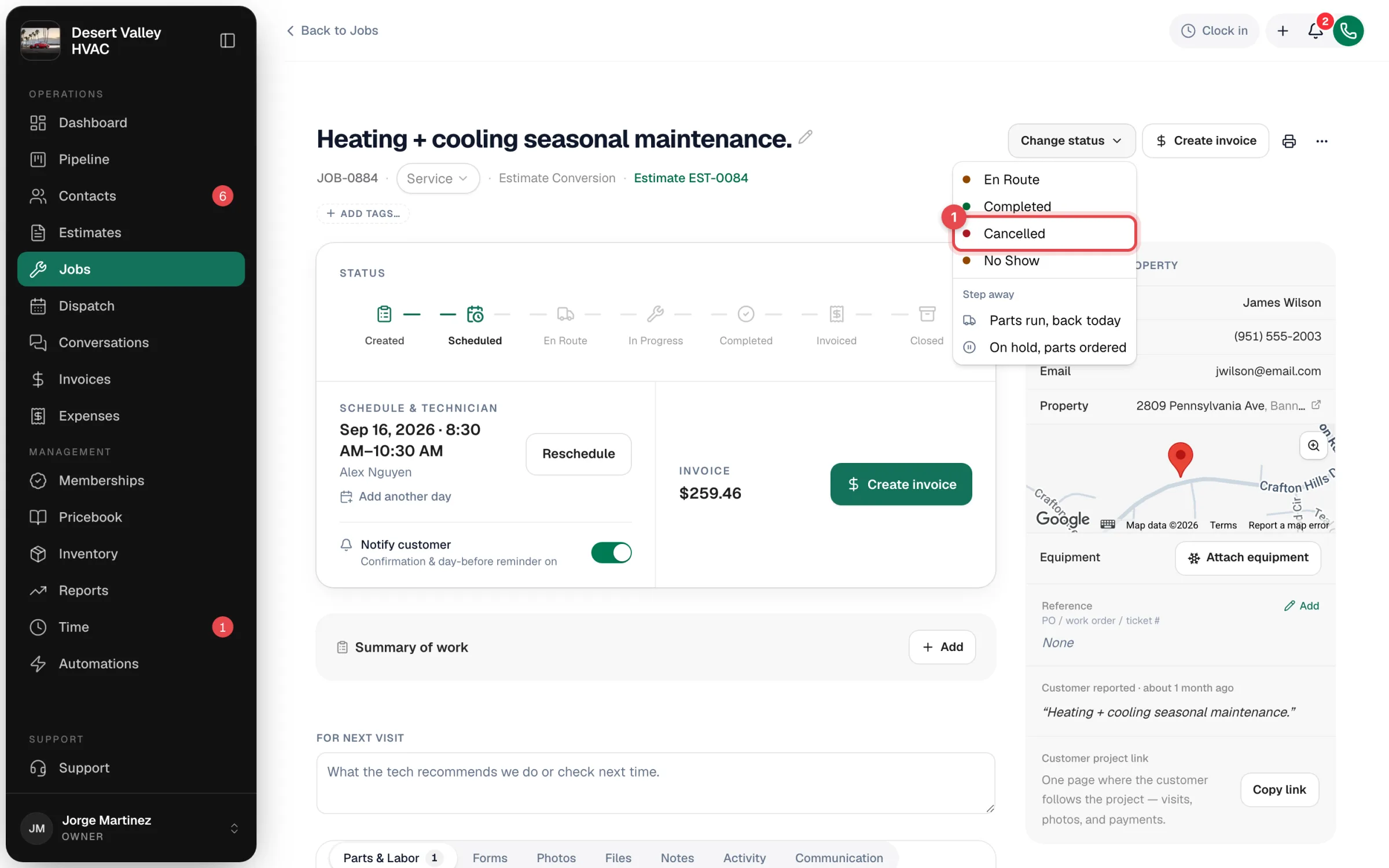
Want to record why? Cancel from the pipeline board instead (below) — it asks for a reason.
Cancel from the pipeline board (with a reason)
- Go to Pipeline and pick the Jobs board.
- Drag the job card into a column that marks jobs as Cancelled (or open the status dropdown on the card and pick that column).
- A dialog, Moving to column name, asks Why did this job fall through? Tap a reason — Price too high, Customer fixed it themselves, Went with another company, Couldn't reach customer, Rescheduling fell through — or type your own, then click Save reason. Click Skip if you're mid-call and don't have time.
The reason is saved with the job. See Using the pipeline boards.
What happens when you cancel
- The job leaves the dispatch board and the unassigned queue.
- The customer may get a cancellation text — only if they'd already been told about the appointment (for example, they got a booking confirmation) and Text the customer when a job is cancelled is turned on in Automations.
- No more reminders. The day-before reminder only goes to scheduled jobs.
- Invoices and payments aren't touched. If the customer paid a deposit, deal with the invoice separately.
- The Activity tab records it, for example Sarah Chen cancelled the job.
- It stays searchable. Cancelled jobs remain on the Jobs list (filter Status: Cancelled) and on the customer's Jobs tab.
Undo a cancellation
Owners and admins can put a cancelled job back:
- Open the job and click Change status.
- Under Move back, choose Scheduled.
- Confirm with Move anyway.
This works only if the job still has its appointment time. Moving it back doesn't text the customer, so let them know yourself. If the job no longer has a time, book a new job for the customer instead.
Cancel, No Show or delete?
| Situation | Use |
|---|---|
| The customer called off the visit | Cancel |
| The tech went out and nobody was there | No Show — it records the trip |
| The job was a duplicate or created on the wrong customer, and nobody was contacted | Delete — see How to delete a job |
| The visit needs to happen on another day | Don't cancel — Reschedule the job |