
Every time an automation fires, built-in message or one you built, Run a Call records a run: what started it, each step it took, and what was sent. Use runs to confirm a customer got a message or to find out why something didn't go out.
Where to find runs
| To see | Go to |
|---|---|
| Every run for your business | Automations → Runs in the Your automations panel on the right. The page is called All runs. |
| Runs of one automation | Click the automation's name on the Automations page, then View runs, or click Runs in the builder's top bar. |
Runs are kept for 90 days. The step-by-step details are kept for 30 days, or 90 days for runs that failed.
The runs list
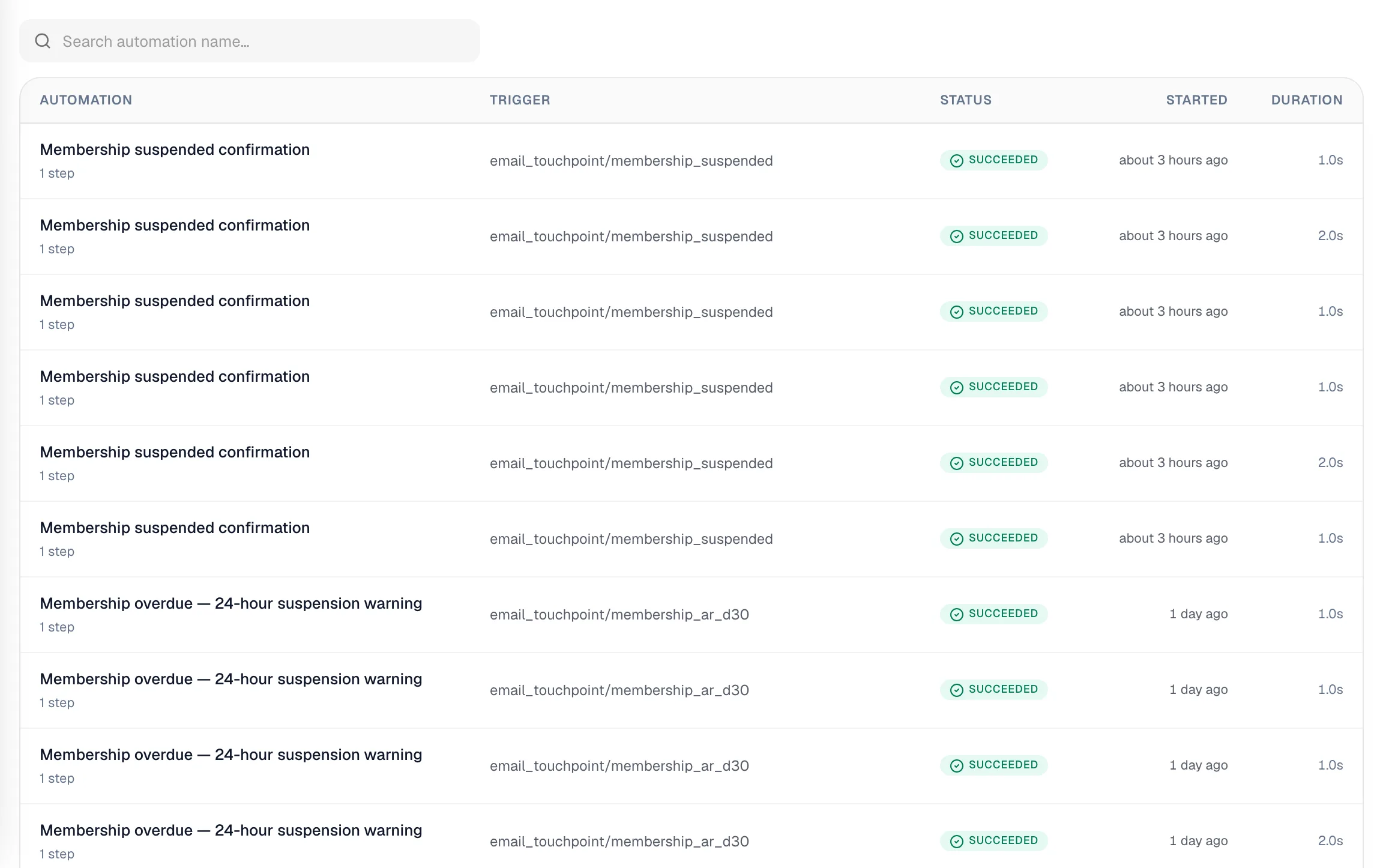
Newest runs are at the top. Use Search automation name… to narrow the list, and the page controls at the bottom to go further back.
| Column | What it shows |
|---|---|
| Automation | The automation's name, the number of steps that ran, and the start of the error message if something failed |
| Trigger | The event that started it (shown as its technical name) |
| Status | How the run ended (see below) |
| Started | How long ago it started; hover for the exact date and time |
| Duration | How long it took, or Running… if it's still going |
Run statuses
| Status | Meaning |
|---|---|
| Succeeded | Every step ran. |
| Skipped | A filter stopped the run on purpose. Nothing is wrong; the conditions weren't met. |
| Partial | Some steps ran and others were skipped, for example a text held back by the 25-minute spacing or the daily limit. |
| Failed | A step hit a problem and the run stopped. |
| Running | Still going, often waiting on a Delay. |
| Stopped | Someone stopped it by hand. |
| Loop killed | Automations kept setting each other off; the chain was stopped for safety. |
Click any row to open that run.
Inside a run
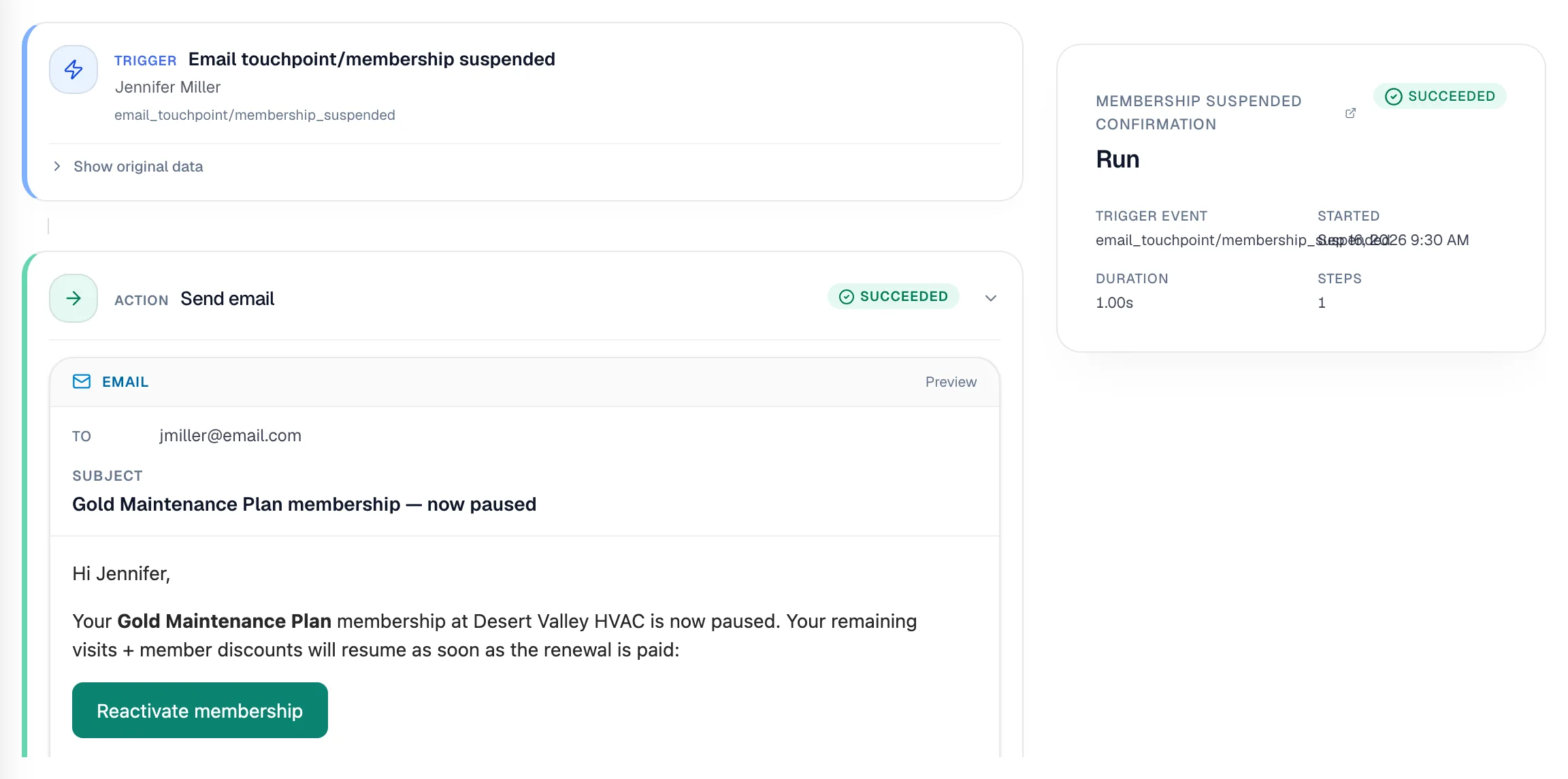
On the right, a summary card shows the automation's name (click it to open the automation), the run status, Trigger event, Started, Duration and Steps.
On the left, the run is laid out step by step, starting with the Trigger card: what started the run and for whom. Show original data reveals the raw details the trigger passed in.
Each step below has its own status badge:
| Badge | Meaning |
|---|---|
| Succeeded | The step did its job. |
| Failed | The step hit a problem. The error explains what. |
| Blocked | A filter or branch condition wasn't met. |
| Addon off | The step couldn't run, for example texting isn't set up, the customer opted out with STOP, notifications are off on that job, or the caller's number was hidden. The message under it says which. |
| Rate cap | Held back because this customer got an automated message less than 25 minutes earlier. |
| Quota | Held back because the daily limit of automated texts or emails was reached. |
| Not run | A step before it stopped the run. |
| Running / Pending | Still to come, for example after a Delay. |
Text and email steps show exactly what was sent: who it went to, the subject, and the message. Other steps show what they did; Show raw data reveals the full input and output.
For Paths, each branch is marked Ran or Skipped.
Stop a run that's still going
A run that's waiting (for example on a 3-day Delay) can be cancelled:
- Open the run.
- Click Stop next to the status.
- Confirm with Stop run.
The automation stops at that point: waiting delays are cancelled and later steps don't run. The status changes to Stopped. Only this run is affected; the automation keeps working for future events.
Figure out why something didn't send
- Open All runs and search for the automation's name.
- Open the run from around the time you expected the message.
- Find the step that isn't Succeeded and read its message.
| What you see | What to do |
|---|---|
| Addon off on a text | Check that texting is set up and approved, that the customer hasn't replied STOP, and that notifications are on for that job. |
| Rate cap | Nothing; the customer had just received another automated message. |
| Quota | The daily limit was reached; it resets the next day. |
| Blocked or Skipped | Review the filter's conditions against the trigger details (Show original data). |
| Failed with a missing detail | The record was missing something the step needed, such as a phone number, or an ID field in the step is empty. |
| No run at all | The automation was off at the time, or the event didn't match its trigger (for example a tag trigger set to a different tag). |