
You can show your booking form directly on a page of your own website, so visitors request service without leaving your site. It takes one snippet of code — send it to whoever manages your website.
Before you start
- Online booking must be turned on. See Enabling online booking.
- You need to be an owner or admin to see the code.
- You (or your web person) need to be able to edit a page on your website.
Copy the embed code
Go to Settings → Online Booking. In the Booking Page card, find Add to your website and click Copy. You'll see Embed code copied.
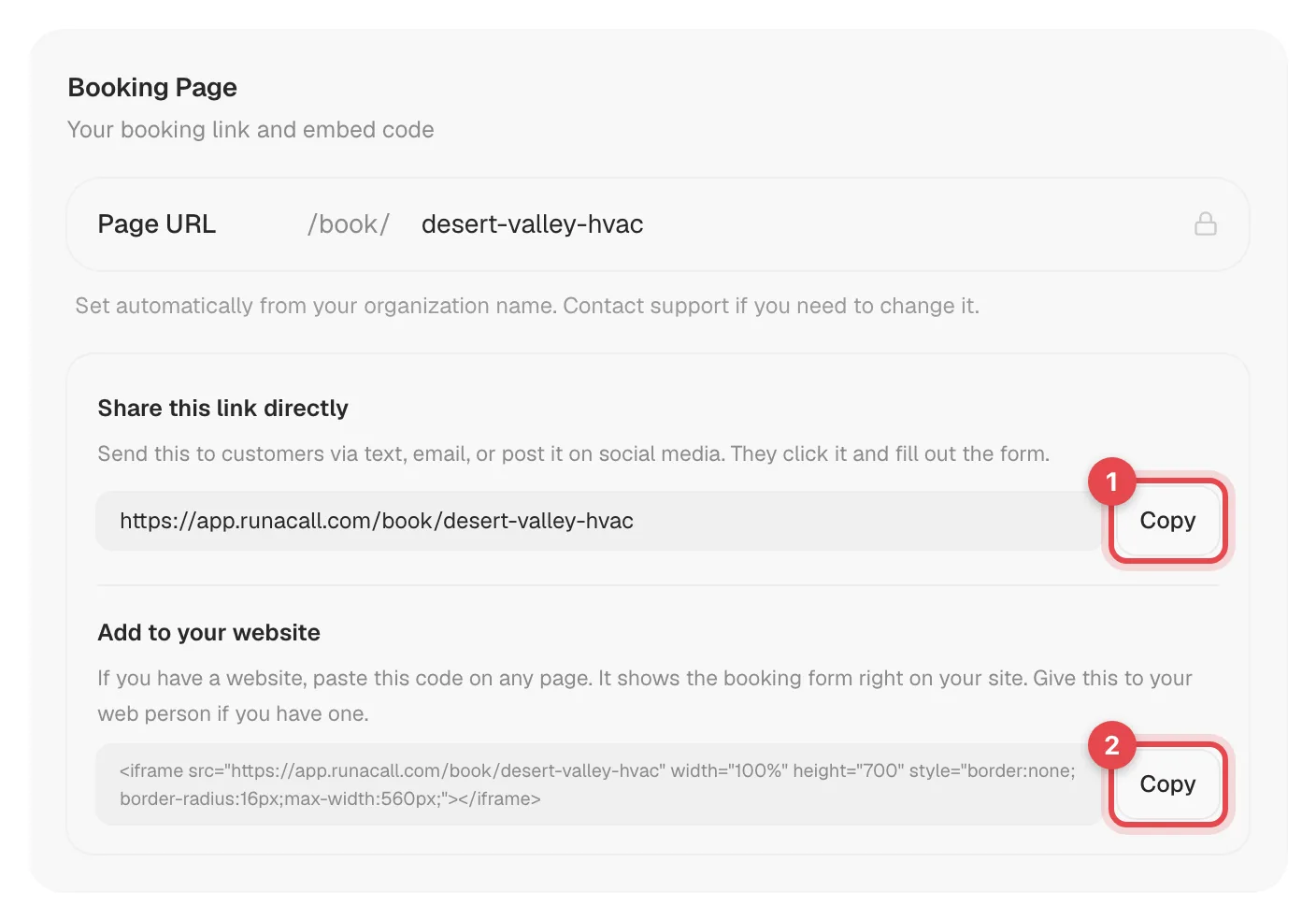
The code looks like this, with your own link in it:
<iframe src="https://app.runacall.com/book/your-company" width="100%" height="700" style="border:none;border-radius:16px;max-width:560px;"></iframe>
Paste it on your website
Paste the code where you want the form to appear — a "Book service" or "Contact us" page works well. Most website builders have an "Embed", "Custom HTML", or "Code" block for this. Publish the page.
Check it
Open the page on your phone and on a computer. You should see the Request Service form with your company name and brand color. Don't send a test request unless you want a test lead in Contacts — if you do, delete it afterward.
Adjusting how it looks
The code sets the form to fill the width of its space up to 560 pixels wide, and 700 pixels tall. If the bottom of the form gets cut off on your site, ask your web person to raise the height number.
Prefer a link or button?
If editing your website is a hassle, use the direct link instead: copy it from Share this link directly and add it to a "Book now" button, your Google Business Profile, or your social media profiles. It opens the same form.
Good to know
- Changes show up automatically. Service names, their order, your confirmation message, and your brand color update on your website without touching the code again.
- If you turn online booking off, the embedded form shows Booking Not Available until you turn it back on. See Turning off online booking.