
Online booking gives your company a public web page where customers can request service on their own — from your website, a Google Business Profile, a social post, or a link you text them. Every request lands in Run a Call as a new lead and alerts your office.
Who can do this
Owners and admins turn online booking on and change its settings. Everyone else on your team who opens Settings → Online Booking only sees their own Email me about new leads switch, and only once booking is on.
Open Online Booking settings
Go to Settings and pick Online Booking under Customer-facing.
Turn on Enable online booking
Flip the Enable online booking switch. There's no Save button — the change saves the moment you flip it, and a Saved message confirms it.
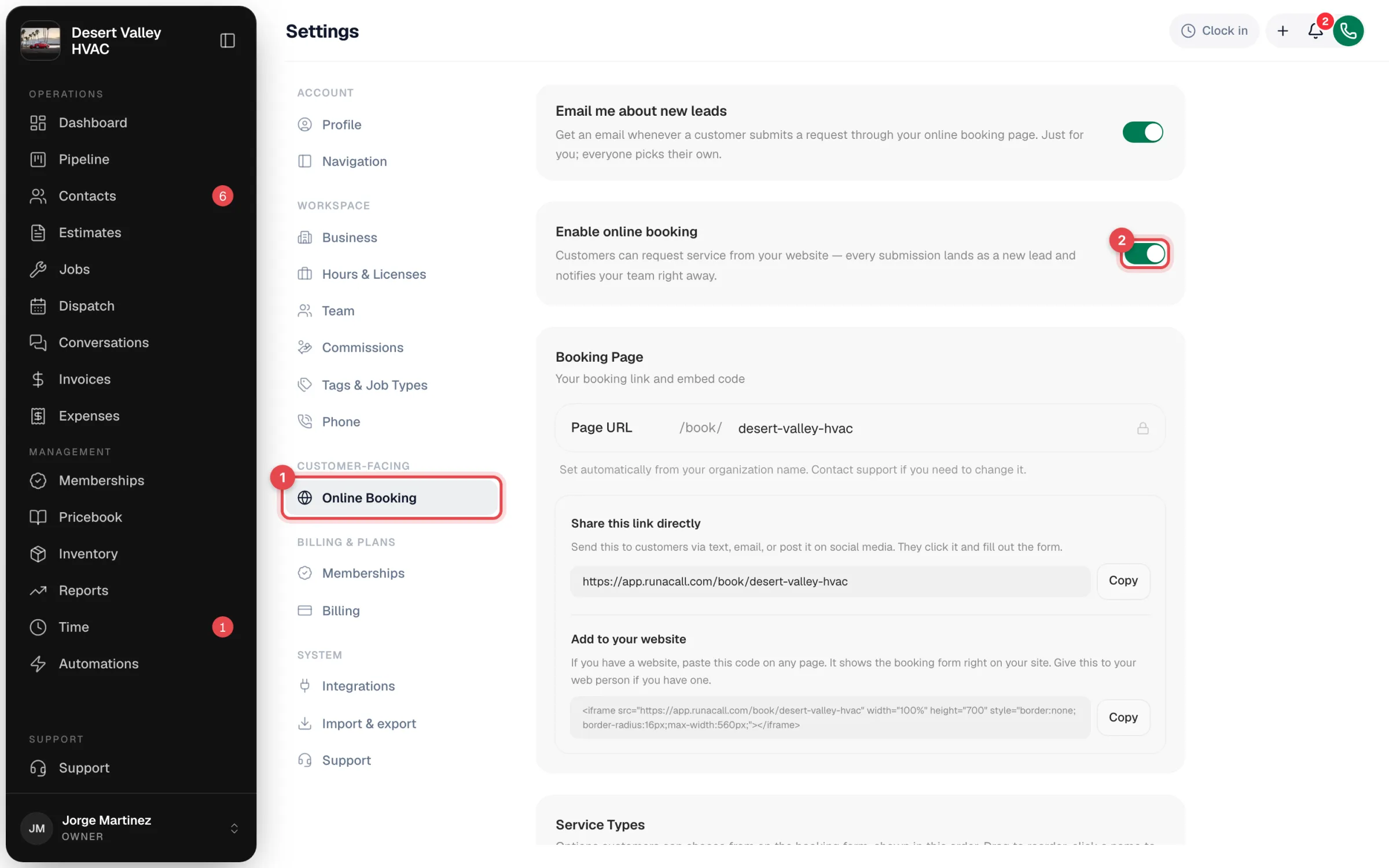
Once it's on, three more cards appear: Booking Page, Service Types, and Confirmation Message.
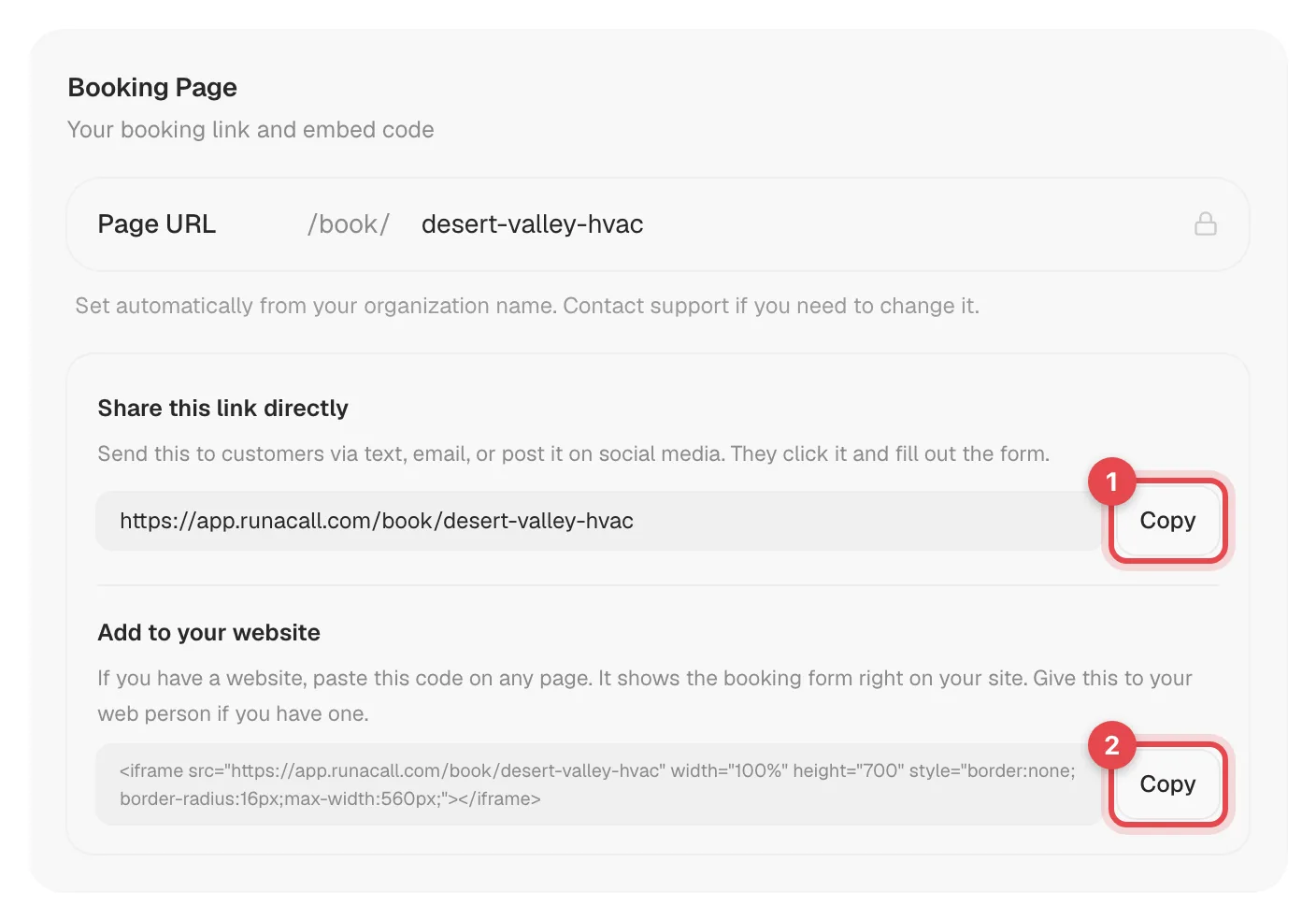
Copy your booking link
The Booking Page card shows your link. The last part — for example desert-valley-hvac — is set automatically from your company name and can't be edited here. If you need a different one, contact support.
- Share this link directly — click Copy and paste the link into a text, an email, your Google Business Profile, or a social post.
- Add to your website — click Copy to get a snippet of code that shows the booking form right on a page of your website. See Adding the booking form to your website.
Check the services and the confirmation message
Before you share the link, make sure the list customers choose from matches what you do, and that the message they see after submitting sets the right expectation:
Know where requests show up
Every new request shows up right away in the notifications bell (top right) for owners, admins, and dispatchers — for example New URGENT booking request with the customer's name, service, and phone. Click it to open the new lead.
The Email me about new leads switch at the top of this page is a personal setting each teammate controls. Requests sent from the booking page are delivered to the notifications bell, so keep an eye on the bell rather than your inbox.

What customers fill in
The form has two short steps. See What customers see on your booking page for a walkthrough.
| Field | Required? |
|---|---|
| What service do you need? | Yes — one choice from your list |
| Urgency | Yes — Routine (the default), Urgent, or Emergency |
| Name | Yes |
| Phone | Yes — a 10-digit US number |
| Optional | |
| Service address, City, State, Zip | Optional |
| Details | Optional |
What happens next
Each request becomes a lead in Contacts with a pinned note of everything the customer entered. Nothing is scheduled for you — someone in the office calls the customer back and books the job. See Handling online booking requests.
Good to know
- Customers pick a service, not a time. The booking page doesn't show your calendar or open time slots.
- The Customer portal link card on the same page is a separate link, for customers to sign in and see their history. Turning online booking on or off doesn't affect it. See The customer portal.
- "This URL slug is already taken" when you turn booking on means another company already uses that link. Contact support and we'll set a different one.