
The website widget puts a Text us button in the corner of every page of your website. A visitor types their name, mobile number and a message, and it lands in your Messages inbox as a text conversation from your business number. Your team answers it like any other text. It's on from the start — nothing shows on your site until the code is there, and the switch below turns it off if you ever need to.
Before you start
- Business texting has to be set up and registered. See Registering your business for A2P 10DLC.
- You need to be an owner or admin.
- You (or whoever manages your website) need to be able to add one line of code to your site.
Turn it on and set it up
Go to Settings → Online Booking and open the Website widget card. The preview at the top shows the button as visitors will see it; click the pill to open the panel.
| Setting | What it does |
|---|---|
| Show the widget on my site | On from the start. Turn it off to hide the button everywhere, even if the code is still on your site. |
| Button label | The words on the pill. Text us by default. |
| Greeting | The line at the top of the panel when it opens. |
| Corner | Bottom right or bottom left. |
| Color | Your brand color by default. |
| Avatar | Your logo by default. Upload photo to use a team member's face instead; Use my logo to go back. |
| Instant reply | Switch on to text the visitor back the moment they submit. Write the wording below it; you can use {{business.name}} and {{customer.first_name}}. It goes out from your texting number. |
Changes save on their own and show in the preview.
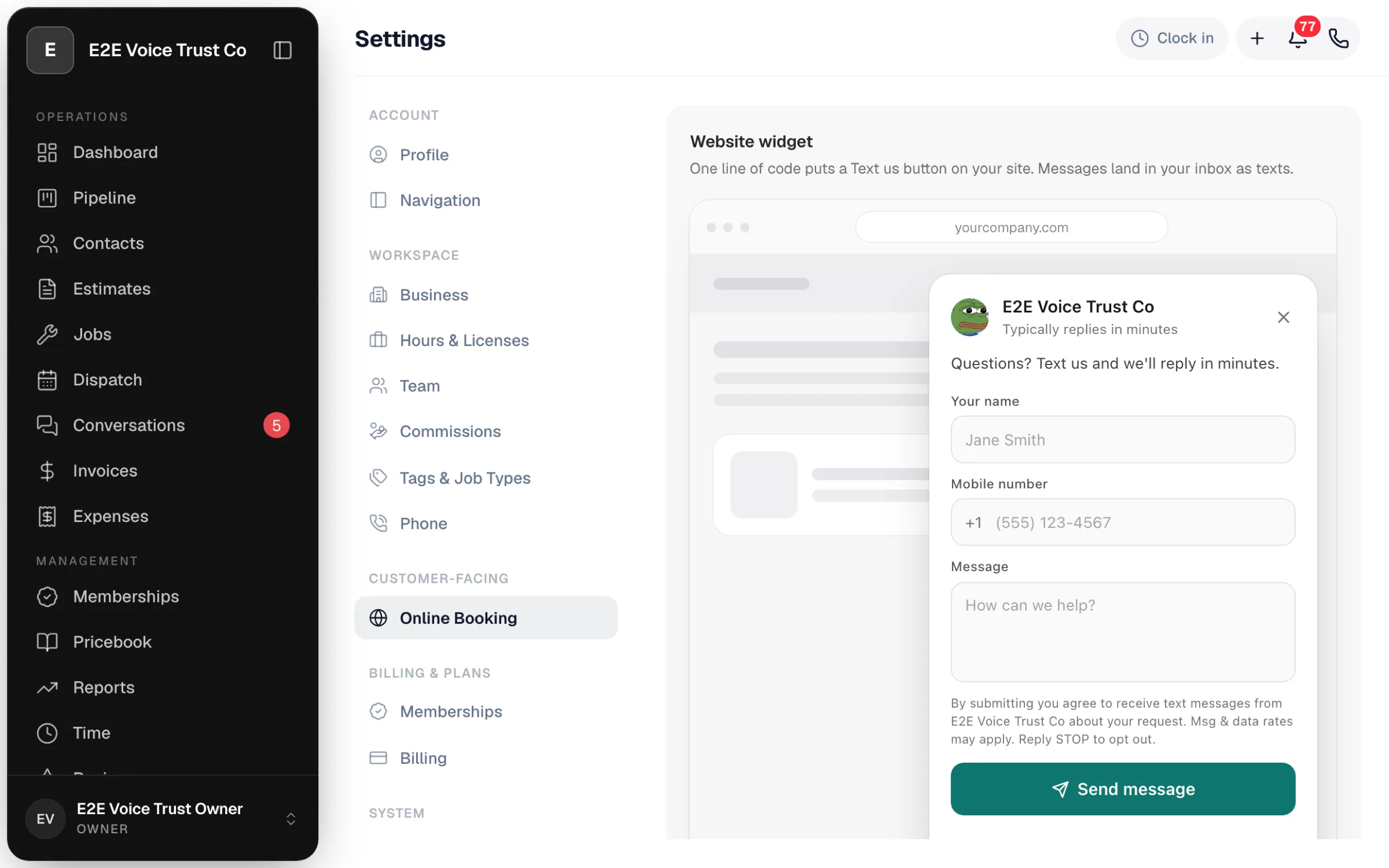
Add the code to your website
Under the preview, click Copy next to the embed code. It's one <script> line. Paste it just before </body> on every page where you want the button, or send it to whoever manages your site. Most website builders have a "Custom code" or "Footer code" setting that adds it to every page at once.
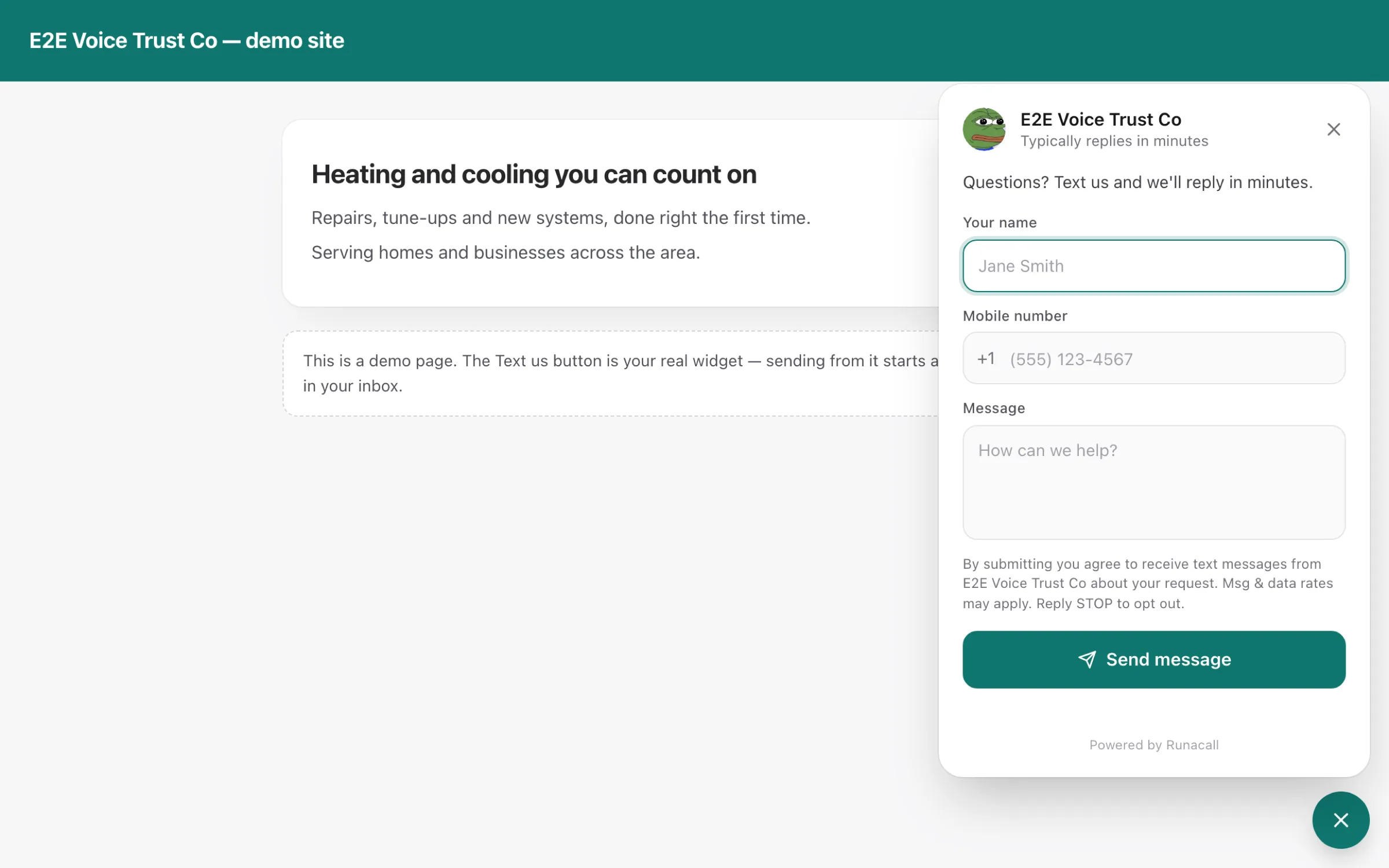
Then click Open a test page. It's a demo page with your real button on it, so you can try the whole thing before your site is updated.
The test page is live. A message sent from it starts a real conversation in your inbox and sends the instant reply to the number entered.
What visitors see
- The pill in the corner, with your label and color.
- A panel with Name, Mobile number and Message. The number is formatted as they type; for a number outside the US they type + first.
- A consent line: By submitting you agree to receive text messages from (your business). Reply STOP to opt out.
- A Send message button.
After sending, the panel shows their message and We'll text you back at (their number). The device remembers it for a day, with a Send another message button.
What happens in Run a Call
- A new lead is created with the name and number they gave, or the message is matched to an existing customer with that phone number.
- The message appears in Conversations → Messages with a Website chip. Hover the chip to see which page of your site it came from.
- Your team texts back as normal. See Sending and receiving SMS.
- If Instant reply is on, the visitor gets that text right away. A customer who sends several messages gets the instant reply once every ten minutes, not once per message.
- On Reports → Marketing attribution, these leads show the source Website widget. See Marketing Attribution report.
The AI text responder doesn't answer website messages, even when it's on. Visitors get the instant reply only; a person picks up the conversation from there. See AI text replies.
Troubleshooting
| What you see | Why, and what to do |
|---|---|
| The button isn't on the site | Show the widget on my site is off, texting isn't set up yet, or your site is still serving the old script. Sites cache it for up to 5 minutes; wait and reload. |
| A visitor says the instant reply never arrived | Their number opted out, is a landline, or your texting registration isn't finished. Their message is still in your inbox. A text that couldn't be sent shows Not delivered; hover it for the reason. See Texts not being delivered. |
| The panel opens on the wrong side | Change Corner. The site picks it up within a few minutes. |
Good to know
- No code changes for updates. Label, greeting, color, avatar and corner update on your site on their own. Only the embed line itself stays fixed.
- Booking form and Text us are separate. The embedded booking form collects a service request; the widget starts a text conversation. You can use both. See Adding the booking form to your website.
- STOP works here too. A visitor who replies STOP stops getting texts from you, including the instant reply. See How customers can opt out of texts.