
Not everything on a tech's day is a job. Put team meetings, shop time, office closures and days off right on the dispatch board so everyone scheduling can see them.
The four kinds of block
| Choose | Use it for | What it does |
|---|---|---|
| Meeting | A huddle, a training, a vendor stopping by. | Shows a band on the board for everyone, or just the people you pick. Can repeat every week. |
| Keep time free | Shop time, truck stock, paperwork — "no jobs in this window". | Same as a meeting: a visible band that can repeat every week. |
| Office closed | Nobody works that day. | Gives everyone on the board the day off as a paid company holiday, and it shows on their Time page. Weekends are skipped. |
| Day off | Someone is out: a day off, a doctor visit, vacation. | Adds time off for the people you pick (all day, or certain hours), so the board treats them as off. |
Who can do this
- Meeting and Keep time free: anyone who can edit the dispatch board (owners, admins and dispatchers).
- Day off and Office closed: anyone who can edit time off (owners, admins and dispatchers by default).
Add a block
Open the window
Either:
- click an empty spot on a tech's row (or a time on the Calendar views) and choose Meeting, blocked time or day off, or
- click + at the top of the app and choose Meeting or time off.
Clicking a spot fills in that date and time for you.
Answer the questions
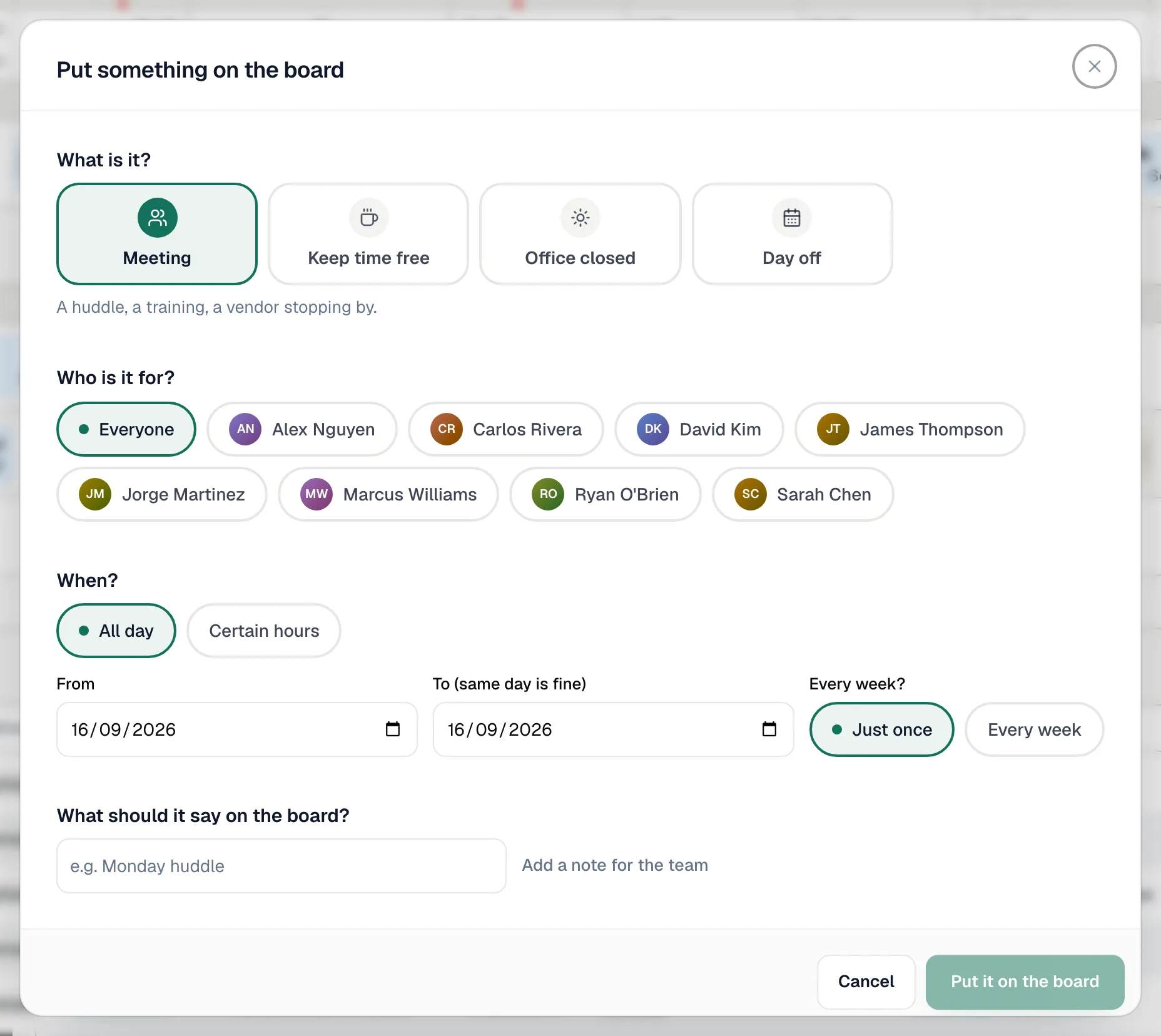
| Question | What to pick |
|---|---|
| What is it? | Meeting, Keep time free, Office closed or Day off. |
| Who is it for? | Everyone, or tap the people it applies to. For a day off this reads Who's out?. Office closed skips this question because it covers everyone on the board. |
| When? | All day with a From and To date, or Certain hours with a start and end time. |
| Every week? | Just once or Every week — meetings and keep-time-free blocks only. For a weekly block you can set Stop after, or leave it empty to keep going. |
| What should it say on the board? | The label the team sees, for example Monday huddle. You can also add a note. |
Click Put it on the board
The block appears straight away. For a day off, the confirmation reads Day off added. Nothing gets booked on them, and it's on their Time page.
Change or remove a block
Click the block on the board. The window opens with what you saved: change the times, the dates or the people, then click Save. Cancel next to it closes the window without changing anything, and Take it off the board on the left removes the block. For a weekly block, changes apply to every week, and Take it off every week removes the whole series.
Days off and office closures become regular time off. To remove one, click the person's Off tag or chip on the board and choose Remove day off. You can also change or remove them from Time → Time Off or the person's Edit schedule panel. See Setting team working hours, time off and company holidays.
Good to know
- Meetings and keep-time-free blocks don't stop a drop. You can still drag a job over them, and the Heads up warning doesn't mention them — they're a visual reminder. Days off and office closures do trigger the warning, because they count as the tech being off.
- Office closed covers the people on the dispatch board. Office-only staff who don't appear on the board aren't included. To choose exactly who is off, use Time → Time Off → Company holiday.
- Lunch breaks: add a weekly Keep time free block for the lunch window instead of changing your business hours.