
Tell Run a Call when each person works and when they're out, and the dispatch board does the rest: it stripes the hours a tech isn't working, greys out anyone who is off, warns you before you book them, and keeps Runny from suggesting them.
There are three pieces:
| Piece | What it's for | Where |
|---|---|---|
| Weekly hours | Each person's normal working days and times. | Settings → Team → ⋯ → Edit schedule |
| Time off | Vacations, sick days, half days, training — one person, specific dates. | Time → Time Off, Edit schedule, or the dispatch board |
| Company holiday | Everyone (or a group) off on the same dates. | Time → Time Off → Company holiday, or Office closed on the board |
Set someone's weekly hours
Who can do this: owners and admins.
Open the team list
Go to Settings → Team. On the Members tab, click ⋯ on the person's row and choose Edit schedule.
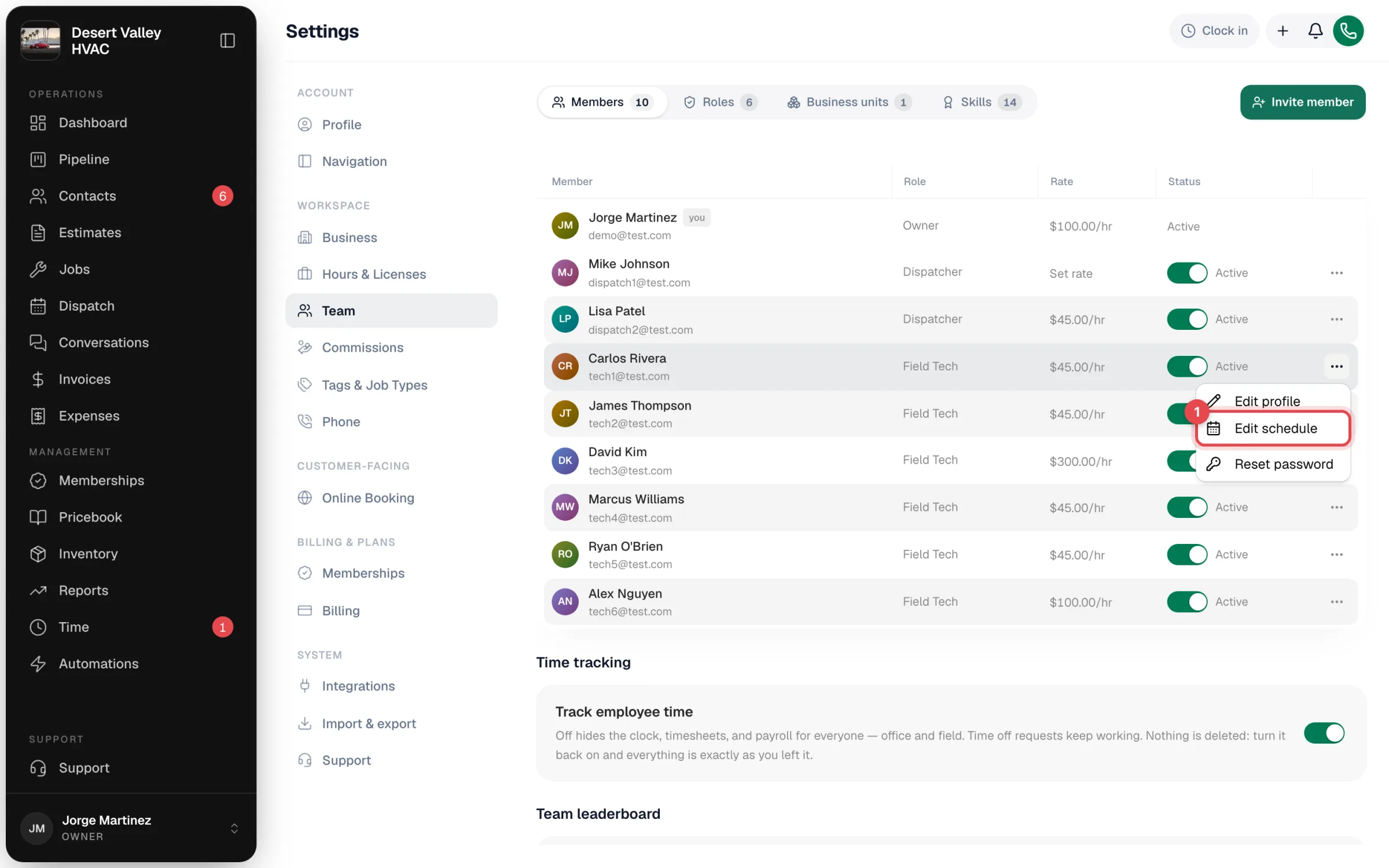
The menu isn't shown on the owner's row or on your own row.
Set their working days
Under Weekly Hours, switch each day on or off and choose the start and end time. Days switched off show Off. Changes save on their own.
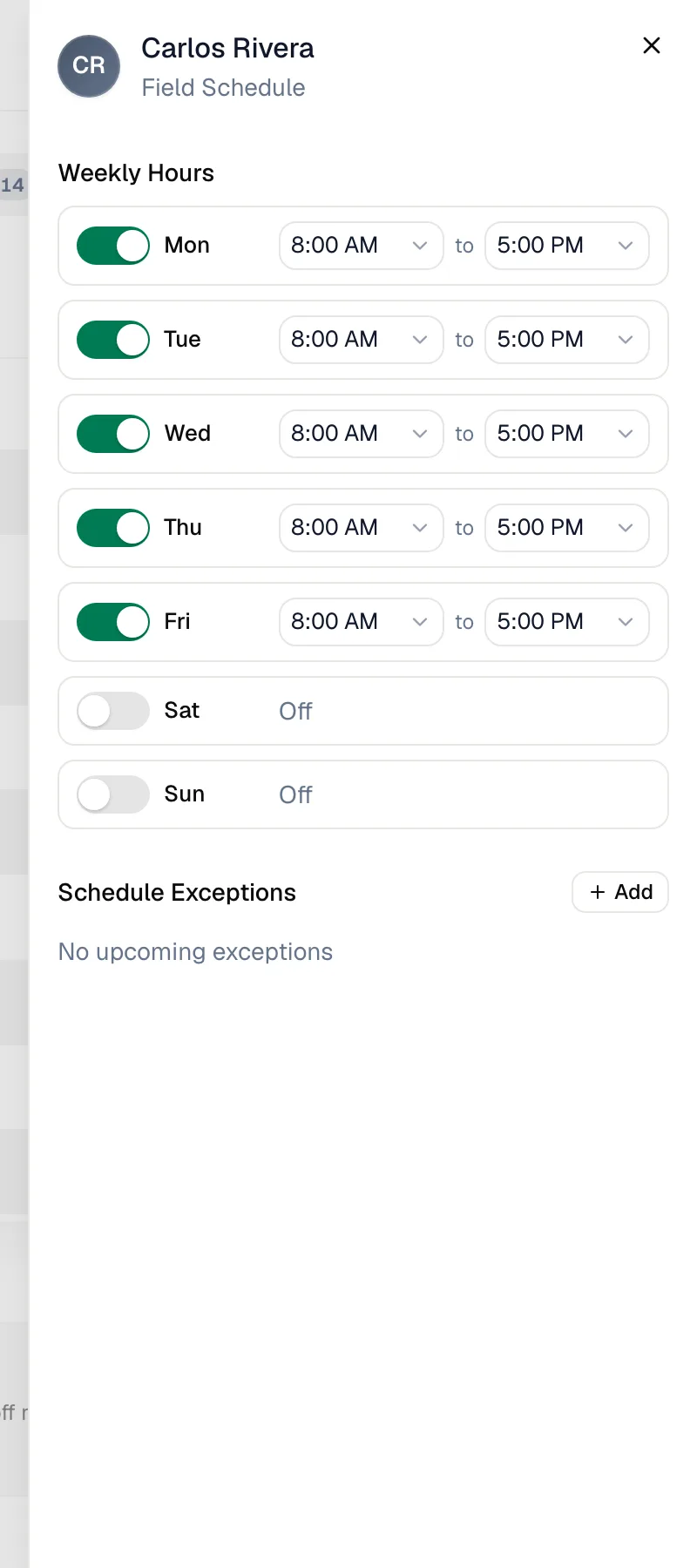
If you never set weekly hours for someone, the board treats them as always available — no striped hours and no outside working hours warnings.
Add a one-off change (optional)
Under Schedule Exceptions, click Add, then pick the Start Date, End Date and Type, add a note if you like, and click Add Exception. Exceptions you add here are approved straight away.
| Type | What the board does |
|---|---|
| Vacation, Sick Day, Holiday, Training, Unpaid, Other | The person is off all day. |
| Half Day | Enter the hours they're away. That window is blocked; the rest of the day is normal. |
| On-Call | Enter the hours they're available that day, even outside their normal hours. |
Handle time-off requests
Techs ask for time off from the mobile app (Request time off). See Requesting time off from the app.
Open Time Off
In the sidebar, go to Time and open the Time Off tab. The tab shows how many requests are waiting.
Review the requests
Requests lists every request with the dates, type and note. Filter by Pending, Approved or Denied, or switch to Calendar to see who's out when.
Approve or deny
Click Approve (confirm in the Approve time off window) or Deny. The tech gets a notification in the app.
Only approved time off shows on the dispatch board. A pending request doesn't block anything yet.
Approving and denying requests is for owners and admins.
Add a company holiday
Who can do this: owners and admins.
Open the holiday window
Go to Time → Time Off and click Company holiday.
Fill it in
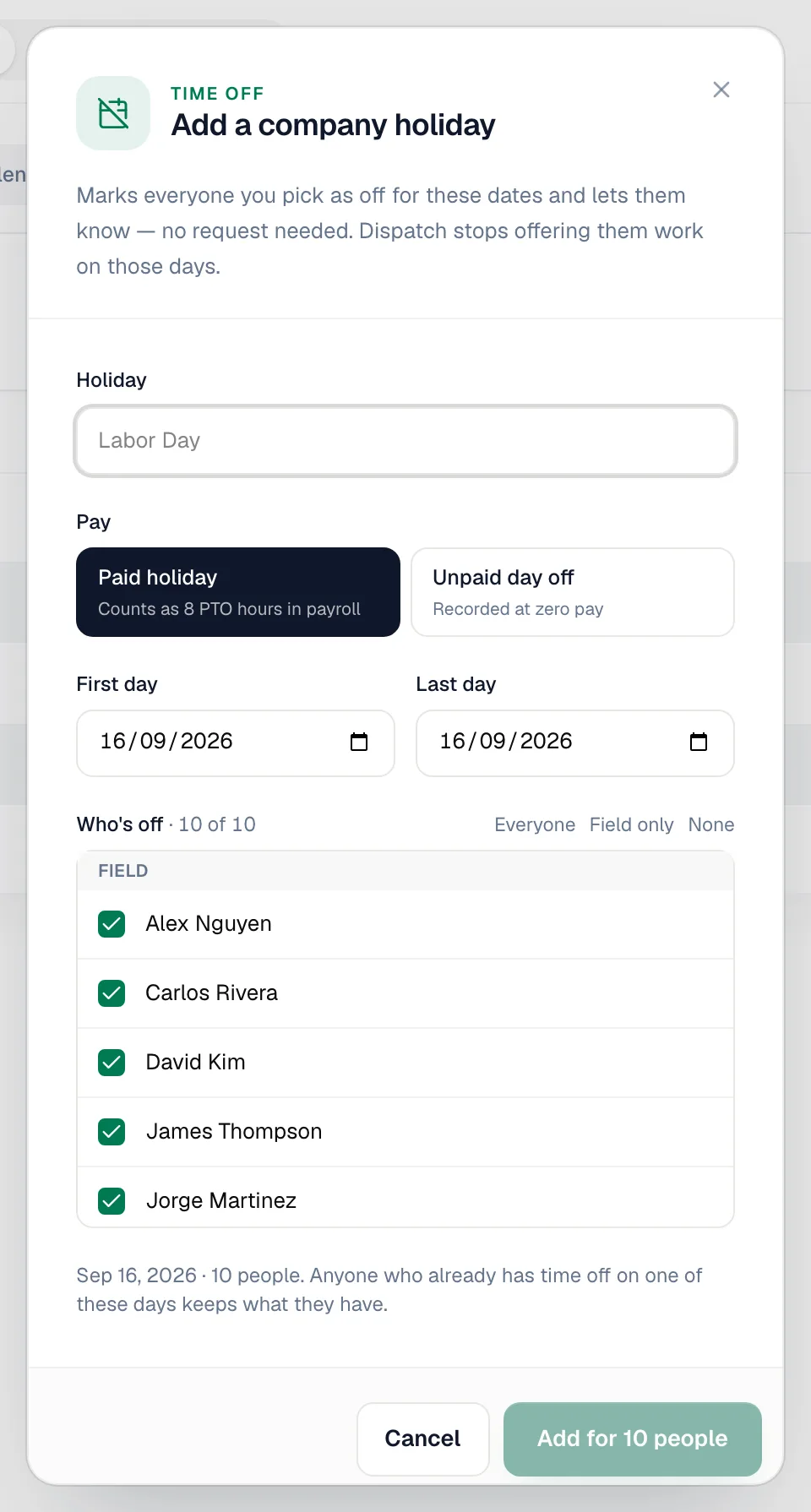
| Field | What to enter |
|---|---|
| Holiday | The name, for example Labor Day. |
| Pay | Paid holiday (counts as 8 PTO hours in payroll) or Unpaid day off (recorded at zero pay). |
| First day / Last day | The dates. Up to 30 days. If the range includes a weekend you can choose to include those days. |
| Who's off | Tick people, or use Everyone, Field only or None. |
Add it
Click Add for N people. Everyone you picked is marked off for those dates and notified — no request needed. Anyone who already had time off on those days keeps what they had. The confirmation message has Undo if you picked the wrong dates.
Add time off from the dispatch board
Dispatchers can do this too, without leaving the board. Click an empty spot on the board (or use + at the top of the app → Meeting or time off) and choose:
- Day off — pick the person and dates. It goes on their time off, so nothing gets booked on them.
- Office closed — everyone on the board gets the day off as a paid holiday. Weekends are skipped.
See Blocking time on the dispatch board.
Remove approved time off
Plans change. You can take approved time off back from the same places you see it. This is for owners, admins and dispatchers (anyone whose role can edit timesheets).
On the dispatch board:
- Click the person's Off tag on the Timeline, or their chip under the date on a Calendar view (for example James off).
- A small window shows who it is and which day. Click Remove day off. For a half day, it reads Remove time off.
- Confirm in the Remove this day off? window.
From Time → Time Off:
- Open Requests and find the approved time off, or click it on Calendar.
- Click Remove.
- Confirm with Remove day off, or Remove days off for a stretch of several days.
The person is bookable again right away, and they get a notification that their time off was removed by the office.
Only today and future days can be removed. For a stretch that has already started, Remove takes off the days still ahead in one go, and Days already passed stay on the record. Time off that is entirely in the past has no Remove button.
You can still delete a single exception from Settings → Team → ⋯ → Edit schedule, under Schedule Exceptions.
How it shows up
| Where | What you see |
|---|---|
| Timeline · Day | Time outside weekly hours is striped. A person who is off is greyed out with an Off tag. A half day stripes the away window. |
| Timeline · Week / Month | The day's cell reads Off or Away with the times. |
| Calendar views | Chips under the date, like Sarah off or Sarah away 12p–6p. |
| Dropping a job on them | A Heads up warning, for example Carlos is off this day. See Avoiding scheduling conflicts. |
| Runny | Doesn't suggest people who are off. |
| Customers choosing their own time after approving an estimate | People who are off aren't counted as available. |
| Your phone line | Company holidays that cover at least half the team can count as "closed" in call flows and AI Receptionist transfers, when that option is turned on there. |