
Connect your own Google Calendar or Outlook to Run a Call and two things happen: the jobs you're assigned appear in a "Run a Call" calendar in your account — on your phone, next to everything else in your life — and the office sees when you're busy with outside appointments, so they don't book you over the dentist or your kid's game. Each person connects their own calendar.
Who can use it
Everyone on your team — owners, admins, dispatchers and field techs — from their own profile. Each person can connect one calendar account, and only they can change or disconnect it.
Open your calendar settings
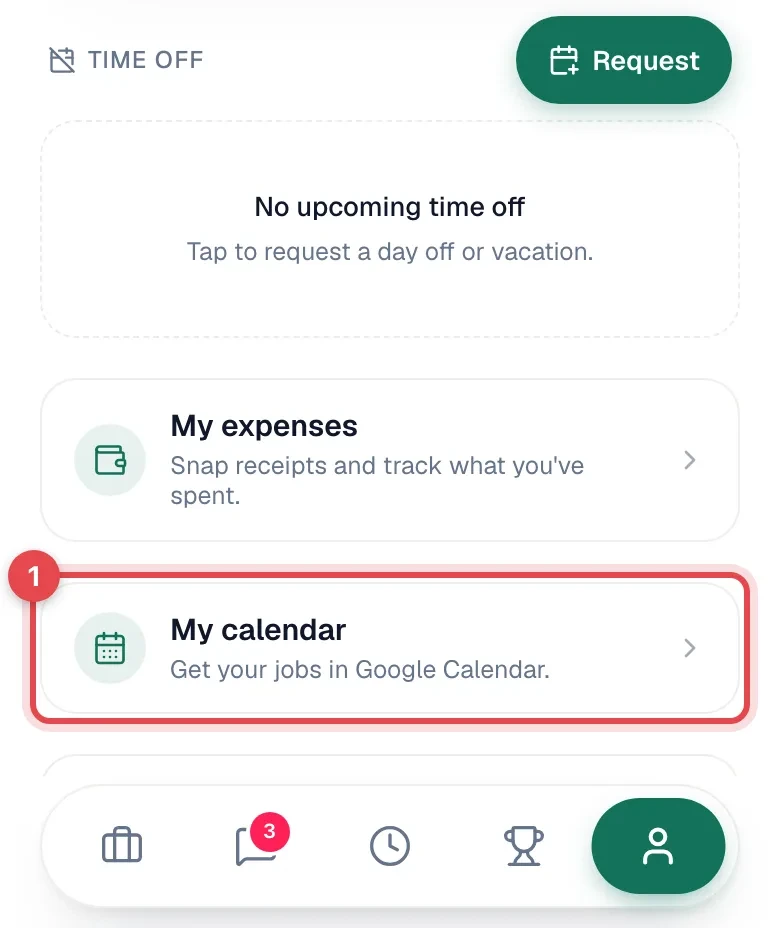
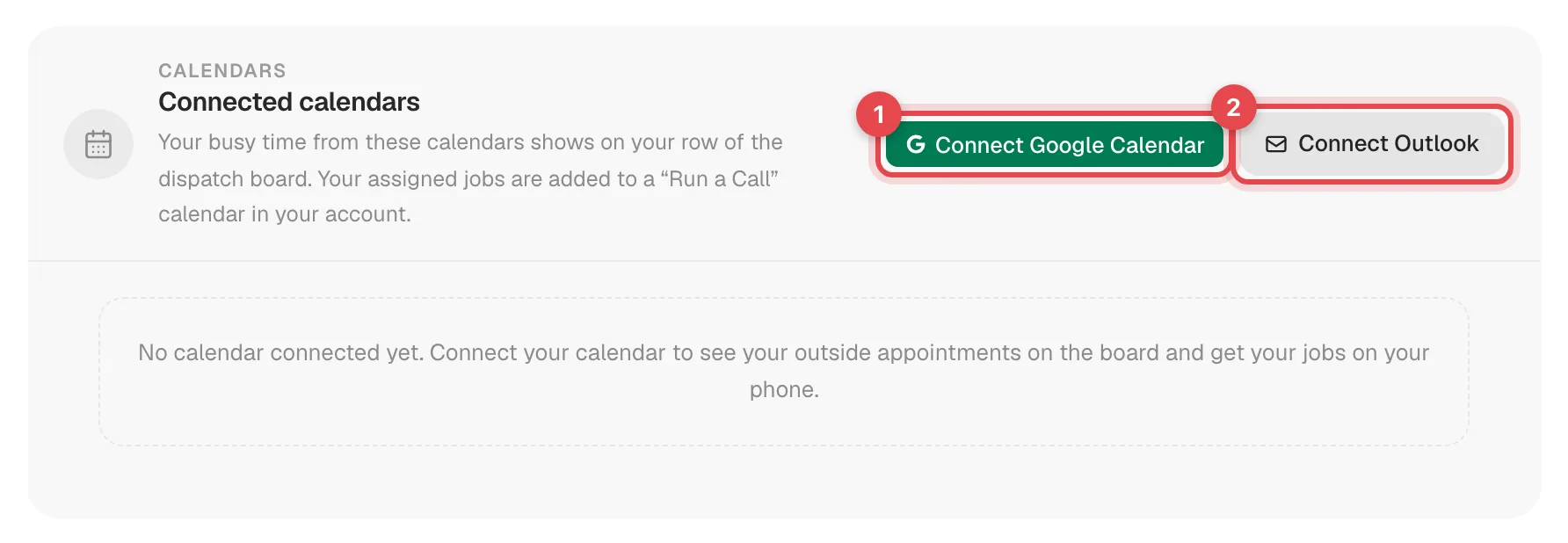
- Office: go to Settings → Profile and find the Connected calendars card.
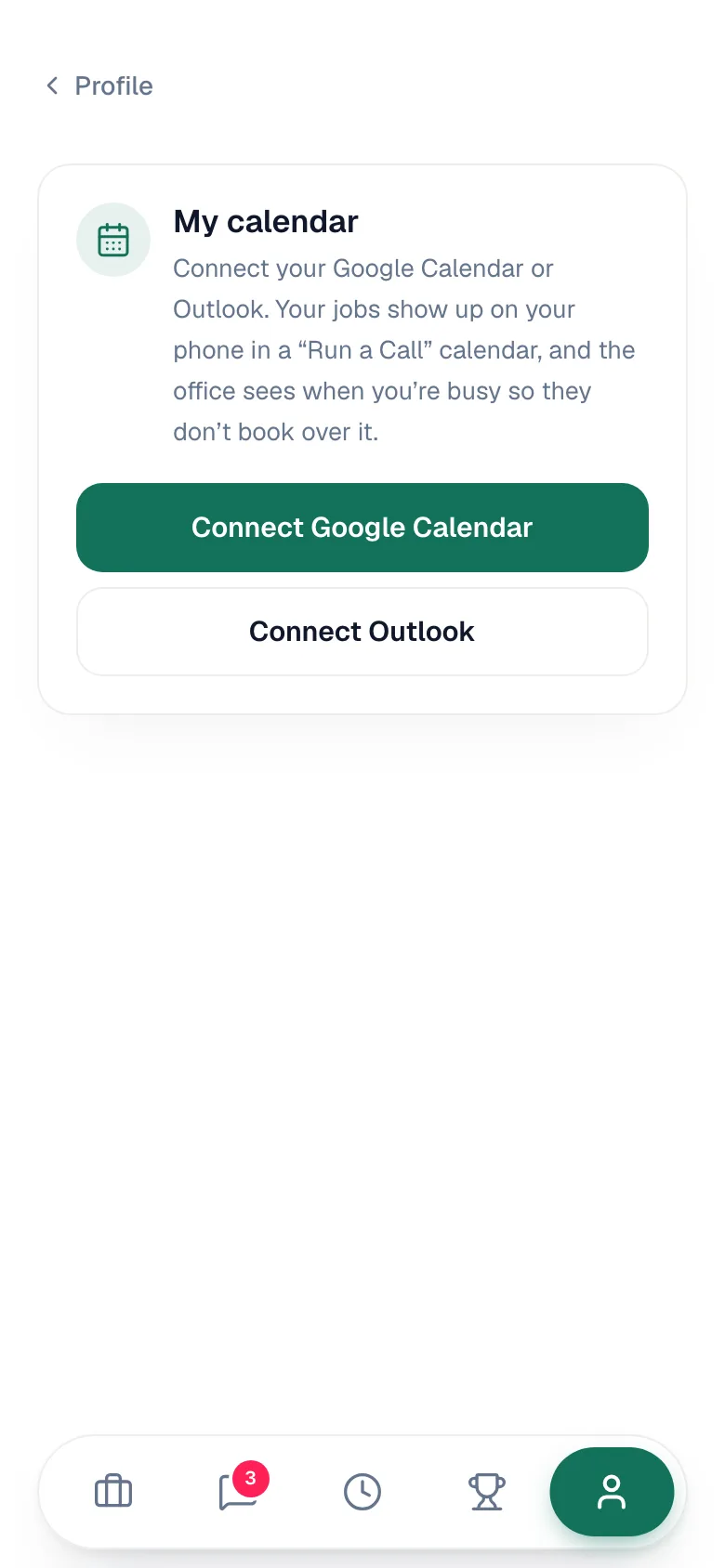
- Field app: tap the profile tab, then My calendar.
Connect your account
Click Connect Google Calendar or Connect Outlook, sign in to that account, and allow access.
You're brought back with a "Connected" message, and a "Run a Call" calendar is added to your account. Your assigned jobs for the next 90 days are added to it straight away, and your busy time is read for the first time.
Work or school Microsoft account? Some companies only let employees connect apps their IT admin has approved. If you see "Your company's Microsoft admin has to approve Run a Call first", ask your IT admin to allow the app, then try again. Contact support if they need an approval link.
If you see a "Please allow…" message, connect again and leave every box ticked — Run a Call needs to read your free/busy time and write to its own calendar.
Choose what's shared (optional)
Once connected, your row shows Connected, when busy time last synced, and Sync now (Sync in the field app), Settings and Disconnect. Click Settings:
| Setting | What it does |
|---|---|
| Busy time comes from | Tick which of your calendars count as busy. Your Main calendar is ticked to start with; at least one must stay ticked. |
| Show my busy time on the board | On: your busy time appears on your row of the dispatch board. |
| Add my jobs to this calendar | On: jobs assigned to you are written to the "Run a Call" calendar. |
Both switches start on. Click Save.
What goes where
Into your calendar (Run a Call → you)
Each job visit you're assigned becomes an event in the "Run a Call" calendar:
- Title: job number, customer and job type — with Day 2 of 3 on multi-day jobs.
- Location: the service address, so you can tap for directions.
- Details: the customer's phone, the problem description, crew notes, whether you're a helper, and a link to open the job in Run a Call.
The event follows the job: it moves when the job is rescheduled, changes when your assignment changes, and is removed if the job or visit is cancelled or you're taken off it. Every night Run a Call also re-checks your next 90 days so the calendar stays accurate.
The "Run a Call" calendar is one way. Moving, editing or deleting an event there doesn't change the job — and the next time the job is updated in Run a Call, the event is rewritten to match. Make changes in Run a Call.
Onto the dispatch board (your calendar → the office)
Busy time from the calendars you ticked shows on the board — only as "Busy". Event titles, locations and details are never shared.
- Timeline: a striped Busy block on your row, at the right times (all-day events fill the row). Tentative events look lighter.
- Calendar views: a busy block marked with your name.
- Booking over it: busy blocks are a heads-up, not a lock. Dispatchers can still schedule you during busy time — they get a Heads up warning when they do, for example Carlos has "Busy" on their Google Calendar 9:00 AM to 10:00 AM. They can still take the job — just check with them.
Busy time refreshes about every 15 minutes. Click Sync now to refresh right away.
For dispatchers: see who's connected
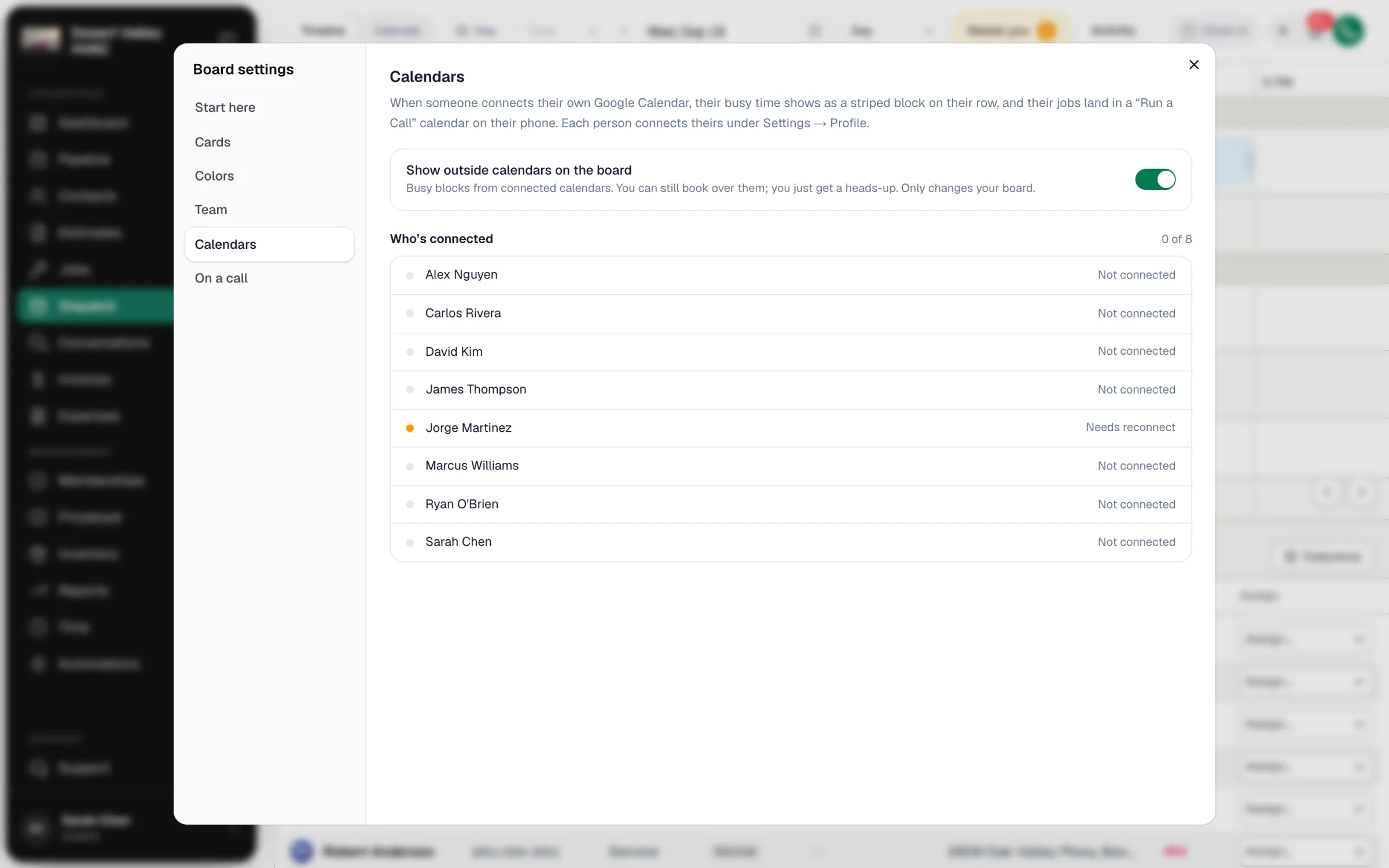
On Dispatch, open Board settings (the gear) → Calendars. You'll see who has connected a calendar (and anyone who needs to reconnect), plus Show outside calendars on the board — turn it off to hide busy blocks. That switch only changes your board.
The list in this section shows Google next to everyone who has connected, including people who connected Outlook.
Disconnecting
Click Disconnect on your calendar row. Your busy time stops showing on the board and jobs stop being added. Tick Keep the "Run a Call" calendar and its events in my account to keep what's already there; otherwise it's removed. To switch to a different account, disconnect first, then connect the new one.
If something goes wrong
| You see | What to do |
|---|---|
| Reconnect needed (field app: Needs reconnecting) | Access to your calendar expired or was removed (for example after a password change). Click Reconnect Google Calendar or Reconnect Outlook and sign in again. |
| Sync problem — "Last sync didn't finish" | Click Sync now (Sync in the field app). If it keeps failing, reconnect. |
| "You already have a calendar connected" | Disconnect the current one before connecting another account. |
| "Please allow all three permissions…" or "Please allow calendar access…" | Connect again and leave every permission ticked. |