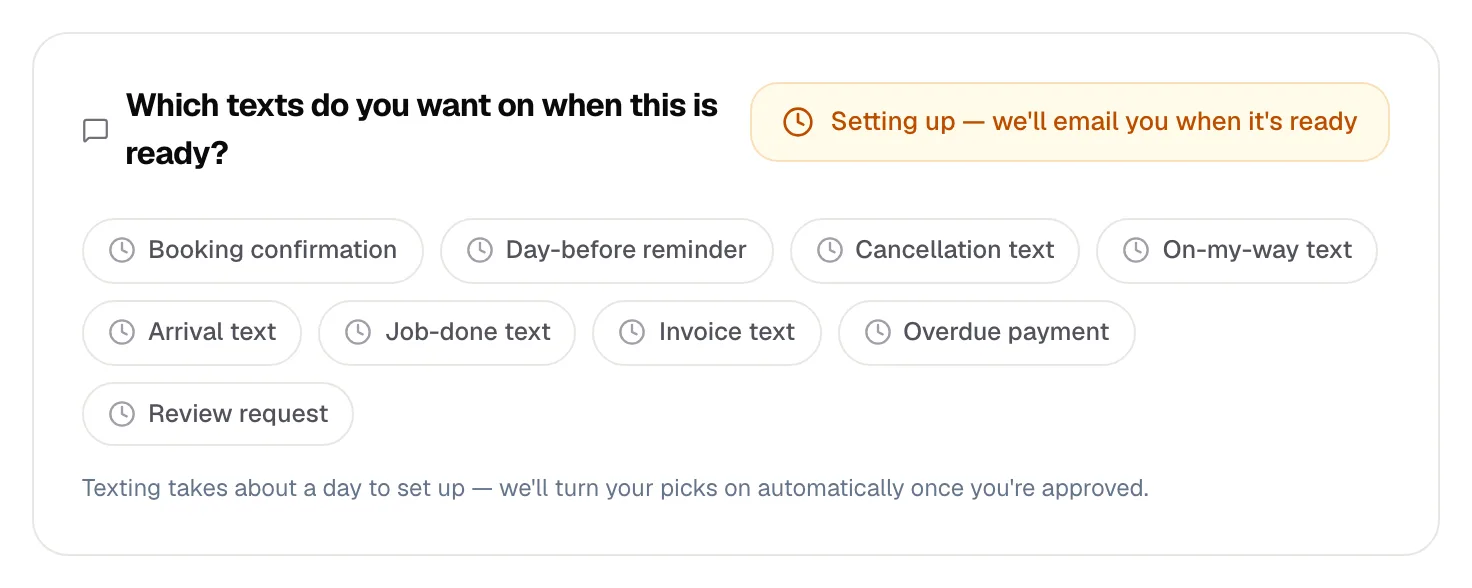
When you book, move or cancel a job, Run a Call can keep the customer in the loop automatically: a confirmation when the visit is booked, a reminder the day before, a heads-up if the time changes, and texts as the tech heads over and finishes. This article explains exactly when each message goes out and how to hold them back for a tentative booking.
Before you start
- Texts need business texting set up. That means the Messaging add-on and an approved texting registration for your number. Until then, the Automations page shows Set up business texting. See Registering your business for A2P 10DLC.
- Each message has its own switch on the Automations page. Owners, admins and dispatchers can turn them on or off. See Enabling SMS-based automations.
- The customer needs a mobile number on file and must not have replied STOP.
The messages, in order
| Message | Switch on the Automations page | Goes out when |
|---|---|---|
| Booking confirmation | Text a booking confirmation | A job gets its first date, time and technician — from the New job form, the dispatch board or Schedule & assign on the job. It waits 5 minutes first, and doesn't send if the tech, date or time changed in those 5 minutes. |
| Reminder the day before | Text a reminder the day before | Every morning, for visits scheduled for the next day. |
| Reminder email | Email a reminder before each appointment | The day before the visit, by email. Doesn't need texting. |
| Reschedule text | — (see below) | You move a job the customer was already told about to a different day, or by 2 hours or more. It waits 2 minutes so quick adjustments on the board send one text with the final time. |
| On-my-way text | Text the customer when the tech is on the way | The job moves to En Route (the tech taps On My Way). See The automatic 'on my way' text. |
| Arrival text | Text the customer when the tech arrives | The job moves to On site (the tech taps Arrived on Site). |
| Job-done text | Text the customer when the job's done | The job moves to Completed. |
| Cancellation text | Text the customer when a job is cancelled | You cancel a job the customer had already been told about. |
A few details:
- Small moves don't text. Sliding a visit an hour later on the same day doesn't send a reschedule text. Moving it to tomorrow, or by two hours or more, does.
- No double texts. If the same text already went out for that job in the last few minutes (for example the tech tapped On My Way twice), the second one is skipped.
- Cancelling a job that was never confirmed doesn't text the customer.
How the appointment time is written
The booking confirmation, the day-before reminder (text and email) and the reschedule text tell the customer when to expect you. How the time reads depends on the arrival window you booked:
| The visit is booked | The customer reads |
|---|---|
| With a window of 4 hours or less, for example 12:00 PM to 2:00 PM | between 12:00 PM and 2:00 PM |
| With a longer window, or with only a start time | at 8:00 AM |
So a customer booked for a two-hour window isn't told to expect you at the very start of it. Long windows, such as a full-day install, only show the start time.
This works with your own wording too. If you rewrote one of these messages and it says "at" before the time, the customer still gets between … and … for a short window. You don't need to change anything. See Changing the wording of a built-in message.
Book quietly with the Notify customer switch
Sometimes you pencil a job in before it's confirmed. Turn off Notify customer so the customer isn't told about a time that might change.
You'll find the switch:
- on the New job form, under Schedule,
- on the job page, in the Schedule & technician card,
- in the job panel when you click a job on the dispatch board.
While it's off the job shows Scheduling texts paused, and these messages are held back for that job:
- the booking confirmation,
- the day-before reminder (text and email),
- the reschedule text.
The on-my-way, arrival, job-done, invoice and review texts still go out — those follow the actual visit.
When the time is firm, turn Notify customer back on. If the customer hasn't had a confirmation yet, Run a Call asks Send confirmation text now? — choose Turn on & send text or Turn on without sending.
Tech notifications
When you assign a job to a different technician, that tech gets a New job assigned push notification in the mobile app. Moving a job's time for the same tech doesn't send one.
Good to know
- Where do I turn off the reschedule text? It isn't on the Automations page. To stop it for one job, turn off Notify customer before you move the job.
- Texting still being set up? While your registration is reviewed, the Automations page shows the texts you'll be able to use. Once texting is live, open Automations and check that each text you want is turned on.
- What does the customer see? A short text from your business number with the appointment date, the time or arrival window (see above) and the address.