
Pipeline is the card view of your work. Open it from the left navigation and you get three boards behind one pill switcher at the top:
| Board | What the cards are | What the column sets |
|---|---|---|
| Jobs | Every job | The job's status |
| Contacts | Every customer and lead | The lead status |
| Estimates | Every estimate | The estimate's status |
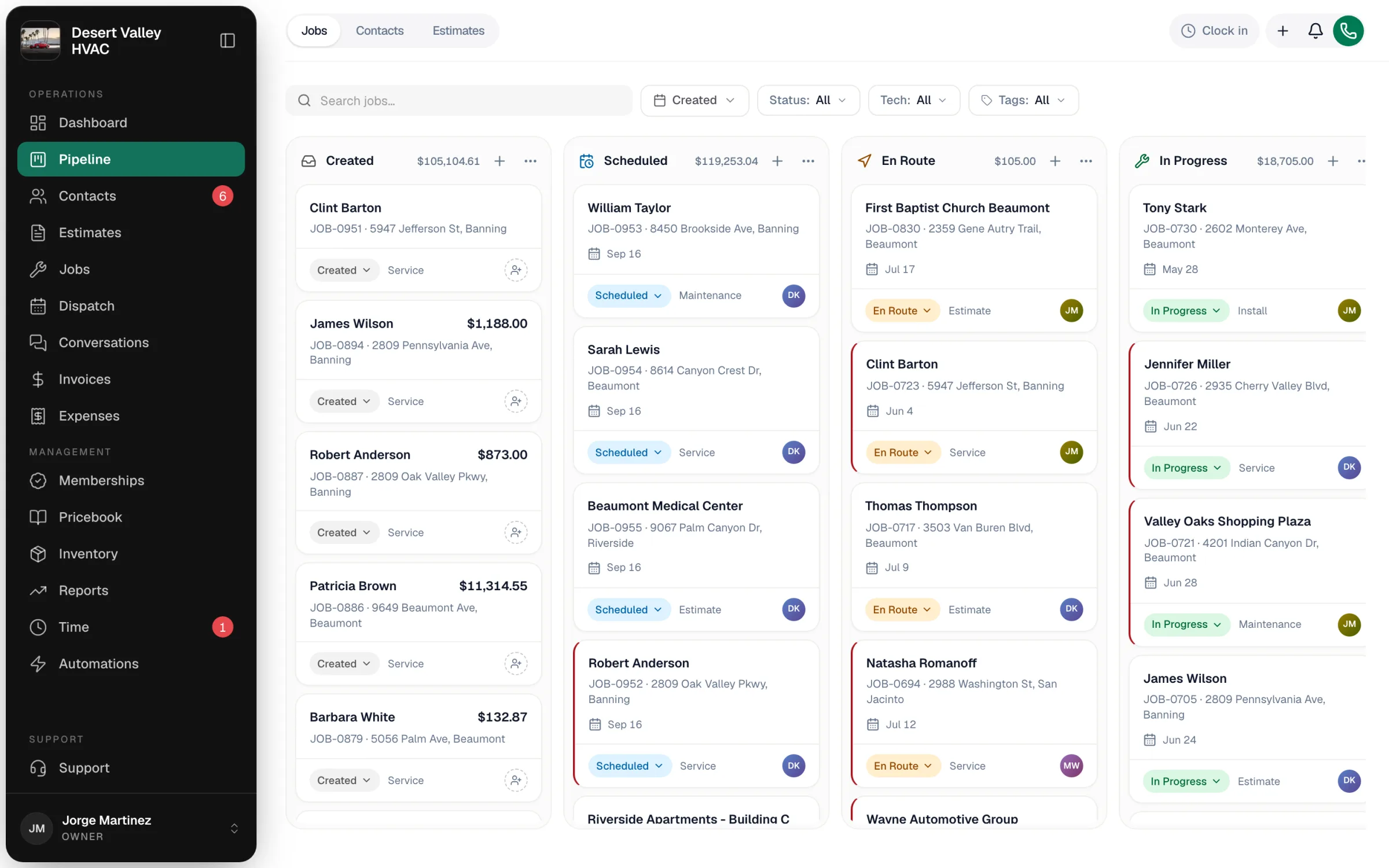
Each board has its own columns, and your shop decides what they are. Moving a card to a column writes the status behind it — the board isn't a separate tracker sitting next to your data, it is the data.
Moving a card
Two ways, both do the same thing:
- Drag it to the column you want.
- Open the status dropdown on the card and pick the new one.
Anything tied to that status — customer texts, timesheet entries, a job closing when it's paid — happens exactly as it would from the job page.
Cards move forward freely, and skipping steps is fine. While you drag, columns the card can't move into are dimmed. Moving a card backwards — say, a completed job back to Scheduled — is for owners and admins only, and only from the card's status dropdown: pick the earlier column, and confirm Move back to …? with Move anyway.
Dropping a job into a Cancelled column, or an estimate into a Declined column, asks Why did this job fall through? (or estimate). Tap one of the common reasons or type your own, then Save reason — or Skip when you're mid-call. Dropping an estimate into an Approved column opens the approval dialog first, so the sale is recorded properly.
What each column header tells you
The header carries the column name and — on the Jobs and Estimates boards — the dollar total of every card sitting in it. That's the fast read: how much money is stuck in "Waiting on parts" right now.
It also holds a + to drop a new card straight into that column, and the ⋯ menu for everything below.
Building your columns
Adding, renaming, reordering, and deleting columns is owner and admin only. Everyone else can move cards but can't reshape the board.
Add a column
Scroll to the right end of the board and click Add column.
| Field | What it does |
|---|---|
| Column name | What your team sees — Waiting on parts, Needs quote, whatever you actually say. |
| When a card lands here, mark the job as | The real status written to the record. Required. |
| Colour | The column's accent. |
| Icon | Optional. Leave it on Auto to match the status you picked. |
| Flag cards stuck here longer than | Optional. Enter a number of days and any card that sits that long gets an amber edge. Leave it empty to turn it off. |
Two columns can point at the same status. That's how you make a sub-step: Quoted — sent and Quoted — following up both mark the estimate as quoted, so you can track your own process without inventing statuses your reports don't understand.
Reorder columns
Hover a column header — the icon turns into a drag handle. Grab it and slide the column where you want. On a phone or tablet, use ⋯ → Move left / Move right instead.
Edit or delete a column
Click the ⋯ on the column header.
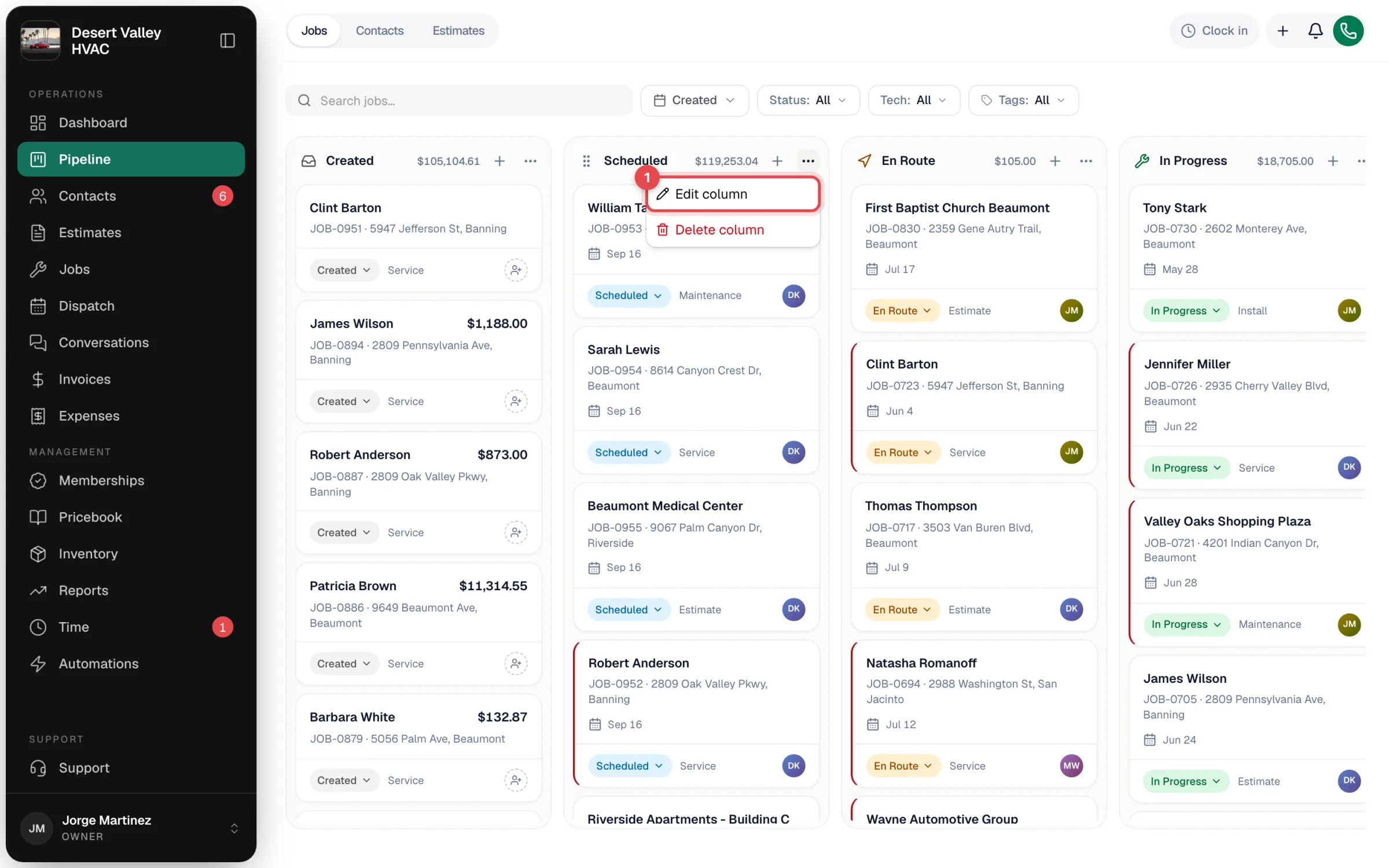
- Edit column reopens the same settings.
- Delete column asks where the cards in it should go first, so nothing gets orphaned. Pick the destination column, then confirm.
A board always keeps at least one column — the delete option is greyed out when you're down to the last one.
Filtering the board
Above the columns: search, Created (a date range), Status, Tags, and — on the Jobs board only — Tech.
The Tech list is built from who's actually on the board, so it doesn't fill up with names that have no work. Mine narrows to your own cards; Unassigned shows what still needs a tech.
The Status filter follows the board you're on — job statuses on Jobs, lead statuses on Contacts, estimate statuses on Estimates.
Boards load up to 500 cards at a time, so filter down on a busy month rather than scrolling.
The job's stage outside the board
A job's column also shows across the rest of Run a Call, so a sub-step like Awaiting parts isn't only visible on Pipeline.
| Where | What you see |
|---|---|
| Dispatch board | A small stage pill on the job's card, next to its status, in the column's colour. |
| Jobs list | The stage pill under the job's status, and a Stage filter above the list. The CSV export gets a Stage column, and the printout shows the stage under the status. |
| Mobile app | The stage pill under the job's status, and a Stage row in This visit for the tech (below). |
The pill only shows when the column's name says more than the status. A job sitting in a column called On site that writes On site shows just the status; a job in Awaiting parts (a second column that also writes On site) shows On site and Awaiting parts.
Techs can move a job between sub-steps
When a job's board has more than one column for the job's current status, the tech gets a Stage row on the job in the mobile app. Tapping it opens Stage: Pick where this job is. Its status stays On site, and the office sees the stage on the board. The list holds only the columns for the current status, so a tech can go from On site to Awaiting parts and back, but never change the status this way. Status changes stay on the status button, with every text and timer they trigger.
The Stage row needs a connection. Offline, it reads Needs a connection.
Use the stage in automations
Texts, emails and filters can use {{job.pipeline_stage}}, the name of the job's column, for example Awaiting parts. Moving a job between two columns of the same status doesn't change its status, so it doesn't fire When a job's status changes.